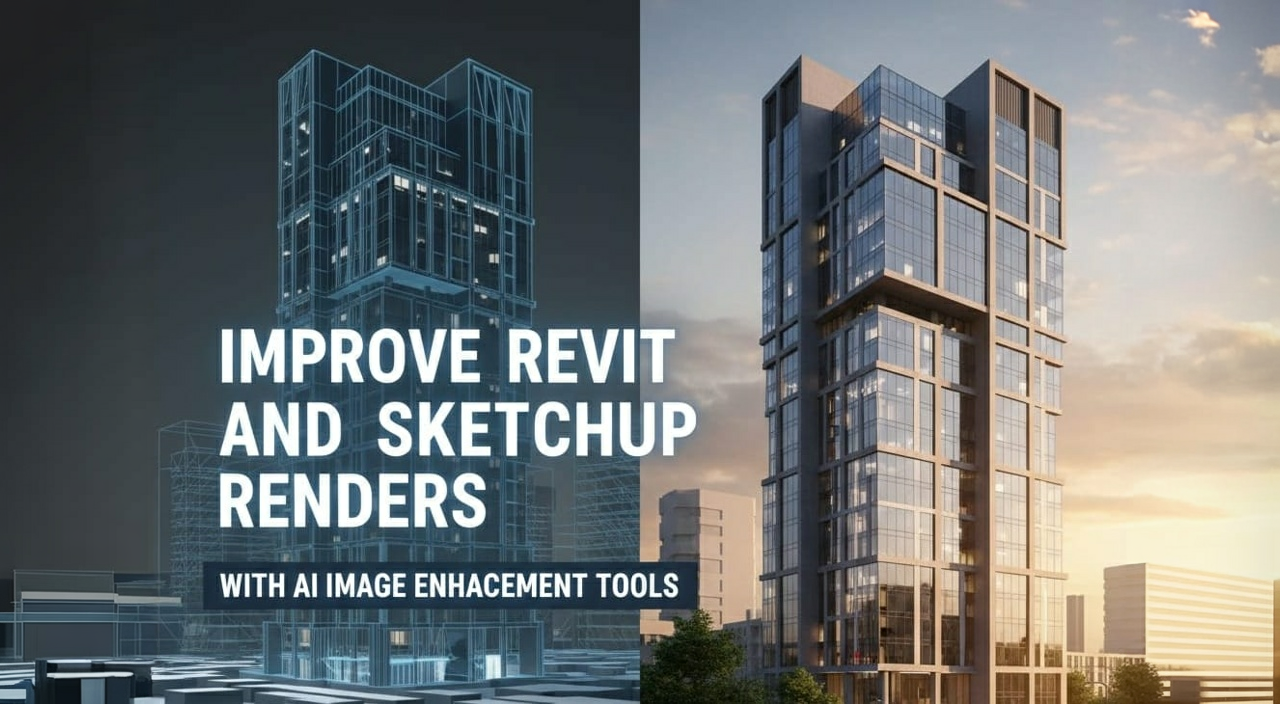
When you need your architectural render to stand out for a portfolio, client pitch, or high-resolution print upscaling becomes essential. RunDiffusion makes it easy to upscale and refine your renders using advanced AI tools like Magnific and Topaz. These AI upscalers sharpen detail, improve texture clarity, and can boost resolution up to 10,000 x 10,000 pixels, without requiring third-party software.
Whether you're refining an image generated with Nano Banana or enhancing a Revit or SketchUp export, these tools help deliver professional-grade results.
What You’ll Learn
- What makes Magnific and Topaz the best AI upscalers for architecture
- How to use AI render enhancer tools to prepare high-res visuals
- How to upscale renders directly on the RunDiffusion platform
- When to use upscaling in your workflow
Why Use an AI Render Enhancer for Upscaling?
Most base renders (especially at fast generation speeds) can lack resolution and fine detail. AI upscalers like Magnific and Topaz solve this by:
- Sharpening edges and textures
- Restoring lost micro-details
- Increasing resolution for print or presentation
- Improving the overall clarity and photorealism of your visuals
This is especially useful for architectural visualization, where materials, light behavior, and structure need to be crisp and readable at scale.
Tools Overview: Magnific vs Topaz
Magnific
Key Strengths:
- Designed specifically for high‑resolution upscaling and detail enhancement able to upscale images significantly (up to 10k x 10k resolution) while adding depth and texture.
- Especially praised in architectural‑visualization workflows for improving lighting, vegetation, and realism in 3D renders.
- Works well with architectural linework, glass, concrete textures and high‑detail surfaces when starting from a reasonably high‑quality base render.
Why this matters for architecture:
If your render needs to be presentation‑ready, printed large, or delivered to clients with high expectations, Magnific helps elevate image quality without reworking the model.
Topaz (Gigapixel AI / Photo AI)
Key Strengths:
- Built on AI trained with “millions of image pairs” to preserve sharp edges, textures and clarity when upscaling by large factors while minimizing artifacts.
- Strong controls for denoising, sharpening and preserving small text or architectural inscriptions in renders useful for close‑up shots of facades or interiors with intricate detail.
- Established tool with broad usage in photo‑real workflows architecture teams benefit from its reliability and control.
Why this matters for architecture:
When your deliverable needs extreme resolution (e.g., print boards, large format displays) or you’re working with exports that lack polish, Topaz offers strong upscaling and clarity fixes.
Which to Choose and When
- Use Magnific when you want to boost realism, add finer detail, and polish renders that already have good base quality.
- Use Topaz when your priority is upscaling resolution significantly, preserving fine textures and edges, or when you need robust control over denoising and sharpening.
- Both tools accept high‑resolution PNGs exports from CAD/BIM software and are suited for architectural visualization workflows.
How to Use AI Upscalers on RunDiffusion
You can use Magnific and Topaz as part of your render enhancement workflow. These tools are available on Pro and Enterprise Plans.
Step-by-Step:
Login at: https://app.rundiffusion.com/login

Navigate to: https://app.rundiffusion.com/runnit/home
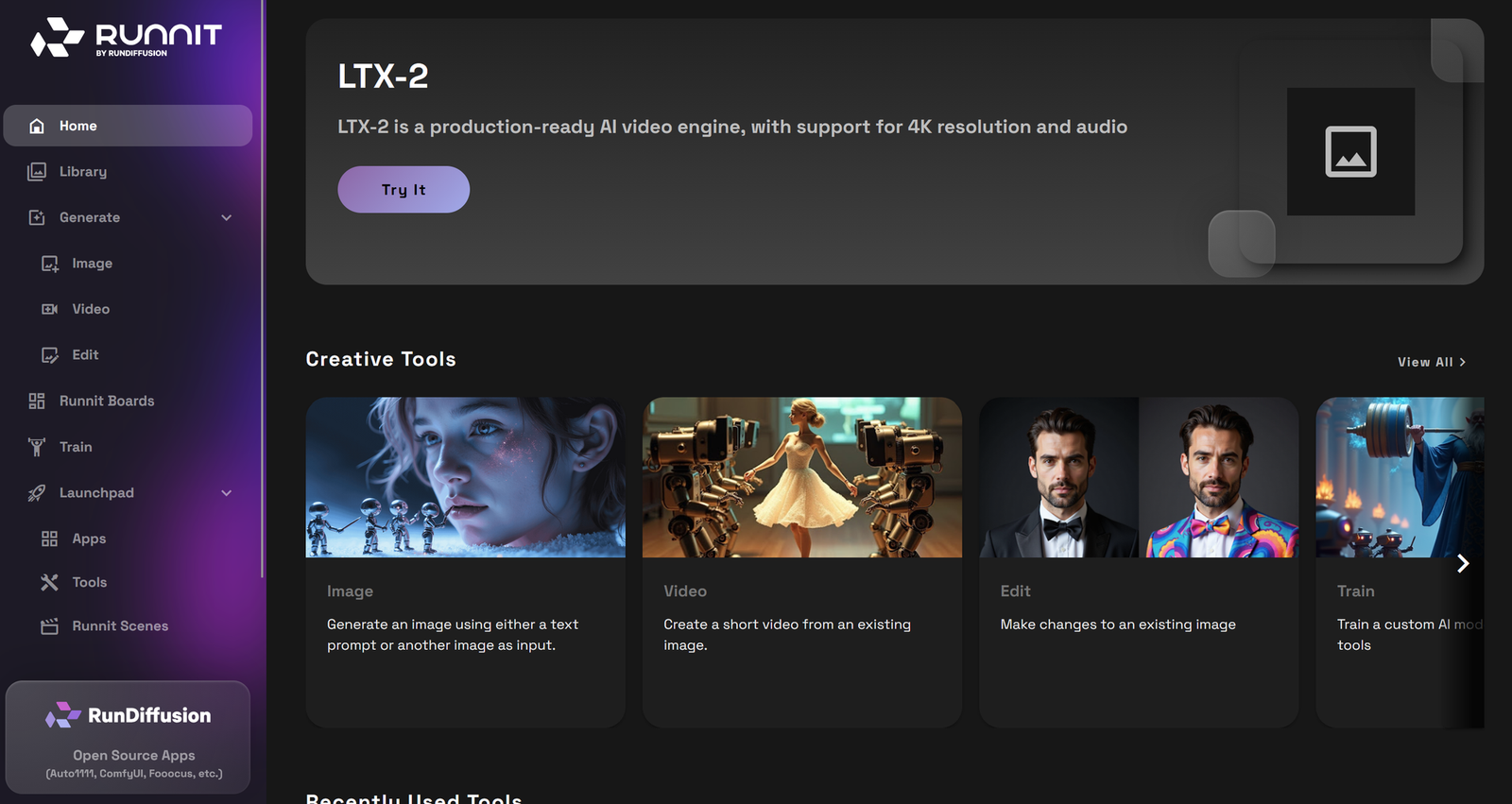
Click Generate then Edit on the left sidebar
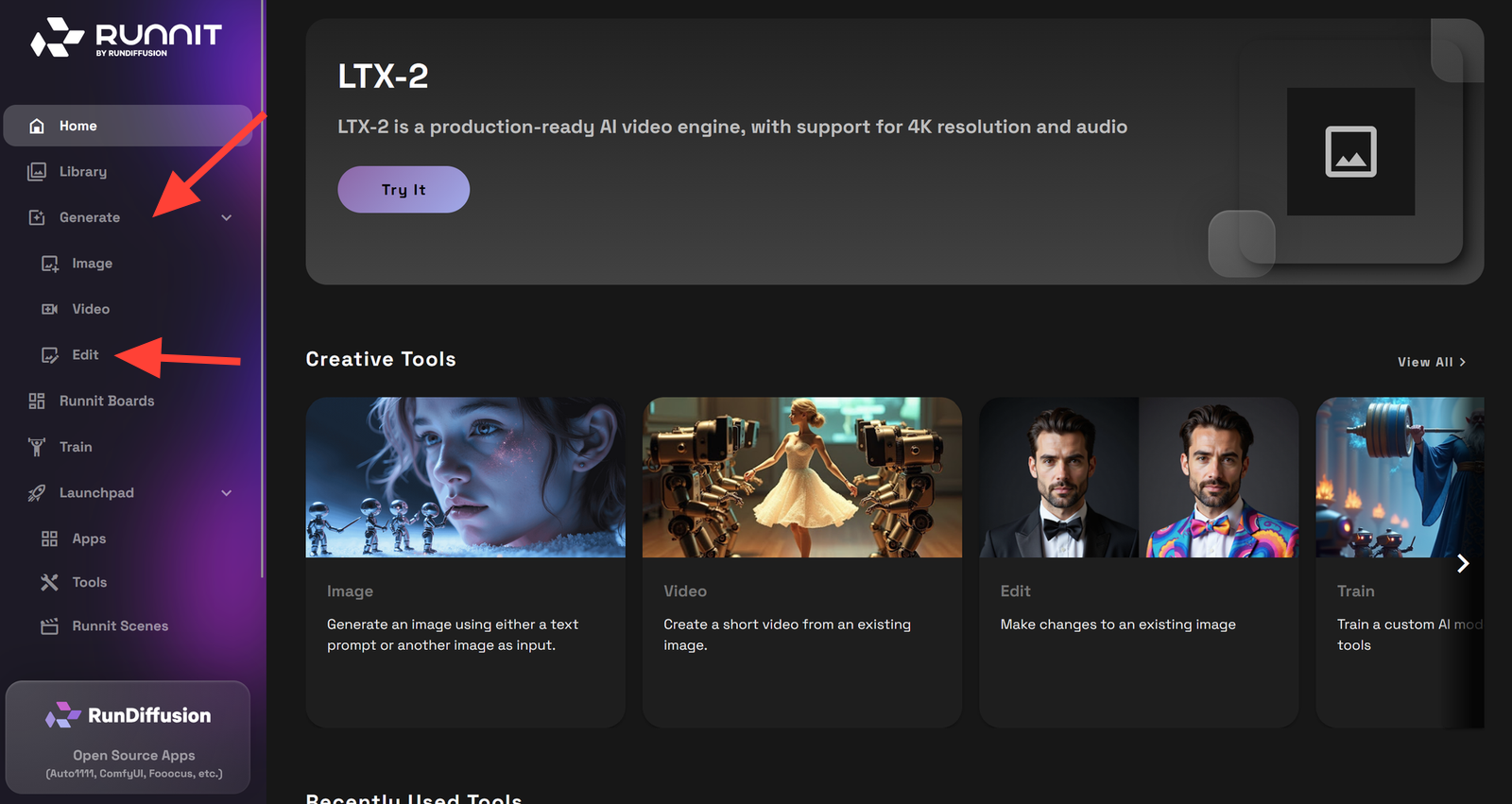
Click on the model at the bottom to change or select a model. By default it loads the last model you used.
Select Topaz Upscaler or Magnific from the model options.
If you select Magnific Upload a png file of your render. Select the Scale Factor. Select the type of image you want the model to be optimized for such as Film & Photography, write a small prompt. The other settings can remain default. Click Runnit to render an upscaled and enhanced AI of your image.
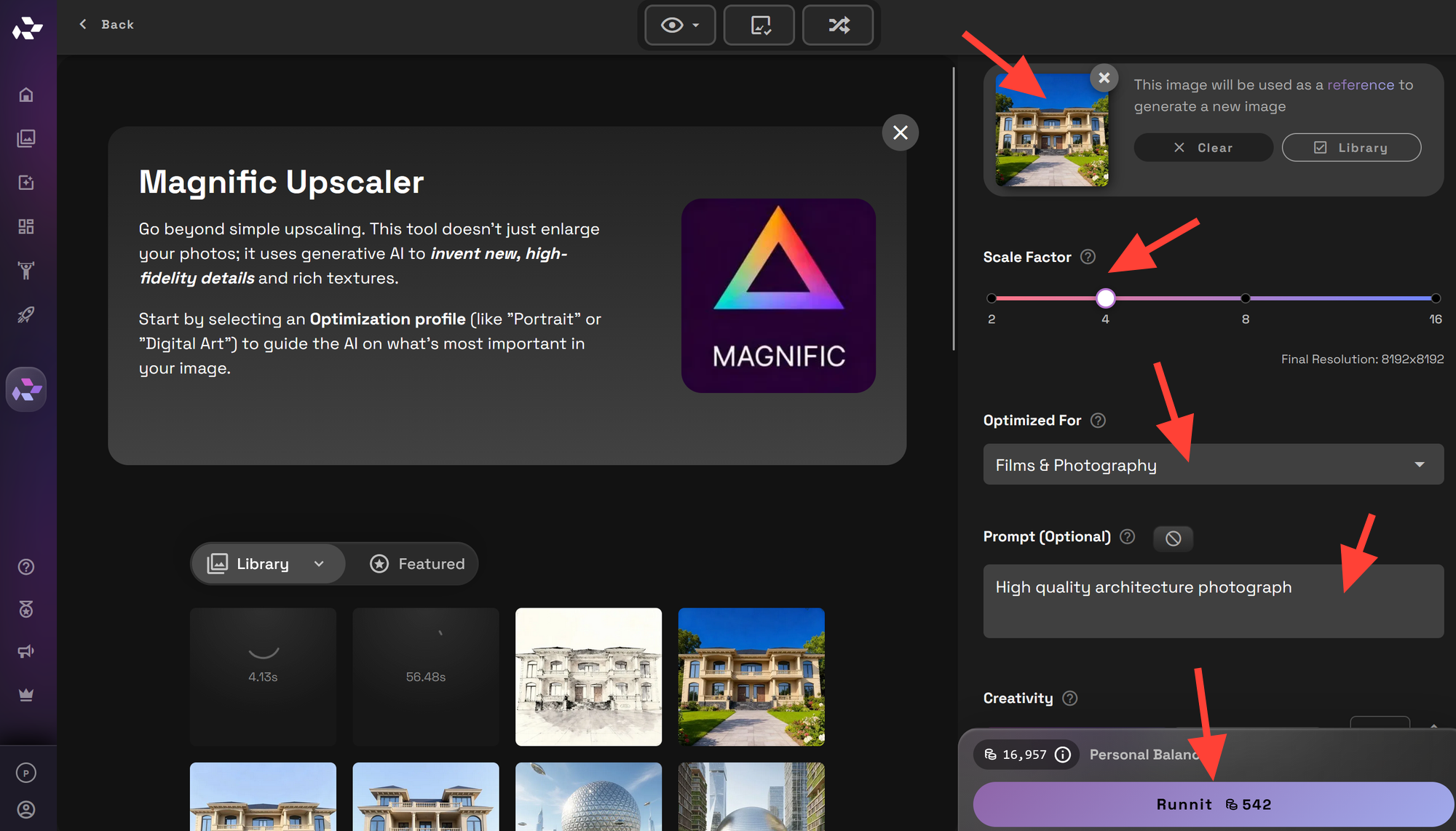
Upscaled Render
For a more detailed look at the Topaz Upscaler view our dedicated article on Topaz Upscaler.
Ideal Use Cases for Upscaling
- Creating high-res portfolio pieces
- Preparing client deliverables
- Printing architectural boards or flyers
- Polishing marketing visuals for social or web
- Enhancing details in concept renders without re-generating
Example Prompt for Enhanced Upscaling
Refine texture detail, improve window reflections, preserve lighting quality, architectural accuracy, high-resolution output.
Use this type of short input to guide the model toward your intended visual finish.
Final Thoughts
Upscaling is more than making an image bigger it’s about enhancing quality and delivering professional, pixel-perfect visuals. With Magnific and Topaz, RunDiffusion gives architects and designers the power to refine their renders directly in the cloud.
Try these tools to upscale your favorite outputs, enhance Revit and SketchUp exports, or sharpen AI-generated concepts. With the right tools, your work will look sharper, clearer, and more impactful, no rework needed.
 RunDiffusion Team
 RunDiffusion Team
 RunDiffusion Team