


Introduction
For architecture firms, AI is not a novelty tool. It is part of a production environment that must support consistency, governance, and cross-office collaboration. Featured Templates on RunDiffusion provide a structured starting point.
This article explains:
- How to load a Featured Template on RunDiffusion
- How to refine it into a controlled production workflow
- How to establish a reusable template framework for distributed teams
Why Featured Templates Matter at Enterprise Scale
Large architecture firms operate across:
- Multiple offices and time zones
- Diverse project typologies and sectors
- Compressed competition and client delivery timelines
AI workflows must therefore be:
- Predictable in output quality
- Documented for internal clarity
- Reproducible across teams
- Easy to deploy without technical reconfiguration
Featured Templates act as structured baselines. Instead of assembling tool chains manually, teams begin with curated Templates designed for defined outcomes such as sketch-to-render, concept exploration, or high-resolution presentation imagery.
Understanding how boards function as modular production pipelines is essential before scaling them across teams.
Architecture-Focused Featured Templates Currently Available
RunDiffusion currently includes several Featured Templates that support architectural production workflows:
Concept & Early Design
- Early-Stage Concepting & Moodboarding
- Early Stage Concept Visuals for Architecture (V1 & V2)
- Massing & Form Exploration in Architecture
Visualization & Presentation
Technical & Spatial Development
- 2D to 3D Floor Plans for Architecture
Interior & Material Studies
- Interior Design Staging and Material Selection
These templates correspond to real architectural phases from volumetric exploration to presentation-grade render output.
Loading a Featured Template
Access the Platform
Login to RunDiffusion.
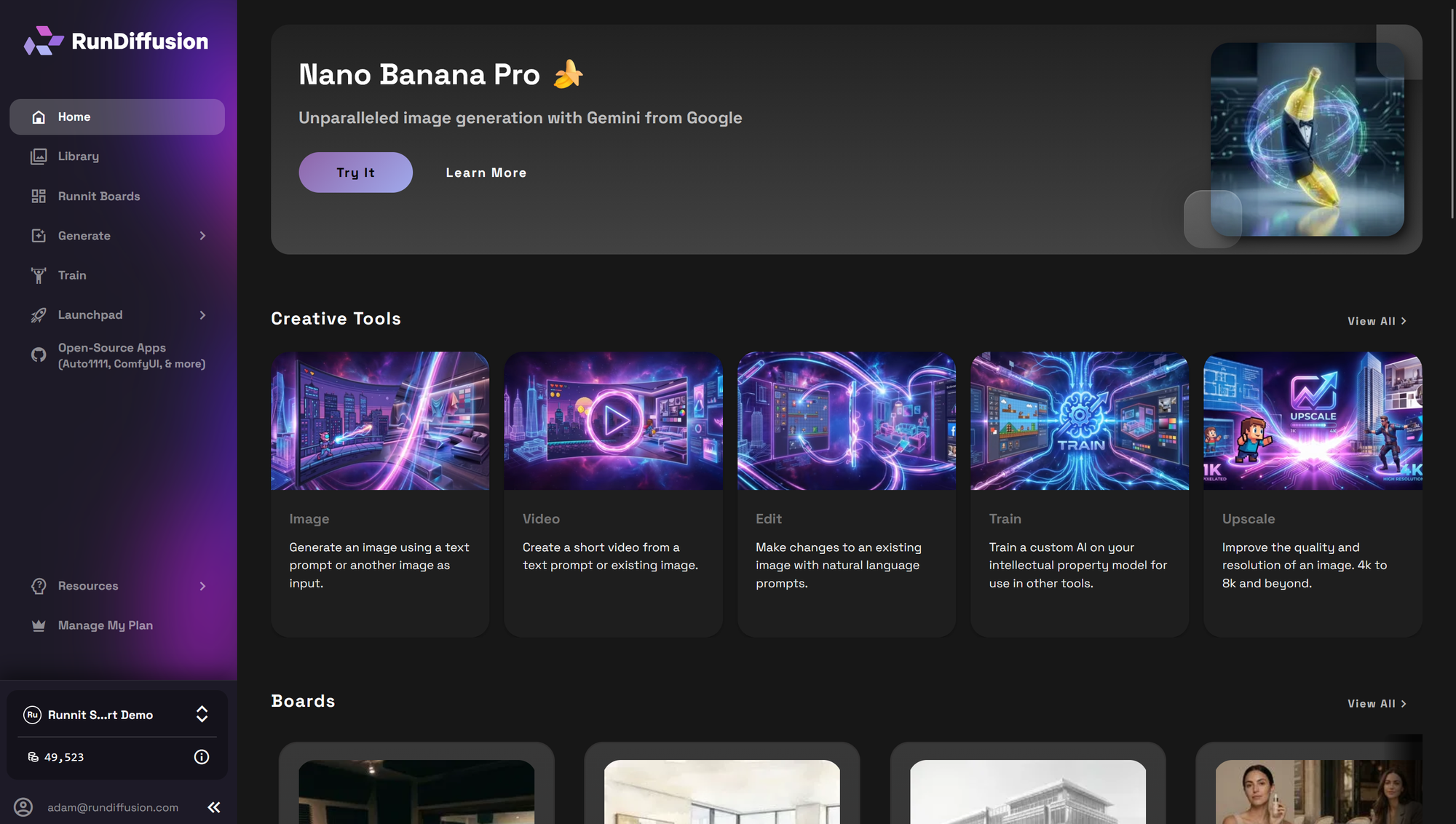
Navigate to Runnit Boards from the left sidebar.
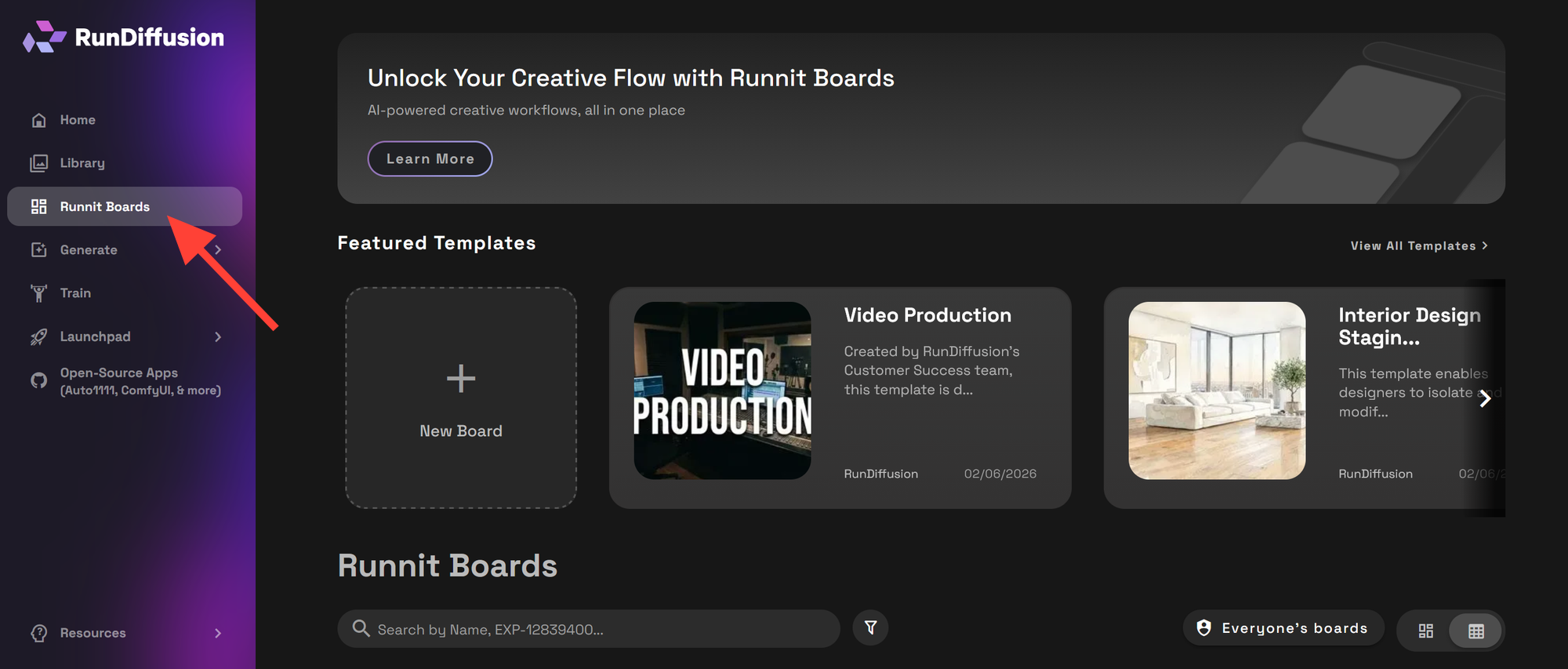
Then select a Featured Template appropriate for your teams need.
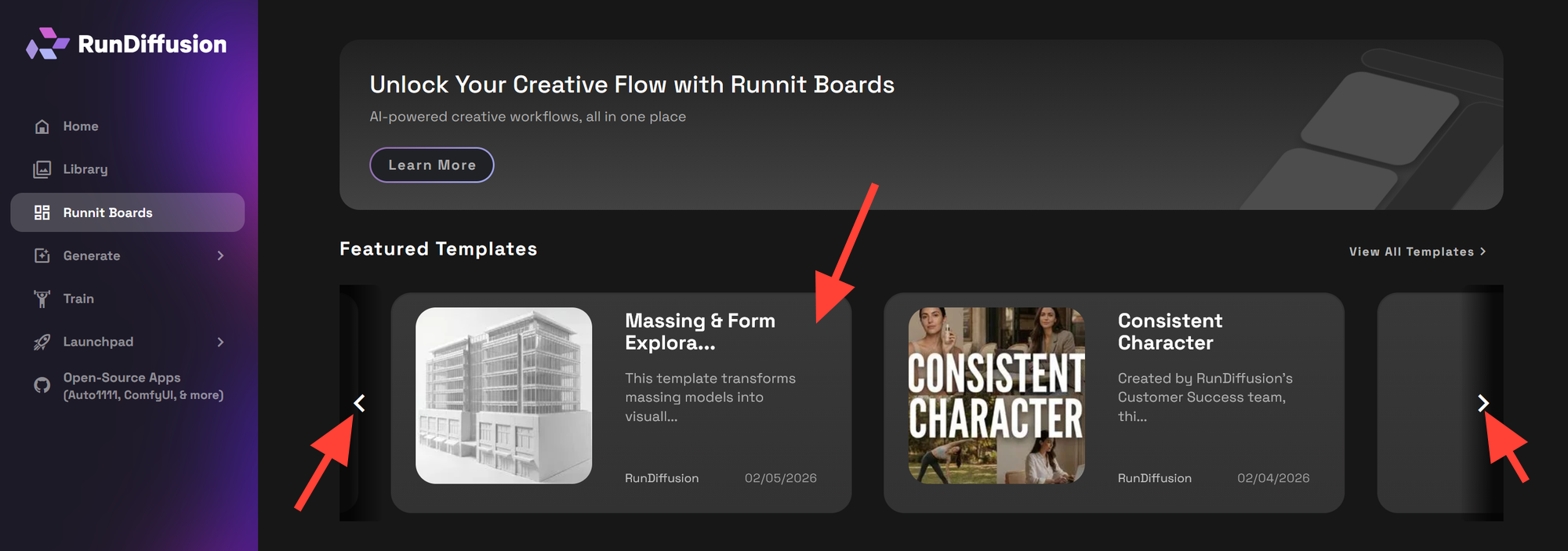
Once you click on a Template, some templates offer a video tutorial and description. And a list of tools on the left side. When you are ready to proceed click Create Board.
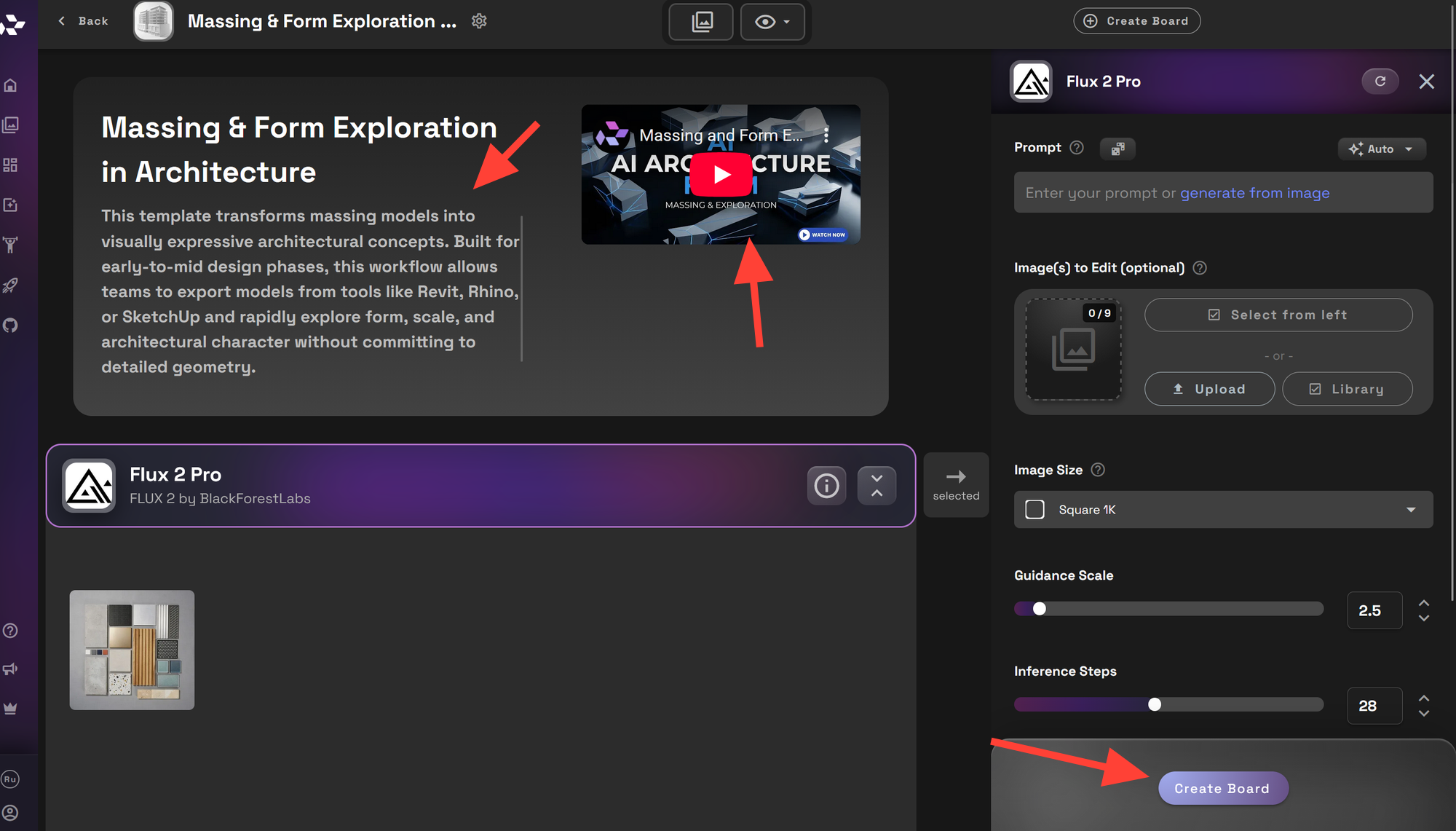
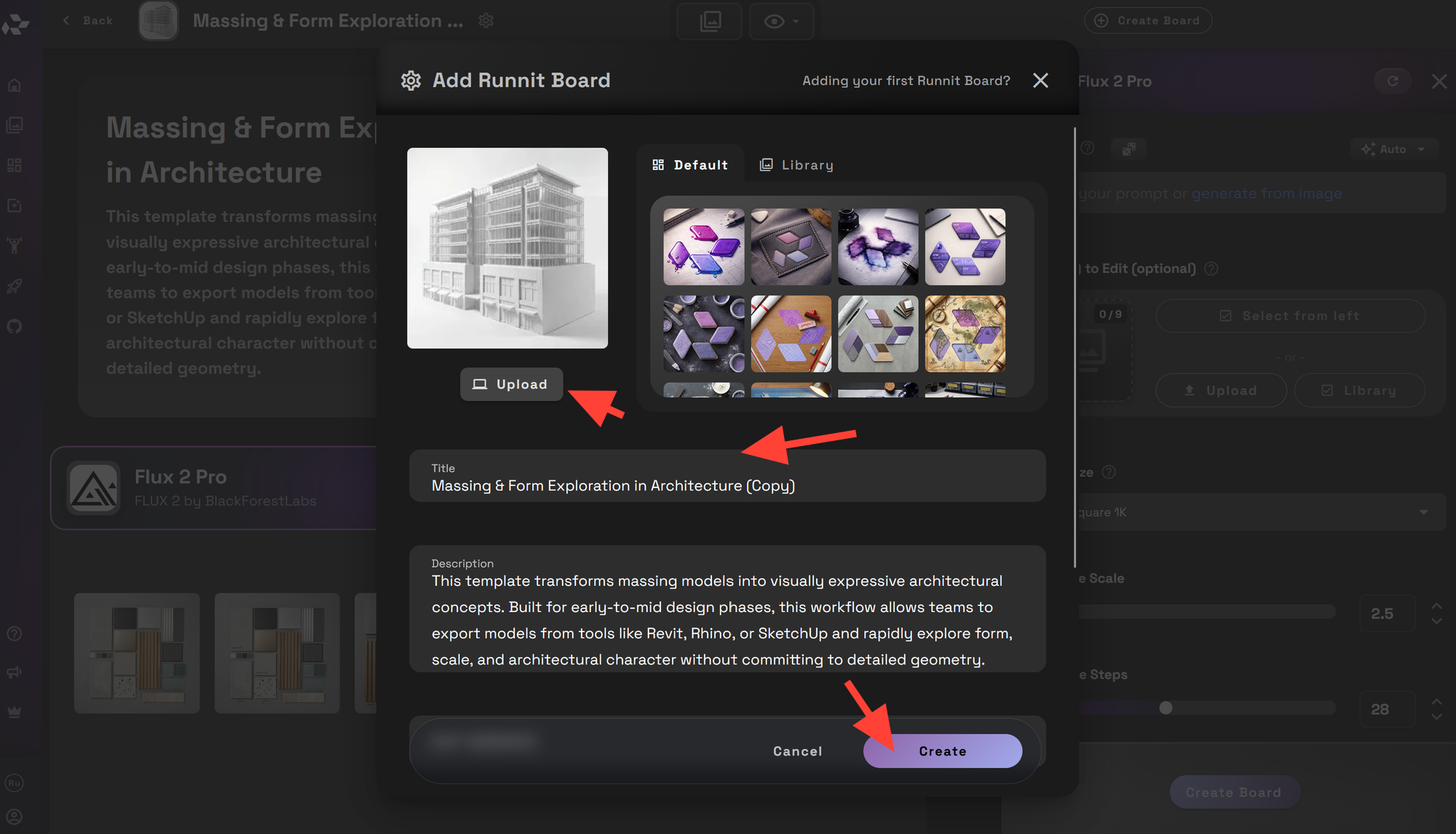
You can adjust the title, description, and upload a unique image or select an image from your library. Then click Create.
You can begin using templates as is without needing to add additional tools.
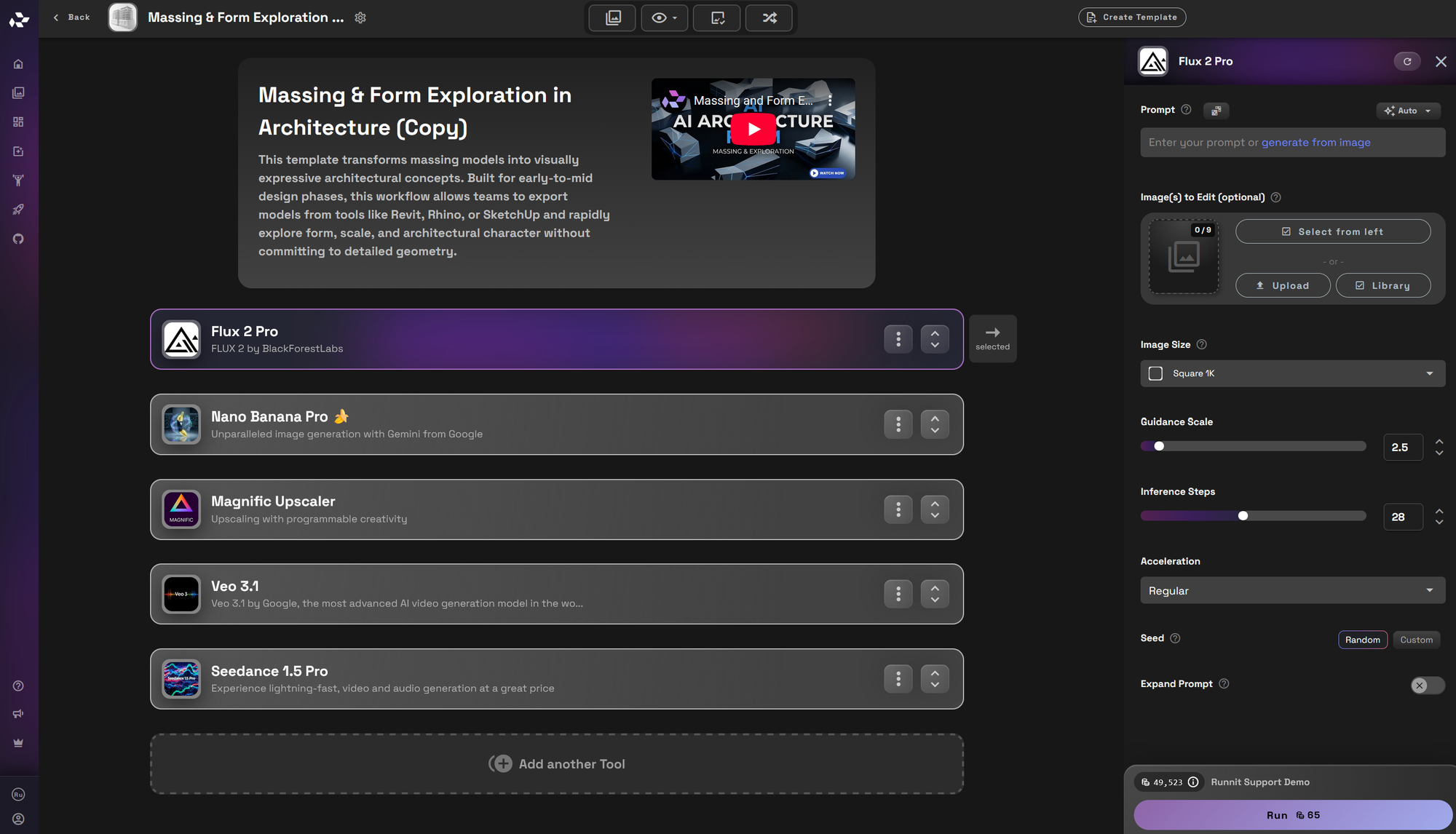
Refining the Template for your Enterprise Team.
Loading a template is the first step. Standardizing it is the strategic move.
Align Tool Sequence with Production Goals
Review the tool order carefully.
Enterprise considerations include:
- Is the upscaling step positioned after final refinement?
- Are intermediate outputs necessary or redundant?
- Does the workflow support print-ready resolution standards?
- Is the board optimized for speed during competition deadlines?
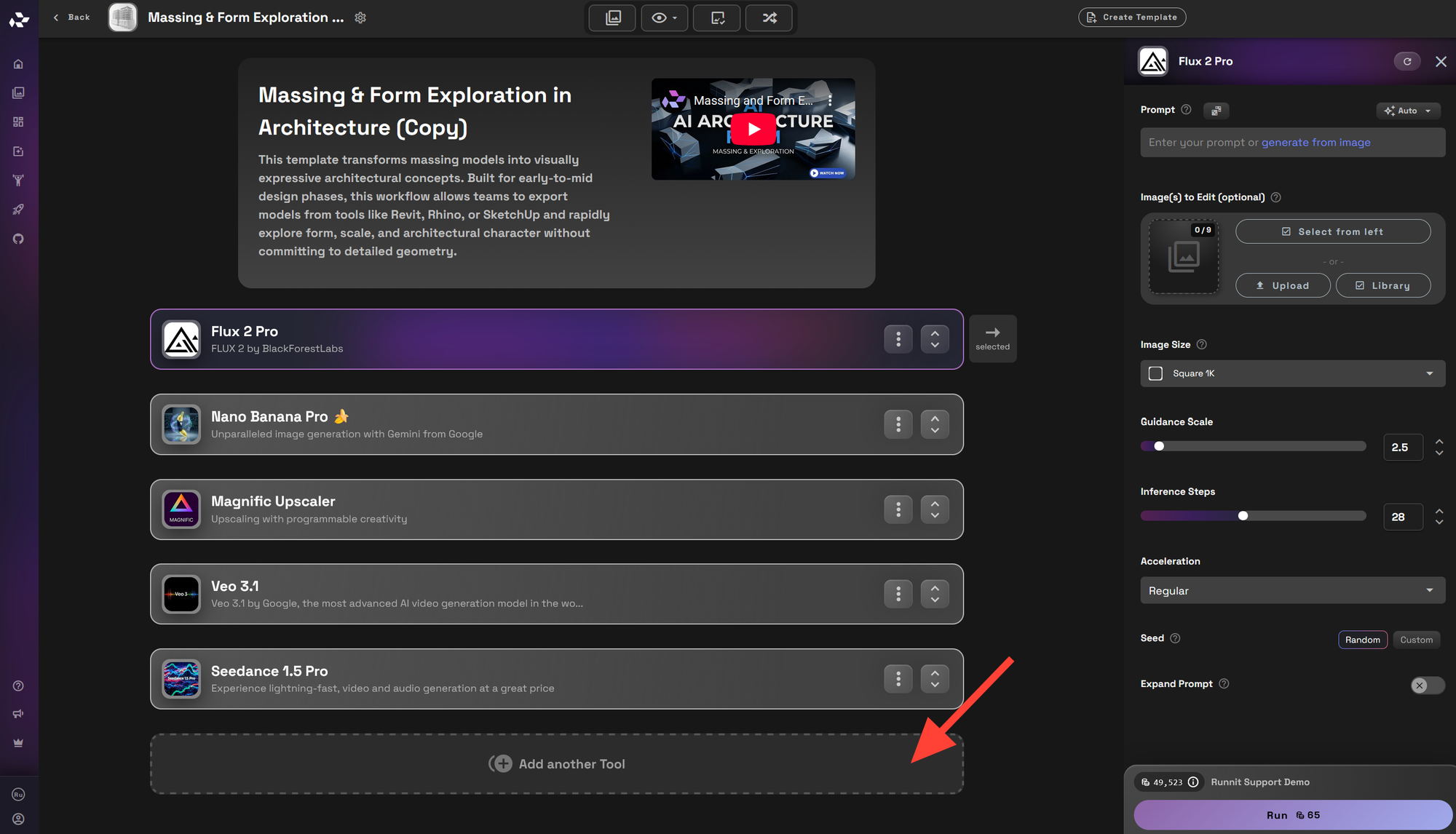
You can add additional tools to your Runnit Boards. Simply click on Add Another Tool.
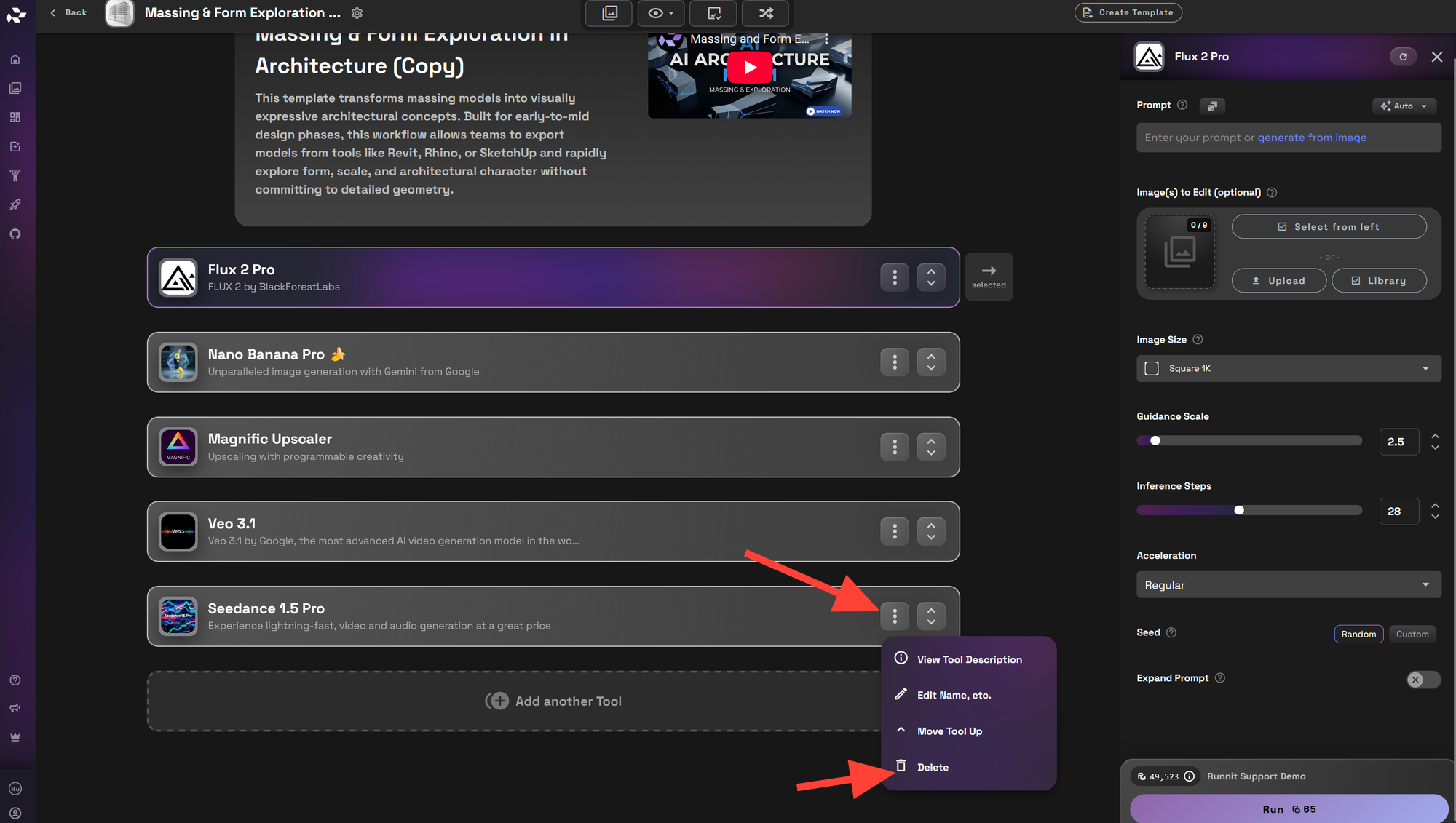
You can also remove tools that are not needed for your active project. Lean boards can save time. Click on the 3 dots then click on the delete icon.
Converting a Board into a Firm-Level Template
Create a Template
From the Runnit Boards click on the 3 dots beneath actions.
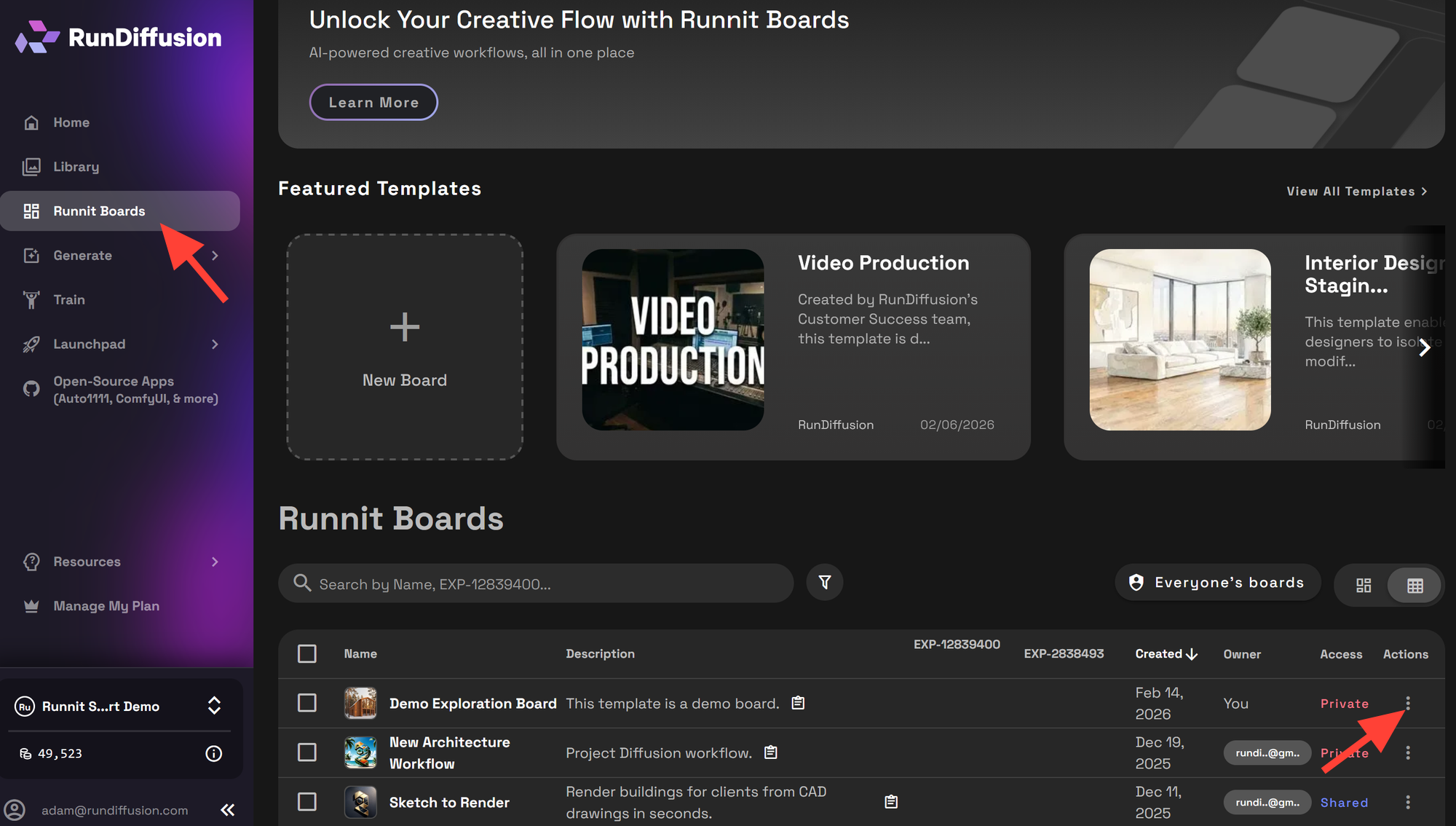
Then click on Create Template.
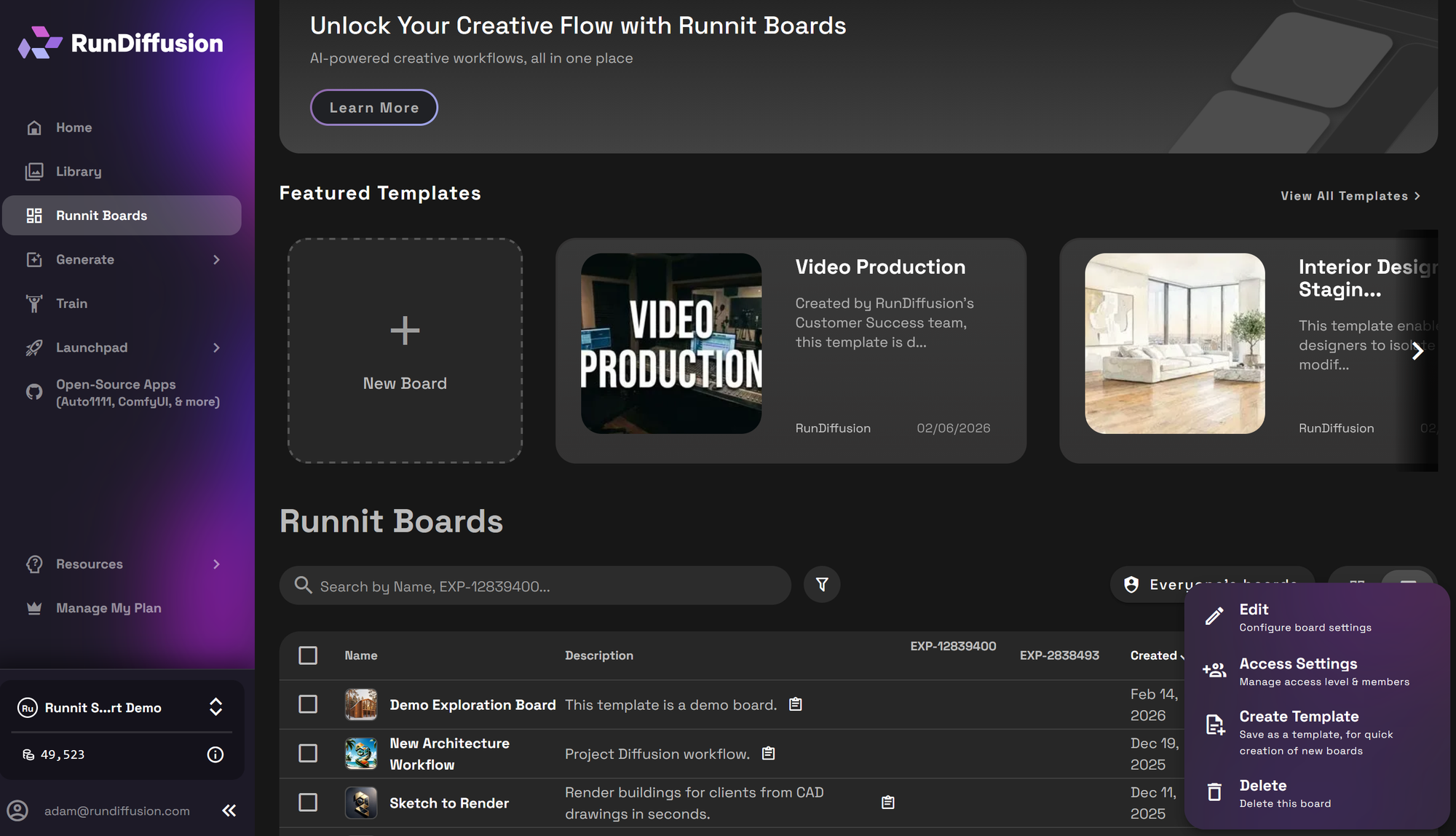
Upload an Image. We suggest images that tell a story or with clear text to help differentiate your templates.
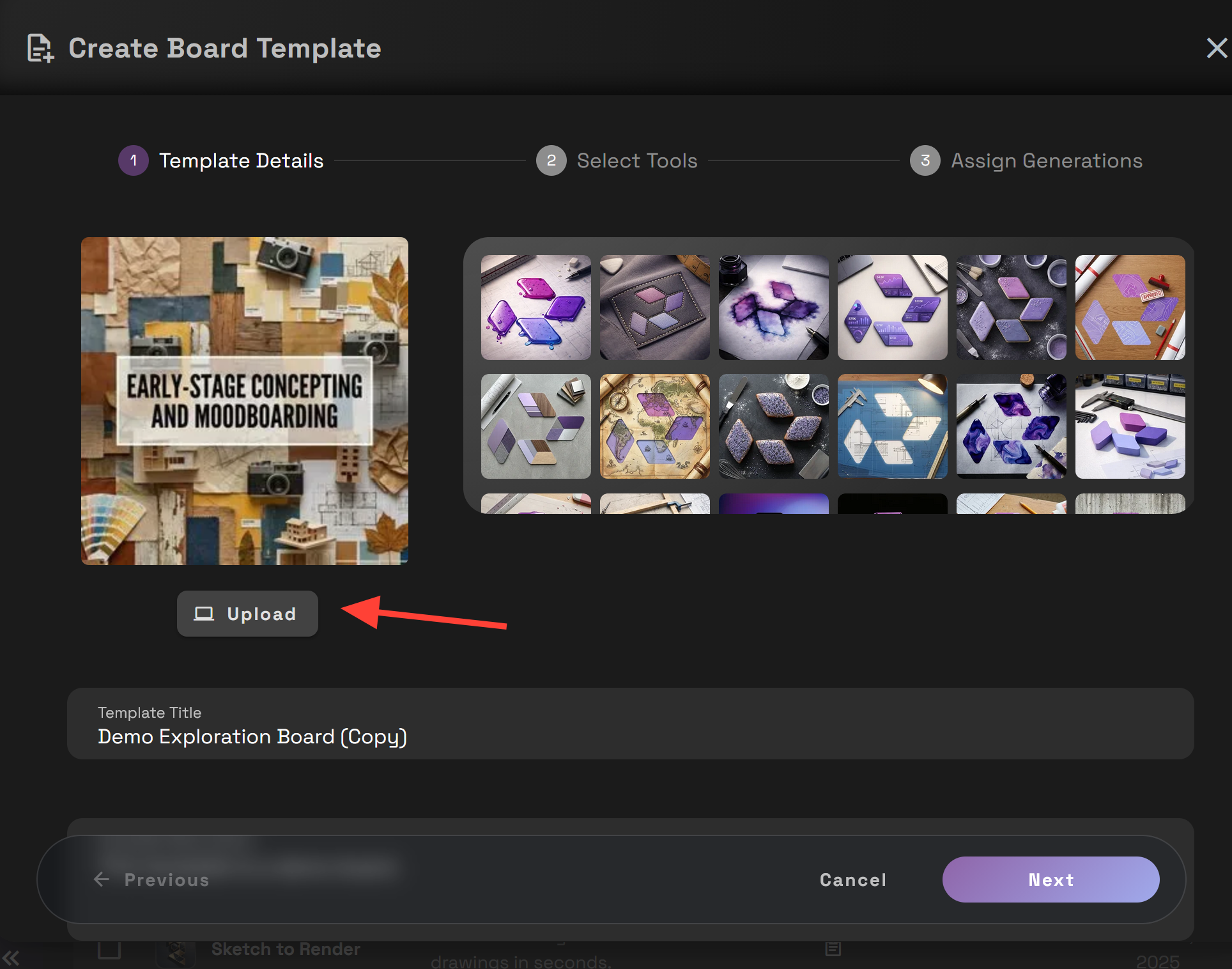
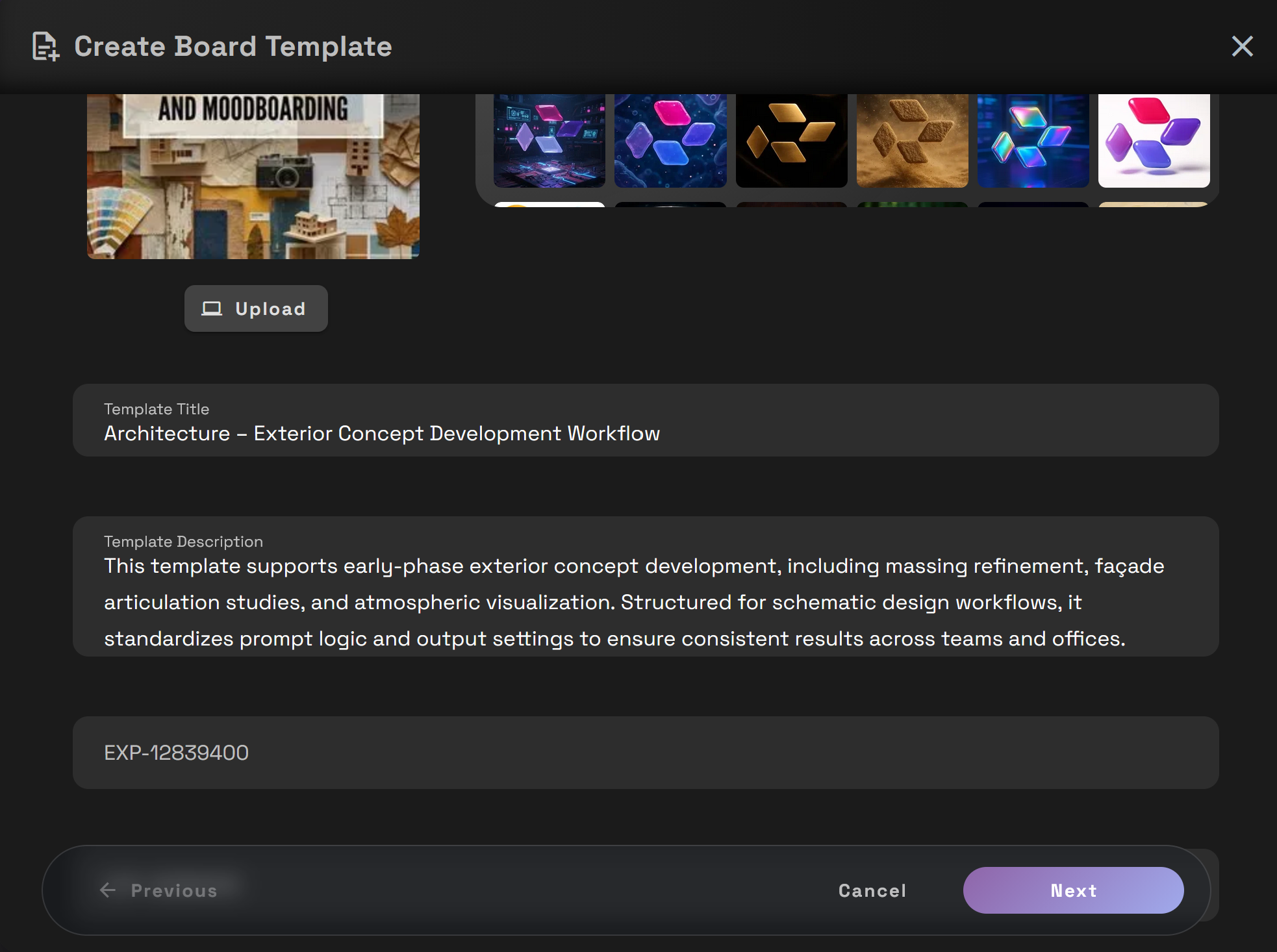
Write a clear Template Title and Template Description. These will help your team know which template is best for which project.
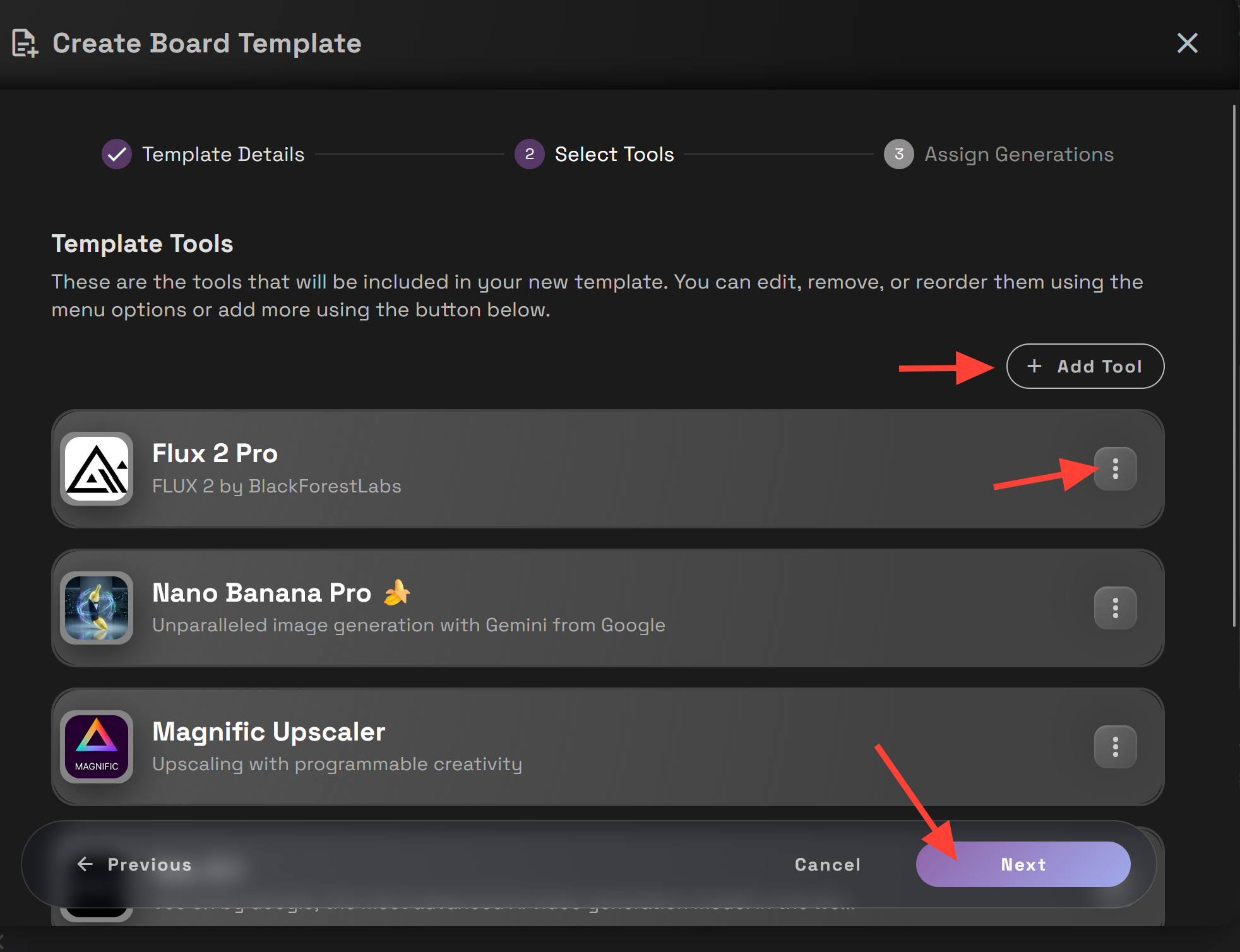
You can add or delete tools here. When you are satisified with the tools click Next.
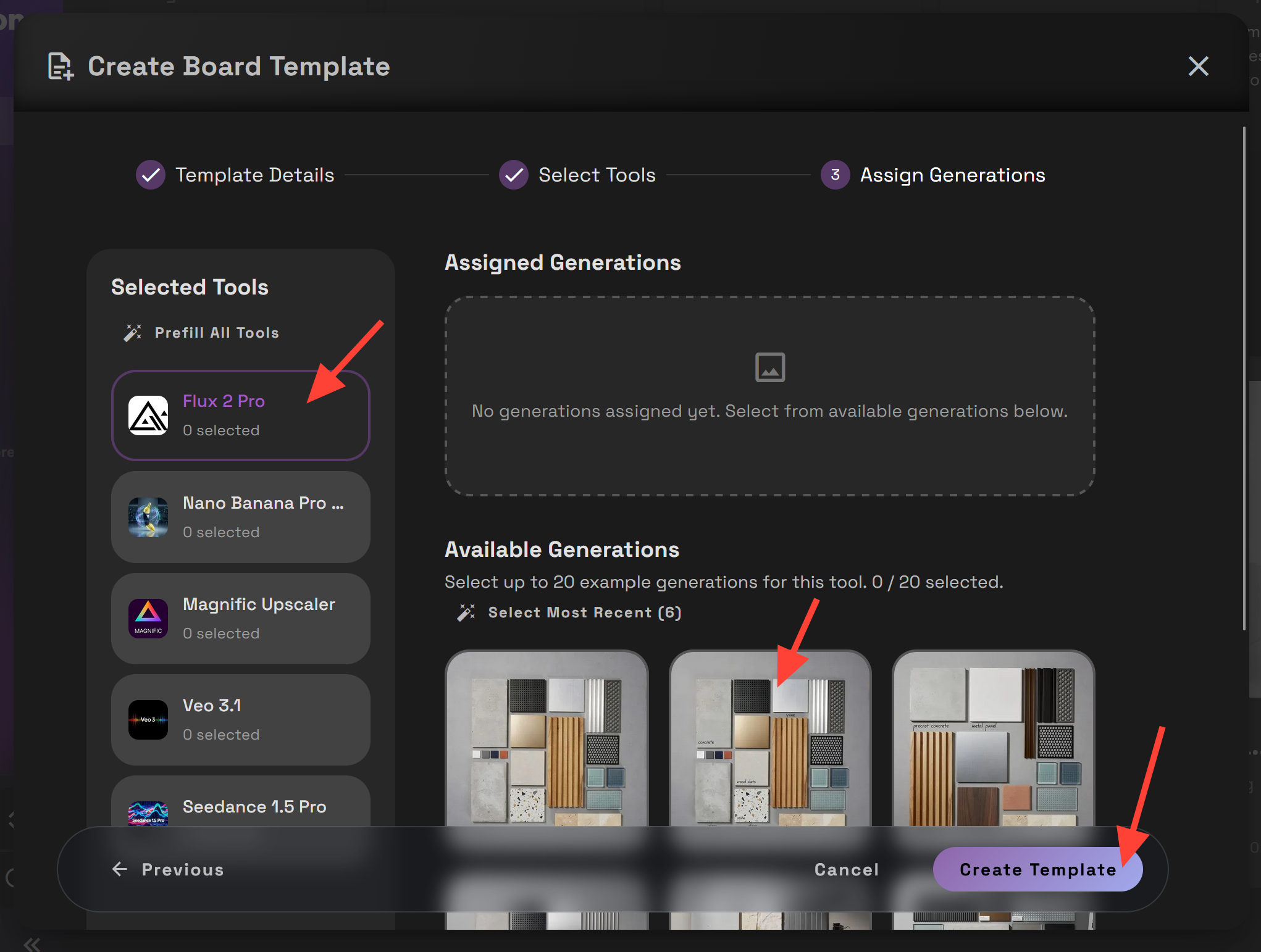
You can click on the Selected Tools and click on an image you want attached to the tool. When people load this template in the future it will show them the example images.
Define Access and Governance
When creating a Template, you can define who can access it:
- Private
- Restricted (Specific Team Members)
- Shared (All Team members)
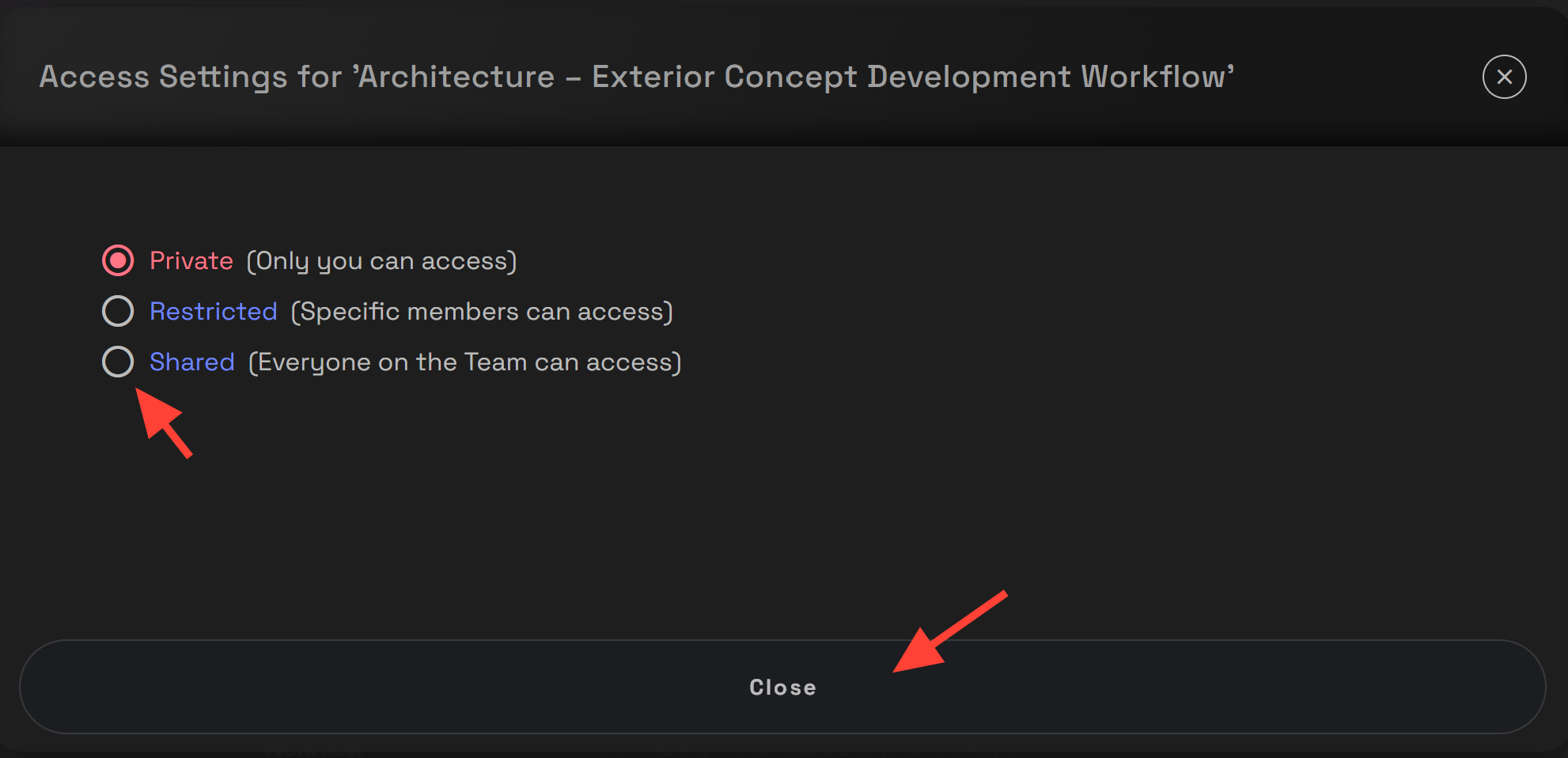
If you want the entire team to access the template, ensure Shared is selected.
To share a template across team members, the user must have the Can manage shared assets permission.
If you are modifying or sharing a template created by another team member, you will also need the Can manage everyone’s generations and boards permission.
These permissions are managed by your Company Administrator within the Company Roles and Team Roles settings in RunDiffusion. Administrators can assign or update these permissions based on your organization’s governance structure.
Clear permission control ensures templates remain consistent across offices without uncontrolled modification. Proper governance helps maintain workflow integrity, prevent version drift, and support structured AI deployment at enterprise scale.
Using the Template
Once created and shared:
Click New Board

Select From Template
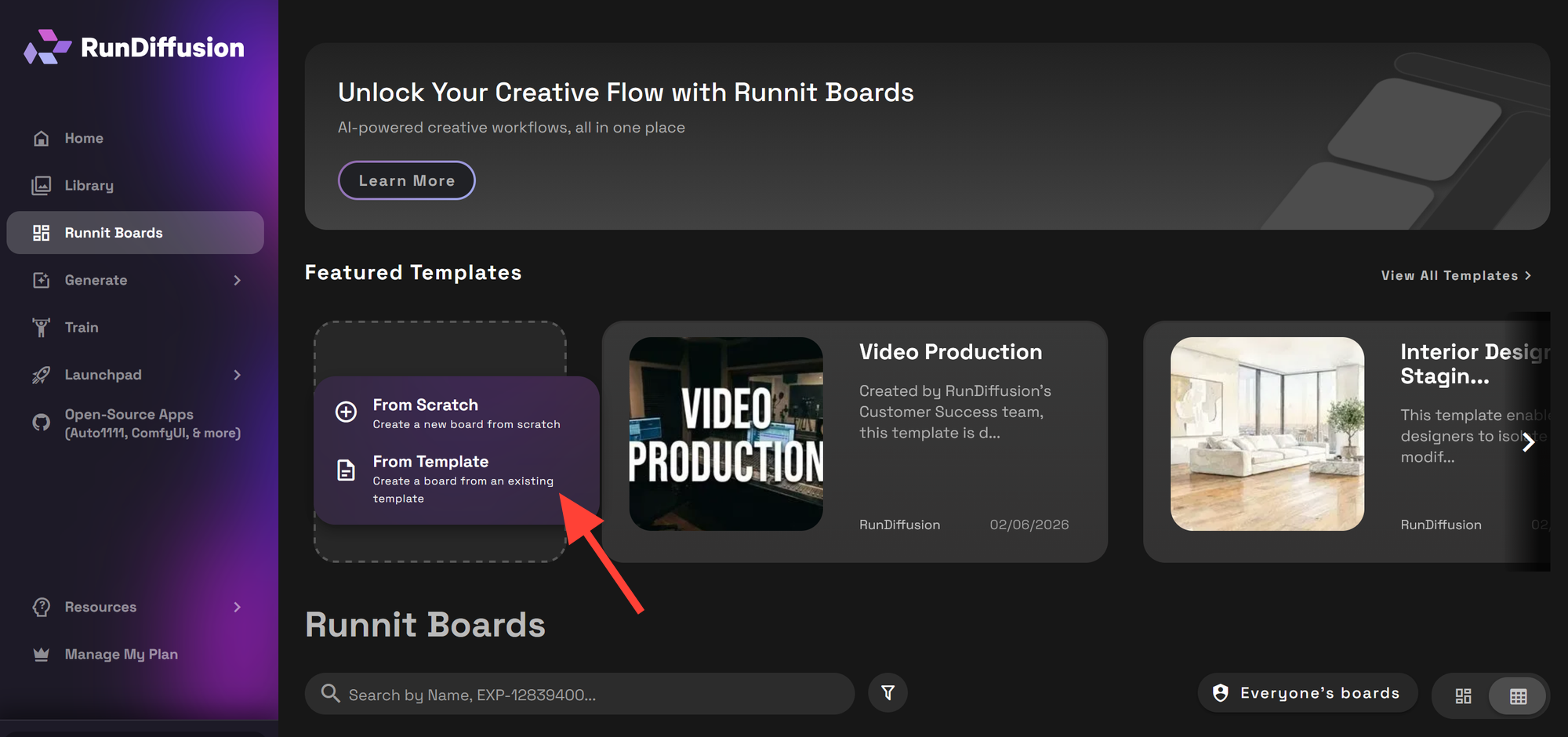
Choose the appropriate template. Click Create Board
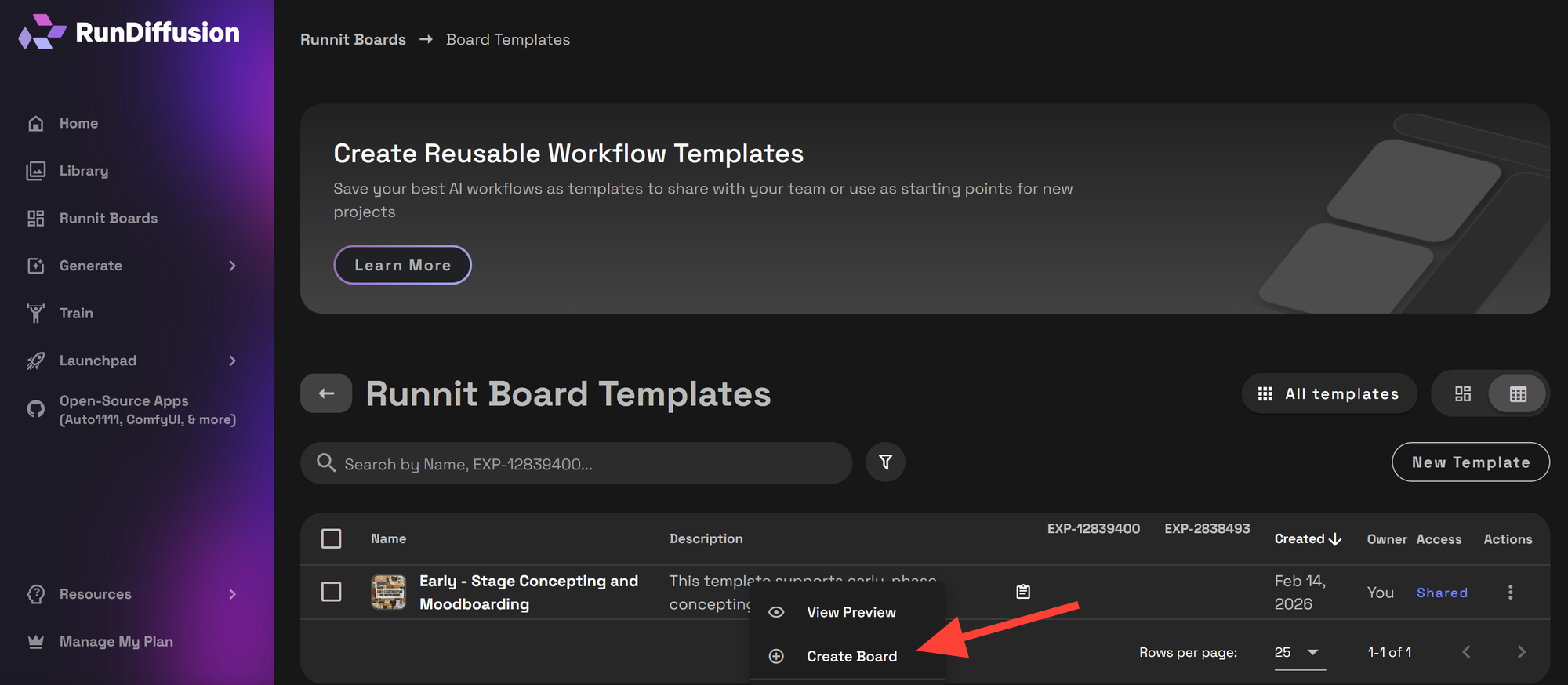
Your team now works from a standardized production framework.
Duplicate Instead of Rebuilding
For new projects:
- Duplicate the master workflow board
- Rename according to project standards
- Replace only project-specific inputs
This approach supports:
- Cross-office consistency
- Faster production cycles
- Reduced setup errors
Templates become infrastructure rather than shortcuts.
Conclusion
For global architecture firms, AI adoption is not about isolated outputs. It is about building controlled systems that support design intent, production speed, and cross-office consistency.
Featured Templates on RunDiffusion provide the starting framework. When refined, governed, and standardized, they become firm-level infrastructure that supports concept development, visualization, and presentation at scale.
By loading strategically, refining deliberately, and formalizing thoughtfully, architecture teams can integrate AI into their production methodology without compromising rigor.
If your firm requires advanced permission structures, company-wide template governance, SSO configuration, or customized deployment support, our team can help.
Contact Sales to learn how RunDiffusion Enterprise can support large-scale architectural production environments.
 RunDiffusion Team
 RunDiffusion Team
 RunDiffusion Team
Frequently Asked Questions
1. What is a Featured Template in RunDiffusion?
A Featured Template is a prebuilt workflow designed for specific production outcomes such as sketch-to-render, massing exploration, floor plan visualization, or high-resolution presentation imagery. When loaded into Runnit and converted into a Board, it becomes an editable production pipeline for your team.
2. What is the difference between a Template and a Board?
A Template is a reusable workflow framework.
A Board is a working instance of that workflow created from a Template.
Templates are used to standardize processes across teams. Boards are used to execute project-specific work.
3. Can we use Featured Templates without modifying them?
Yes. Teams can load a Featured Template, create a Board, and begin working immediately without adding additional tools. However, most enterprise teams refine templates to align with internal standards before scaling usage.
4. How do architecture firms standardize templates across multiple offices?
Firms typically:
- Refine a Board to align with internal production standards
- Convert it into a firm-level Template
- Define access permissions
- Require teams to duplicate the master workflow instead of rebuilding
This approach supports cross-office consistency and reduces workflow drift.
5. What permissions are required to share a template across a team?
To share a template across team members, the user must have the Can manage shared assets permission.
If modifying or sharing a template created by another team member, the user must also have the Can manage everyone’s generations and boards permission.
These permissions are configured by a Company Administrator within Company Roles and Team Roles settings.
6. Can we control who edits or duplicates a template?
Yes. When creating a Template, you can define access as:
- Private
- Restricted (Specific Team Members)
- Shared (All Team Members)
Administrators manage editing permissions through Company and Team Roles to maintain governance and prevent uncontrolled modification.
7. How do Featured Templates support competition deadlines?
Templates reduce setup time and eliminate the need to rebuild workflows manually. By refining tool order and removing unnecessary steps, firms can create lean pipelines optimized for rapid iteration under deadline pressure.
8. Should firms create separate templates for different design phases?
Yes. Many architecture firms maintain separate templates for:
- Early-stage concepting
- Massing and volumetric studies
- Sketch-to-render workflows
- Presentation-grade high-resolution outputs
Segmenting workflows by design phase increases clarity and production efficiency.
9. Why duplicate a master Board instead of creating new workflows each time?
Duplicating ensures:
- Consistent output quality
- Reduced configuration errors
- Faster project startup
- Clear workflow lineage
Rebuilding manually introduces variability and slows adoption.
10. When should a firm consider RunDiffusion Enterprise?
If your organization requires:
- Advanced permission structures
- Company-wide template governance
- SSO configuration
- Structured rollout across distributed offices
- Customized deployment support
RunDiffusion Enterprise provides the additional controls needed for large-scale architectural production environments.
