

The ChatGPT image generator turns plain language into images.
Why pair ChatGPT images with RunDiffusion?
ChatGPT is fantastic for quickly turning ideas into visuals, but RunDiffusion’s Runnit boards give you the structure you need to turn those visuals into a repeatable workflow that your team can actually reuse.
- Solo creators: Capture your best prompts and outcomes so you can come back later and polish or reuse them.
- Marketing and product teams: Keep campaign-specific prompts, images, and notes together instead of scattered across one-off chats.
- Agencies and studios: Build repeatable prompt playbooks for clients and manage image iterations at scale.
Ready to try this? Open a Runnit board in RunDiffusion and dedicate it to a single project or campaign, then run all of your ChatGPT image experiments inside that board.
You describe what you want to see, and the AI creates a matching visual — from product mockups and social posts to simple logos and illustrations. Inside RunDiffusion’s Runnit platform, you can use this same ChatGPT image tool directly on a board, making it easier to experiment, iterate, and keep your image workflows organized.

Prompt: Scene: A visually rich depiction of a creative team using an AI image board
Details: diverse creators in a modern workspace, large screen or wall showing tiled AI-generated images like product mockups, social posts, and logos, neat columns labeled with sticky notes, one person adjusting prompts on a tablet
Style: cohesive with the article’s tone — bright, modern, professional, tech-creative
Aesthetic: clean composition, premium photography look, realistic textures, soft directional lighting, visually engaging
Quality: high resolution, sharp detail.
What is the ChatGPT image generator?
The ChatGPT image generator is an AI image tool that converts text prompts into images using deep learning. Instead of drawing or hiring a designer for every idea, you describe the scene, style, or layout you want in natural language, and the model produces an image that matches your prompt.
This makes it especially useful for fast concepting, visual brainstorming, and lightweight production work where speed matters as much as polish. Because the tool is built directly into ChatGPT, you can iterate on prompts, refine ideas, and adjust details in a conversational way.
Key features of the ChatGPT image generator
While the ChatGPT image generator is easy to use, it packs in several powerful capabilities that make it useful for day-to-day creative work.
- Text-to-image generation: You provide a text description, and the AI analyzes it to create a visual representation. The more specific and detailed your prompt, the more control you have over the result.
- Flexible visual styles: The generator can produce a wide range of outputs, including realistic photos, digital paintings, cartoons, logos, and infographic-like layouts.
- Improved text rendering: The model is much better than earlier generations at placing readable text inside images, which helps for thumbnails, banners, and simple poster designs.
- Image editing: You can upload an existing image, select an area, and describe the changes you want to make — such as swapping backgrounds, changing colors, or inserting new objects.
- Versatile use cases: Common applications include product mockups, website and app UI concepts, social media content, presentation illustrations, pitch decks, and quick branding experiments.
- Free and paid availability: Some features are available to free users, but more advanced capabilities and higher usage are usually tied to paid ChatGPT plans.
Prompt cheat sheet for stronger ChatGPT images
Clear, detailed prompts create more predictable images than short, vague requests.
When you are drafting prompts (especially inside a Runnit board where you will want to repeat what works), try structuring them with four quick pieces of information:
- Subject: What is the main thing in the image? (e.g., "modern SaaS dashboard" or "minimalist coffee brand logo")
- Style: How should it look? (e.g., "flat illustration, pastel colors" or "cinematic photo, soft lighting")
- Composition: How is it framed? (e.g., "centered product on clean background" or "wide shot of office team")
- Text and constraints: Any words or rules? (e.g., "include the title 'Weekly Metrics'" or "no people, only objects")
Next step: In your next RunDiffusion session, paste a structured prompt into your ChatGPT image generator board and create 3–5 variations by changing only one element (style, composition, or text) each time.
Best use cases for the ChatGPT image generator
The ChatGPT image generator shines when you need speed, flexibility, and creative exploration, especially early in a project.
- Rapid concept art: Quickly explore different visual directions for a character, product, or environment by rephrasing your prompts instead of rebuilding designs from scratch.
- Marketing and social visuals: Generate on-brand illustrations, simple ads, and social media images to pair with campaigns, landing pages, or blog posts.
- Presentation and pitch support: Add custom visuals to decks and internal documents without waiting on design queues.
- Wireframes and mockups: Create rough layouts for websites, apps, dashboards, or packaging that your design team can later refine.
- Text-in-image assets: Use its improved text rendering for banners, simple cover images, and lightweight infographics where the layout matters more than pixel-perfect design.
Limitations to keep in mind
Even though the ChatGPT image generator is powerful, it is not a full replacement for a dedicated, production-grade image pipeline. Knowing where it struggles will help you decide when to stay inside ChatGPT and when to reach for a platform like RunDiffusion.
- Fine-grained control: ChatGPT’s image controls are mostly prompt-based. If you need detailed parameter control, repeatable seeds, or very specific style constraints, you may find it limiting.
- Batch and version management: Managing large numbers of variants, comparing them over time, and keeping an organized history can get messy inside a single chat.
- Team workflows: Collaborating across teams, sharing boards of images, and tracking feedback is easier in a dedicated image workspace than in individual ChatGPT sessions.
- Plan and usage limits: Heavy or professional use can quickly run into usage caps or require higher-tier plans, especially if multiple people rely on the same account.
ChatGPT image generator vs. RunDiffusion at a glance
Both tools are useful at different stages of a project. Use this quick reference to decide when to stay in ChatGPT and when to switch into a dedicated RunDiffusion workflow.
| Use ChatGPT images when… | Switch to RunDiffusion when… |
|---|---|
| You are brainstorming ideas, styles, or layouts. | You need consistent, repeatable results across many assets. |
| You only need a handful of quick visuals. | You are generating large batches of images for campaigns or clients. |
| You are exploring concepts in a single conversation. | You want organized version history, side‑by‑side comparisons, and reusable workflows. |
| Rough quality is acceptable and speed matters most. | You are moving toward production-ready images with consistent brand or style. |
| Only one person is involved in prompting and review. | Multiple stakeholders need to review, comment on, and iterate together. |
Tip for teams: Do early ideation in ChatGPT, then move promising prompts into a shared RunDiffusion board where everyone can see the history and contribute refinements.
Using the ChatGPT image generator inside RunDiffusion Runnit boards
RunDiffusion doesn’t just integrate with AI image models — we make it easier to use tools like the ChatGPT image generator inside a structured, repeatable workflow. Inside our Runnit platform, you can fire up a board and work with ChatGPT image generation as part of a larger creative process.
A Runnit board is a focused workspace where you keep everything related to a task or project together — prompts, notes, reference images, and outputs. Instead of scattering experiments across many different chats, you centralize your ChatGPT image work in one place.
That means you can:
- Organize prompts and outputs: Keep a clear record of which prompts produced which images, so you can come back later and iterate.
- Compare versions side-by-side: Track how your ChatGPT images improve as you refine your description and creative direction.
- Blend tools in one flow: Use ChatGPT for ideation and text-to-image, then bring other RunDiffusion tools and models into the same board as your needs grow.
- Create reusable workflows: Turn a good prompt sequence into a repeatable pattern your team can use for new campaigns or projects.
If you are new to Runnit boards, you can learn more about how they work here: https://learn.rundiffusion.com/runnit-board/.
Example workflow inside a Runnit board
Here is a simple way to structure a project that uses the ChatGPT image generator as one step in a larger image pipeline inside RunDiffusion.
- Create a new Runnit board dedicated to a campaign, product launch, or client project.
- Brainstorm in ChatGPT and capture your best text-to-image prompts directly on the board, along with notes about what you like or dislike.
- Select your favorite concepts and branch them into separate lanes or sections on the board so you can explore each direction further.
- Refine with other RunDiffusion tools—such as upscaling, variant generation, or different models—while keeping everything linked back to the original ChatGPT prompts.
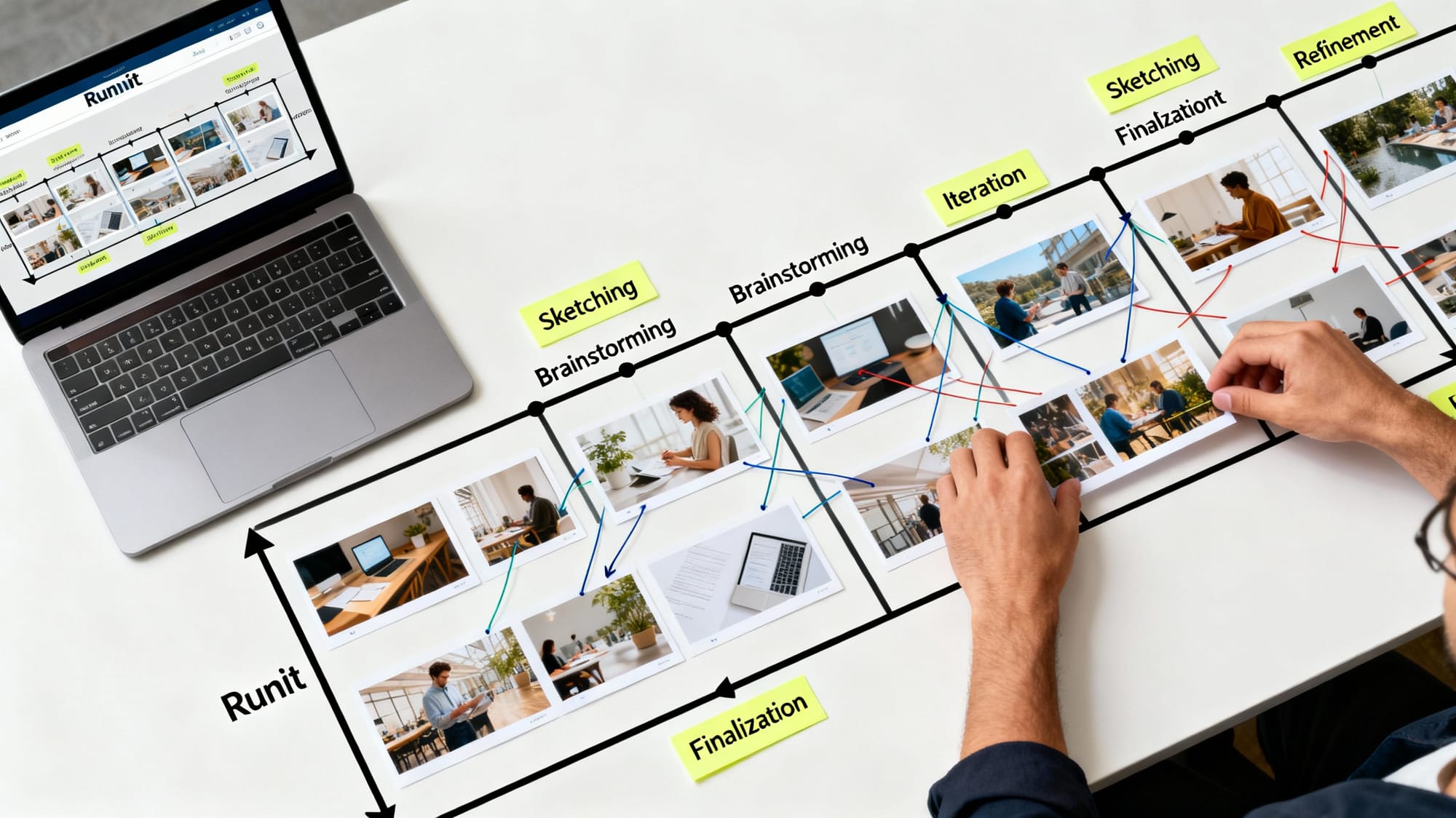
Prompt: Scene: A visually rich depiction of a structured AI image workflow on a Runnit board
Details: overhead view of a desk with a laptop showing an organized board, rows of printed image thumbnails laid out in lanes from brainstorming to refinement, sticky notes with short labels, arrows or strings connecting stages, hands rearranging images
Style: cohesive with the article’s tone — bright, modern, professional, workflow-focused
Aesthetic: clean composition, premium photography/illustration look, realistic textures, minimal clutter, visually engaging
Quality: high resolution, sharp detail.Want to see this in action? Start a RunDiffusion workspace, create a new Runnit board named after your project, and log the next 10 ChatGPT image experiments you run there instead of leaving them in scattered chats.
When to move from ChatGPT images to a dedicated platform
As your needs grow, you may reach a point where you want more control and a more robust environment around your ChatGPT image generator workflow. That is where RunDiffusion comes in.
- From experiments to production: Use ChatGPT images to explore ideas, then shift into RunDiffusion to refine, upscale, and standardize outputs.
- Team collaboration: When more people need to review, comment on, or reuse your images, Runnit boards give you a shared workspace instead of relying on personal chat history.
- Consistent brand and style: Dedicated workflows in RunDiffusion help you stay on-brand across multiple campaigns, even when different people are prompting.
Conclusion: Pair ChatGPT image generation with RunDiffusion
The ChatGPT image generator is a fast, flexible way to turn text prompts into images for everyday creative work. It handles everything from quick mockups and social visuals to simple logos and presentation graphics — and it is especially powerful when you can iterate conversationally.
By using the ChatGPT image generator inside RunDiffusion’s Runnit boards, you turn that raw power into a structured, repeatable workflow. You keep prompts, images, and ideas together, collaborate more easily, and scale from one-off experiments to consistent creative production.
If you are ready to get more out of ChatGPT images, start by spinning up a board in RunDiffusion and building your next image workflow around it.
FAQ: ChatGPT image generator + RunDiffusion
Do I need a RunDiffusion account if I already use ChatGPT?
You can absolutely explore the ChatGPT image generator on its own, but RunDiffusion adds structure around that creativity. If you want organized boards, version history, reusable workflows, and collaboration, creating a RunDiffusion account lets you keep your ChatGPT-driven image work in a dedicated workspace. Think of ChatGPT as your brainstorming partner and RunDiffusion as the studio where those ideas are turned into an organized, repeatable process.
Can I mix ChatGPT images with other AI models in RunDiffusion?
Yes. A common pattern is to use ChatGPT to generate concepts or rough visuals, then bring those images into RunDiffusion to refine, upscale, or restyle them with other available models. By keeping everything on a single Runnit board, you can track how each image evolved from initial ChatGPT output to final, production-ready asset.
How do Runnit boards improve collaboration over a ChatGPT chat?
ChatGPT chats are great for a single user but become hard to share and manage across a team. Runnit boards give you a shared space where prompts, notes, and outputs are visible to everyone working on the project. That means teammates can review versions, leave feedback, and reuse successful prompt patterns without digging through someone else’s private chat history.
What is a simple first project to try with ChatGPT images in RunDiffusion?
A great starter project is a small campaign or landing page that needs a handful of consistent visuals—such as a product launch or feature announcement. Set up a Runnit board, generate several concepts with ChatGPT, pick a direction, then refine those images in RunDiffusion until you have a cohesive set of assets for your page or campaign.
Ready to put this into practice? Start a new RunDiffusion workspace, create a Runnit board for your next project, and run your ChatGPT image experiments there so you can keep every prompt and output organized.
If you are already using ChatGPT for images, the fastest win is to log your next few image-generating conversations into a board and see how much easier it is to revisit, compare, and build on your best ideas.