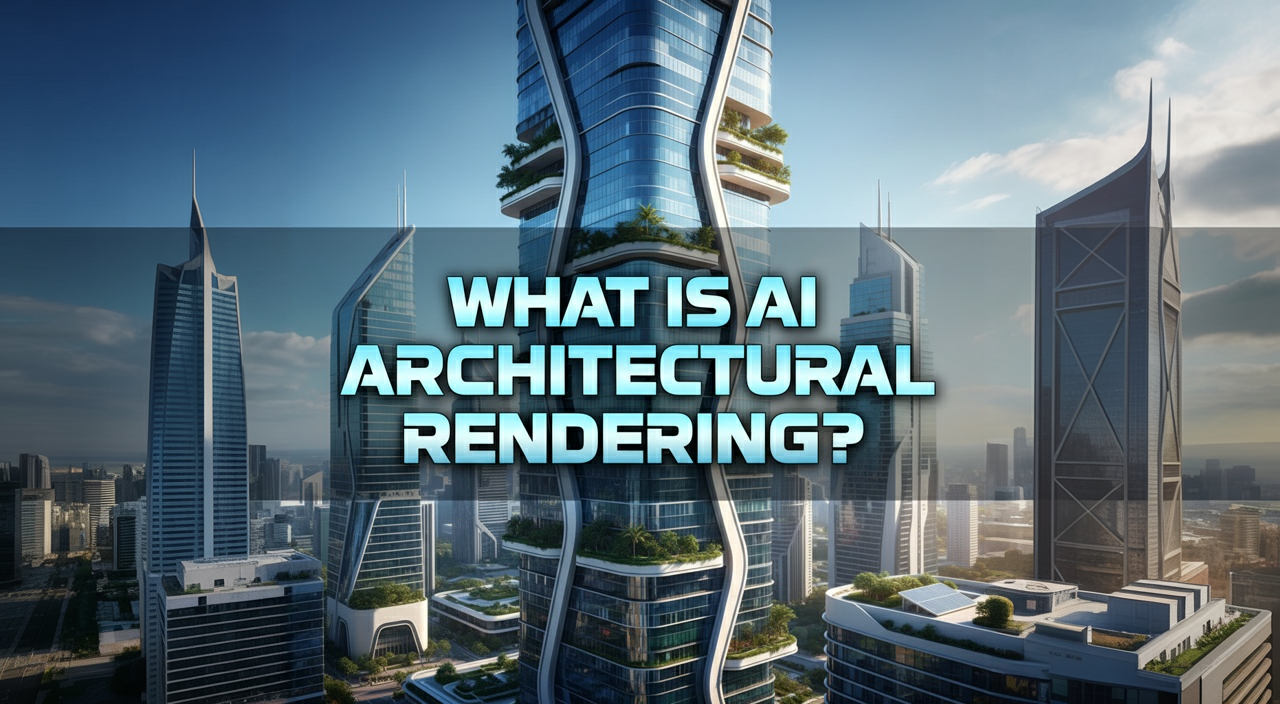
Creating a great architectural render starts long before the image is generated and doesn't end when it's complete. From writing smarter prompts to refining your visuals with advanced AI upscaling, RunDiffusion offers a full pipeline of AI render enhancer tools designed for architectural professionals.
Whether you're designing in Revit, building in SketchUp, or using text-to-image generation models like SeeDreamV4 or Nano Banana, RunDiffusion helps you polish your work with precision. Many of these tools are available through the free daily token plan on the Runnit platform, with premium enhancements available for Enterprise Plans.
What You’ll Learn
- How to improve render quality with AI at every stage of your workflow
- The difference between prompt enhancement and post-processing
- How to use tools like Enhance Prompt, Nano Banana, Magnific, and Topaz
- How to access these tools with RunDiffusion’s free and Enterprise plan
Step 1: Start with Better Prompts
Before you generate an image, the quality of your architectural render is shaped by the prompt you write. Poorly structured prompts lead to weak results—even with the best models.
RunDiffusion helps solve this with:
- Enhance Prompt: Manually rewrites your prompt into a more detailed, architecturally rich version before generation.
- Prompt Magic: Automatically improves prompt clarity, depth, and accuracy in the background. Just toggle it on.
Both features work with models like Nano Banana (Gemini 2.5) and SeeDreamV4, giving you more professional output from the first render.
Read the full article: Improve Your Architectural Renders with AI Prompt Enhancement
 RunDiffusion Team
Step 2: Enhance Renders from Revit and SketchUp
If you're using Revit or SketchUp, RunDiffusion allows you to upload exported PNGs and enhance them directly with AI models. No plugins or local installs required.
Use these tools an More:
- SeeDreamV4 Edit: Improves lighting, sharpness, and structure in Revit/SketchUp exports
- Nano Banana Edit: Adds texture, polish, and styles changes
- Works well for conceptual drafts, early-stage designs, or client-ready imagery
This process lets you enhance renders without reworking your model or relying on third-party software.
Read more: Improve Revit and SketchUp Renders with AI Image Enhancement Tools
 RunDiffusion Team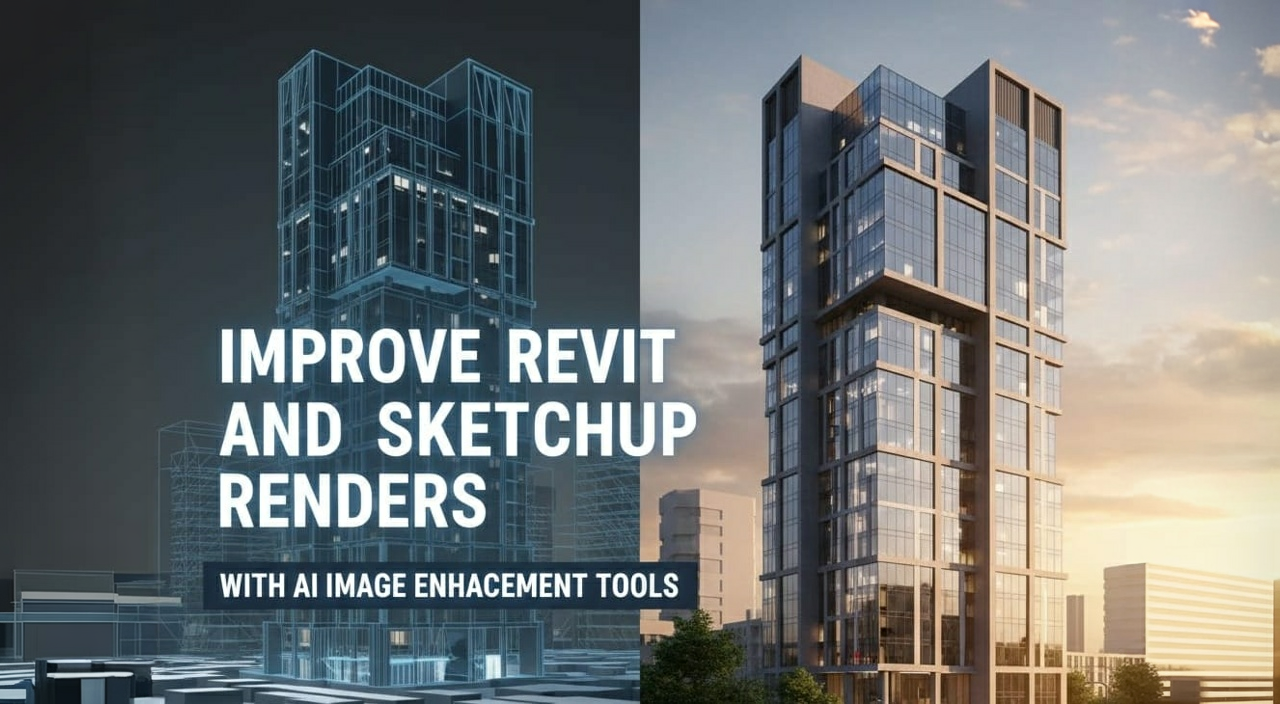
Step 3: Upscale with Magnific and Topaz
When presentation quality matters, RunDiffusion integrates top AI upscaling tools to bring out the highest detail in your images.
Magnific
- Neural upscaler optimized for creative realism
- Preserves architectural lines, shadow depth, and material finishes
- Ideal for concept art, mood boards, and presentation renders
Topaz Photo AI
- Precision upscaling with sharp edge and texture preservation
- Best for interiors, facade closeups, or detail-heavy compositions
- Offers quality and noise reduction controls for clean output
These tools support outputs up to 10,000 x 10,000 resolution and work with both generated images and uploaded PNGs from external software.
Explore: AI Upscaling Tools for Sharper Architectural Renders
 RunDiffusion Team
Final Thoughts
From prompt enhancement to final upscaling, RunDiffusion provides a full AI-powered workflow for architectural visualization. Whether you’re improving a Revit render, testing design variations, or producing presentation-ready imagery, you’ll get sharper, more compelling visuals faster and without leaving your browser.
Try it today with free daily tokens on the Runnit platform and see how much better your renders can look with the right tools at every stage.
Try It Today
Ready to enhance your architectural renders with AI?
Start using Enhance Prompt, Prompt Magic, SeeDreamV4, Nano Banana, Topaz, and Magnific—all available on the Runnit platform.
Log in to your free RunDiffusion account to get started with Free plan before upgrading to your Enterprise Plan.
 RunDiffusion Team
 RunDiffusion Team