


Kling 2.1, the most advanced AI video generator to date, is now fully integrated into Runnit. No setup, no dependencies—just open the tool or add it to your board and start generating cinematic-quality AI video from text or image prompts.
Kling 2.1 is ideal for short-form content creation—perfect for creators working on product visuals, social media videos, commercials, and indie film projects.
Why Use Kling 2.1 in Runnit?
Kling 2.1 brings fast, high-quality AI video generation directly to your Runnit workflow. It’s designed for users who need eye-catching results quickly, without having to manage complex settings or tools.
With Kling 2.1 on Runnit, you can:
- Generate smooth, high-quality motion in a few clicks
- Create visually consistent and stylish short videos
- Run it all on RunDiffusion—no downloads, no setup
- Use Kling 2.1 directly as a Tool or drop it into any Runnit Board
Whether you're producing branded reels, social ads, commercial spots, or cinematic concepts, Kling 2.1 fits seamlessly into your creative process.
Use Cases for Kling 2.1
- Short-form video ads and product reels
- Launch campaigns for social media
- Animated commercial teasers
- Storyboarding for film and creative briefs
Kling 2.1 offers a smooth and focused experience for quick-turn around visual storytelling.
How to Use Kling 2.1 on Runnit
Getting started is quick and cloud-native:
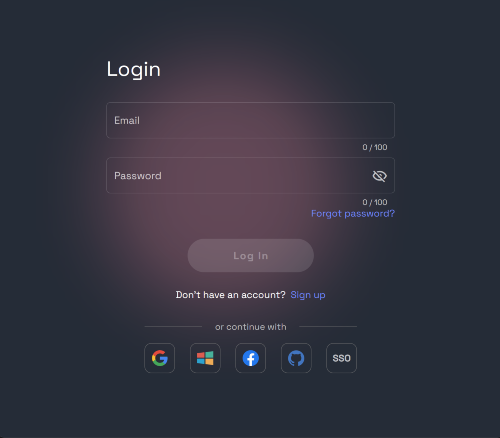
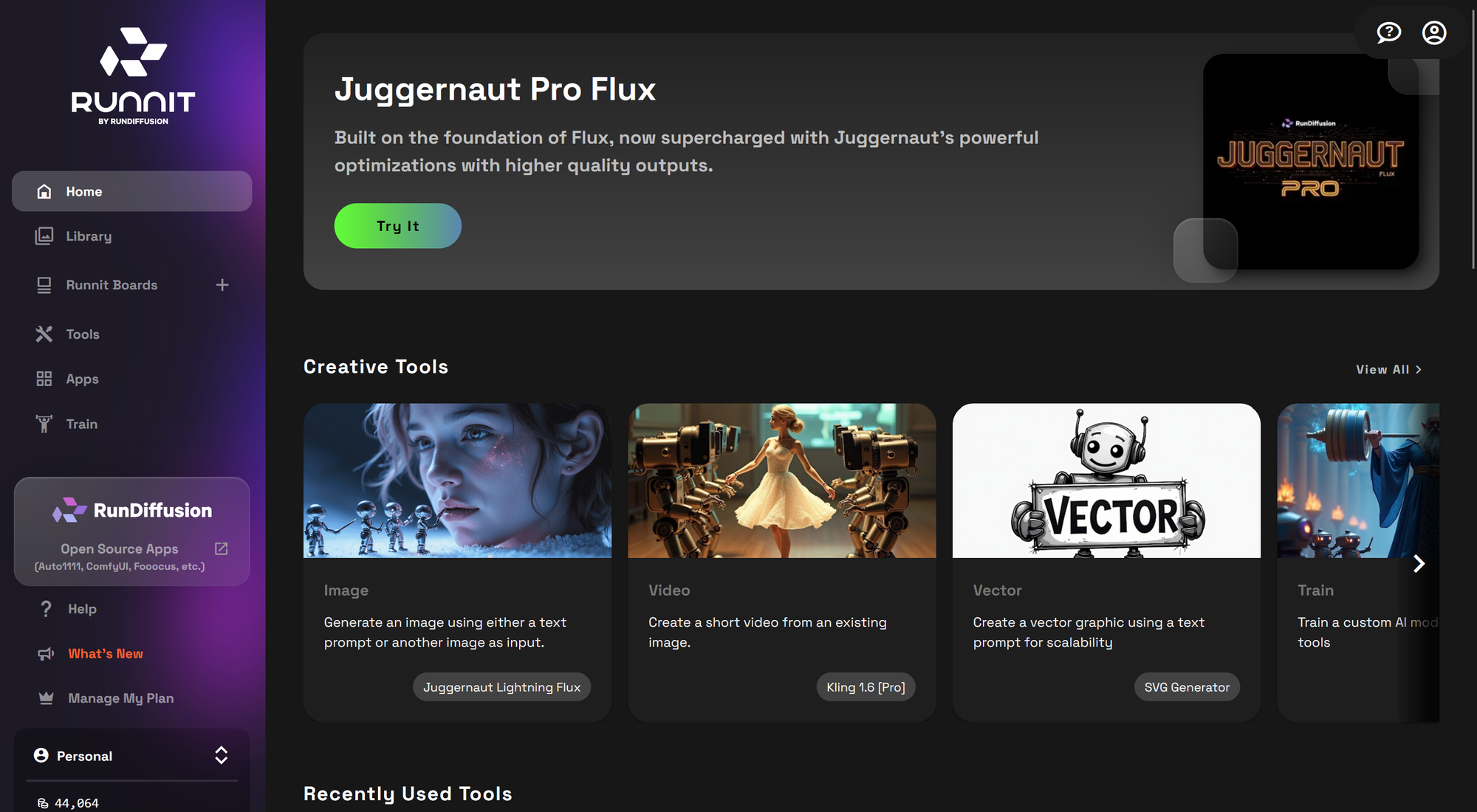
Click on Tools or create a new Runnit Board.
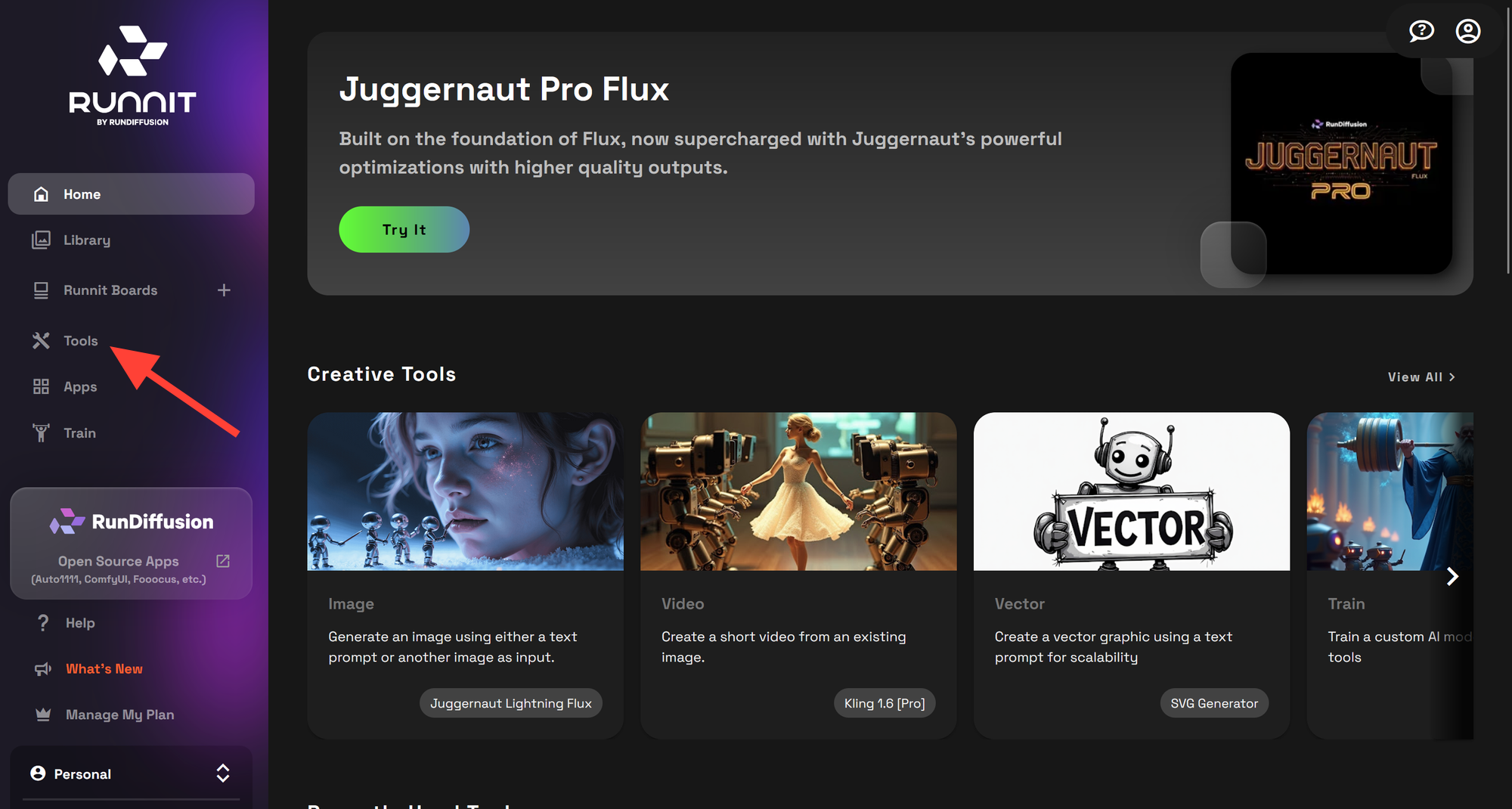
You can click on the tag Text to Video or search for Kling 2.1 or Kling 2.0
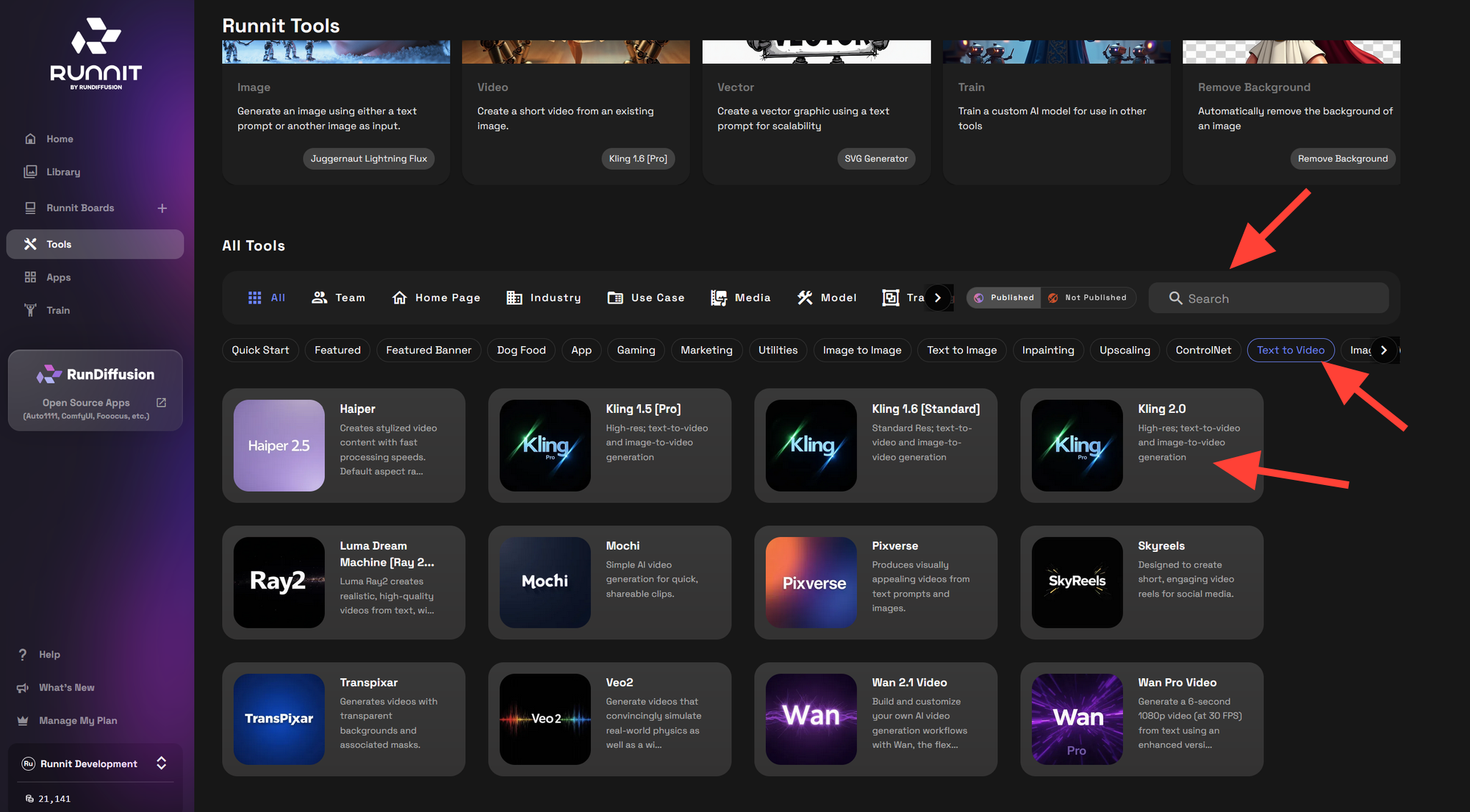
Click on the Kling 2.1 or Kling 2.0 Tool
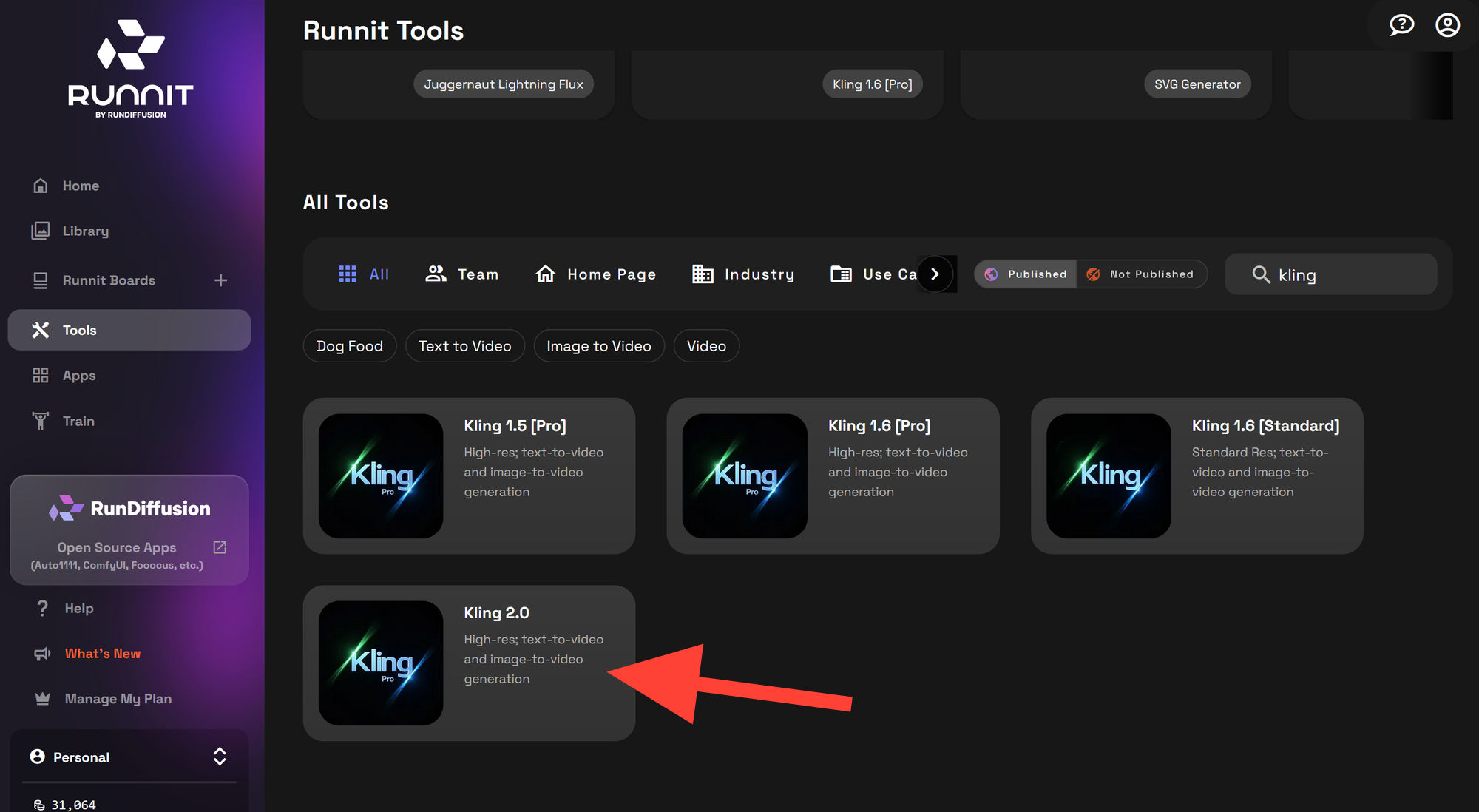
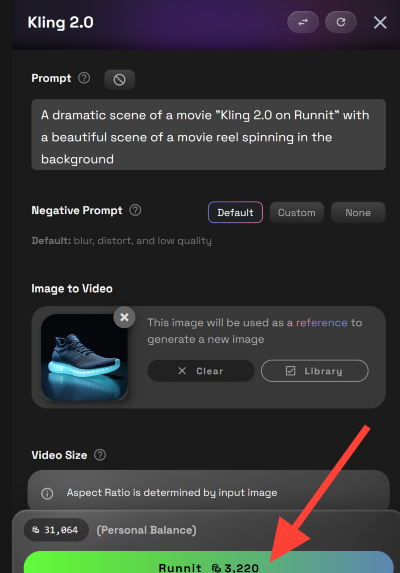
In the Kling 2.1 or Kling 2.0 Tool, enter a detailed prompt into the Prompt box
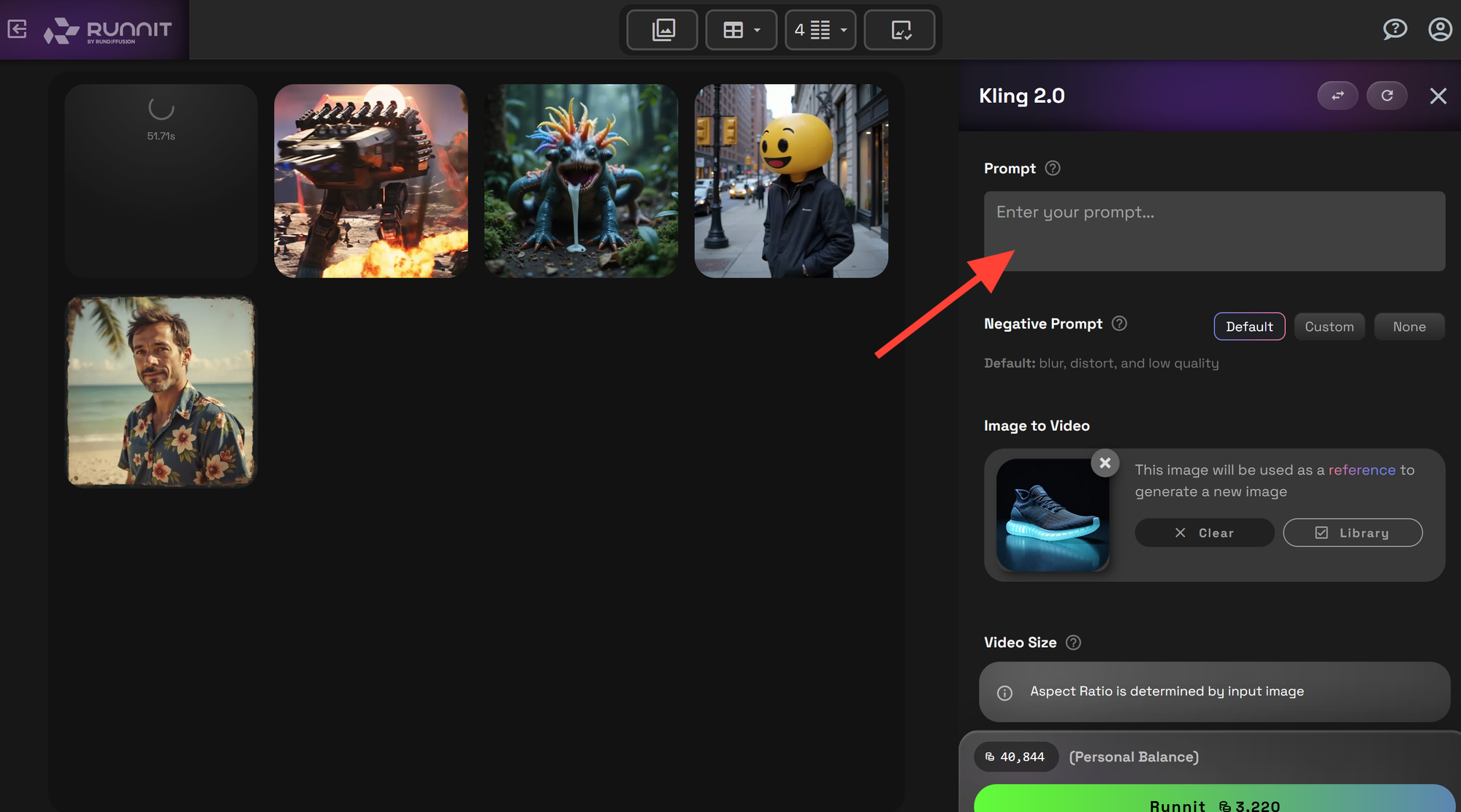
Optional: Upload or Select a Starting Image
You may upload an image or choose one from your library to use as the starting frame.
Minimum size: 300 × 300 pixels
Recommended starting image resolutions:
- 1024 × 1024
- 1280 × 720
- 960 × 960
- 1080 × 1920
- 1920 × 1080
- 1400 × 1400
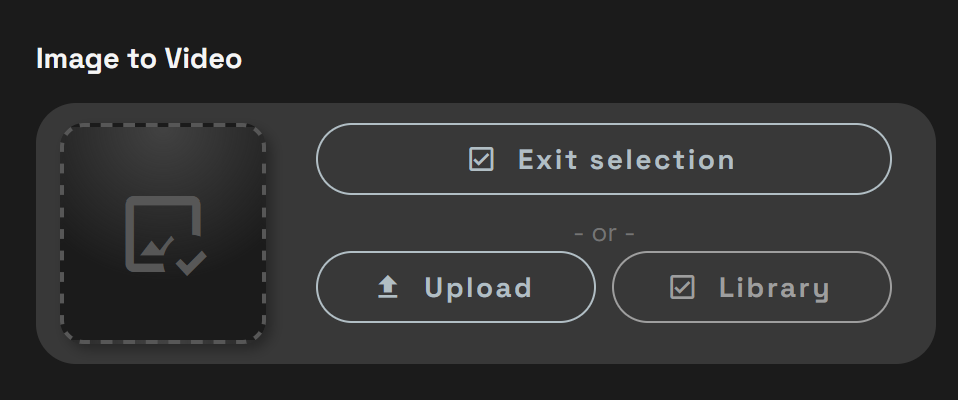
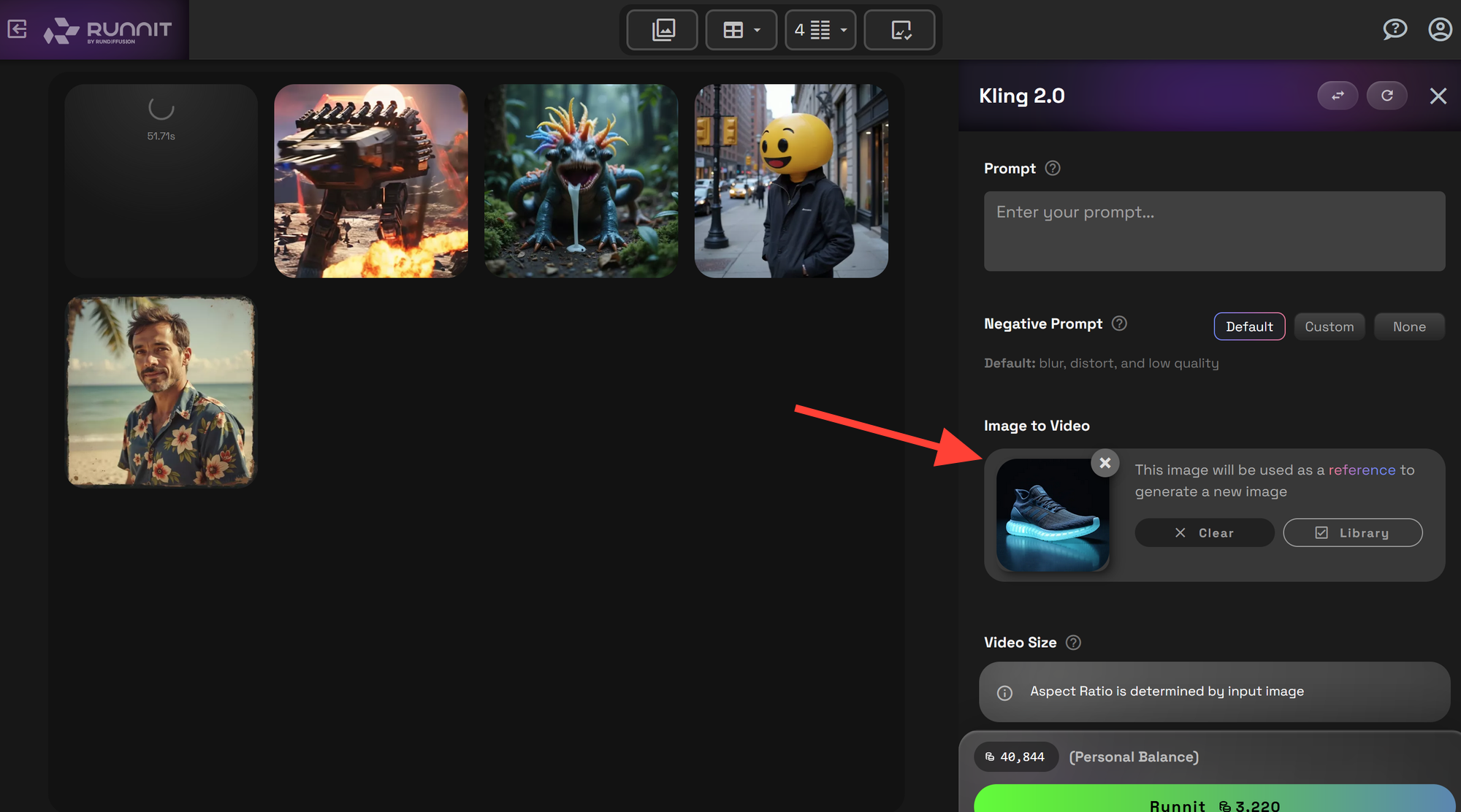
Once your input is ready, click Runnit to begin your video generation
Note: Kling 2.1 and Kling 2.0 are powerful models—generations may take 8–15 minutes to complete.
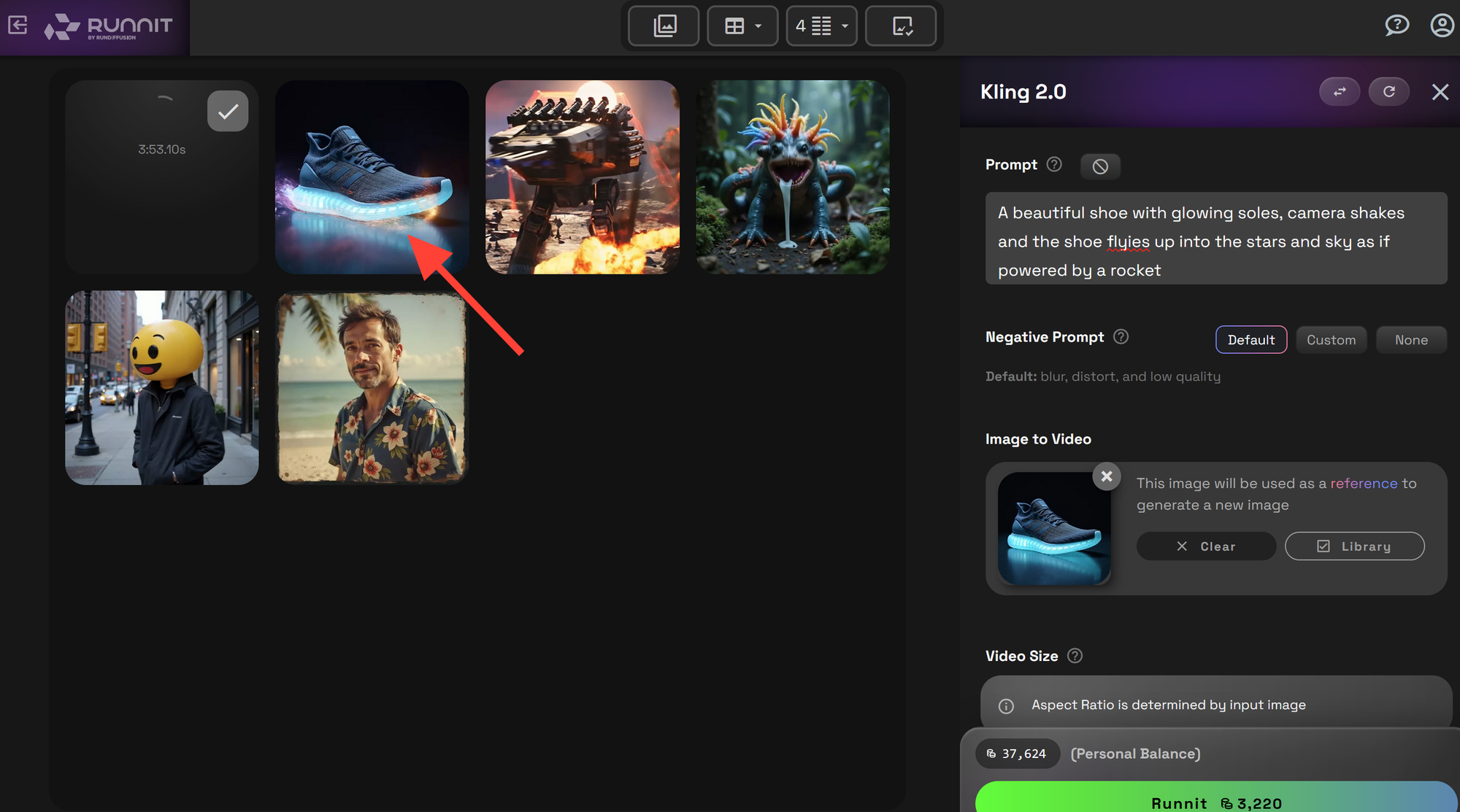
Completed Videos will show up on the left side. Click on an image to view your video and download them.
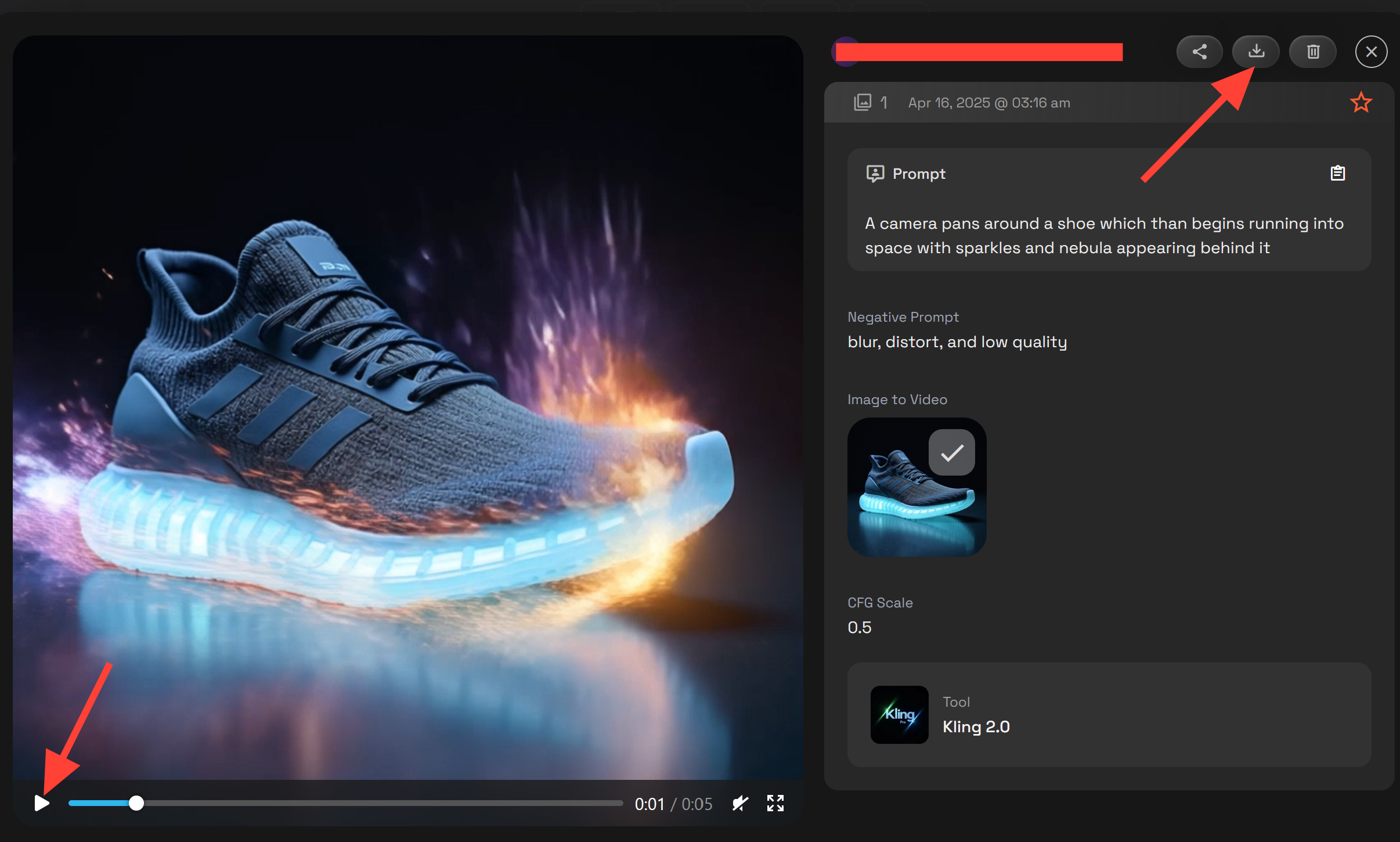
Clicking on an image you can play the video and download it.
Want to experiment? You can try multiple prompts side-by-side within your session to test variations. Here's an example prompt:
"A beautiful shoe with glowing soles, camera shakes and the shoe flies up into the stars and sky as if powered by a rocket."
🧹 Add Kling 2.1 to Your Runnit Boards
Want to visualize a campaign or pitch? Add Kling 2.1 to your Runnit Board consider adding these tools too to create a workflow.
 RunDiffusion Team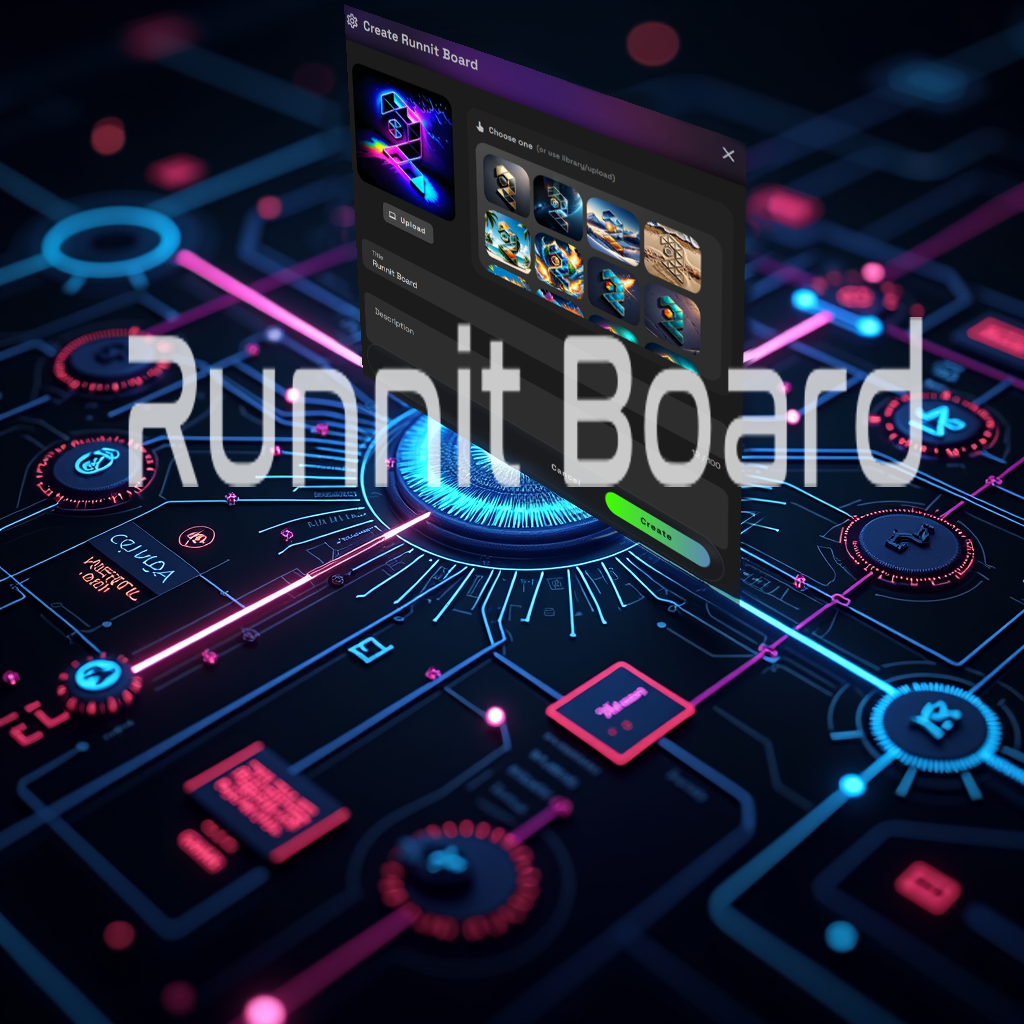
 RunDiffusion Team
 RunDiffusion Team
Runnit Boards make it easy to organize ideas, compare styles, and collaborate visually—all within the same session.
✅ Start Creating with Kling 2.1 on Runnit
Ready to turn your prompt into cinematic motion?
FAQ: Kling 2.1 on Runnit
What is Kling 2.1?
Kling 2.1 is a high-end AI video generator capable of producing smooth, cinematic short-form video from text or image prompts. It is fully integrated into Runnit with no setup or installation required.
What makes Kling 2.1 different from other video models?
Kling 2.1 delivers faster, cleaner motion and more consistent visual quality than prior models. It excels at short-form storytelling, product visuals, social media ads, and cinematic concepts where speed and polish matter.
Do I need to install anything to use Kling 2.1 on Runnit?
No. Kling 2.1 runs entirely in the cloud. Just log in, open the tool, or add it to any Runnit Board.
Where can I find Kling 2.1 inside Runnit?
On the Runnit Platform, go to Tools or open a Board. Use the Text to Video tag or search for “Kling 2.1” or “Kling 2.0.”
Can I start from an image instead of just text?
Yes. You can upload an image or select one from your library.
Minimum resolution: 300 × 300 pixels
Recommended options include 1024×1024, 1280×720, 1080×1920, and other common aspect ratios.
Where do my completed videos appear?
Your finished videos appear on the left side of the interface. Click any image to preview and download the video.
Can I test multiple ideas in one session?
Yes. You can generate multiple prompts side-by-side to compare variations, styles, or narrative directions.
What are the best use cases for Kling 2.1?
Kling 2.1 is ideal for:
- Short-form ads and product reels
- Social media launch campaigns
- Animated commercial teasers
- Storyboards for film, pitch decks, and creative briefs
Can I integrate Kling 2.1 into a larger workflow?
Yes. Add Kling 2.1 to your Runnit Board and combine it with tools such as Text-to-Image or Inpainting Pro to build end-to-end campaign visuals in one place.
Is Kling 2.0 still available?
Yes. Both Kling 2.1 and Kling 2.0 are available on Runnit. You can choose either depending on your preferred style or performance needs.
How do I get started?
Log into your RunDiffusion account, open the Runnit Platform, search for Kling 2.1, and start generating cinematic motion from your prompts.
