Introduction
Team Roles in RunDiffusion allows Company administrators to define exactly what each member can access and control. Roles determine permissions across Team management, Generation Tools, and the Open-Source Apps platform.
This article explains what each available option does based directly on the Team Roles interface, including role levels, token controls, generation permissions, and Open-Source access settings.
Team Roles page is only accessible for Enterprise accounts. If your team would benefit from these features please contact us.
How to Access Team Roles
To configure or review Team Roles:
Login to your RunDiffusion account.
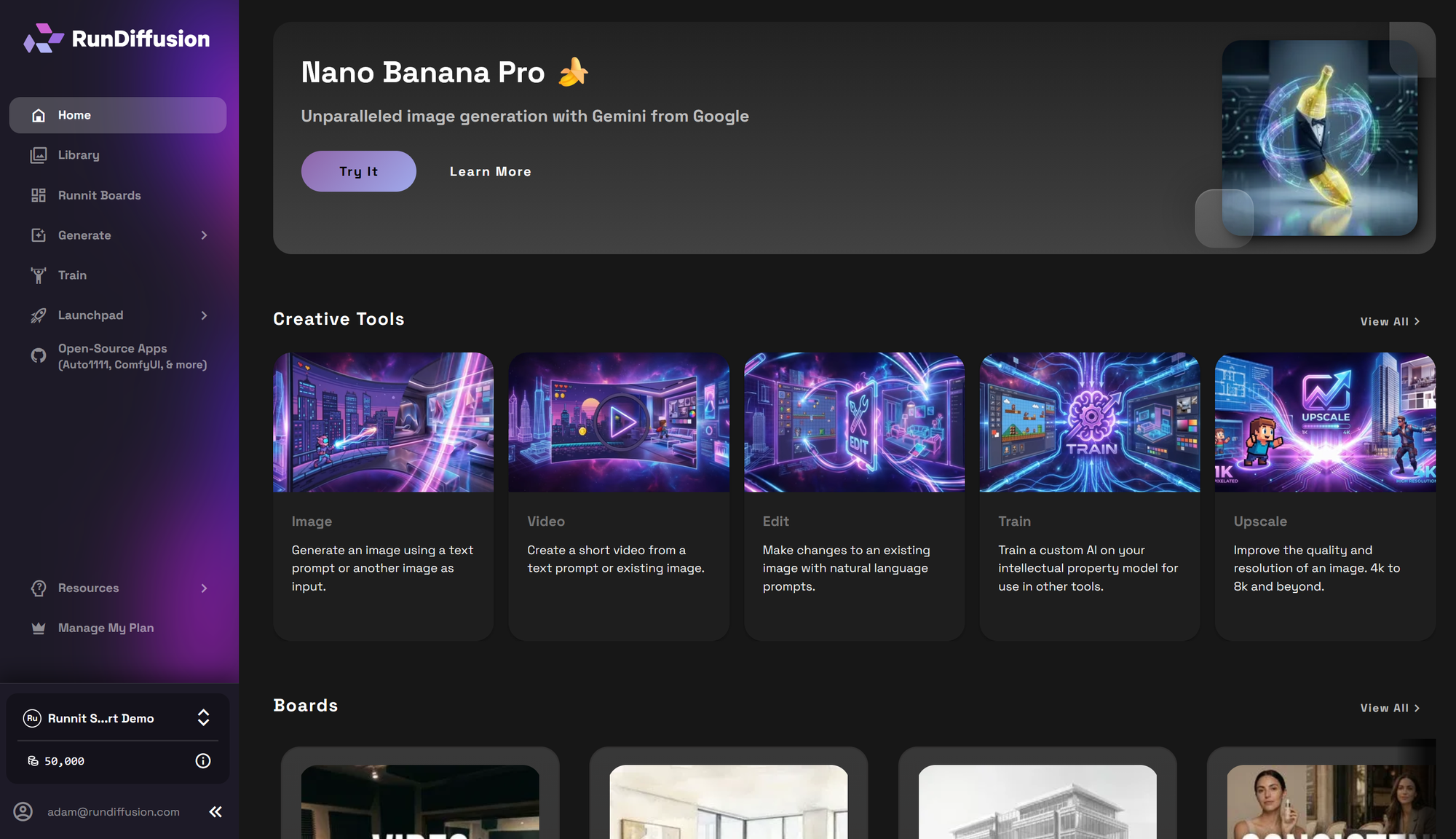
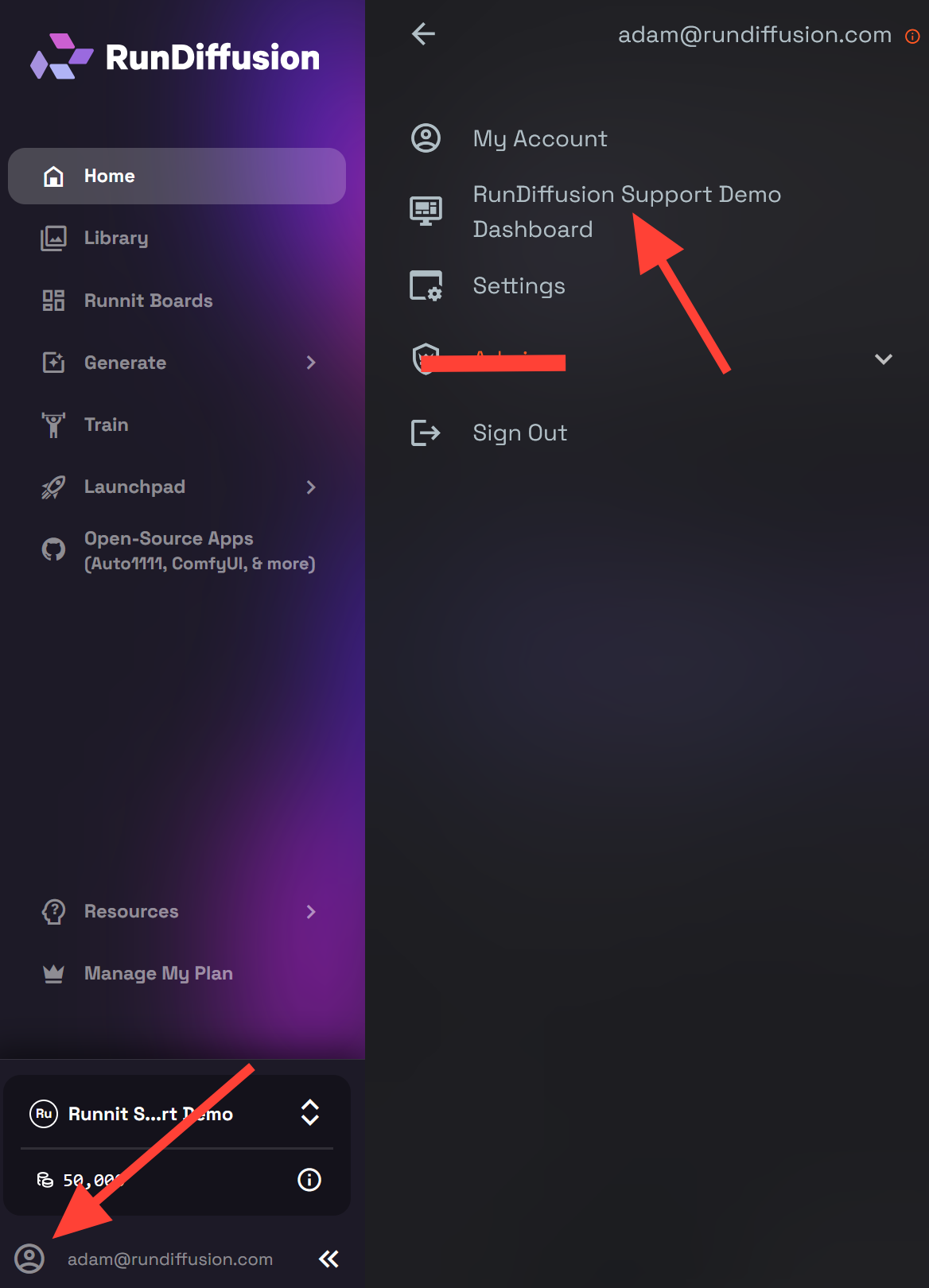
Click on the Account Icon in the bottom of the left side bar. Then select your company dashboard.
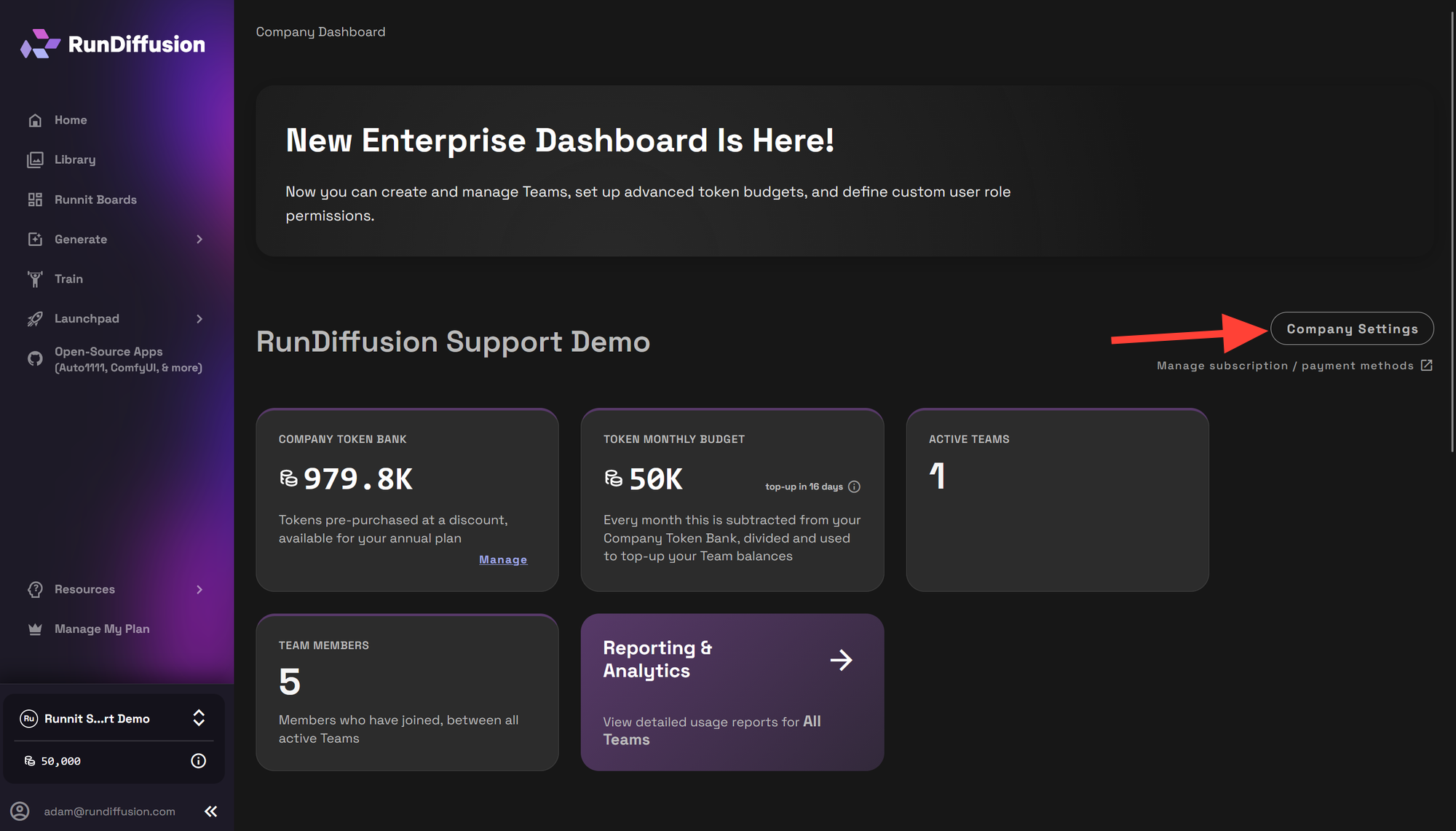
Click on Company Settings.
Click on Team Roles.
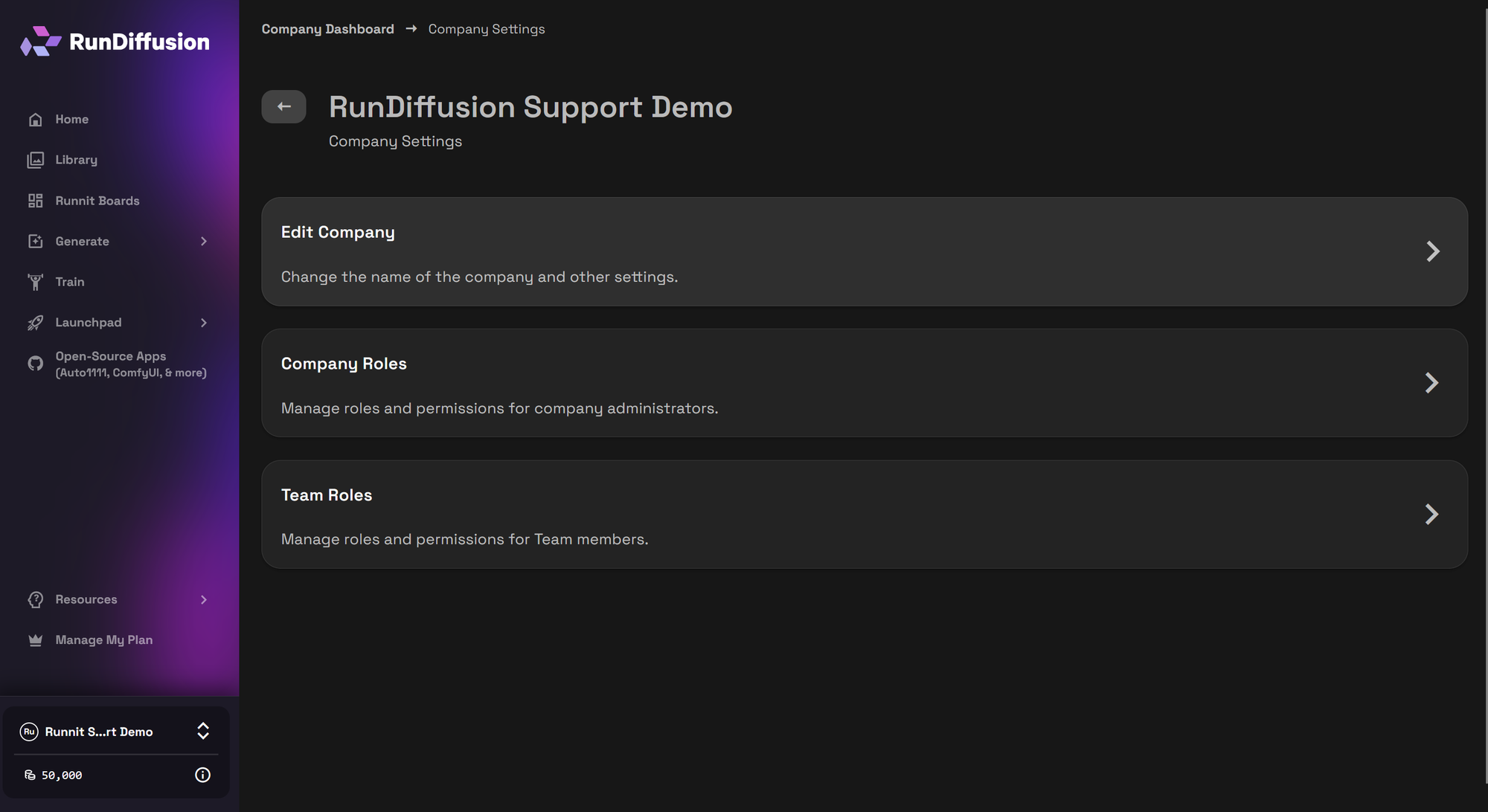
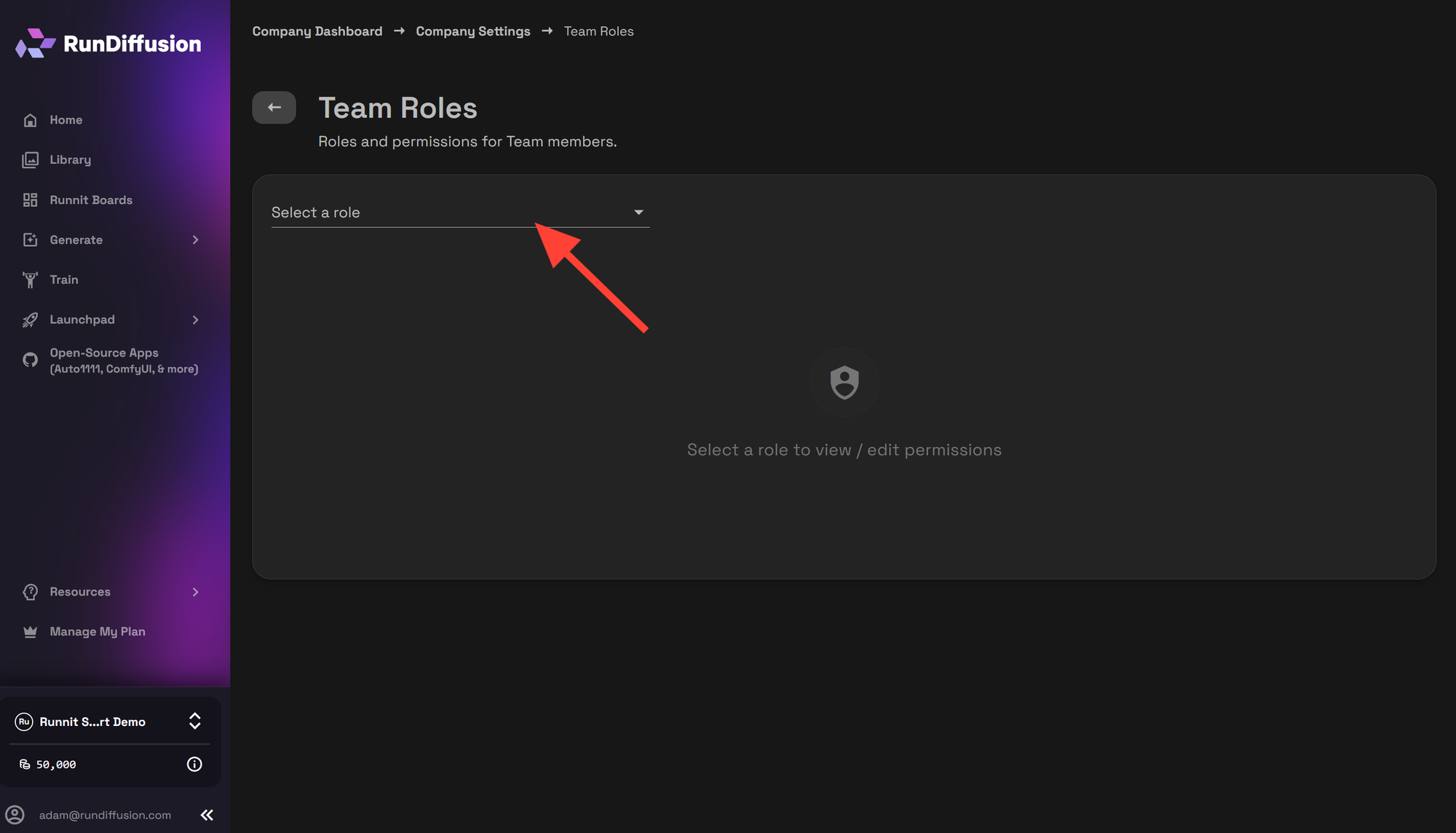
Click on the drop down and select the team role whose permissions you would like to edit.
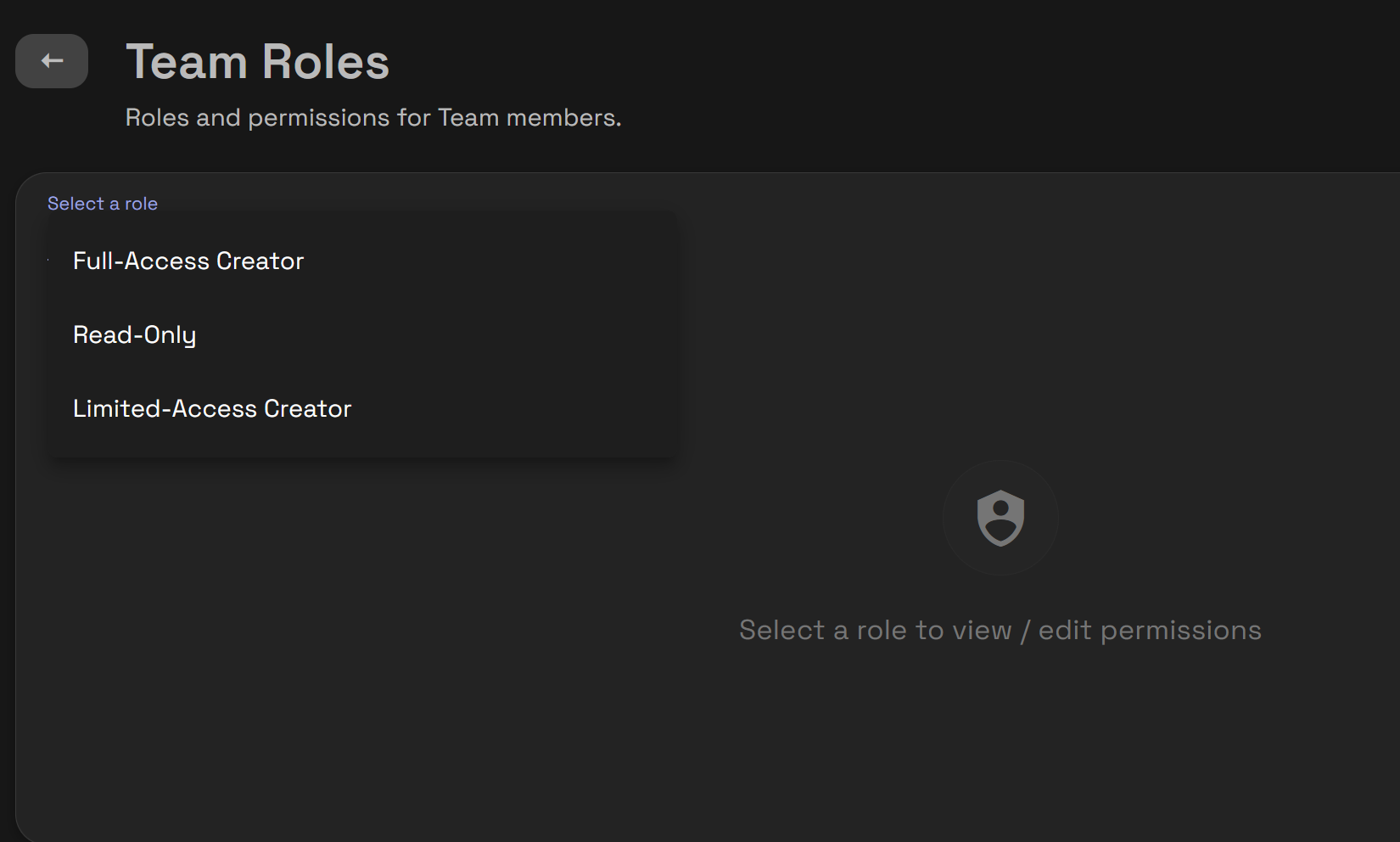
After selecting the role you want to edit the permissions for you need to click the Edit button.
Role Configuration Basics
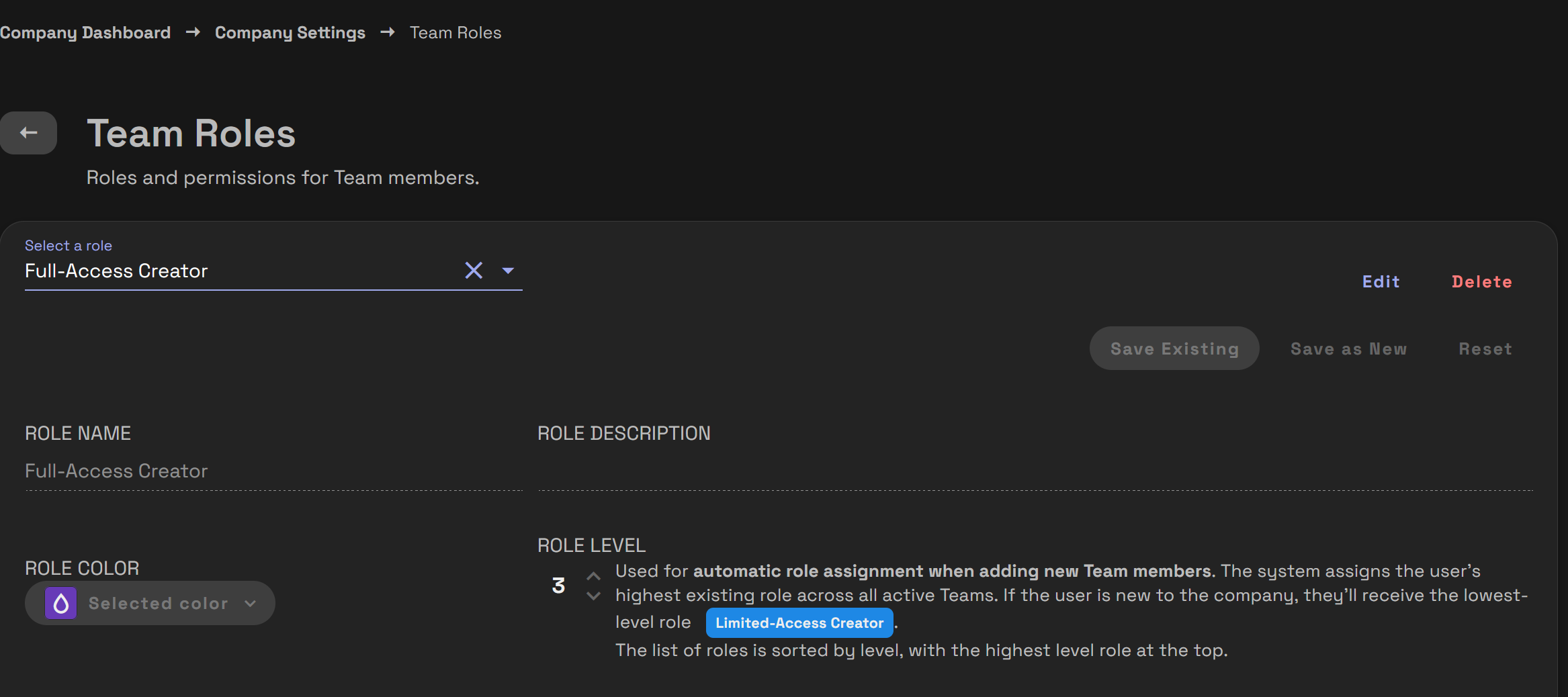
Each Team Role includes:
- Role Name
- Role Level
- Role Color
- Role Description
Roles are sorted by Role Level, with the highest level appearing first.
Role Level
Role Level is used for:
- Sorting roles (highest to lowest)
- Automatic assignment when adding new members
Automatic assignment logic:
- If a user is new to the Company, they receive the lowest-level role.
- If a user already belongs to other Teams, they receive the highest role already assigned to them from any of their existing team memberships
How to Edit a team Role
- Select the Role from the drop down
- Make your changes
- Click:
- Save Existing to update the role
- Save as New to duplicate it
- Reset to discard changes
Team Permissions
Implement a Token Cooldown
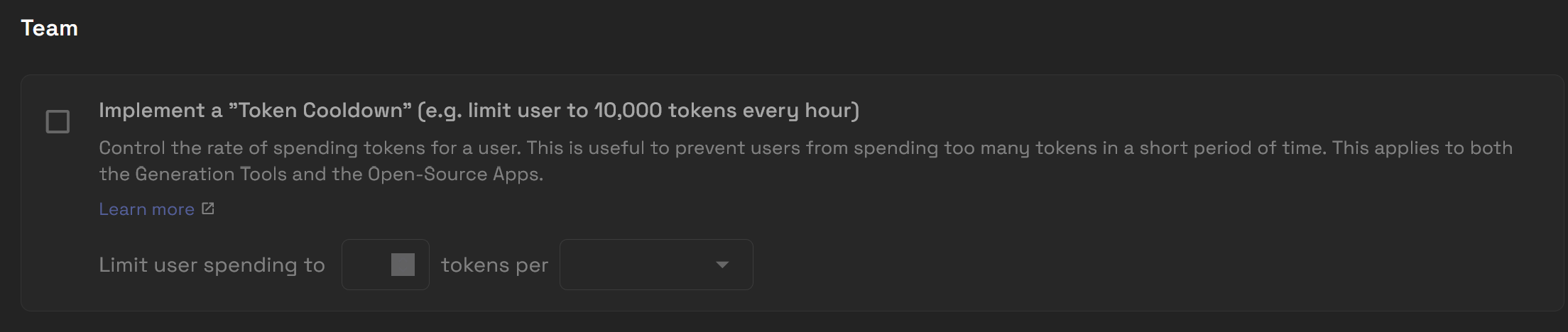
This option allows you to limit how many tokens a user can spend within a defined timeframe.
Examples:
- 5,000 tokens per hour
- 20,000 tokens per day
This applies to:
- Generation Tools
- Open-Source Apps
Token cooldown is used to:
- Control rapid spending
- Prevent budget spikes
- Manage onboarding access
For a more in-depth explanation of Token Cooldown.
Show Team Token Balance

This determines whether members can see the Team’s token balance.
When enabled:
- Users can view available Team tokens.
When disabled:
- Token balance visibility is restricted.
Company-level administrators will always be able to see the token balance.
Can Manage Members

When enabled, users can:
- Invite members
- Remove members
- Update member roles
When disabled:
- Users cannot change Team membership or permissions.
Generation Tools Permissions
These settings control access to RunDiffusion and Runnit generation features.
Can Generate (Creator+)

When enabled:
- Users can generate images
- Users can generate videos
- Users can use editing tools
When disabled:
- The role cannot generate content.
Limit Per Generation Token Cost

This allows you to set a maximum token cost per generation.
When enabled:
- Each generation cannot exceed the defined token limit.
When disabled:
- No per-generation token limit applies.
Can View Training (Creator+)

When enabled:
- Users can access model training features.
When disabled:
- Training tools are not accessible.
Training may include dataset preparation and model training workflows.
Can Manage Shared Assets

When enabled, users can:
- Edit shared boards
- Delete shared models
- Change access settings
- Move assets between private and shared
When disabled:
- Users cannot modify shared content.
Can Manage Everyone’s Generations and Boards

When enabled:
- Users can view and manage all generations.
- Users can access all boards, including private ones.
When disabled:
- Users can only manage their own content.
Open-Source Apps Permissions
These options control access to the Open-Source Apps platform.
Can Use Open-Source Apps Platform

When enabled:
- Users can view the Open-Source Apps interface.
- Users can launch and use applications.
When disabled:
- The Open-Source Apps platform is not accessible.
Can Manage Open-Source Apps Platform

When enabled:
- Users can manage the Open-Source Apps environment.
When disabled:
- Users cannot manage Open-Source App settings.
Example Role Types
Since roles are customizable, you can create structures such as:
Administrator
- Manage members
- Manage shared assets
- Manage everyone’s generations
- Full Open-Source access
- No token limits
Manager
- Can generate
- Can manage shared assets
- Can manage members
- Token cooldown enabled
- Per-generation limit enabled
Creator
- Can generate
- Per-generation limit enabled
- Token cooldown enabled
- Cannot manage members
Reviewer
- Cannot generate
- Cannot manage members
- Limited or no Open-Source access
Conclusion
Team Roles in RunDiffusion allow Enterprise Company administrators to precisely control permissions across generation, training, asset management, token spending, and Open-Source access.
By combining role levels, cooldown controls, and permission settings, organizations can structure secure and scalable AI workflows within their Company account.
 RunDiffusion Team
 RunDiffusion Team
 RunDiffusion Team