


Introduction
The Video Production Template is designed to help teams generate, edit, enhance, and deliver AI-generated video using a single structured workflow. It supports fast video generation, targeted retakes, synchronized audio, and final upscaling for professional delivery.
This template brings together multiple video and audio tools into a clear production workflow, allowing you to move from initial video generation through refinement and final output without switching tools or breaking continuity.
Use Cases
The Video Production Template is used across workflows where AI video needs to be produced efficiently while maintaining creative control and quality.
Common use cases include:
Marketing and Creative Content
- Promotional and brand videos
- Social media video assets
- Campaign and launch content
Entertainment and Media
- Concept trailers
- Short-form narrative content
- Experimental and visual storytelling
I-Gaming and Interactive Entertainment
- Game trailers and teasers
- Character-driven promotional videos
- Seasonal and event-based video assets
Education and Training
- Explainer videos
- Instructional content
- Visual learning materials
If your workflow requires flexible video generation with the ability to refine visuals, audio, and resolution, this template provides a structured production path.
How to Launch the Video Production Template
Login to RunDiffusion and navigate to the RunDiffusion's Runnit Platform.
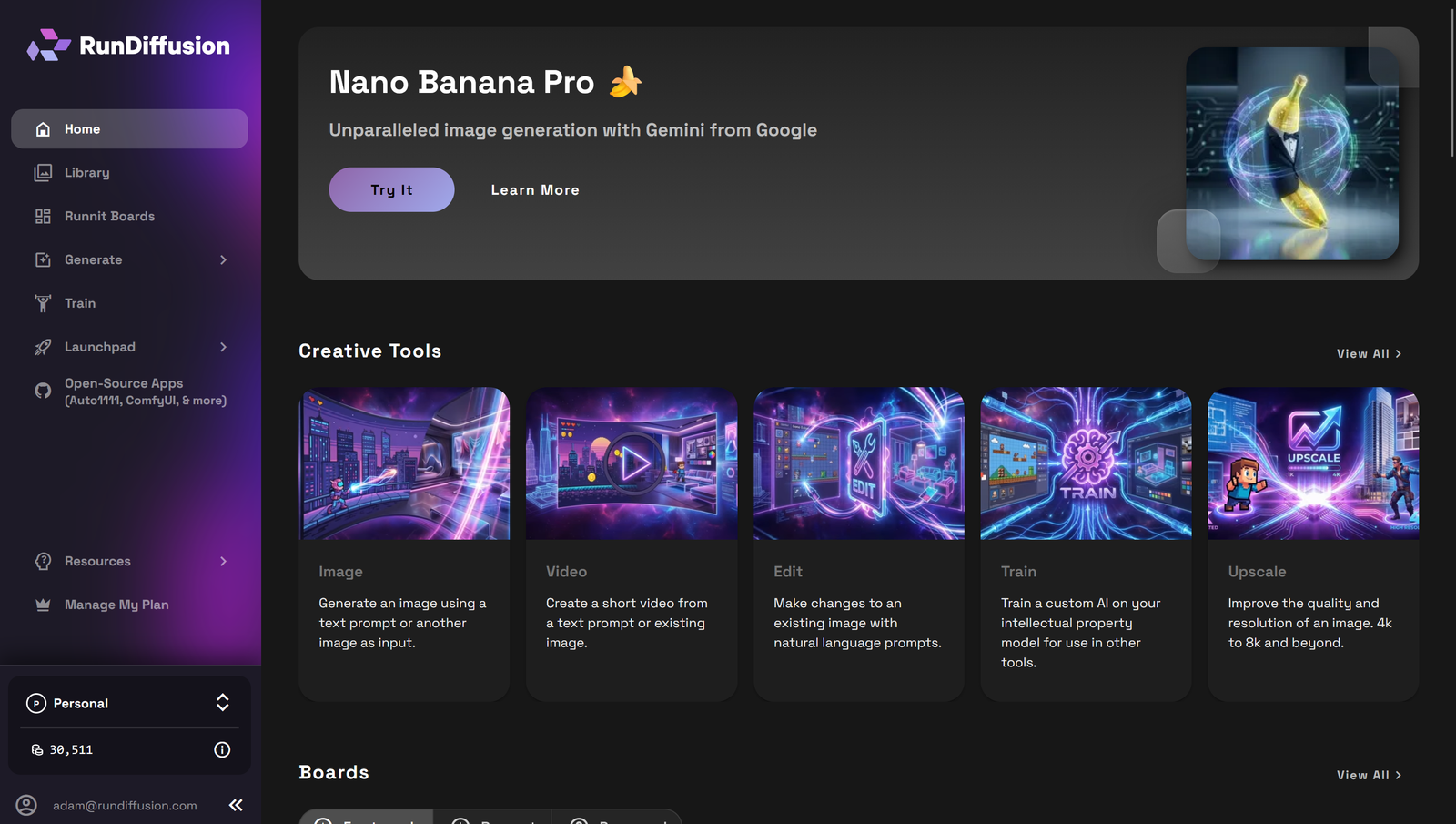
Click Runnit Boards from the left sidebar. Then Select the Video Production Template.
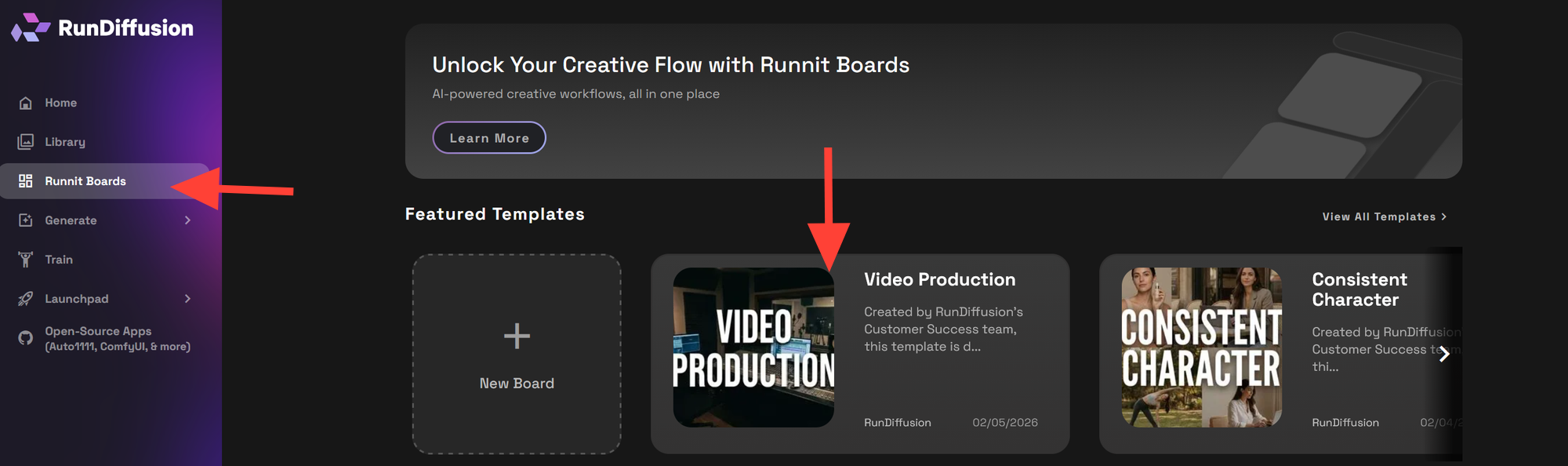
Click Create Board
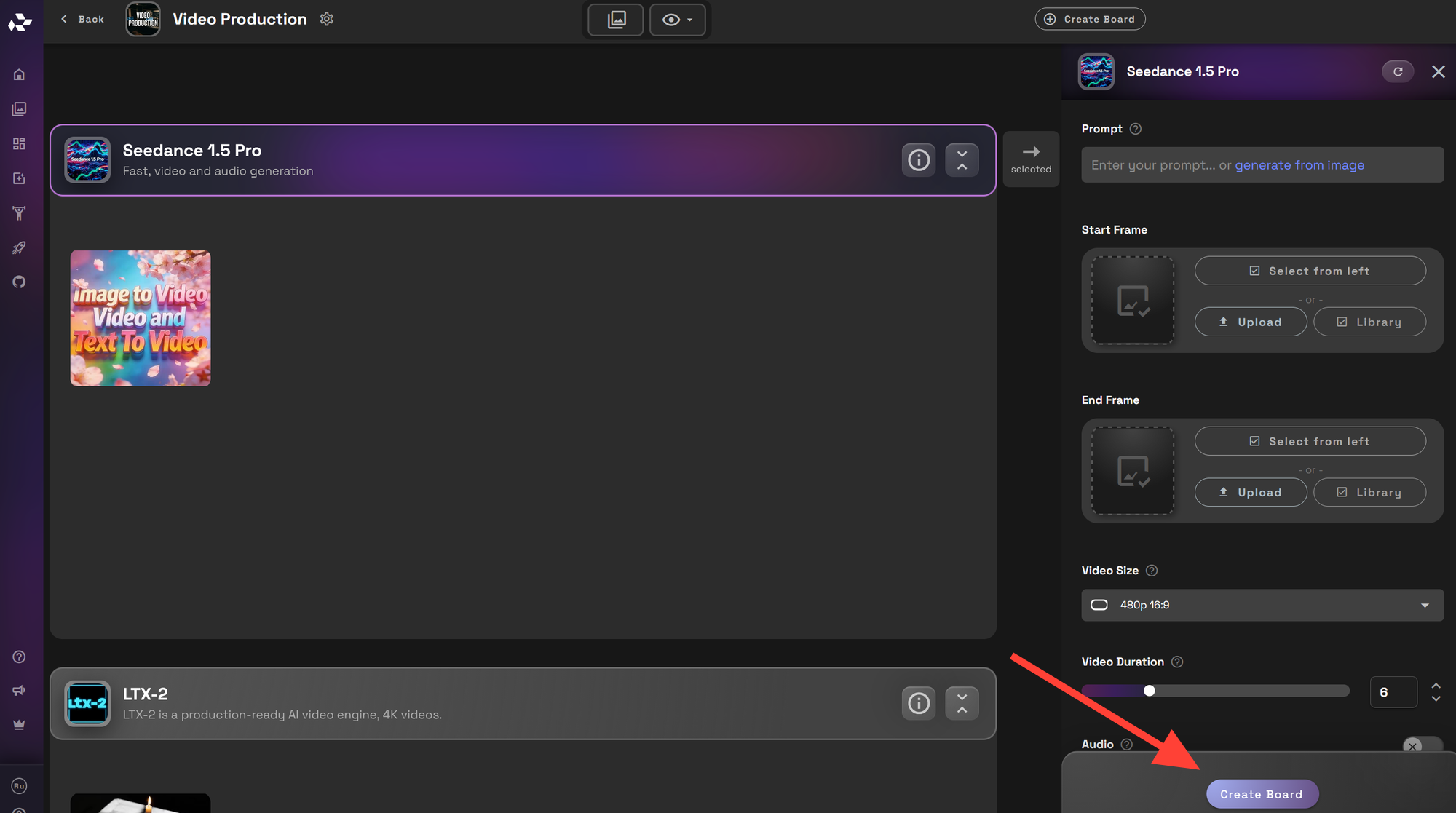
Set your Upload or select an image for the boad, edit the title, and description then click Create.
Set the boards privacy settings.
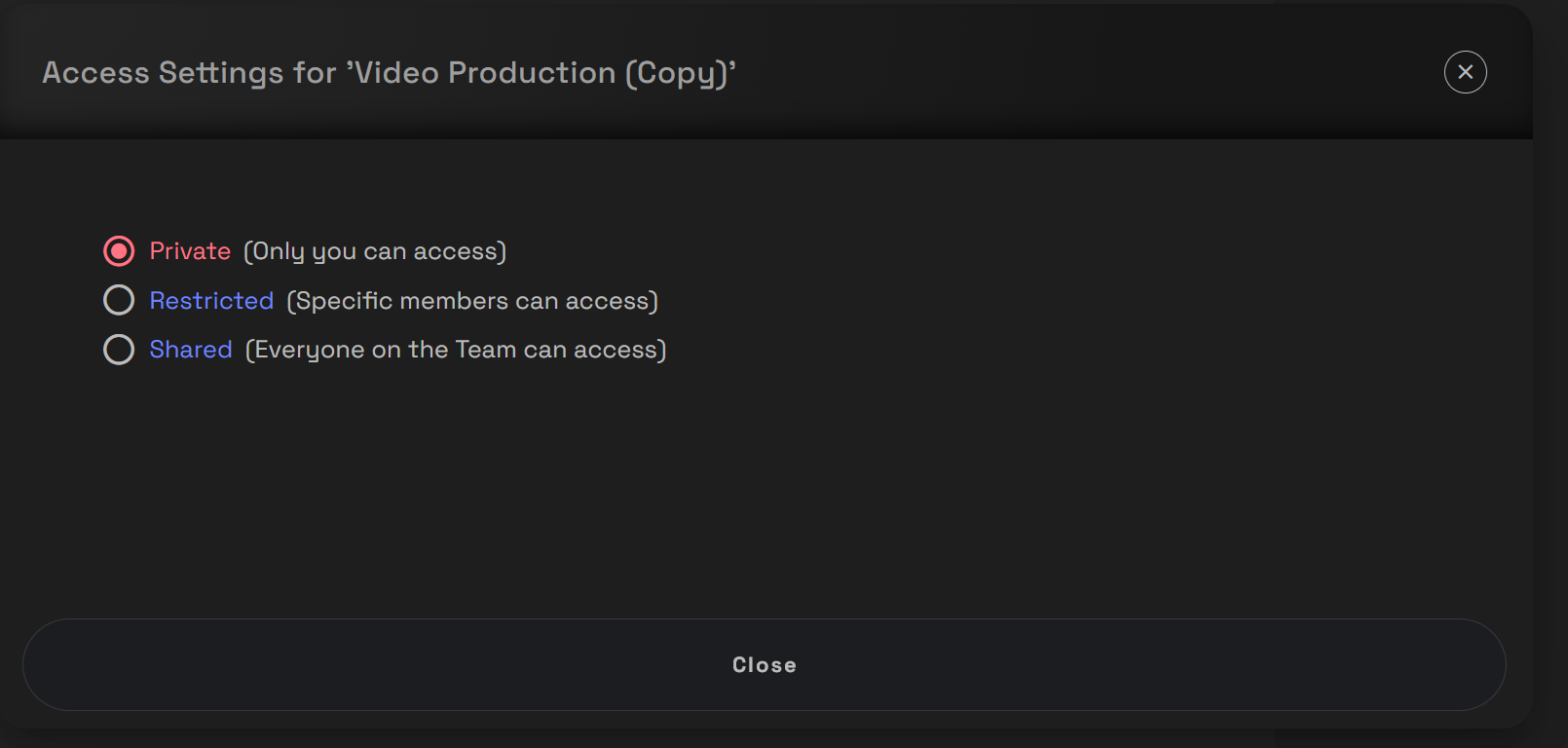
Begin generating video using the tools within the board
All video clips, audio, edits, and outputs remain organized inside a single board.
Video Production Template Workflow
This template outlines how each tool is used within the board. Not every tool must be used for every project, but each serves a specific role in the video production pipeline. This workflow does assume you already have image assets created or that you plan to use text to video generations. If you need to generate images as well use the Add Another tool button to add Image and Image Edit models.
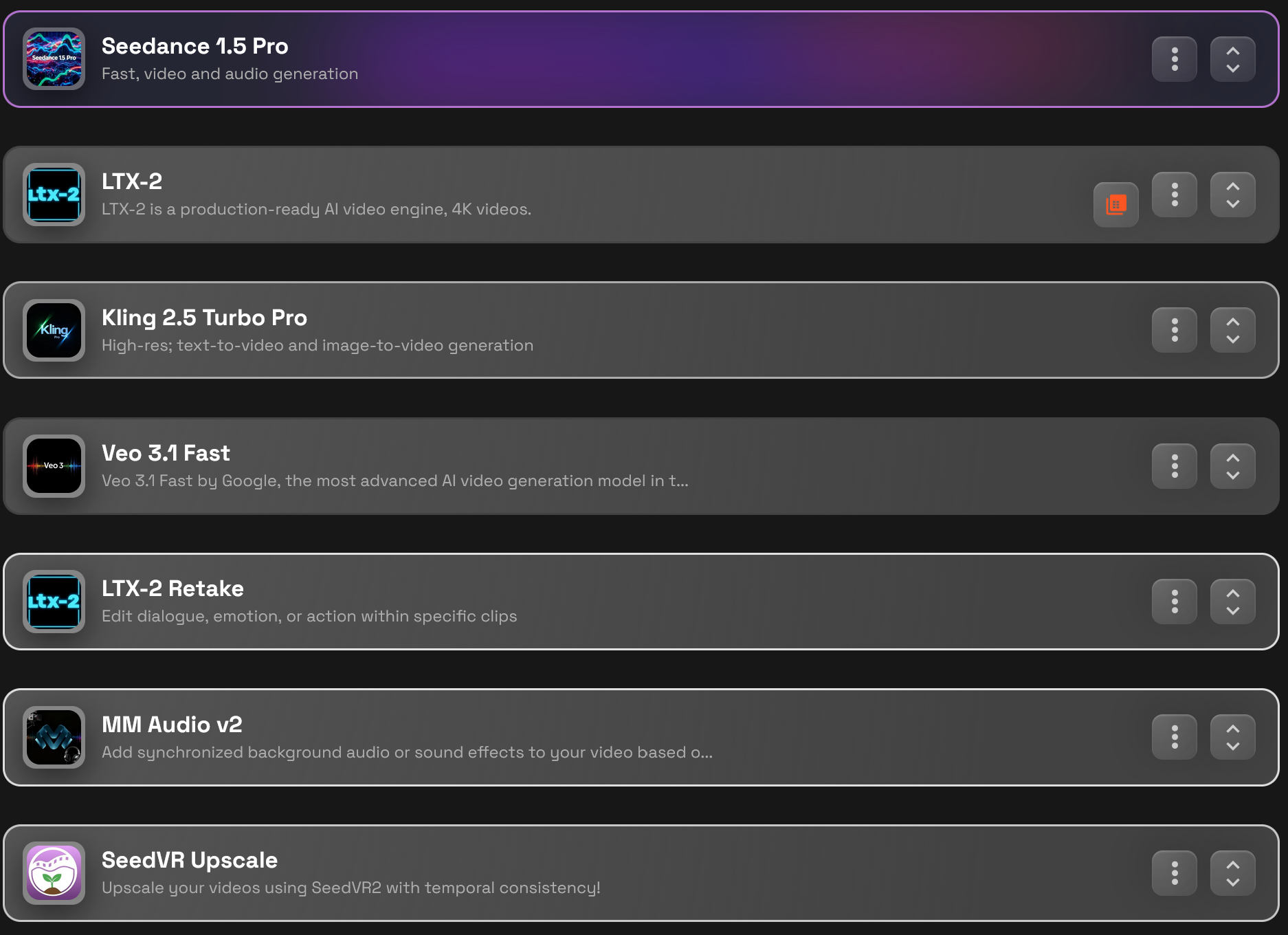
Generate Video – Seedance 1.5 Pro

Seedance 1.5 Pro is used for fast video and audio generation, with support for 480p and 1080p outputs.
Use Seedance 1.5 Pro to:
- Create static or low-motion video content
- Generate time-lapse style sequences
- Produce simple video concepts with sound
Seedance 1.5 Pro excels at static imagery, subtle motion, and time-based visuals rather than complex action scenes.
Generate Video – LTX-2 (Fast and Pro)

LTX-2 is a production-ready AI video engine with Fast and Pro settings.
Use LTX-2 Fast to:
- Concept video ideas quickly
- Explore motion and pacing
- Generate short exploratory clips
LTX-2 Fast is limited to landscape orientation and supports videos up to 20 seconds.
Use LTX-2 Pro to:
- Generate higher-quality, expressive video
- Produce polished clips intended for review or delivery
- Refine emotional tone and visual detail
LTX-2 is best suited for projects where quality and storytelling matter.
Generate Video – Kling 2.5 Turbo Pro

Kling 2.5 Turbo Pro is used for text-to-video and image-to-video generation with support for defined start and end frames.
Use Kling 2.5 Turbo Pro to:
- Generate video using text prompts or source images
- Control motion by specifying start and end frames
- Maintain stronger visual continuity between shots
- Create smoother transitions and more predictable results
Kling 2.5 Turbo Pro supports square, landscape, and portrait formats, making it useful when framing and continuity are important to the final video.
Generate Video – Veo 3.1 Fast

Veo 3.1 Fast is an advanced AI video generation model with sound support.
Use Veo 3.1 Fast to:
- Generate high-quality narrative or cinematic video
- Produce final or near-final clips with audio included
- Create expressive scenes in landscape or portrait formats
Veo 3.1 Fast is not intended for concepting or rapid iteration. It should be used selectively once direction is clear, due to higher cost.
Edit Video – LTX-2 Retake

LTX-2 Retake is used to refine specific moments within an existing video clip.
Use LTX-2 Retake to:
- Adjust dialogue, emotion, or character actions
- Fix individual scenes without regenerating the full video
- Make targeted corrections efficiently
This allows precise control during the refinement phase.
Add Audio – MM Audio v2

MM Audio v2 is used to add or enhance audio after video generation.
Use MM Audio v2 to:
- Add synchronized background audio
- Generate sound effects
- Enhance mood and atmosphere
Audio can be layered onto existing clips to improve immersion and clarity.
Upscale Video – SeedVR Upscale

SeedVR Upscale is used at the final stage of the workflow.
Use SeedVR Upscale to:
- Increase video resolution
- Improve clarity and temporal consistency
- Prepare video for final delivery or presentation
Upscaling should be done after all edits are finalized. In some cases, audio may be removed during the upscaling process. To preserve sound, combine the original video’s audio with the upscaled video during post-production by muting the unnecessary video and audio layers.
Summary
The Video Production Template provides a structured Runnit Board workflow for creating AI-generated video from start to finish. By combining fast generation, production-ready video models, targeted retakes, audio enhancement, and professional upscaling, the template supports flexible video production across marketing, entertainment, education, and i-gaming workflows.
Frequently Asked Questions
Do I need image assets before using the Video Production Template?
Not always. The template supports both text-to-video and image-to-video workflows. If you already have image assets, you can use them directly. If not, you can generate video purely from text prompts using the available video models. If image generation is required, you can add Image or Image Edit tools using the Add Another Tool option.
Which video model should I start with?
It depends on your goal:
- Use Seedance 1.5 Pro for static visuals, subtle motion, or time-lapse style content.
- Use LTX-2 Fast for early concepting and motion exploration.
- Use LTX-2 Pro, Kling 2.5 Turbo Pro, or Veo 3.1 Fast once direction is clear and higher quality output is needed.
What is the difference between LTX-2 Fast and LTX-2 Pro?
LTX-2 Fast is intended for quick concepting and exploratory clips. It is limited to landscape orientation and supports videos up to 20 seconds.
LTX-2 Pro is designed for higher-quality, expressive video and is better suited for polished outputs, storytelling, and final review.
When should I use Kling 2.5 Turbo Pro?
Kling 2.5 Turbo Pro is best used when you need greater control over framing and continuity. It supports text-to-video and image-to-video generation, allows you to define start and end frames, and works in square, landscape, or portrait formats.
Is Veo 3.1 Fast a concepting tool?
No. Veo 3.1 Fast is not intended for rapid iteration or early concepting. It is a higher-cost model designed for near-final or final video generation with sound. It should be used selectively once creative direction is established.
How do I make small changes without regenerating the entire video?
Use LTX-2 Retake to refine specific moments within a clip. This tool allows you to adjust dialogue, emotion, or actions in selected sections without regenerating the full video.
When should audio be added to the workflow?
Audio is typically added after video generation using MM Audio v2. This allows you to layer background audio or sound effects once the visuals are locked, improving clarity and atmosphere without reworking the video.
Why is upscaling done at the end?
Upscaling should be performed only after all edits are finalized. This ensures the best visual quality and avoids unnecessary processing. In some cases, audio may be removed during upscaling, so it is recommended to combine the original audio with the upscaled video during post-production.
Can I reuse the same board for multiple videos?
Yes. A single Video Production board can be reused to generate multiple clips, variations, and refinements. Keeping everything in one board helps maintain organization and continuity across a project.
Who is this template best suited for?
This template is ideal for teams working in marketing, entertainment, education, and i-gaming who need a repeatable, end-to-end workflow for AI video production with flexibility across generation, editing, audio, and delivery.
