Introduction
Company Roles in RunDiffusion define permissions for company administrators. These roles control access to company-wide reports, budgets, Team governance, and administrative settings.
Company Roles are available for both Team Accounts and Enterprise Accounts. They operate separately from Team Roles and apply only to company-level administrators.
This article explains how to access Company Roles and what each permission option does based strictly on the Company Roles interface. These permissions are available for Team and Enterprise accounts.
How to Access Company Roles
To access Company Roles:
Log in to your RunDiffusion account.
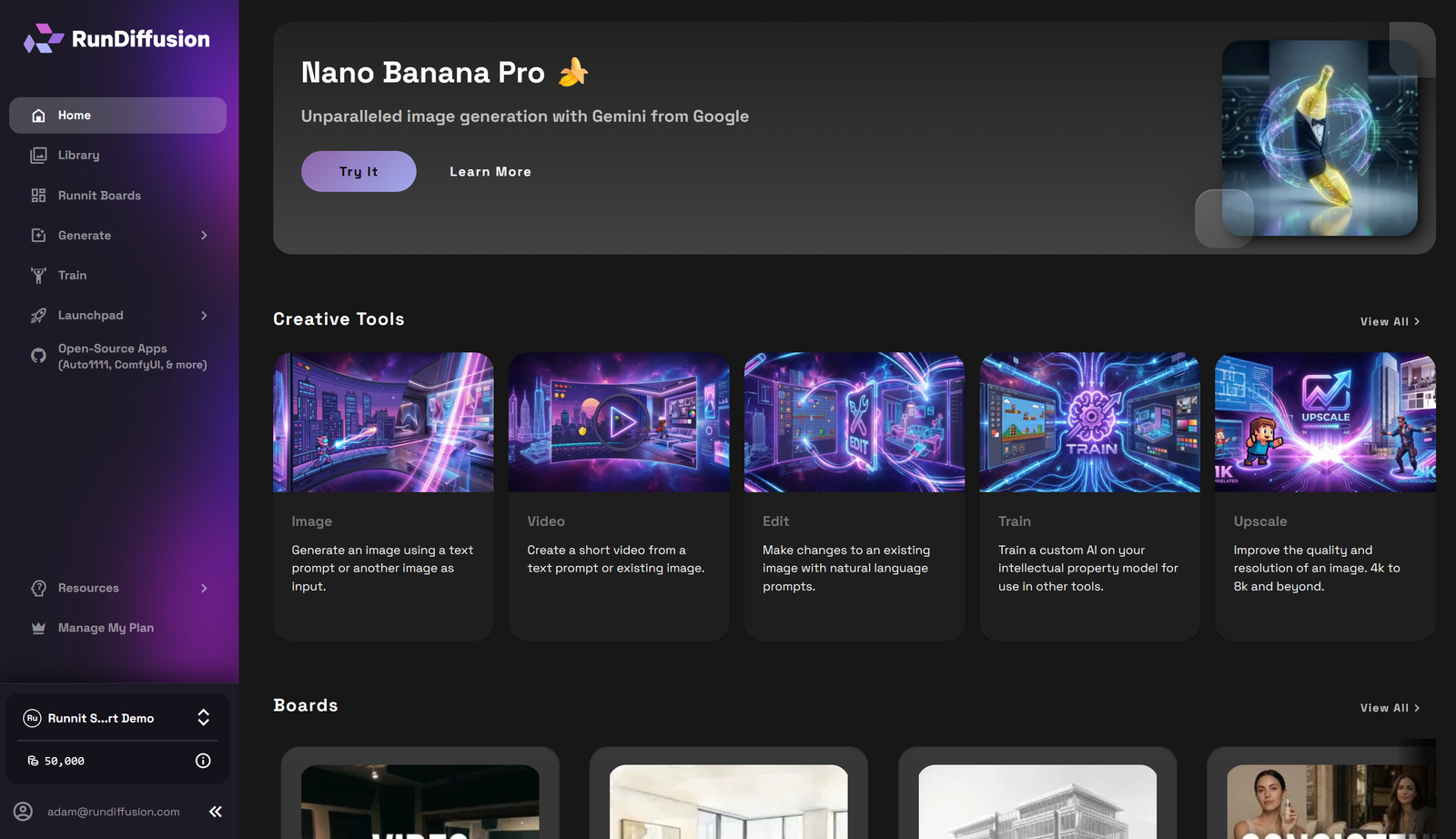
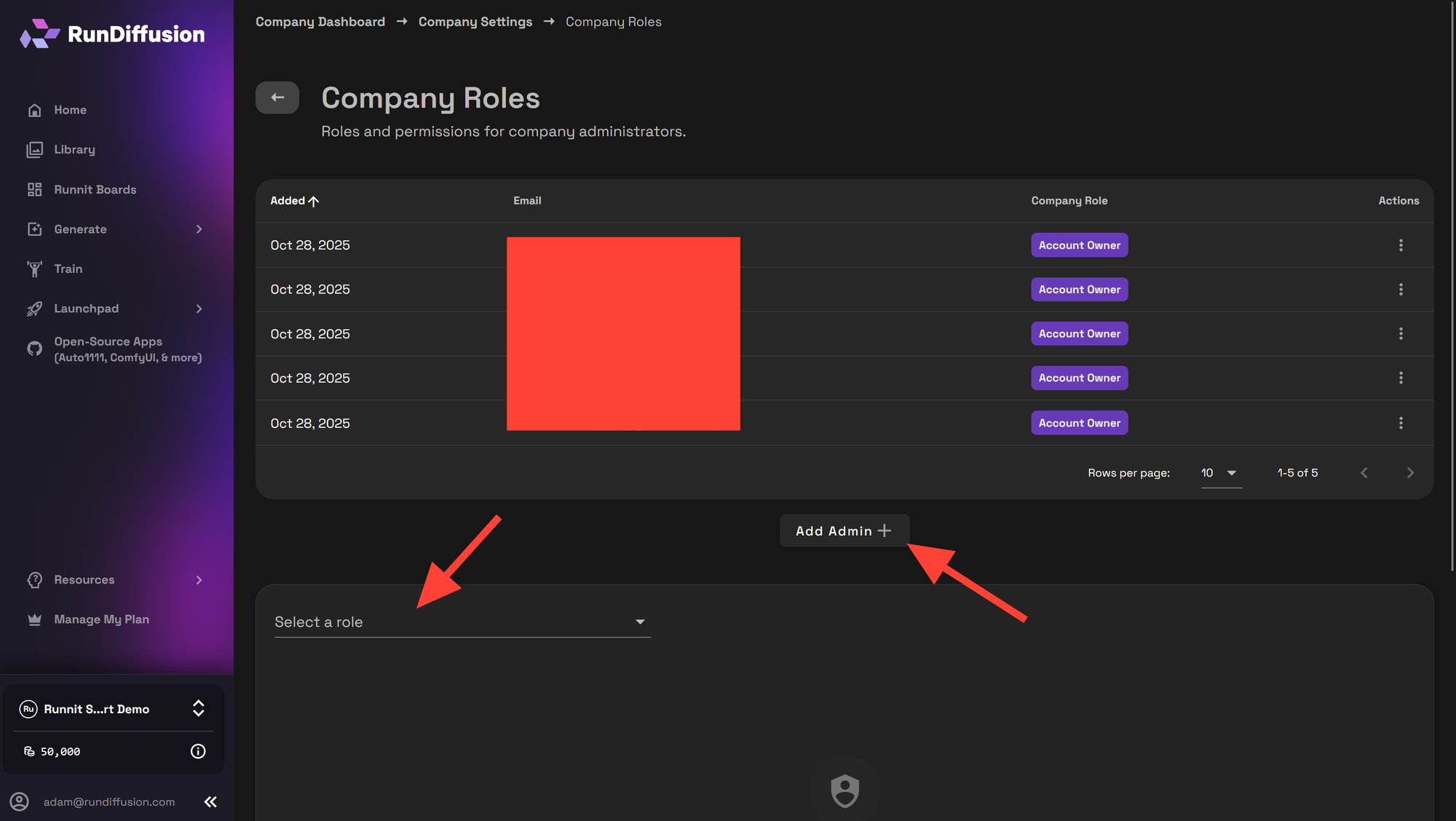
Navigate to the Company Dashboard by clicking on the Account button in the bottom left. Then on your Company Dashboard.
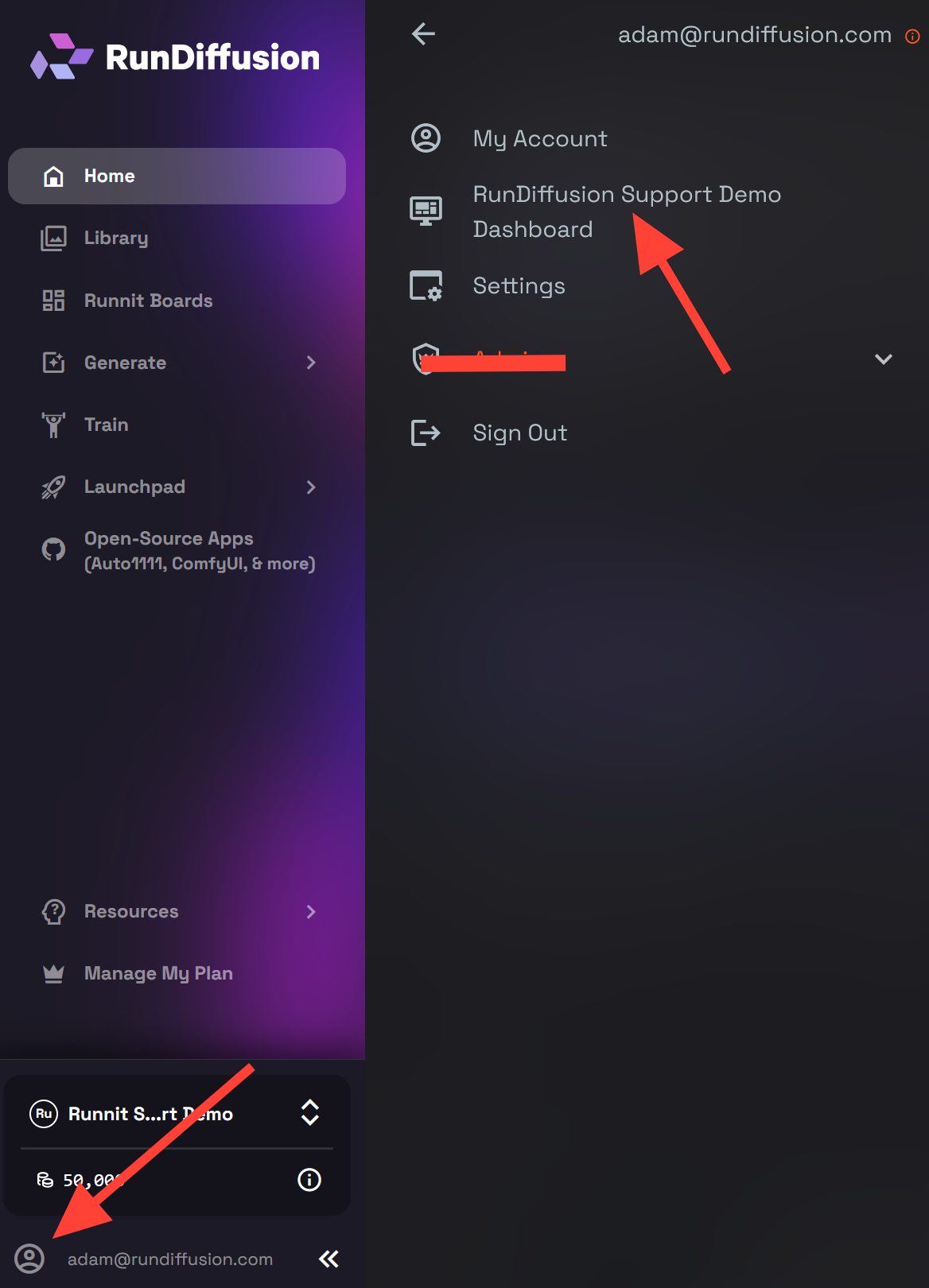
Select Company Settings.
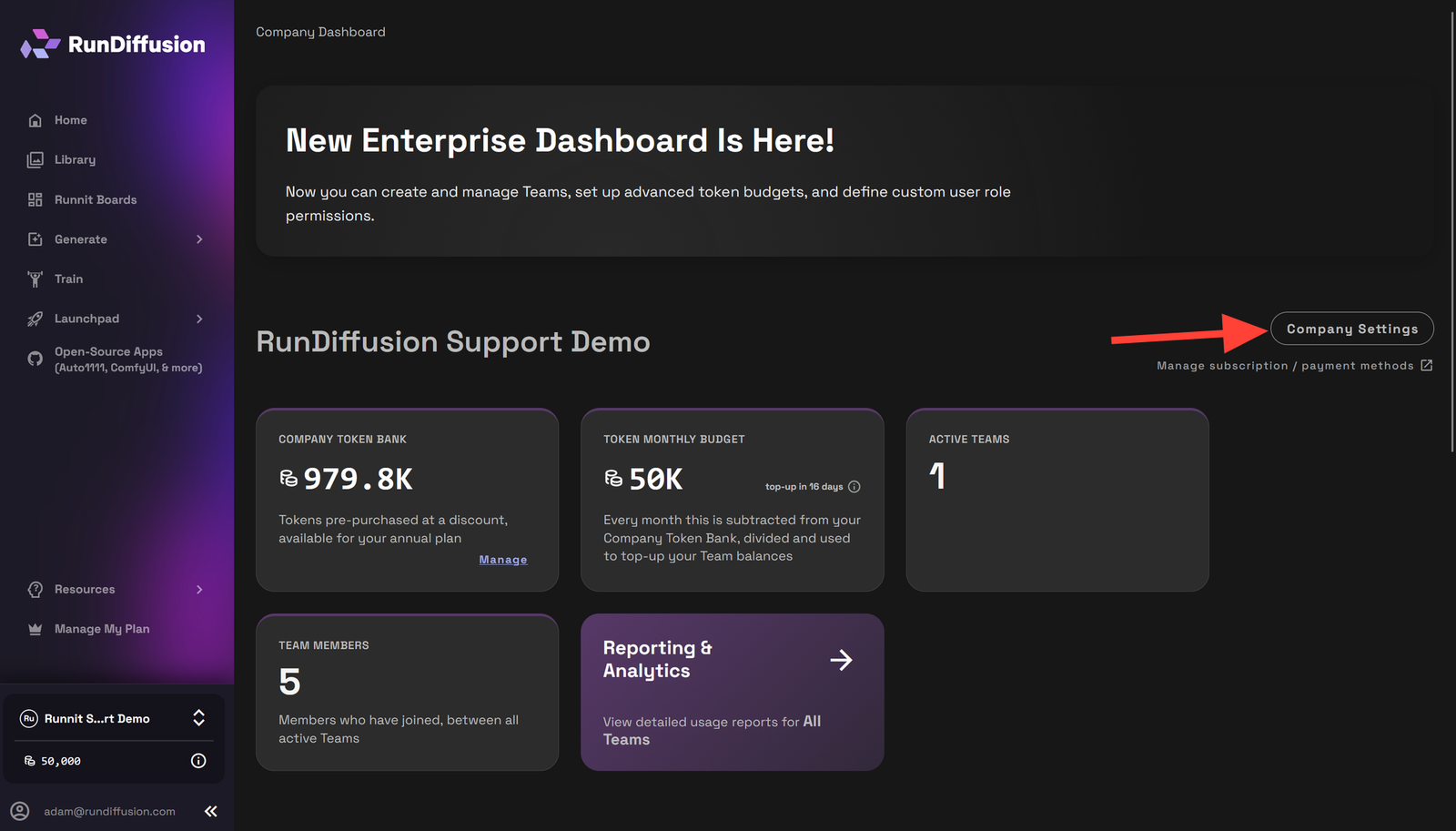
Click Company Roles.
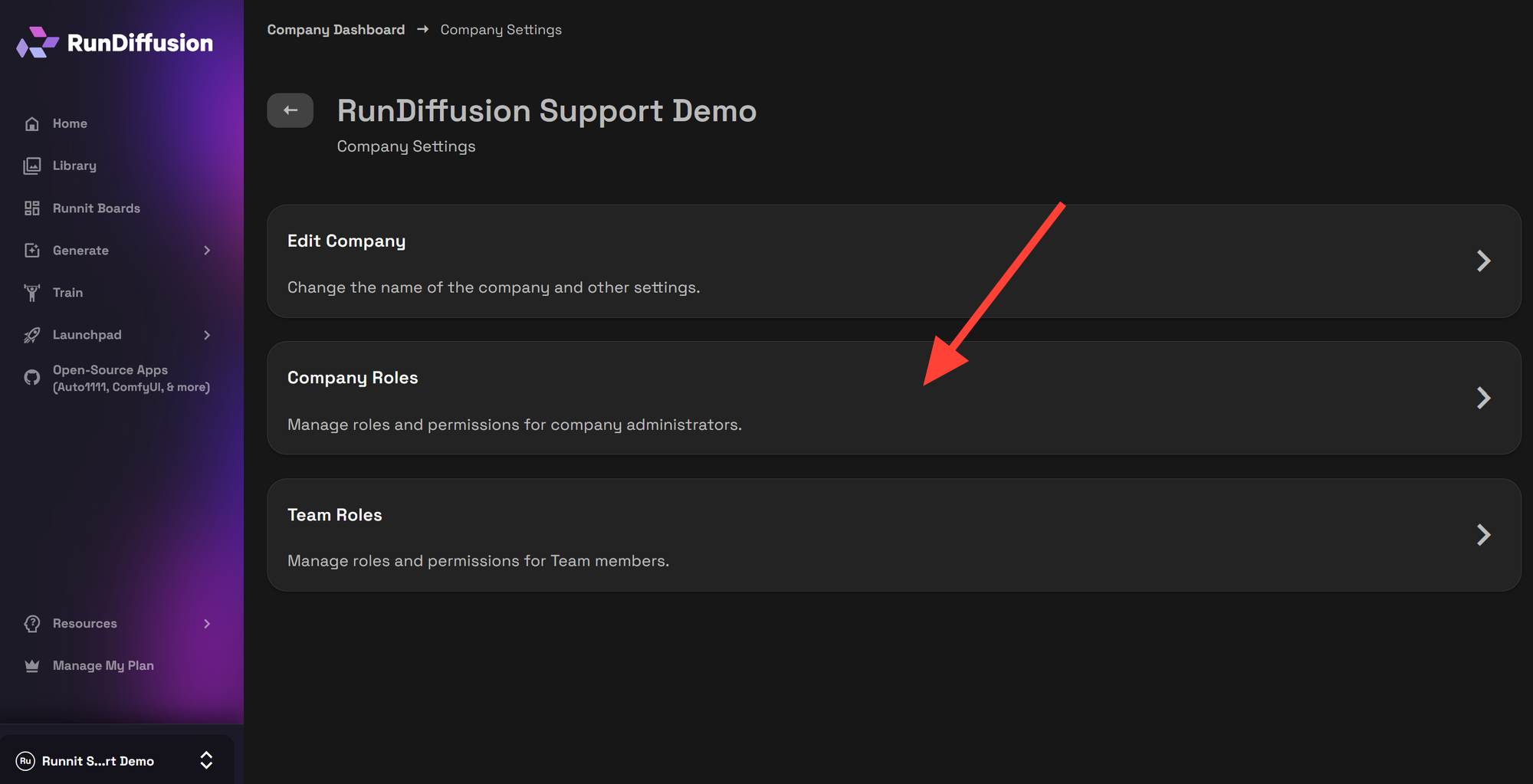
From this page, you can:
- View all company administrators
- See when each admin was added
- See their assigned Company Role
- Add new administrators using Add Admin +
- Select a role to view or edit permissions
Company Roles apply to company administrators only.
Editing a Company Role
To modify a Company Role:
Select the role from the dropdown.
- Click Edit.
- Adjust permissions, Role Name, and Role Description.
- Click Save as New if creating a new variation.
Changes do not apply unless saved. There are two default roles that can't be deleted that is Account Owner and Report Analyst.
Role Configuration Details
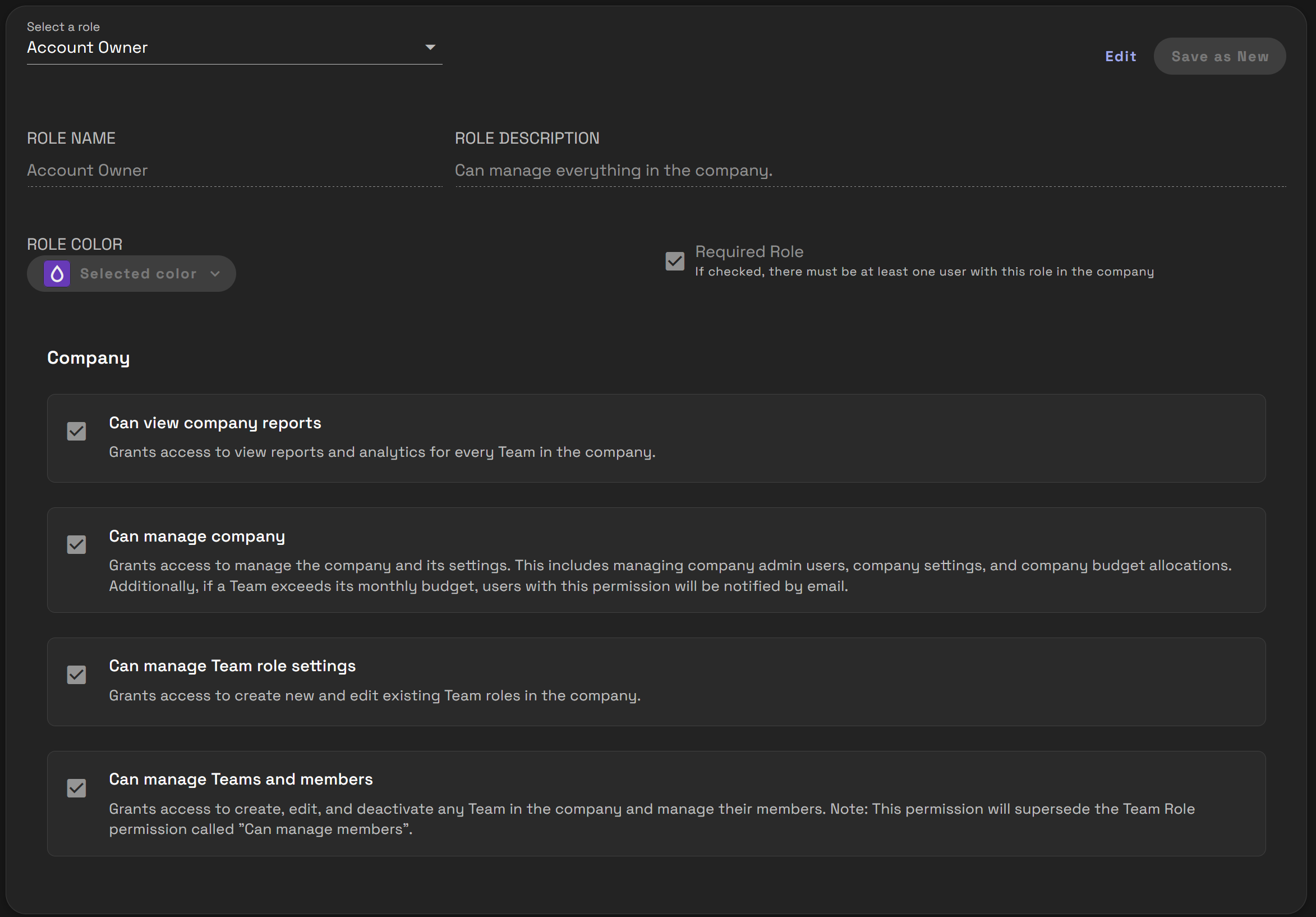
When a role is selected, the interface displays:
Role Name.
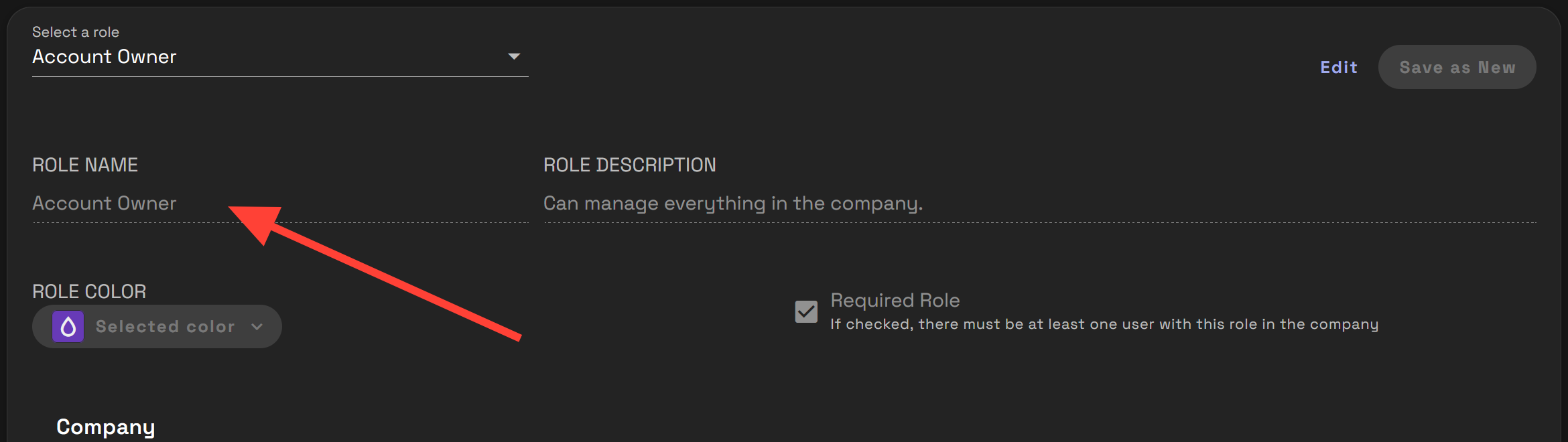
You can add a new Role Name by hovering your mouse over the Role Name field and clicking the X which will delete the old description allowing you to add a custom description.
Examples:
- Account Owner
- Report Analyst
Role Description
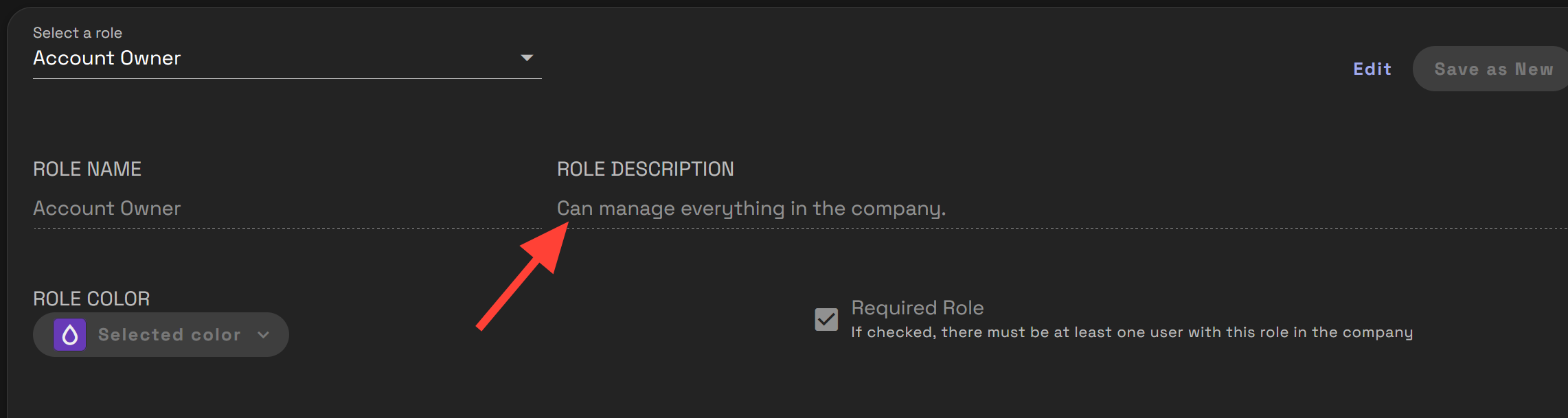
Provides a summary of what the role allows. You can add a new description by hovering your mouse over the Role Description and clicking the X which will delete the old description allowing you to add a custom description.
Examples shown:
Account Owner
"Can manage everything in the company."
Report Analyst
"Can view reports and analytics for every team in the company."
Role Color
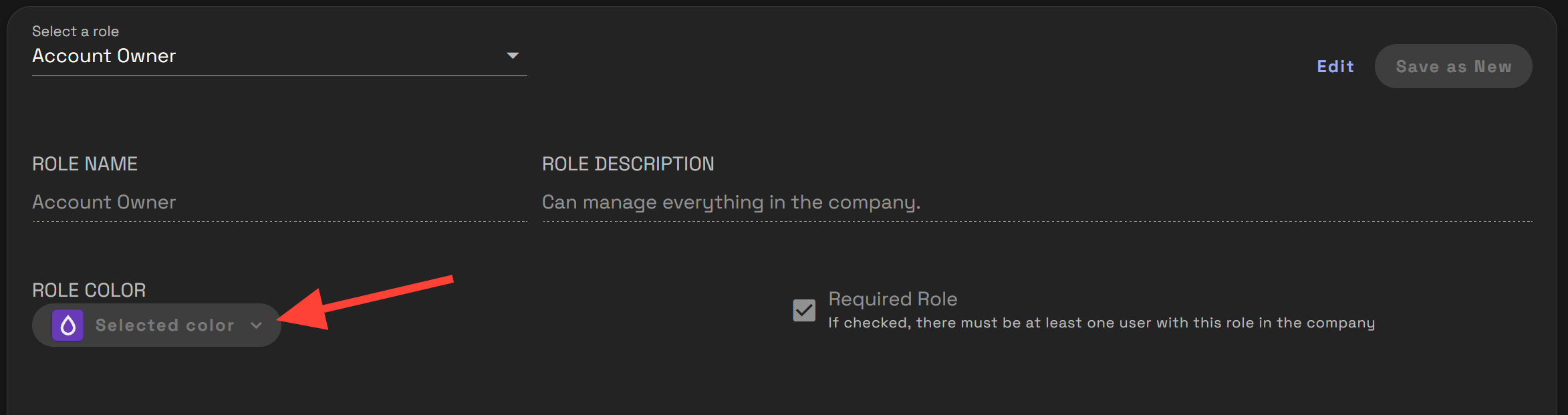
Allows visual identification of the role.
Required Role
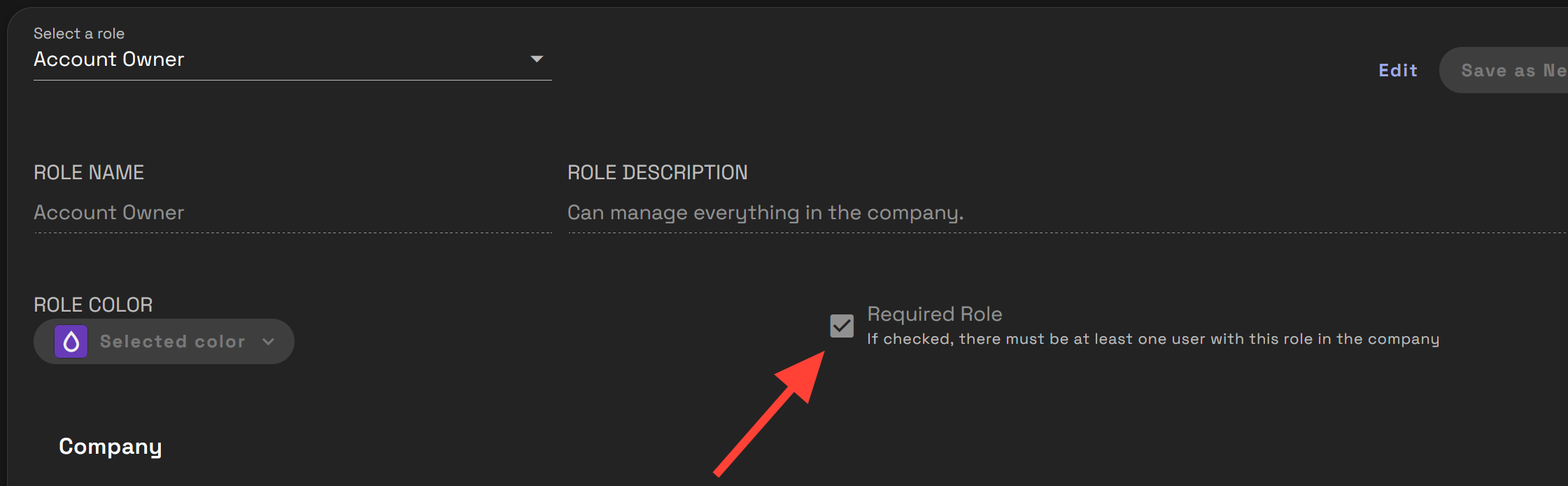
If enabled:
- There must be at least one user assigned to this role in the company.
In the example shown:
- Account Owner is marked as a Required Role.
- Report Analyst not marked as Required.
Company Permission Options Explained
Under the Company section, the following permissions are available:
Can View Company Reports

When enabled:
- Grants access to view reports and analytics for every Team in the company.
When disabled:
- The administrator cannot access company-wide reporting.
Can Manage Company

When enabled:
- Grants access to manage the company and its settings.
- Includes managing company admin users.
- Includes managing company settings.
- Includes managing company budget allocations.
- If a Team exceeds its monthly budget, users with this permission will be notified by email.
Example:
- Enabled for Account Owner.
- Disabled for Report Analyst.
When disabled:
- The administrator cannot modify company-level configuration.
Can Manage Team Role Settings

When enabled:
- Grants access to create new Team Roles.
- Grants access to edit existing Team Roles in the company.
When disabled:
- The administrator cannot modify Team Role structures.
Can Manage Teams and Members

When enabled:
- Grants access to create Teams.
- Grants access to edit Teams.
- Grants access to deactivate any Team in the company.
- Grants access to manage Team members.
Important:
This permission supersedes the Team Role permission called “Can manage members.”
Example:
- Enabled for Account Owner.
- Disabled for Report Analyst.
When disabled:
- The administrator cannot manage Teams at the company level.
Company Roles vs Team Roles
Company Roles:
- Apply to company administrators.
- Control company-wide governance and reporting.
- Override certain Team-level permissions.
Team Roles:
- Apply to Team members.
- Control generation access, token limits, asset management, and Open-Source access within Teams.
Company Roles operate at a higher governance level.
Conclusion
Company Roles in RunDiffusion define company-level administrative authority for both Team Accounts and Enterprise Accounts. They control who can view reports, manage budgets, configure Team Roles, and oversee Teams and members.
By assigning Company Roles carefully, organizations can separate operational reporting access from full administrative control, ensuring secure and structured company governance.
 RunDiffusion Team
 RunDiffusion Team
 RunDiffusion Team