


Introduction
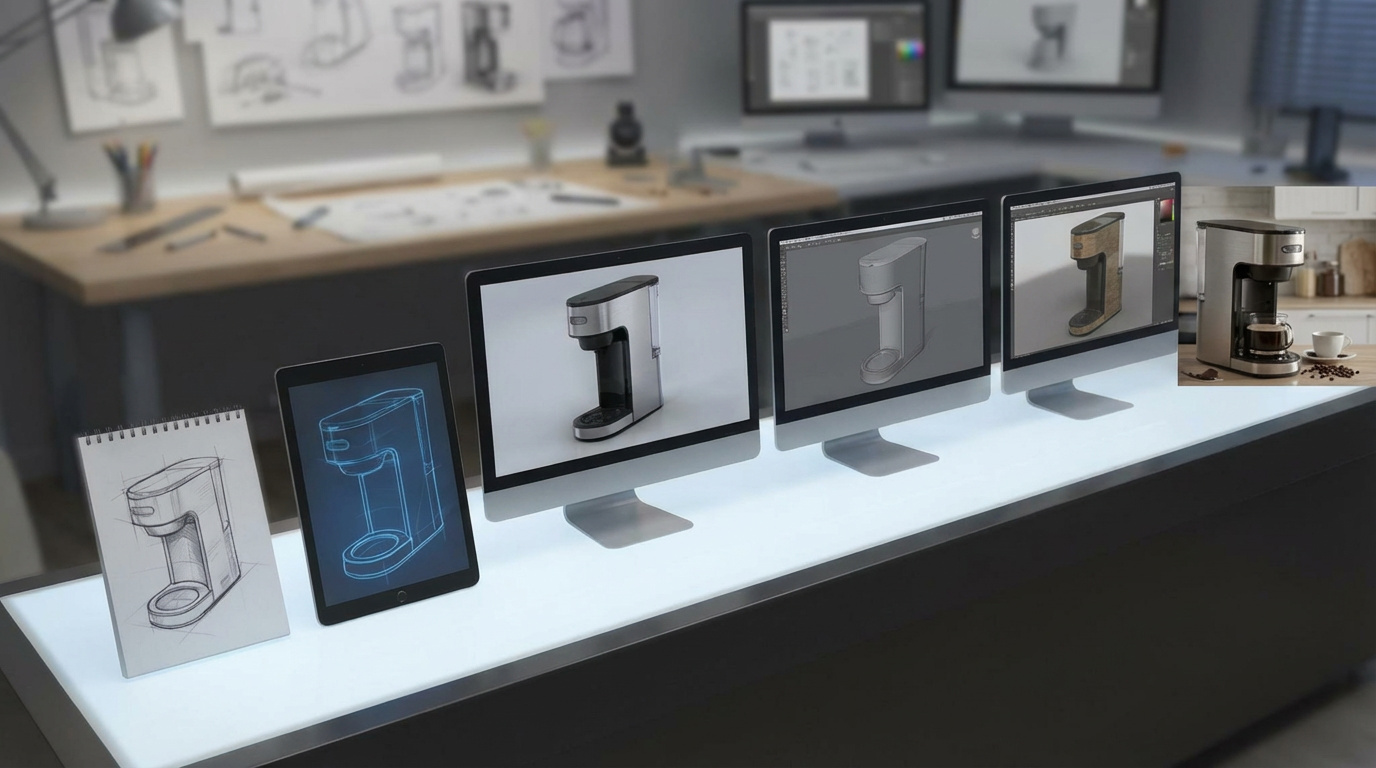
The Product Design and Visualization Template on RunDiffusion supports product designers and creative teams across multiple stages of the design process. It can be used before CAD work begins, alongside 3D workflows, and after models are complete.
Using image based workflows on RunDiffusion’s Runnit Platform, the template helps teams explore form, materials, styling, branding, and final presentation without constant re-modeling or re-rendering. This makes it useful from early concept development through final product staging.
Supporting Design Work Across the Workflow
Product design workflows shift focus over time. Early stages emphasize exploration and direction. Later stages focus on refinement, styling, and presentation.
This template supports those needs by helping teams:
- Explore and compare design directions early
- Reduce friction around 3D iteration
- Test materials, textures, and branding after CAD is complete
- Stage finished products for presentation and review
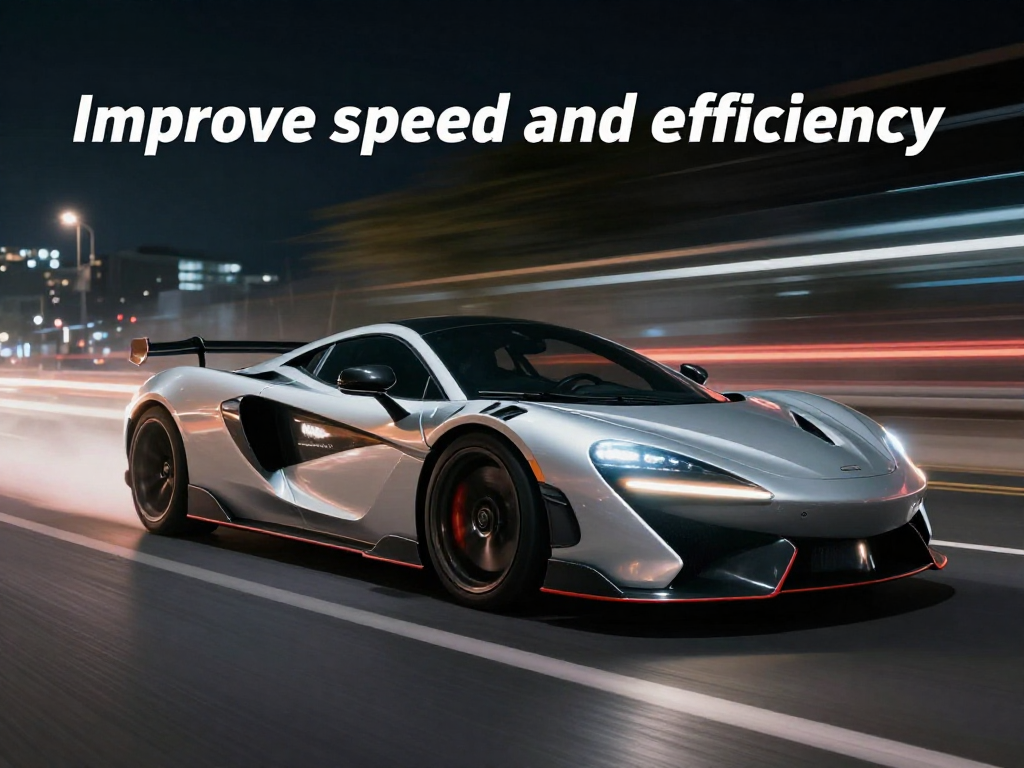
Rather than replacing CAD or 3D tools, the template complements them by handling visual exploration and communication efficiently on RunDiffusion’s Runnit Platform. Reducing time and speeding up the design process.
How This Fits into a Traditional Design Workflow
Most product design teams rely on a combination of sketching, CAD, and 3D software.
The Product Design and Visualization Template on RunDiffusion fits into this workflow in two primary ways.
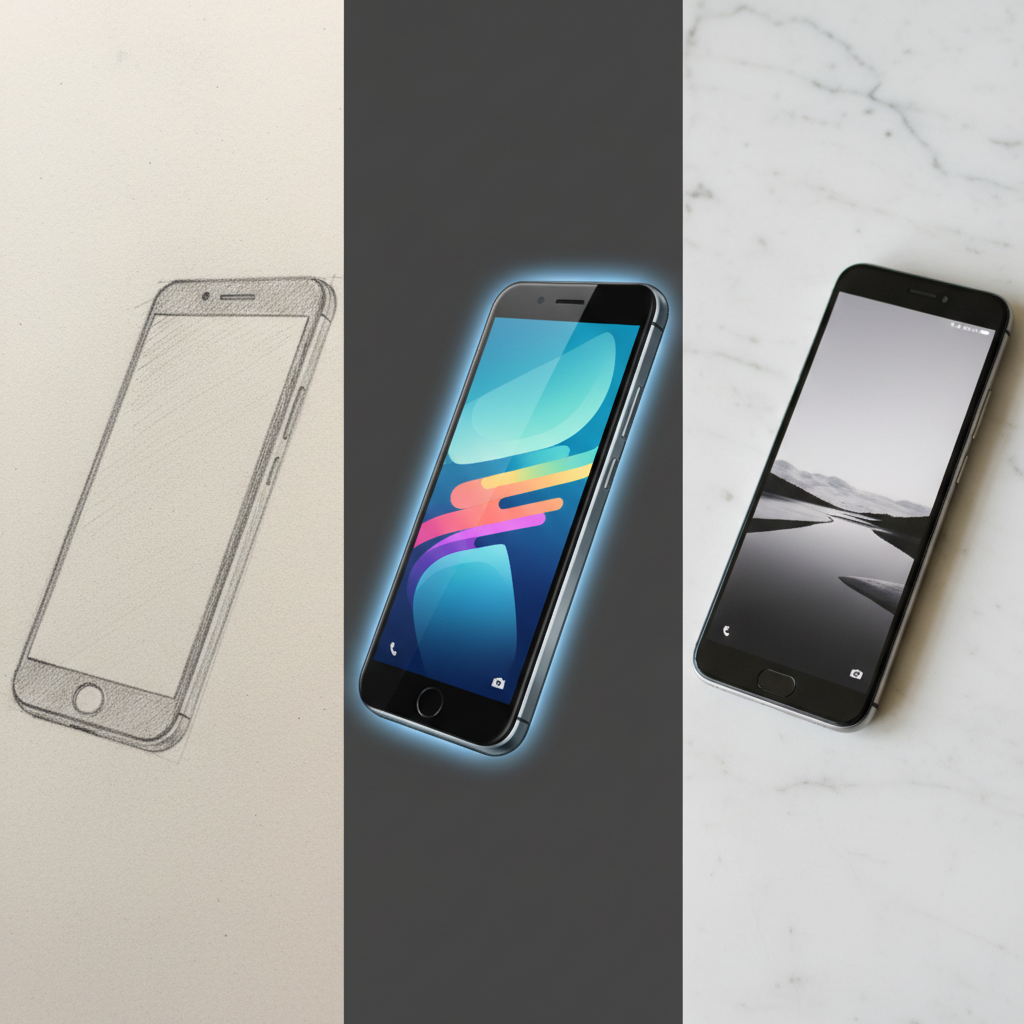
Before CAD, it helps teams explore form, proportion, and overall direction using visual concepts. This allows early decisions to be made before investing time in geometry.
After CAD or 3D modeling is complete, the template works with existing product imagery such as renders or screenshots. Teams use it to explore styling, materials, textures, logos, and presentation without returning to modeling tools.
This keeps design discussions moving forward at every stage.
Launch the Product Design and Visualization Template
To get started:
Navigate to RunDiffusion’s Runnit Platform and on the left side panel select Runnit Boards.
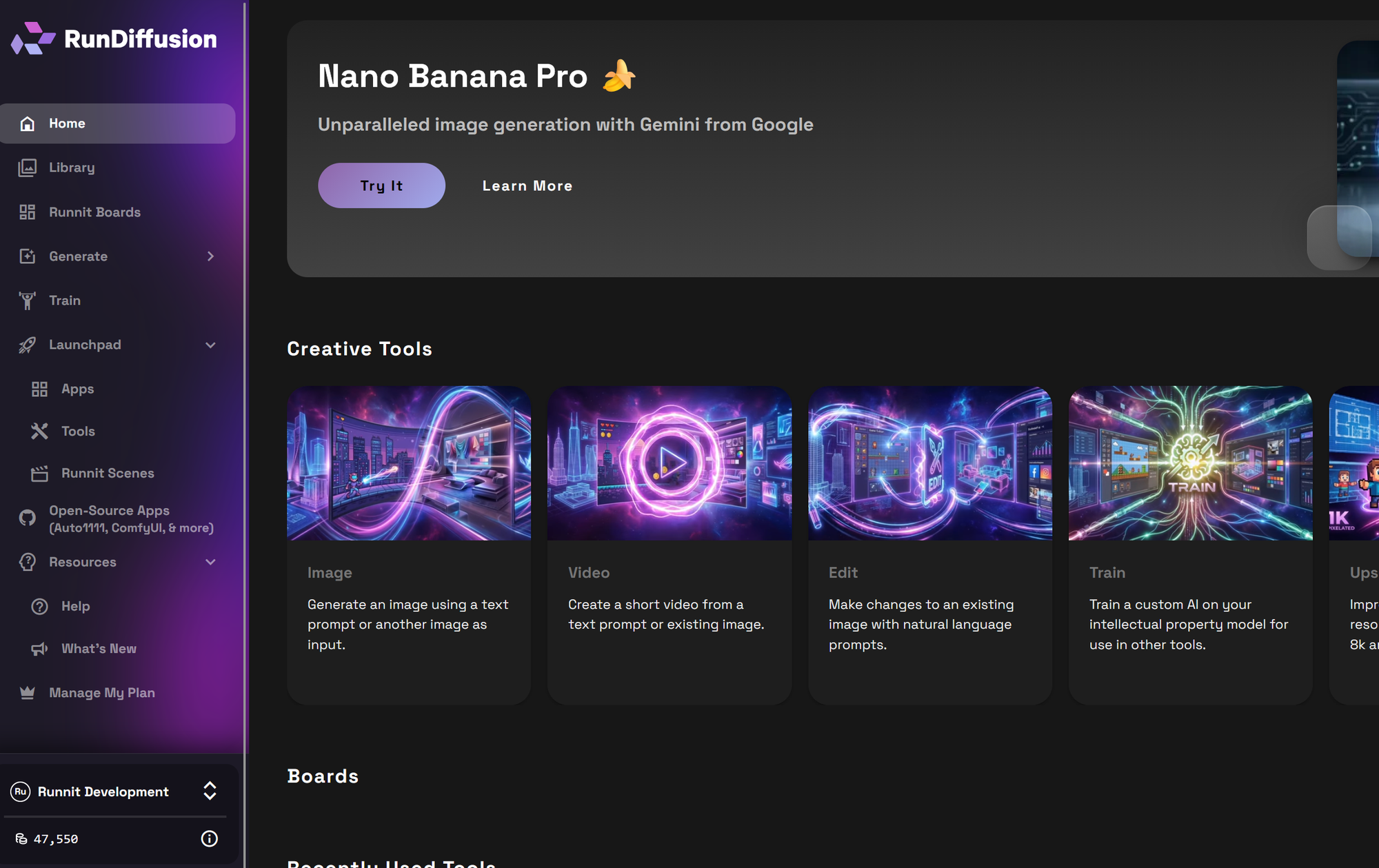
On the left sidebar click Runnit Boards then select the Product Design and Visualization template.
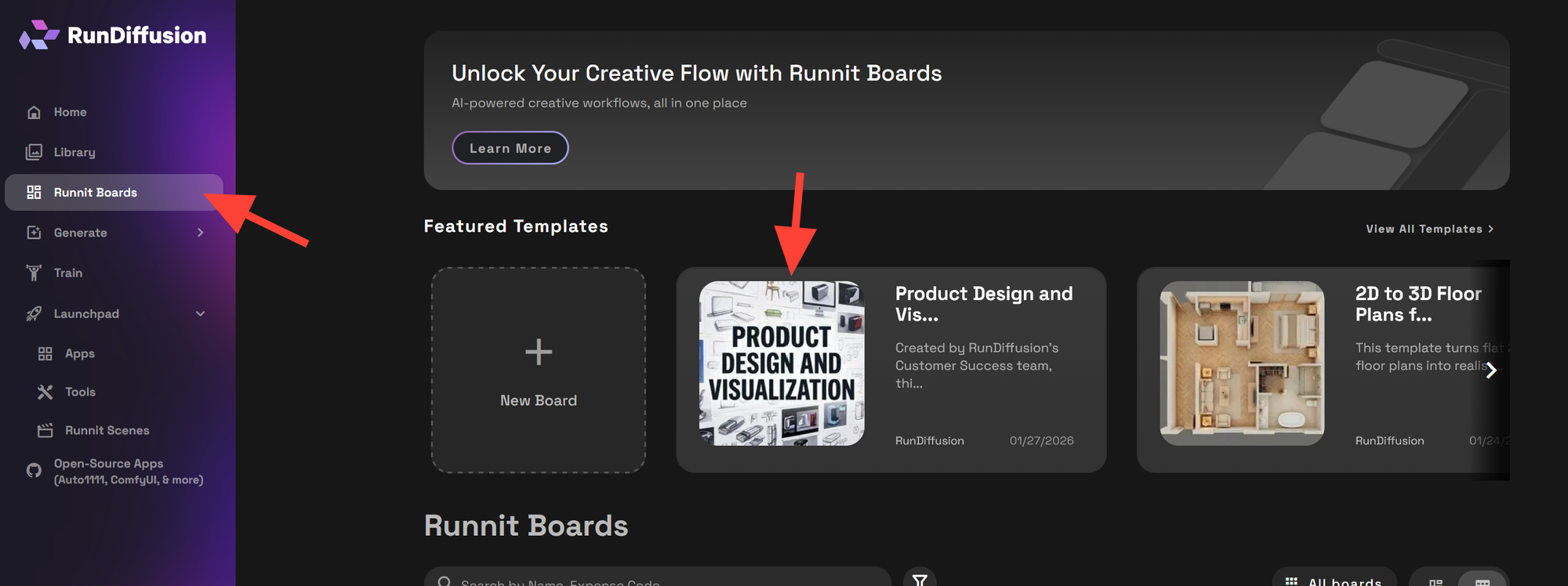
Then click on Create Board.
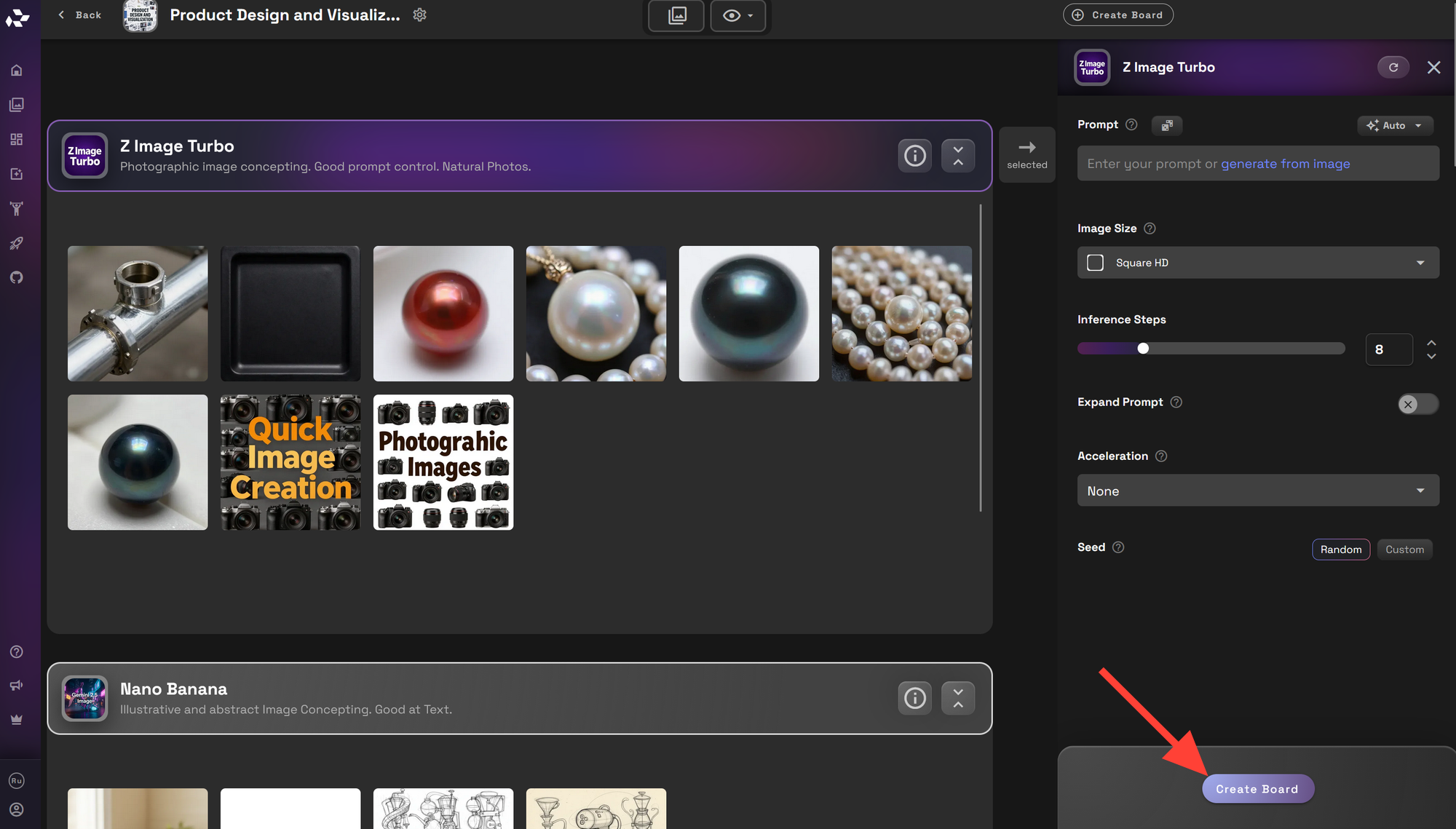
Edit the Name and Description as needed. You can also upload or select an image from your library. Once you are satisfied click create.
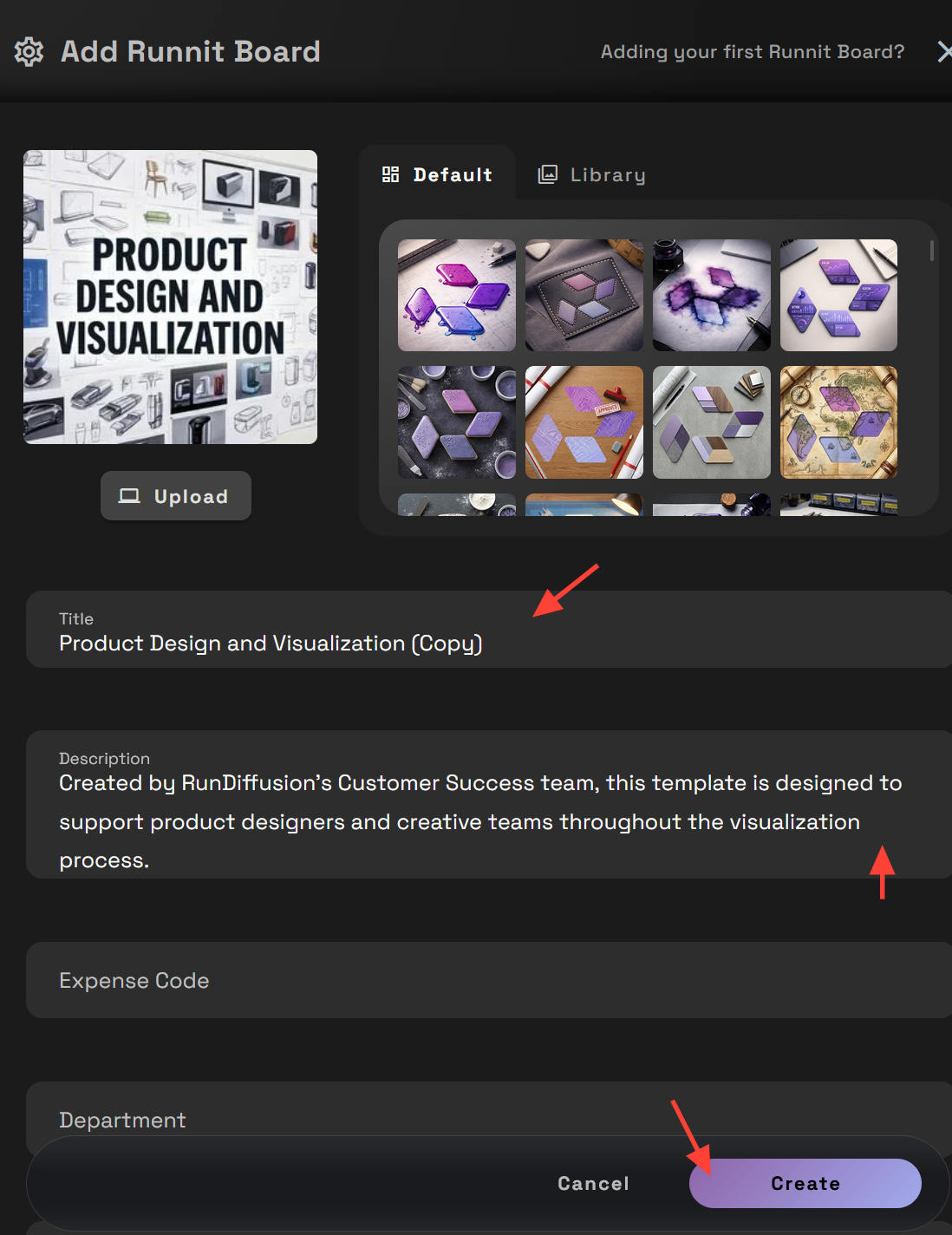
Select Private, Restricted or Shared.
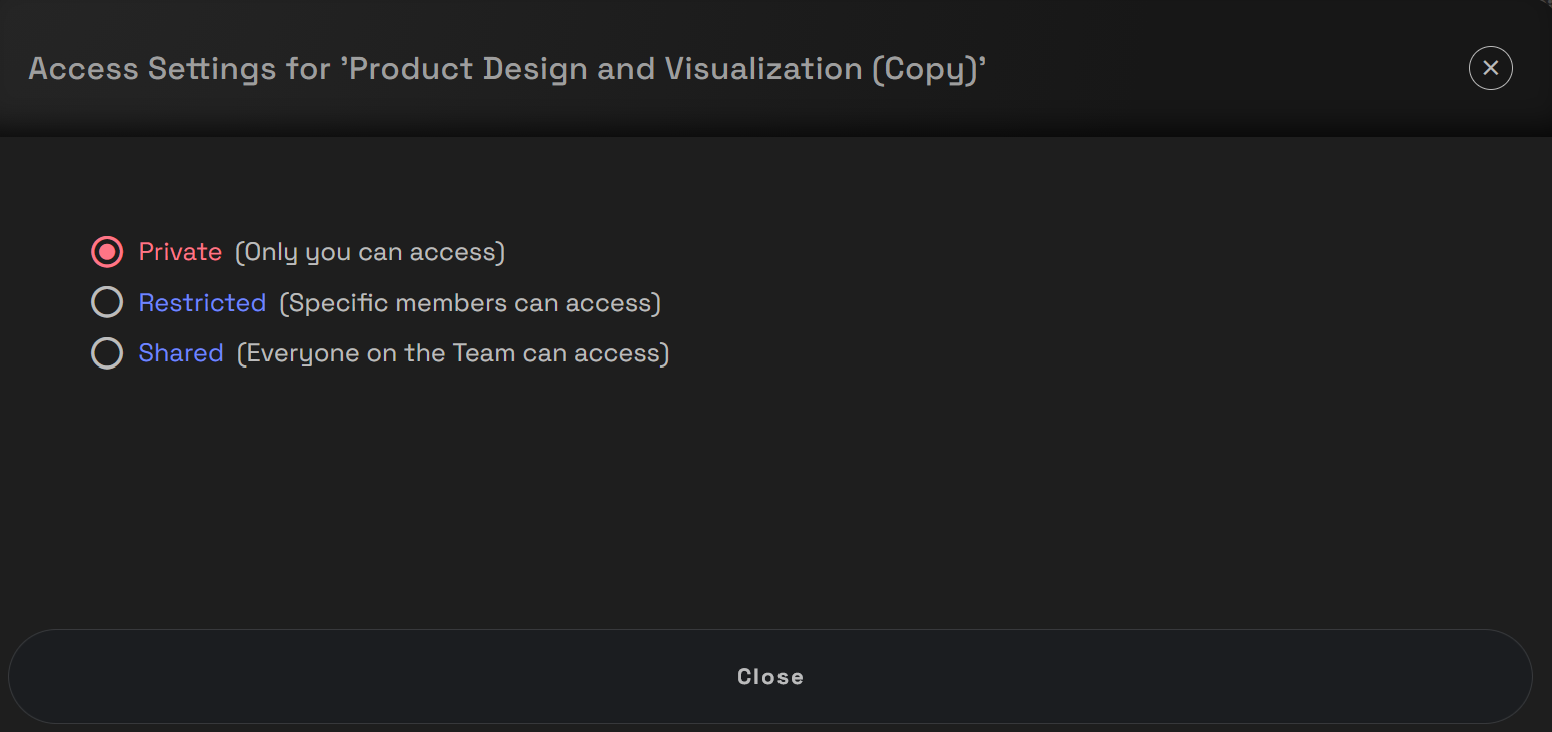
Then you can begin creating images. See below how each tool can be used. The suggestions land you may find alternative uses as well.
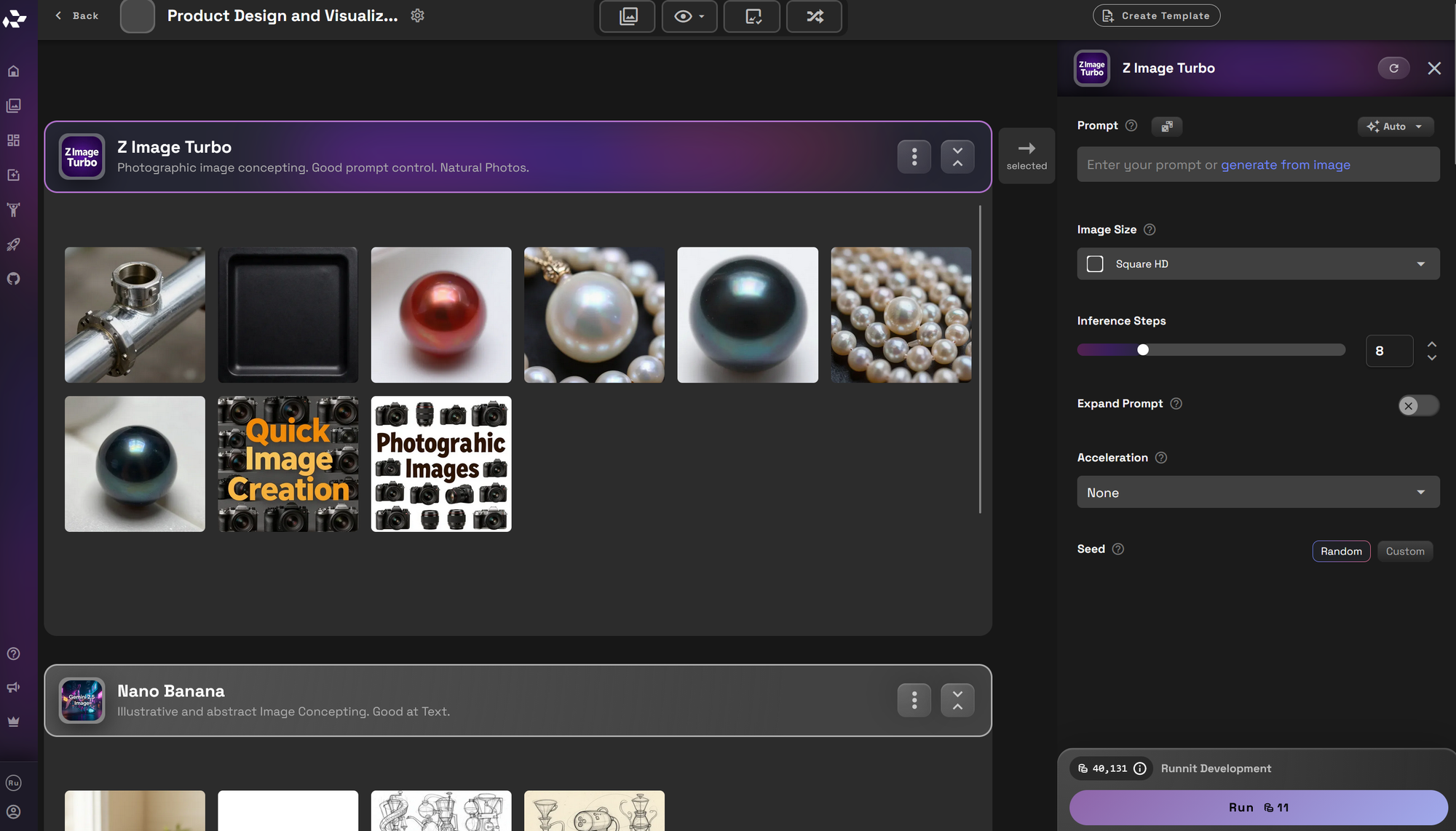
Using the Tools in the Design Process
Each tool in the template supports a different type of design work. Teams can use them independently or together depending on where they are in the process.
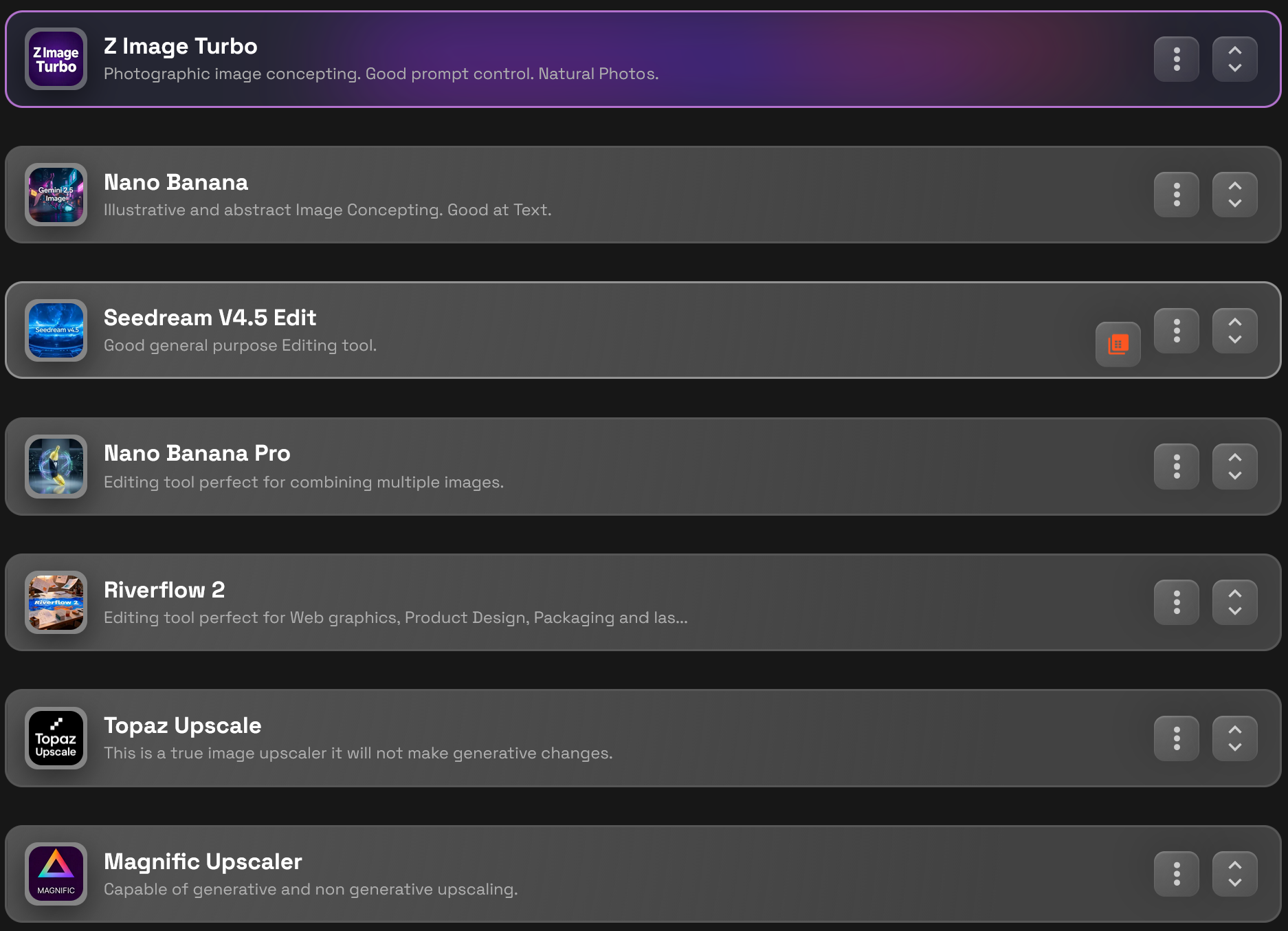
Z Image Turbo

Establishing Grounded Product Visuals
Z Image Turbo is used to create realistic starting visuals for a product. Designers commonly use it to:
- Explore overall form and proportions
- Test materials and lighting direction
- Create believable reference imagery
It is useful during early concepting to create visuals, textures, photographic scenes and more.
Nano Banana

Exploring Design Directions and Style
Nano Banana is used for broad exploration. Designers use it to:
- Generate alternative form or styles
- Explore different visual directions
- Push creative options without technical friction
This makes it valuable both before CAD and after a base design already exists.
Seedream V4.5 Edit

Refining Visual Decisions
Seedream V4.5 Edit supports focused refinement. Teams use it to:
- Adjust materials and colors
- Explore textures and finishes
- Add or refine logos and graphics
- Make local visual changes without restarting
This tool is especially useful after CAD is complete, when geometry is locked but visual decisions are still evolving.
Nano Banana Pro

Assembling Final Product Visuals
Nano Banana Pro is used to consolidate refined elements into a cohesive product image. Designers use it to:
- Combine variants into a single visual direction
- Lock visual decisions
- Create a stable reference image for presentation
- Staging Products
This helps ensure consistency before placing the product into different contexts.
Riverflow 2

Product Placement and Visual Staging
Riverflow 2 is used for final product and branding placement for packaging. Teams commonly use it to:
- Place products into clean presentation layouts
- Create web or packaging visuals
- Make small precision edits
Refine placement and presentation details for final visuals
Topaz Upscale or Magnific Upscaler


Preparing Presentation Ready Output
Upscaling tools are used once visual decisions are finalized. They help teams:
- Increase resolution and clarity
- Prepare assets for review or presentation
- Produce polished visuals efficiently
Keeping upscaling at the end ensures that iteration remains fast and cost effective.
When This Template Is Most Useful
The Product Design and Visualization Template on RunDiffusion works well when teams need to:
- Explore product ideas before committing to CAD or 3D Software like SolidWorks.
- Reduce time spent on early modeling and rendering
- Test materials, textures, logos, and visual style
- Place finished products into multiple presentation contexts
- Align stakeholders using clear and consistent imagery
It supports both early concepting and post CAD/3D visualization without forcing a rigid process.
Further Reading
 RunDiffusion Team
 RunDiffusion Team
Frequently Asked Questions
Is this template only for early concept design?
No. While the Product Design and Visualization Template is very effective for early concepting, it is also commonly used after CAD and 3D work is complete. Teams use it to refine styling, test materials and branding, and stage finished products for presentation.
Does this template replace CAD or 3D modeling tools?
No. The template is designed to work alongside CAD and 3D software. CAD and 3D tools define geometry and manufacturability, while this template focuses on visual exploration, styling, branding, and presentation using image based workflows.
Can I use this with existing CAD renders or 3D screenshots?
Yes. Many teams use renders, clay visuals, or screenshots from CAD or 3D software like SolidWorksas inputs. This allows them to explore visual variations without returning to modeling or rendering tools.
Is this creating real 3D models?
No. The tools in this template generate 2D images. They are used to communicate form, materials, style, and presentation visually, not to create editable 3D geometry or CAD data.
When is this most useful in the design process?
The template is useful at multiple points. It supports early concepting before CAD, visual iteration during design development, and final product placement and staging once designs are complete.
Can this be used for packaging and branding visuals?
Yes. The template is commonly used to test packaging layouts, branding placement, logos, and visual treatments. It is especially helpful for preparing presentation ready packaging and product visuals.
Who is this template best suited for?
It is well suited for product designers, creative directors, design teams, and stakeholders who need to explore ideas, review visual options, and align on direction quickly without heavy technical overhead.
