


Introduction
In this guide, we'll walk you through the process of using the ToonCrafter workflow on ComfyUI to create stunning videos from images. ComfyUI is a powerful tool, and with ToonCrafter, you can transform your photos into dynamic animations effortlessly.
Possible uses
- Educational Videos: Transform static educational images into dynamic animations.
- Marketing Content: Create eye-catching animated ads.
- Creative Projects: Animate drawings and photographs for digital art exhibitions and multimedia presentations.
- Anime and Cartoons: Animate your own cartoons and anime!
- Social Media Content: Enhance social media posts with unique and engaging animations
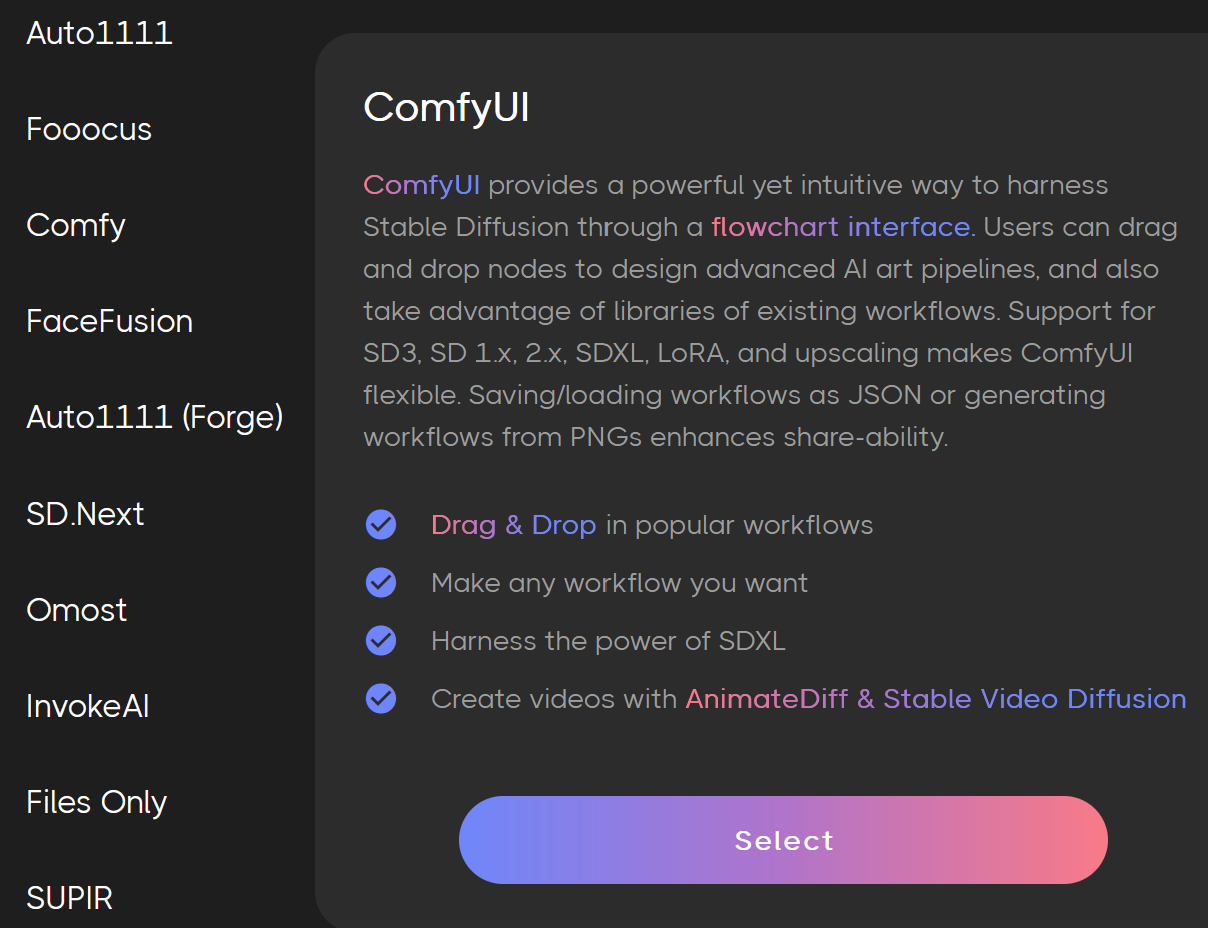
Step 1: Launch a ComfyUI Server
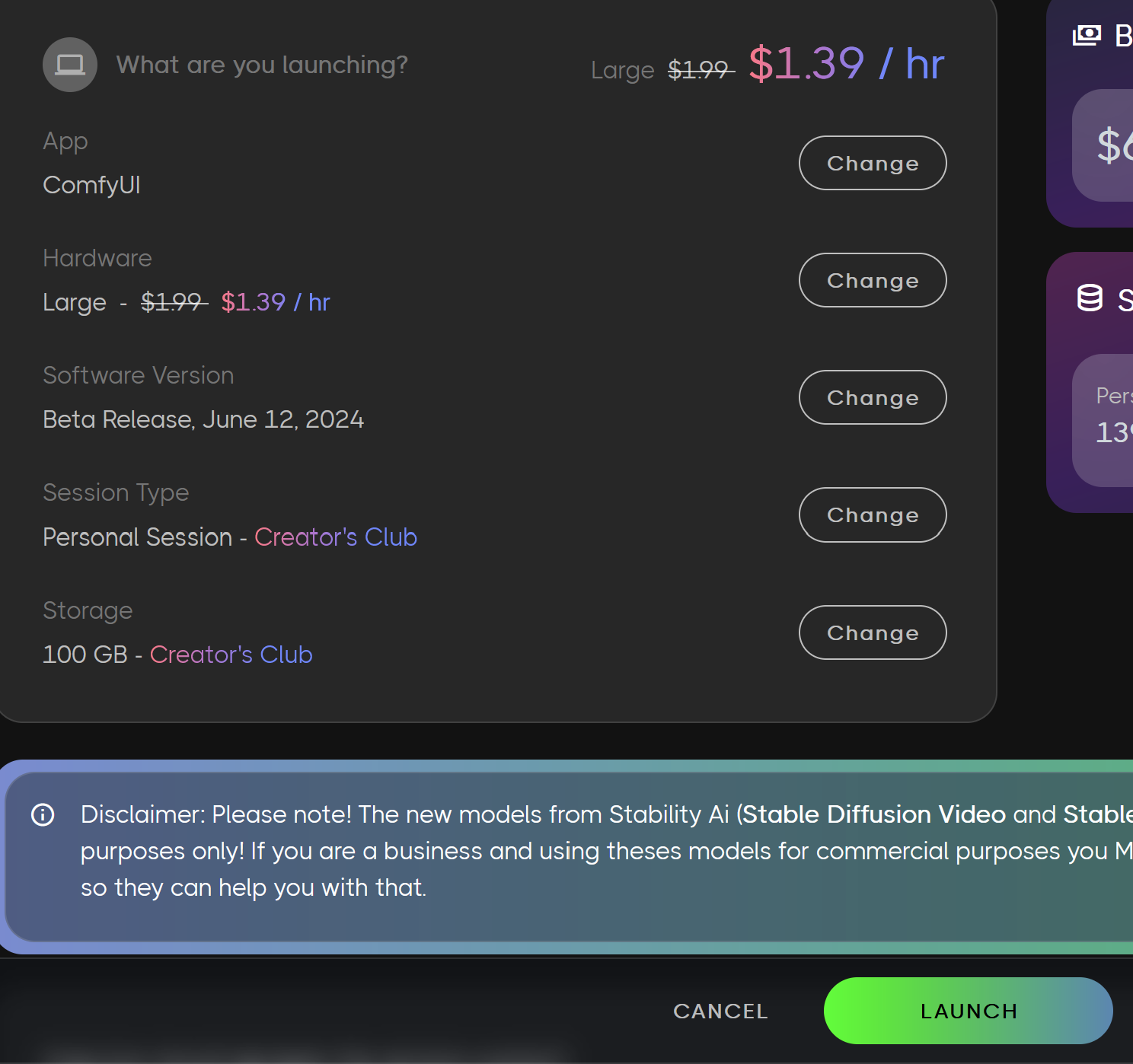
- Launch a ComfyUI Server on Beta:
- Choose a Large Server for optimal performance.
Step 2: Load the Tooncrafter Workflow
- Select Load on the right and Load the ToonCrafter workflow or the down arrow and select the Tooncrafter Workflow.
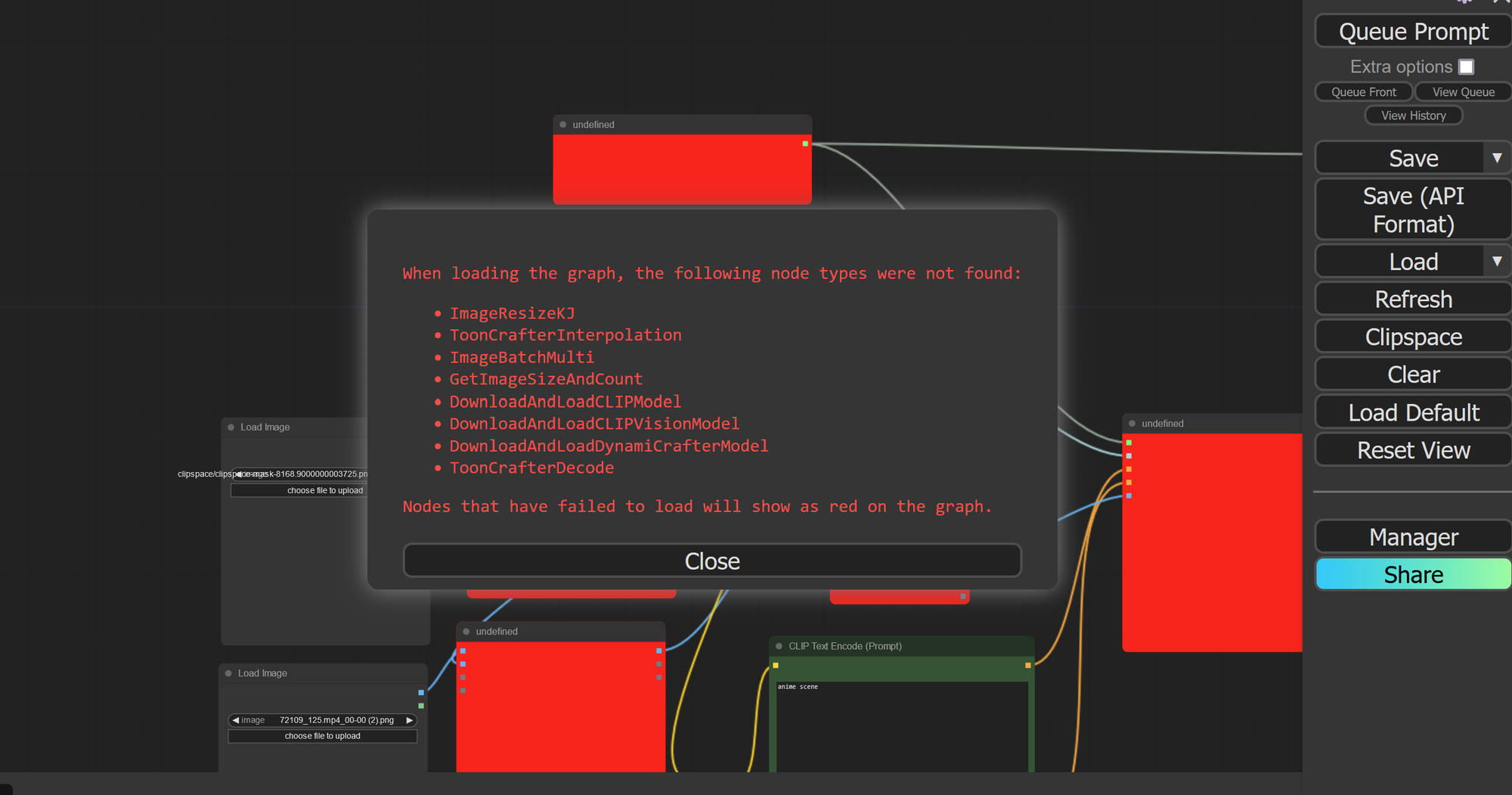
Step 3: Install Missing Nodes
- Select Manager
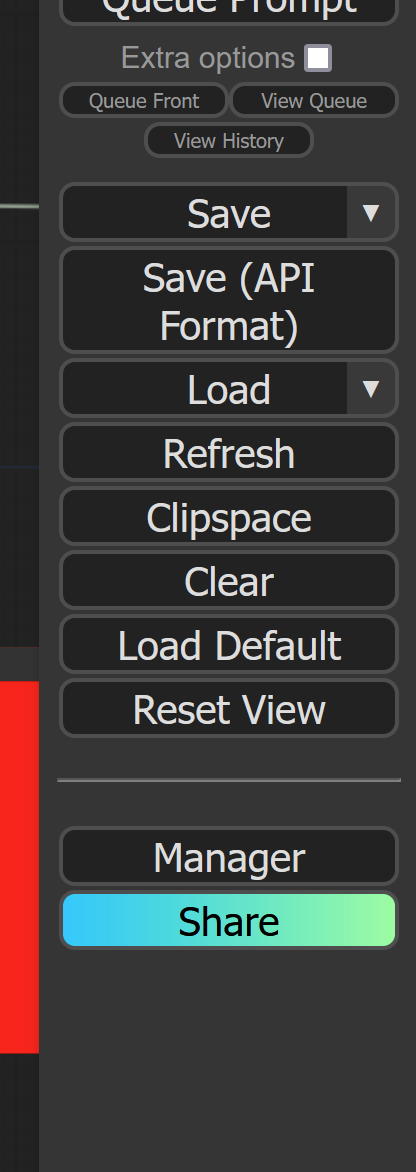
- Select Install Missing Custom Nodes
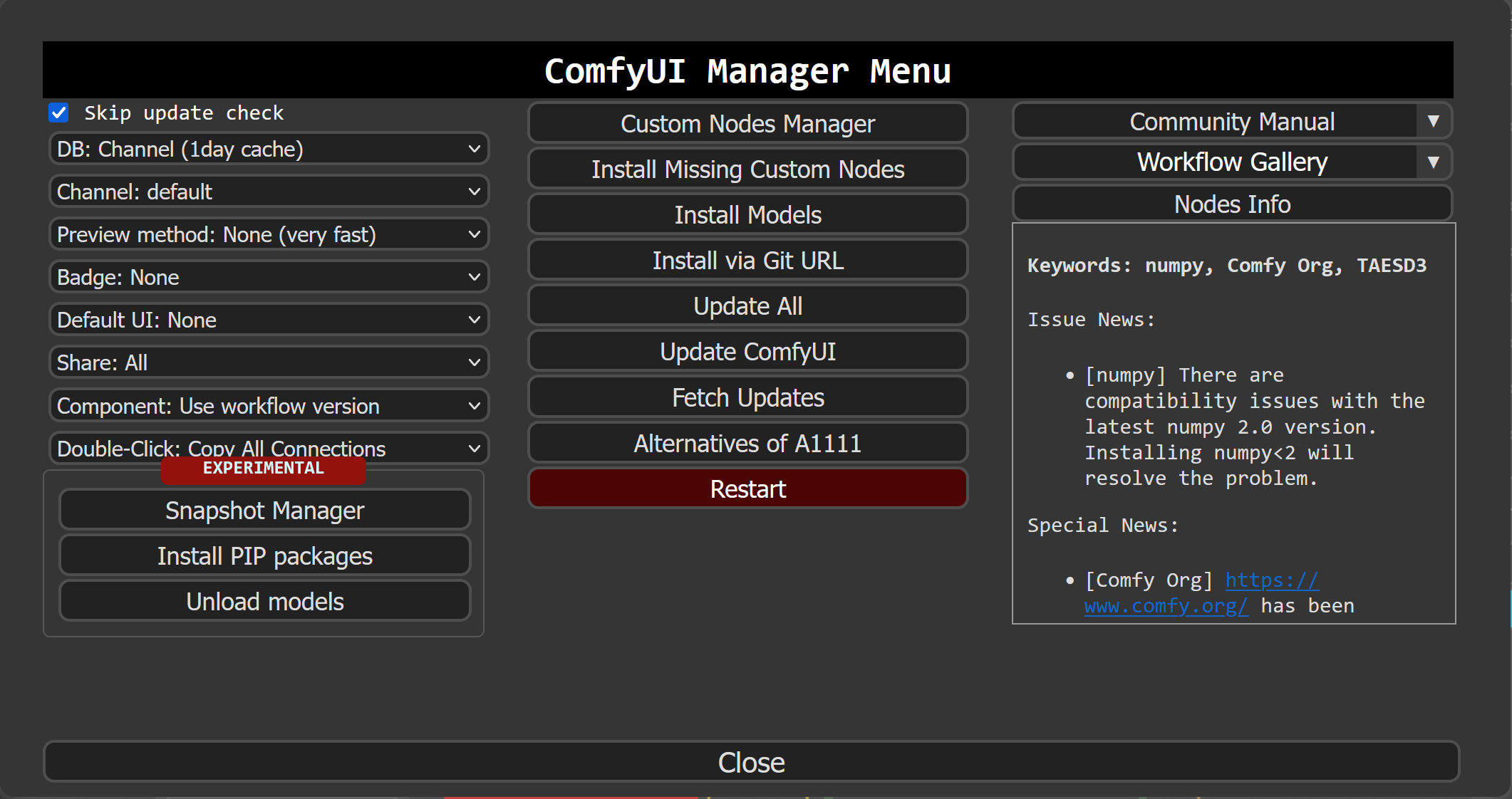
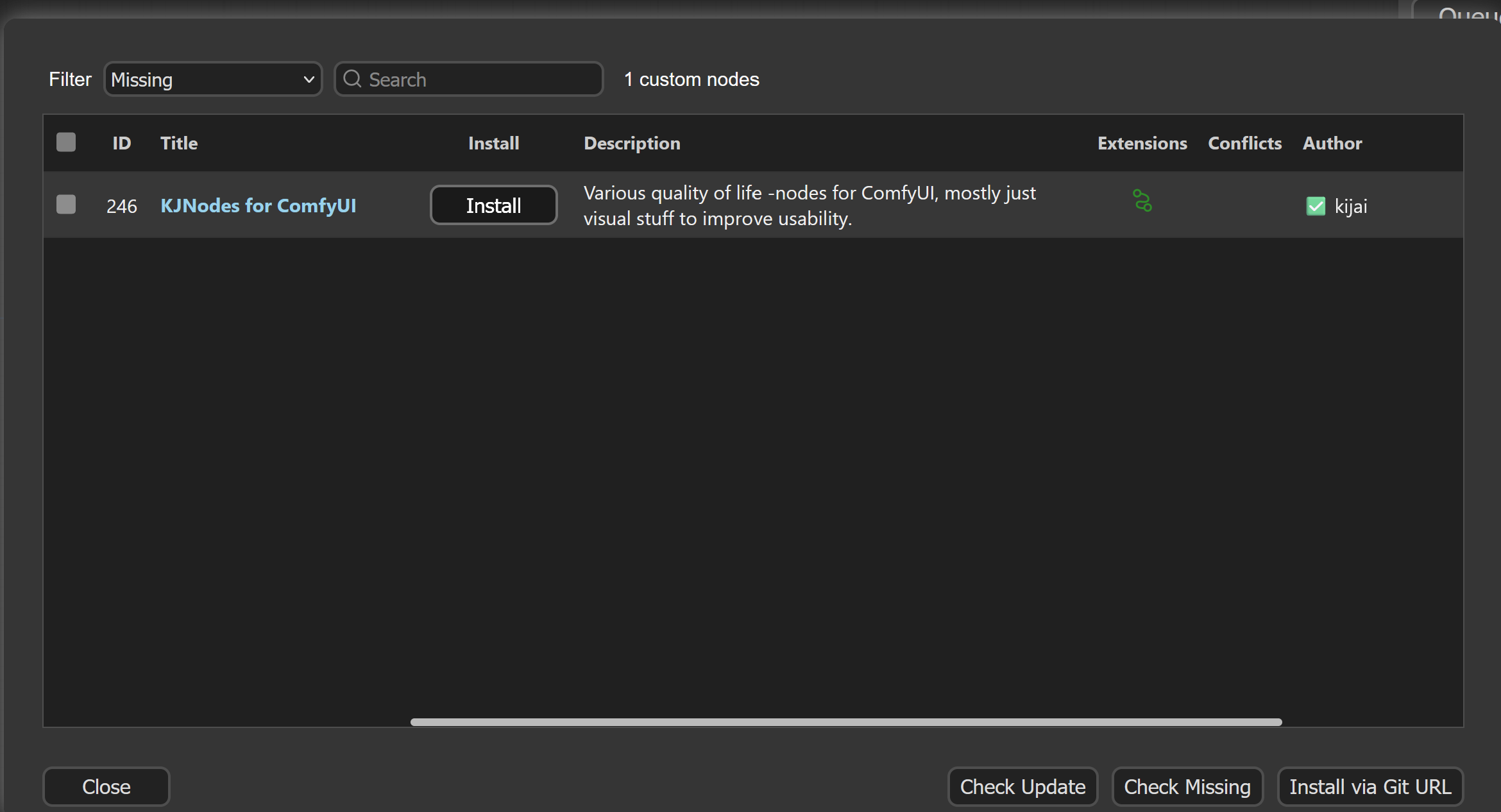
- Install the missing node.
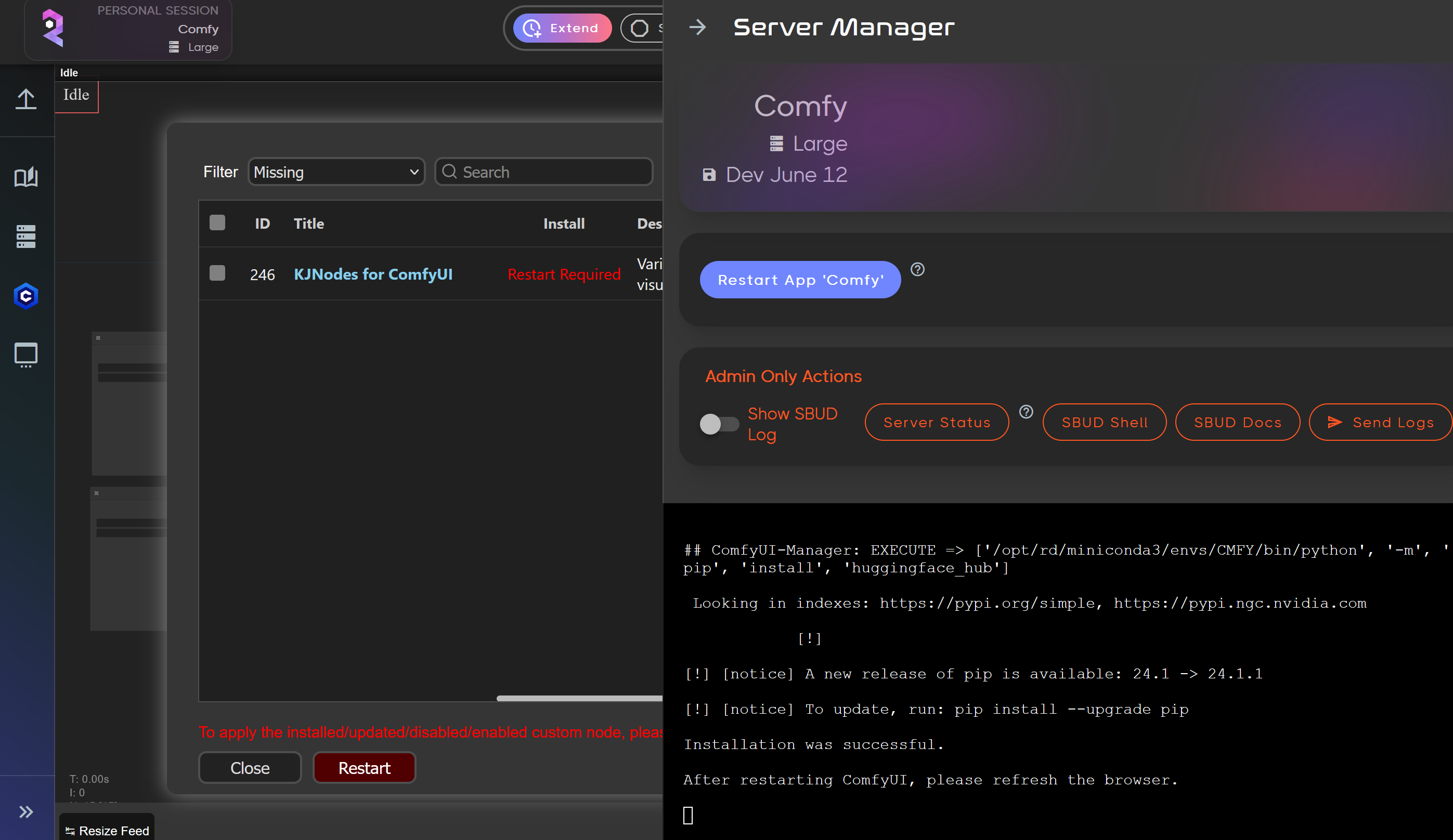
- Restart ComfyUI by Selecting Server Manager on the left side then Restart App Comfy.
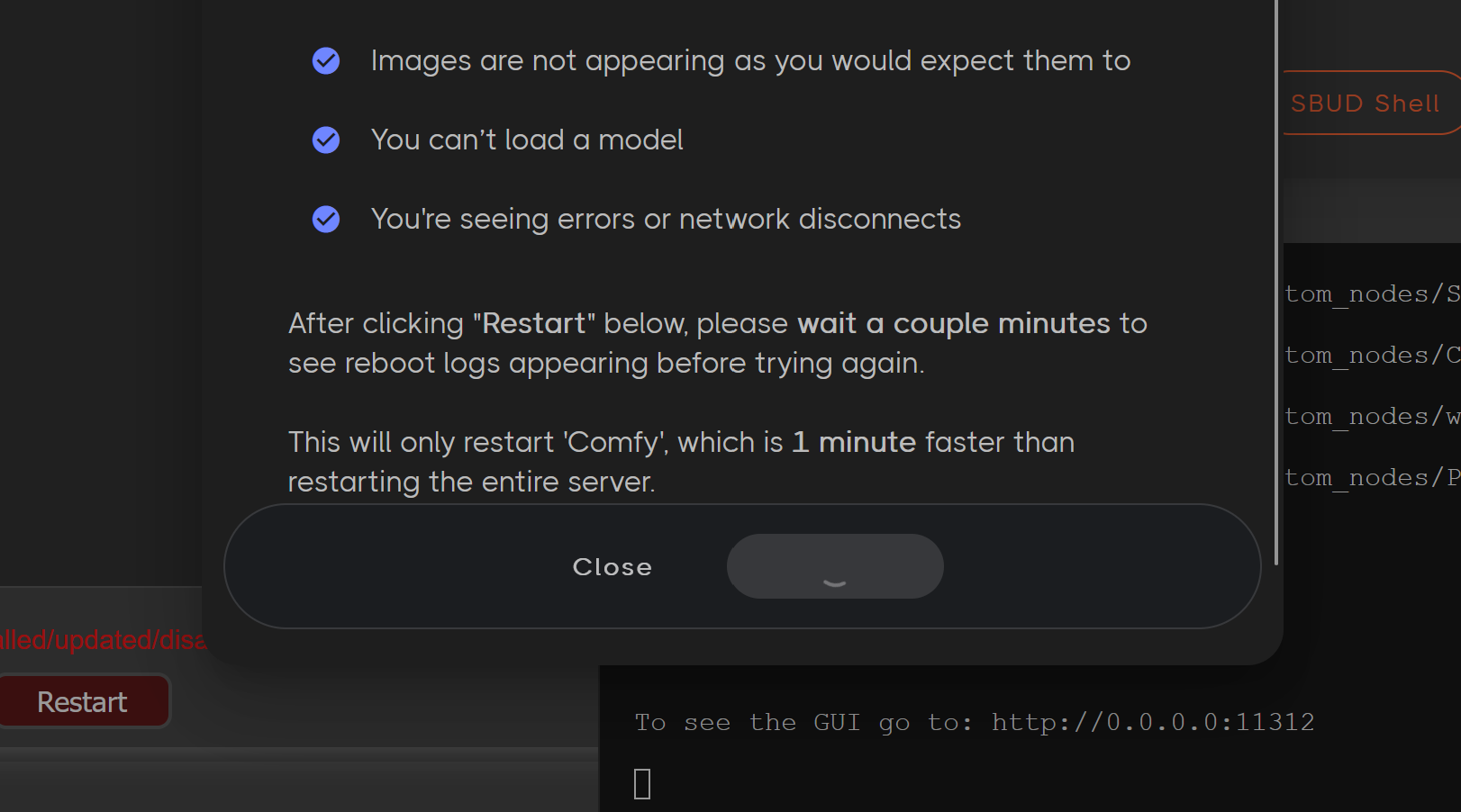
- After it restarts you will see it says in the log "To see the GUI go to" at that point just hit refresh on your browser.
Step 3: Let's use our workflow
- Choose two images and load them on the left side.
Example here I chose 2 humming bird photographs I made with Juggernaut XI.
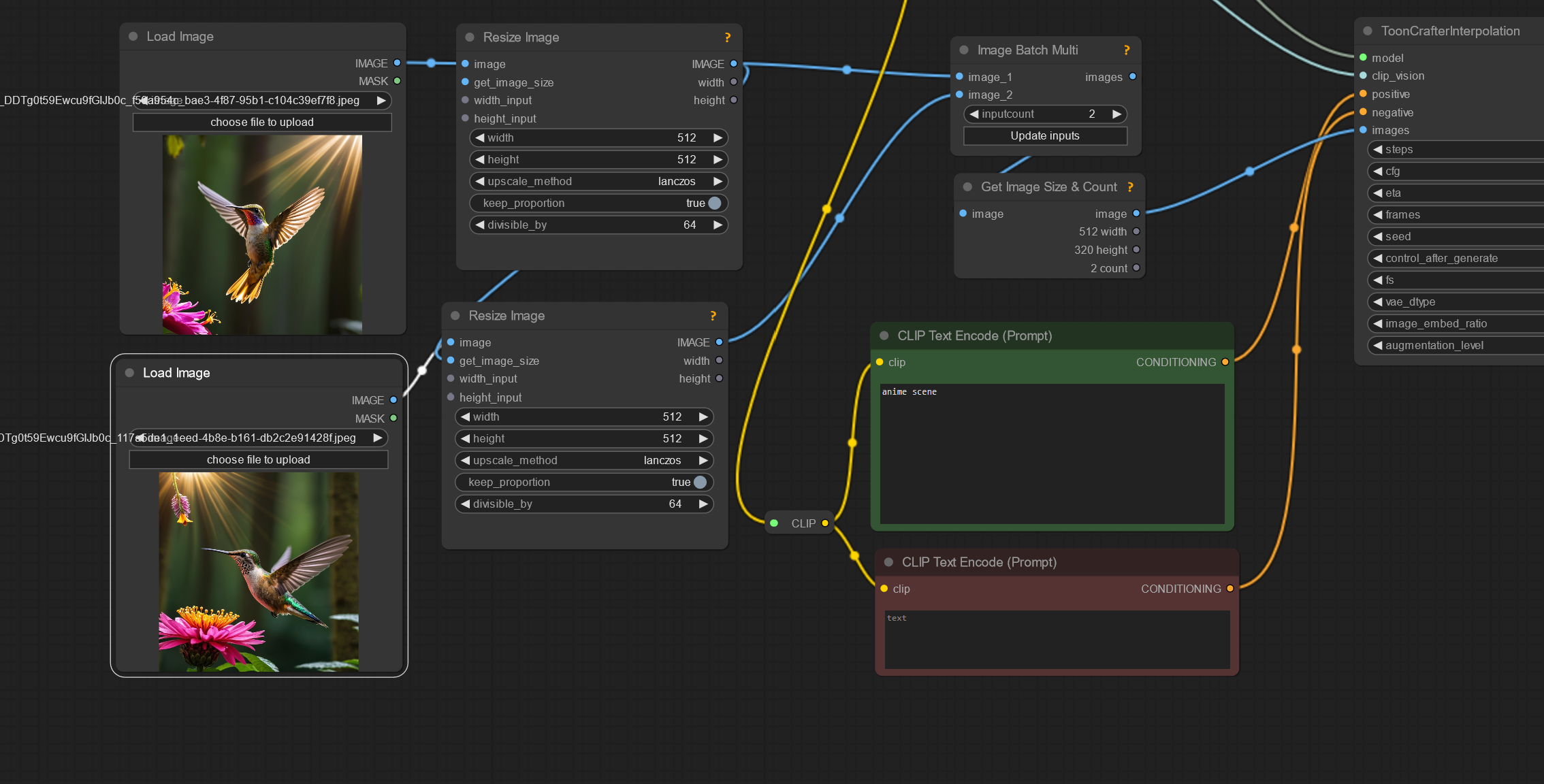
- Enter a small prompt.

- Click on Queue Prompt
- Create amazing videos!
These are my first experiments and I can't wait to see what you create.
0:00
/0:02
0:00
/0:02
Tips for Best Results
- Experiment with Seeds: If you're not satisfied with the initial video, try changing the seed and tweaking the prompt. This can lead to different and potentially better results. For instance, it took three attempts to perfect the hummingbird animation.
- Iterate and Improve: Don't hesitate to experiment with various prompts and settings until you achieve the desired outcome.
Conclusion
Creating videos with ToonCrafter on ComfyUI is an exciting way to bring your images to life. By following these steps and utilizing the tips provided, you'll be well on your way to producing stunning animations. Happy animating!
For more tutorials and guides on using ComfyUI and other AI tools, check out our RunDiffusion Learning articles:
