


Getting Started with AI Video Creation
Generative AI has opened up incredible opportunities for creating stunning videos with ease. With Runnit and Video Tools users can generate stunning, AI-driven videos with just a few steps. Whether you’re a content creator, a business professional, or simply curious about exploring AI-generated media, this guide will help you master the basics of video creation with Runnit. Let’s get started!
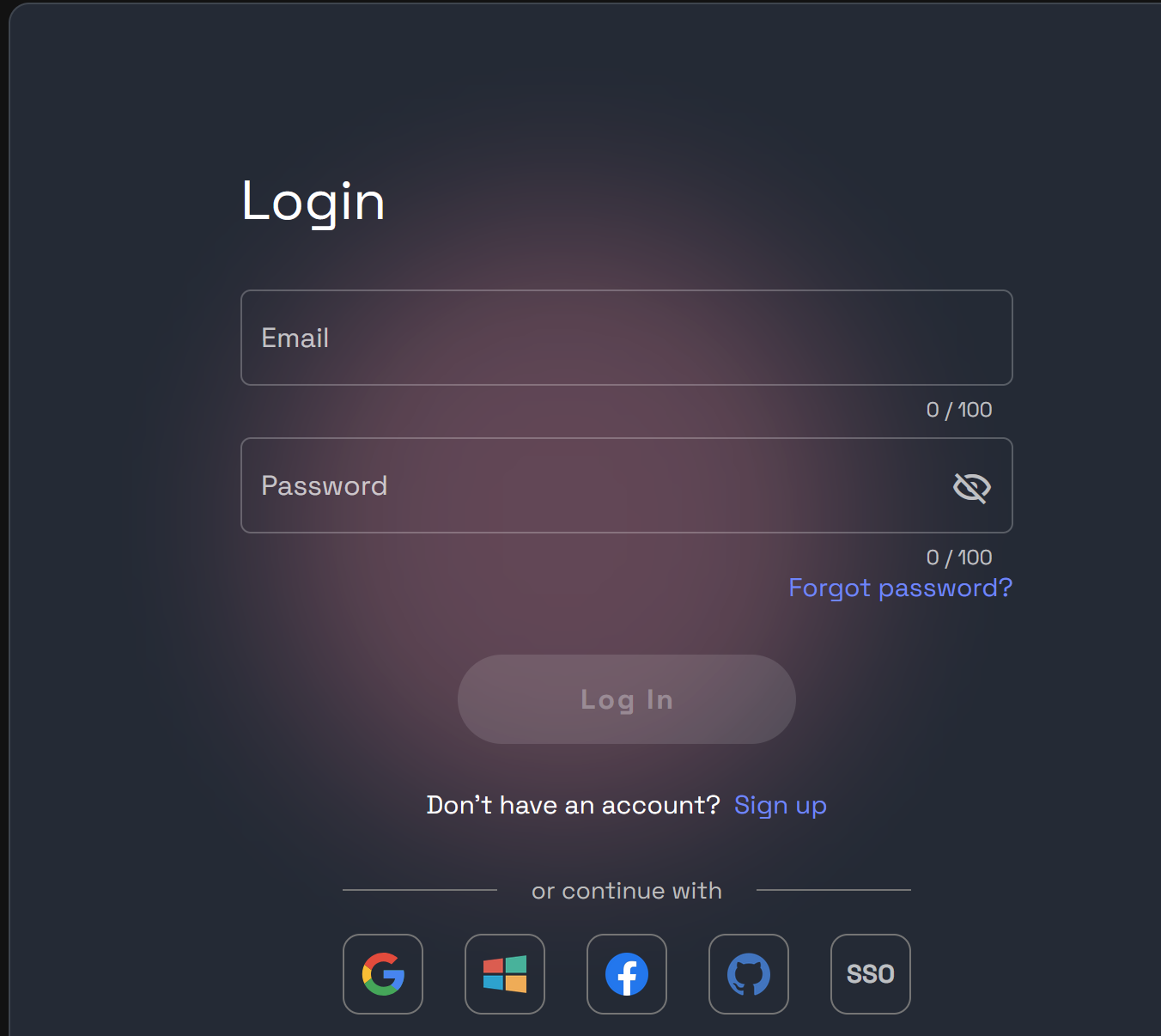
Step 1: Log Into RunDiffusion
Begin by logging into your RunDiffusion account. If you’re new, simply sign up to access the Runnit platform and its powerful tools.
Step 2: Go to Runnit
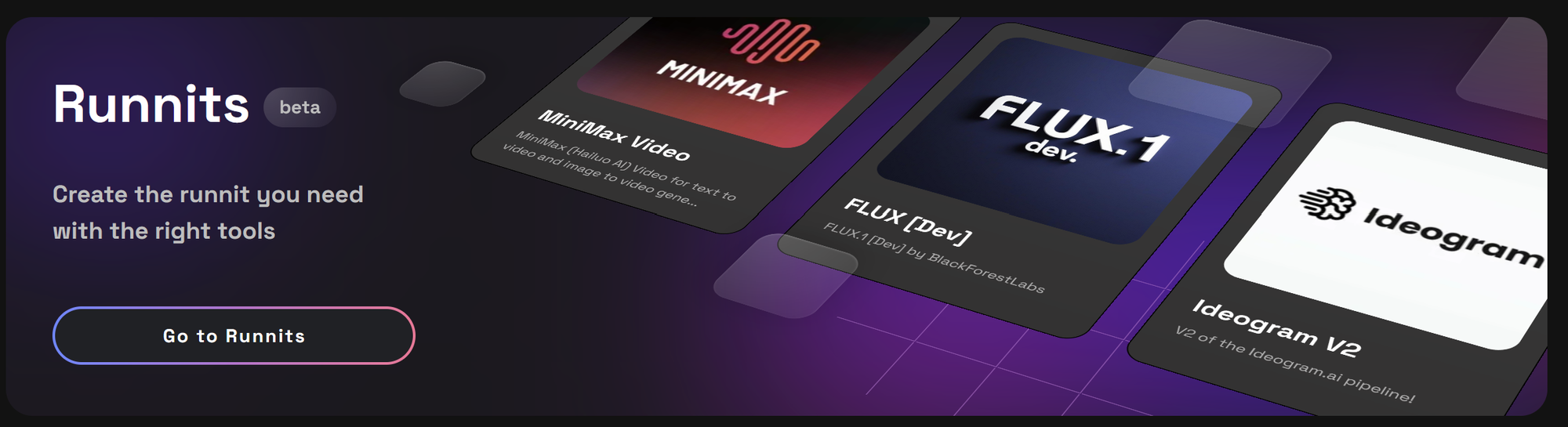
After logging in, select Go to Runnit from the top of the application list to access the video creation workspace.
Step 3: Create a Runnit
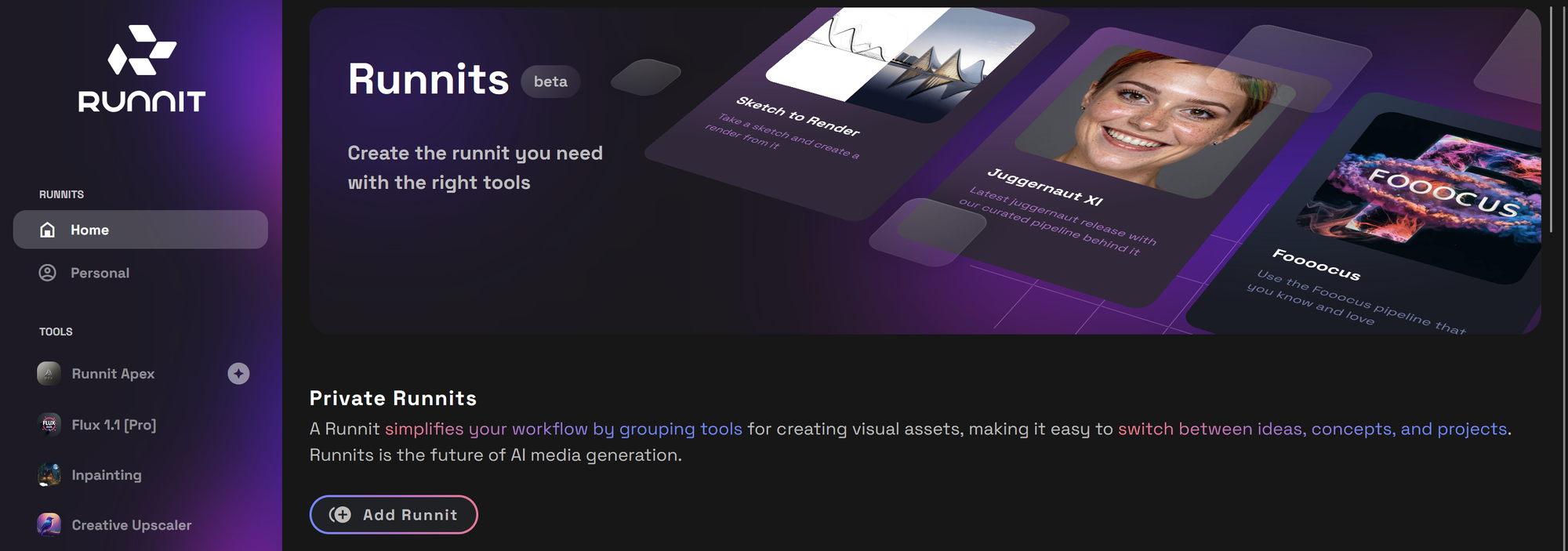
Select Add Runnit to create a new project.
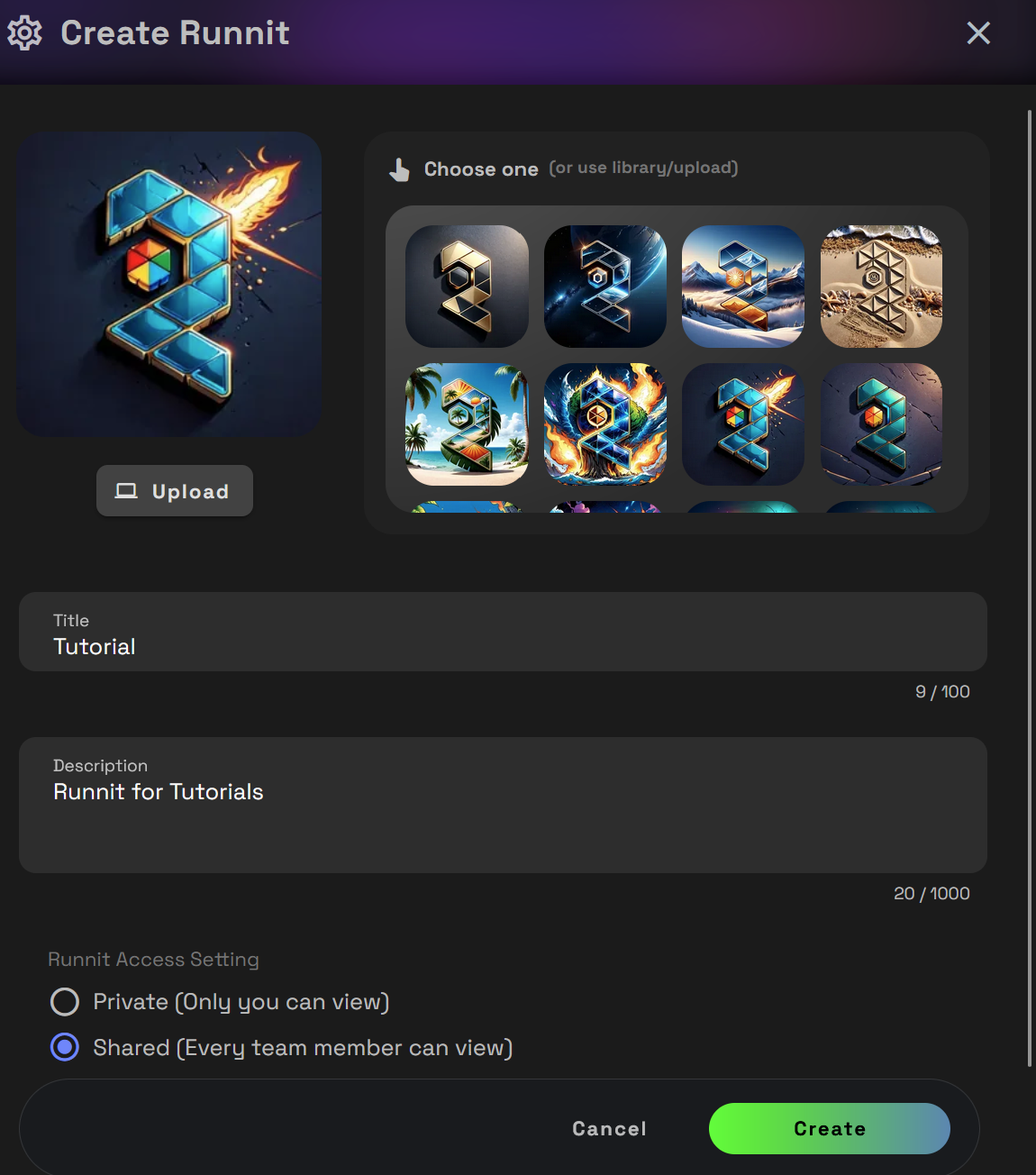
Give your Runnit a name and description. Upload a photo or choose one of the pre-made images. Click Create to create your Runnit.
Step 4: Add a Tool
At the bottom of your Runnit, click Add Another Tool.
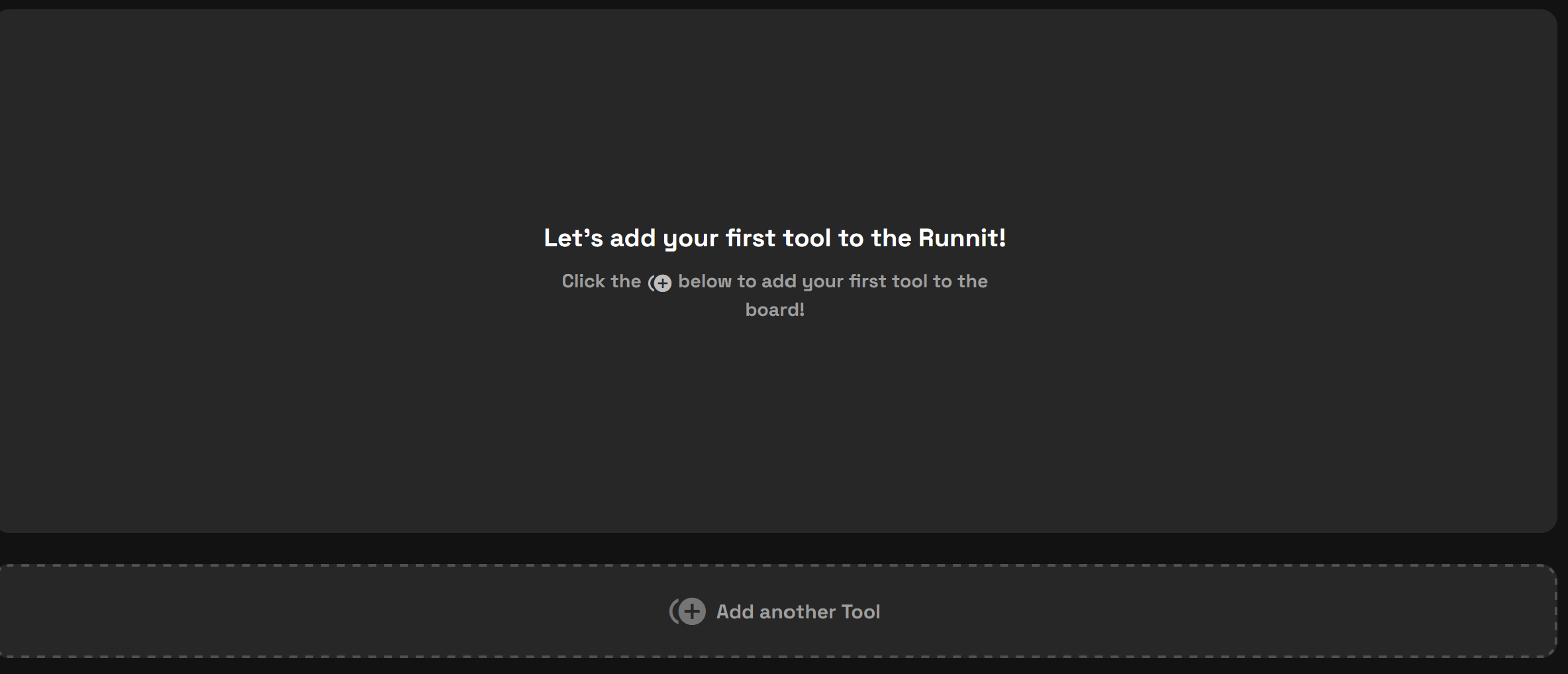
Select Video to view the available video tools (this list will grow as new tools are added). Remember, you can add more than one tool to your Runnit for added functionality.
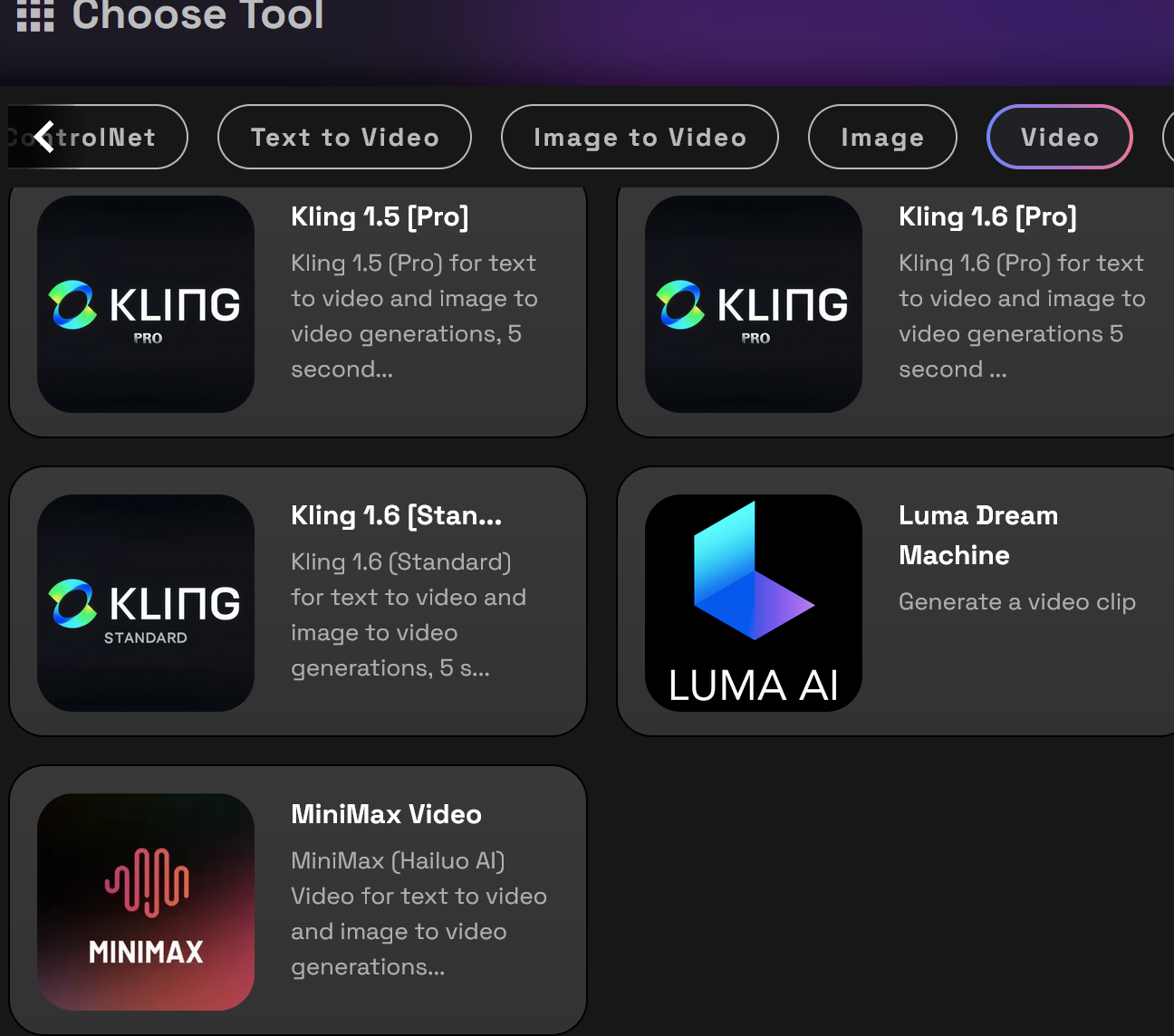
Choose a tool, such as LUMA AI, and it will be automatically added to your Runnit.
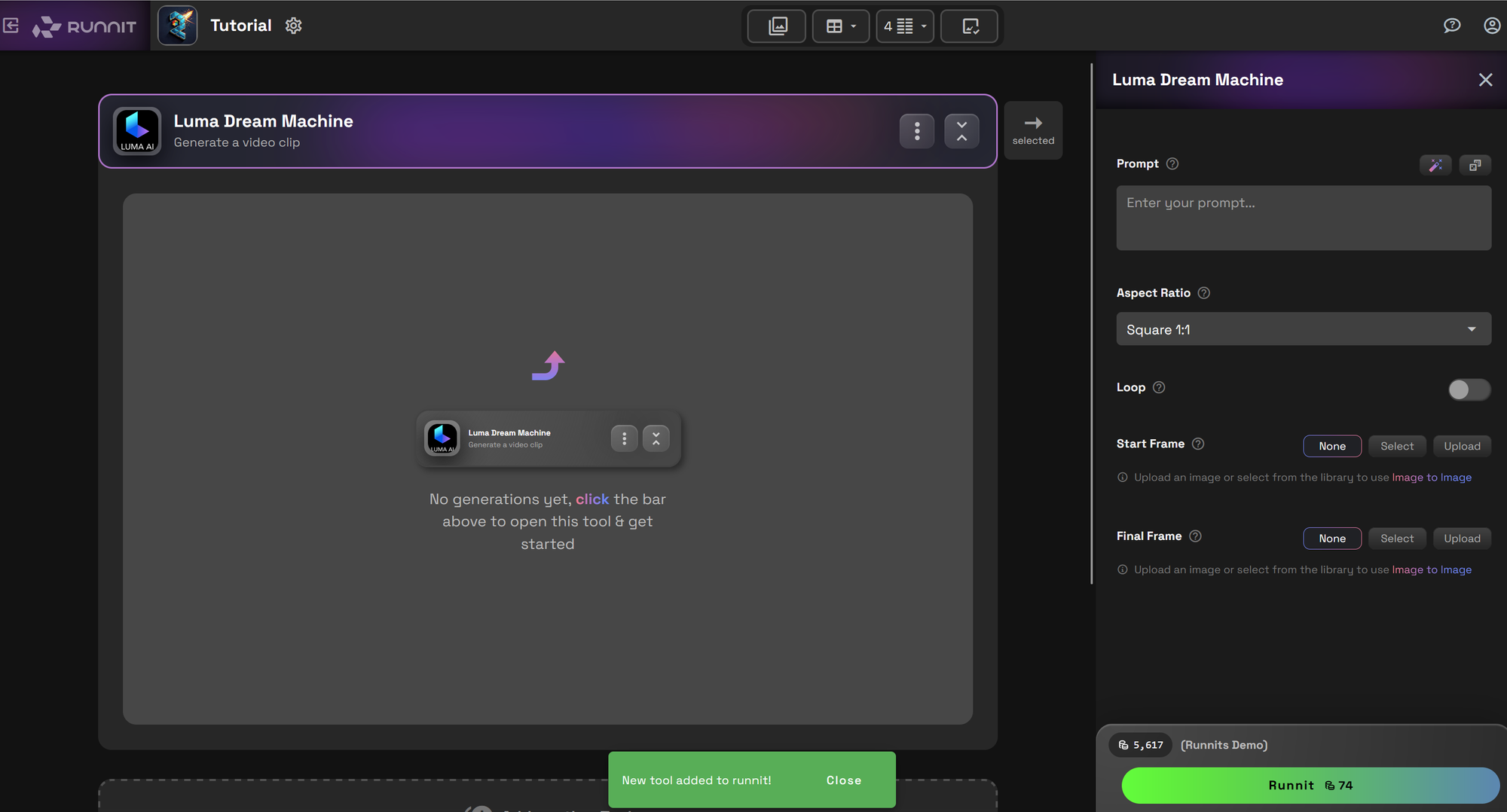
Step 5: Write a Prompt
We will create an image of a flower exploding into fireworks. The more detailed and precise your prompt the better chance you have at creating a quality video.
In the prompt box at the top right, enter a description of the video you want to create. For example the:
Prompt 1: A flower exploding into fireworks
Prompt 2: A beautiful multi-colored daisy with a black background transforms into an explosion of beautiful fireworks, camera static.
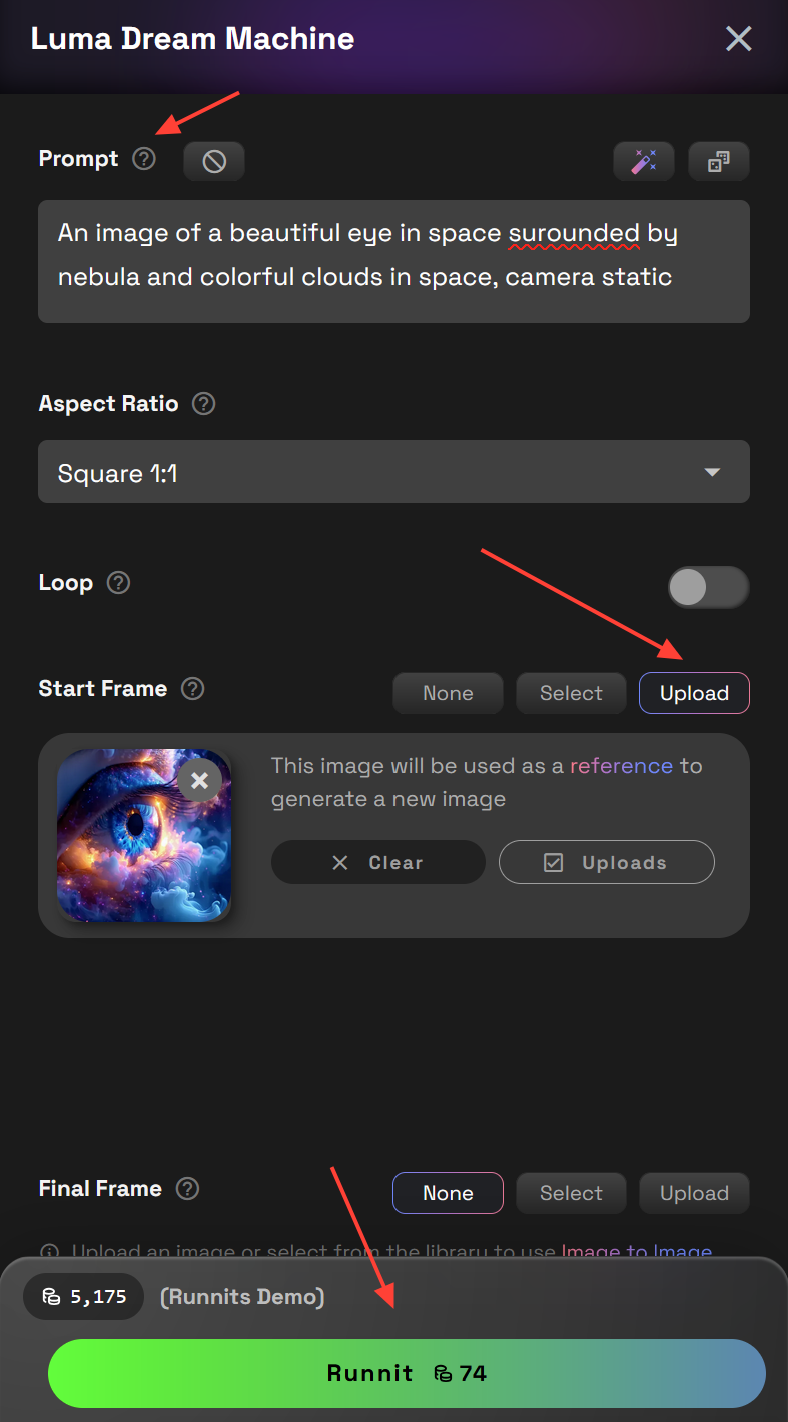
To create images with prompts place the prompt in the box in the top right titled Prompt.
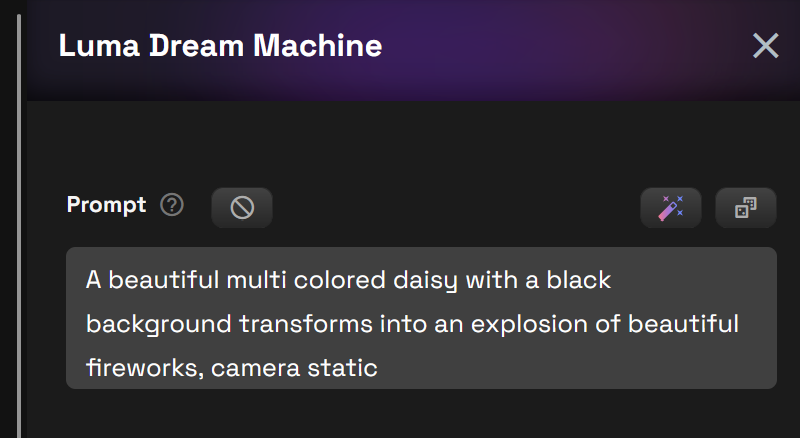
Tthe Runnit button at the bottom

Step 6: Add a Starting frame and an ending frame.
To have more control over your video, you can upload a starting frame and optionally an ending frame. This feature allows for powerful transitions and smoother animations.
Click Upload and drag an image into the designated box for the starting or ending frame. Once set, click Runnit to generate your video.
Don’t Be Afraid to Experiment and Iterate
Creating videos with Runnit is an iterative process, allowing you the freedom to experiment with prompts, settings, and frame selections. Small tweaks to your inputs can lead to entirely unique and exciting results. Don’t hesitate to generate multiple variations until you achieve the perfect video—it’s all part of the creative process!
Further Reading about Runnit
