Influence Any Image Using Style, Texture, Color, and More from a Custom Mood Board
The Mood Board Tool is now available on the Runnit platform, giving creators a new way to visually guide AI image generation. This tool lets you upload reference images that influence the color, texture, lighting, and overall aesthetic of your target image. Whether you're producing branded visuals, refining a creative concept, or maintaining visual consistency across assets, the Mood Board Tool offers precision and flexibility.
How the Mood Board (Beta) Tool Works
The tool is designed to accommodate both quick styling needs and advanced artistic direction.
Basic Mode: Style Matching in Minutes
Login to your RunDiffusion account
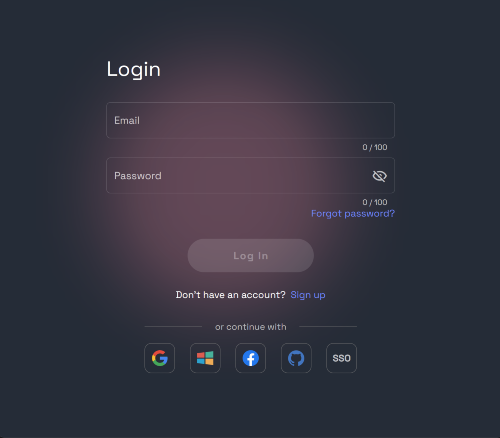
Navigate to the Runnit platform
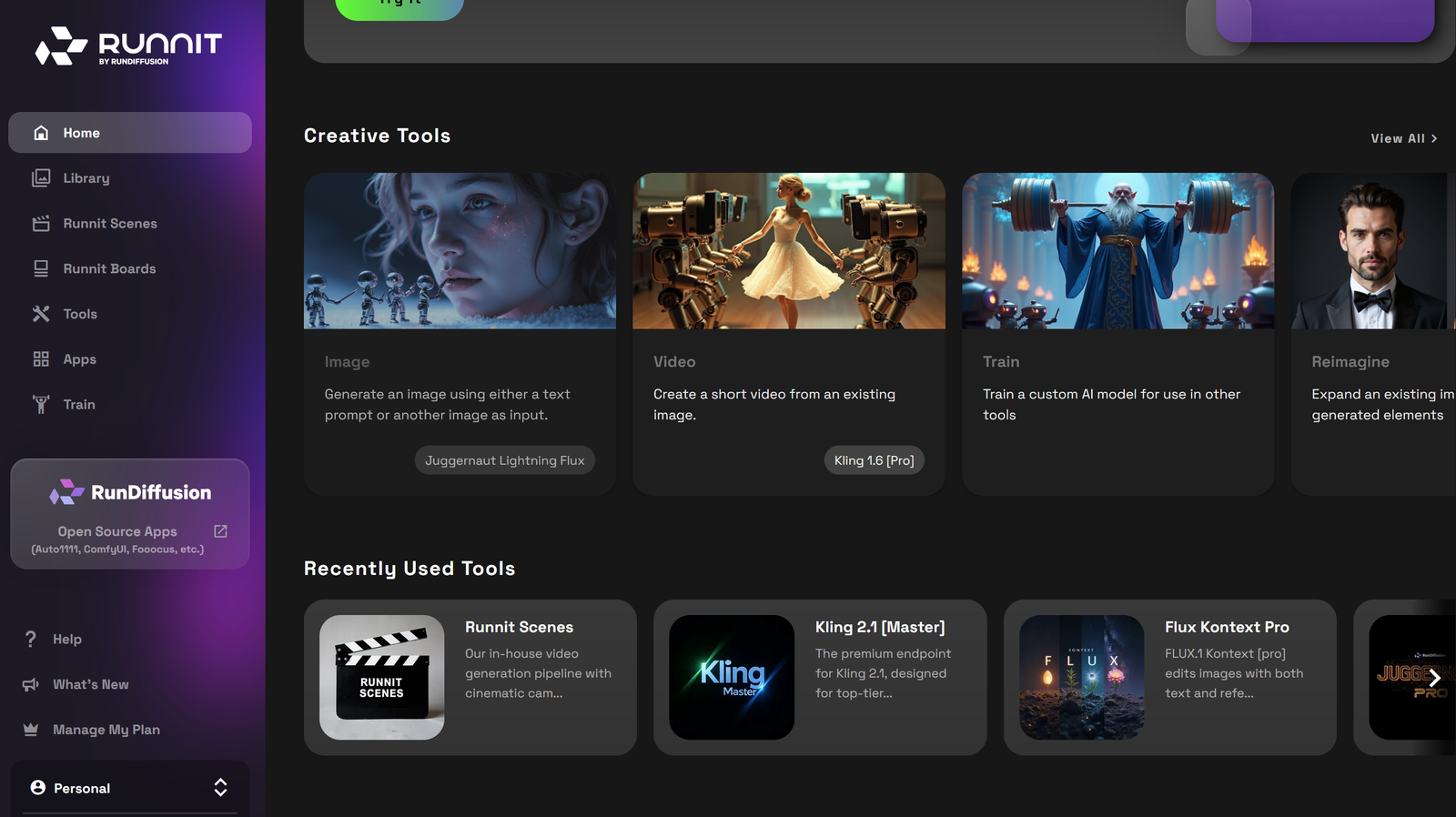
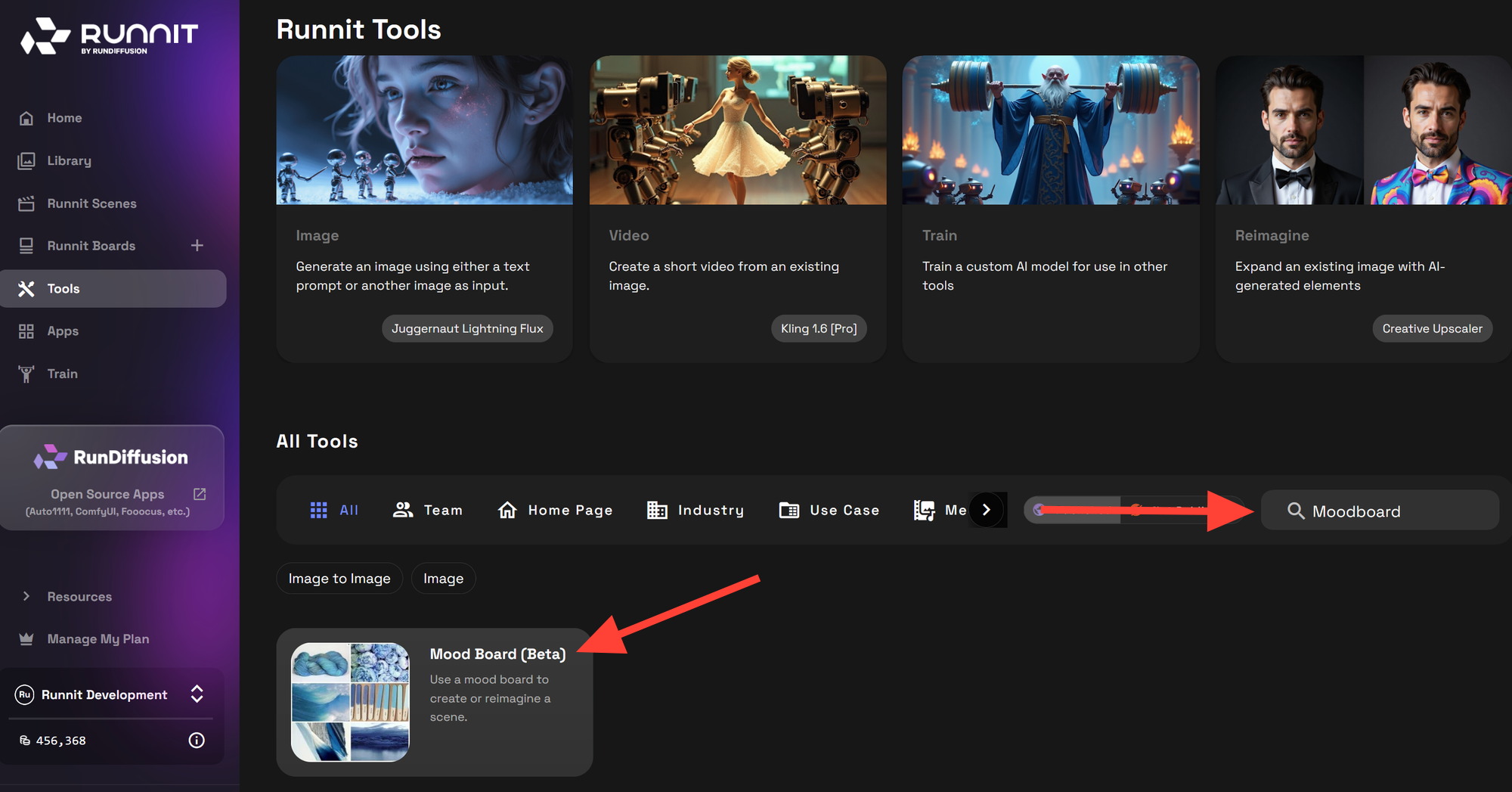
Click on Tools on the life sidebar
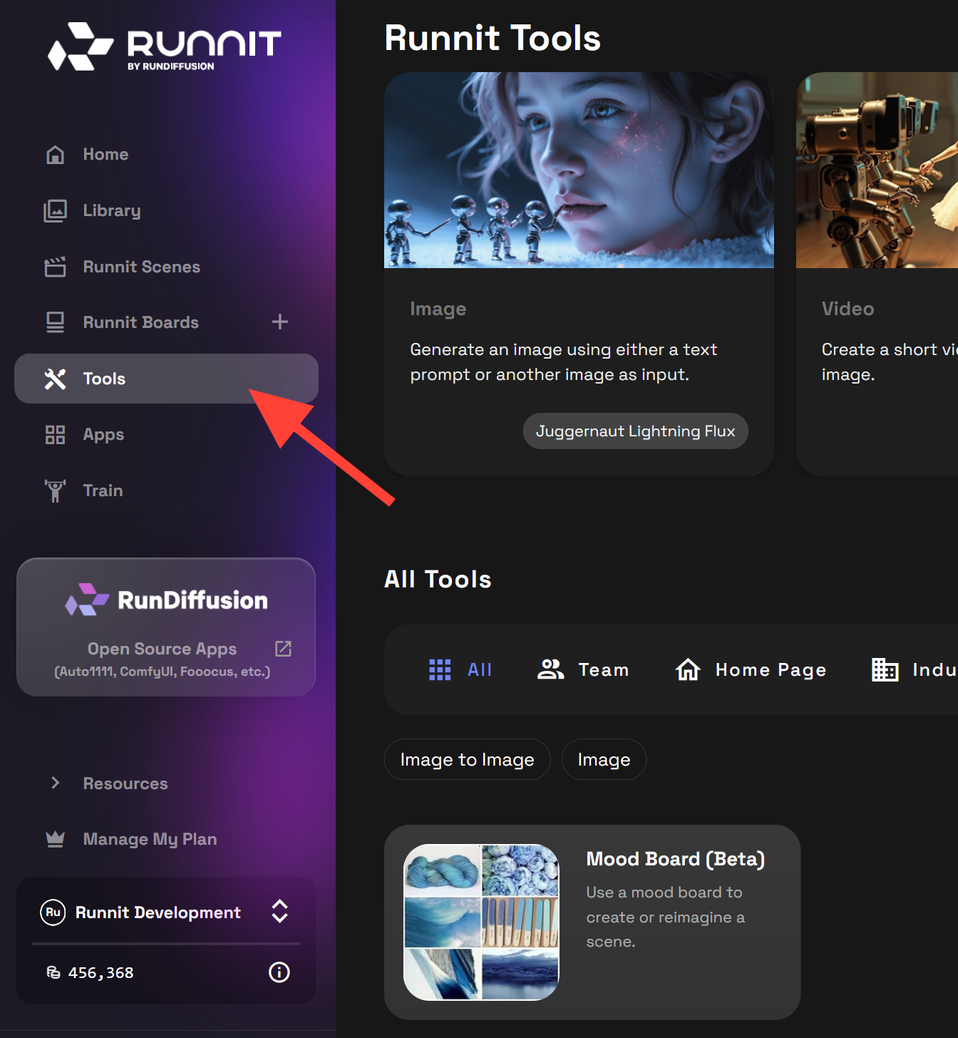
Search for Mood Board and click on the Mood Board (Beta) tool
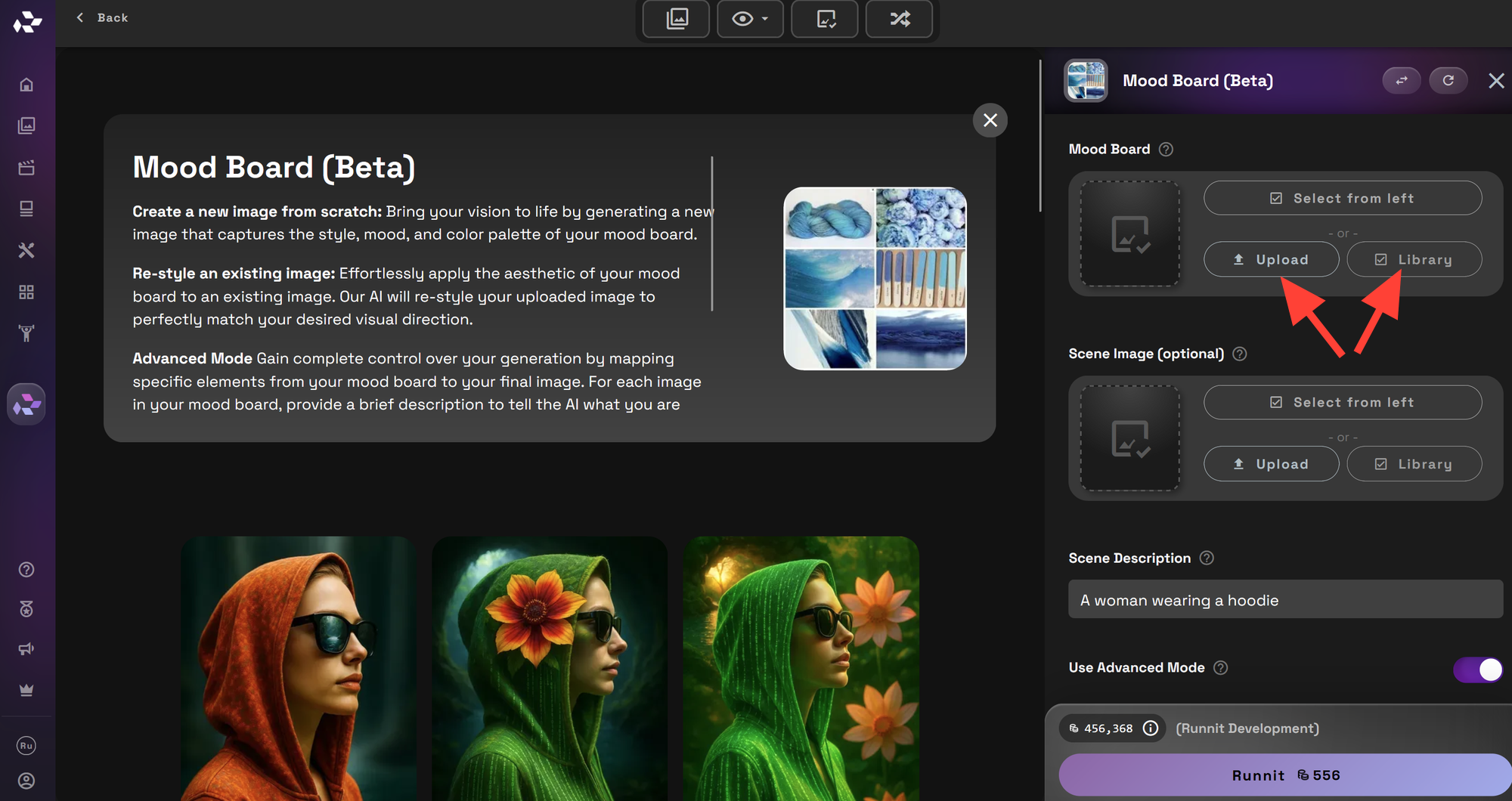
In the Mood Board Click on Upload or Library to select your mood board.
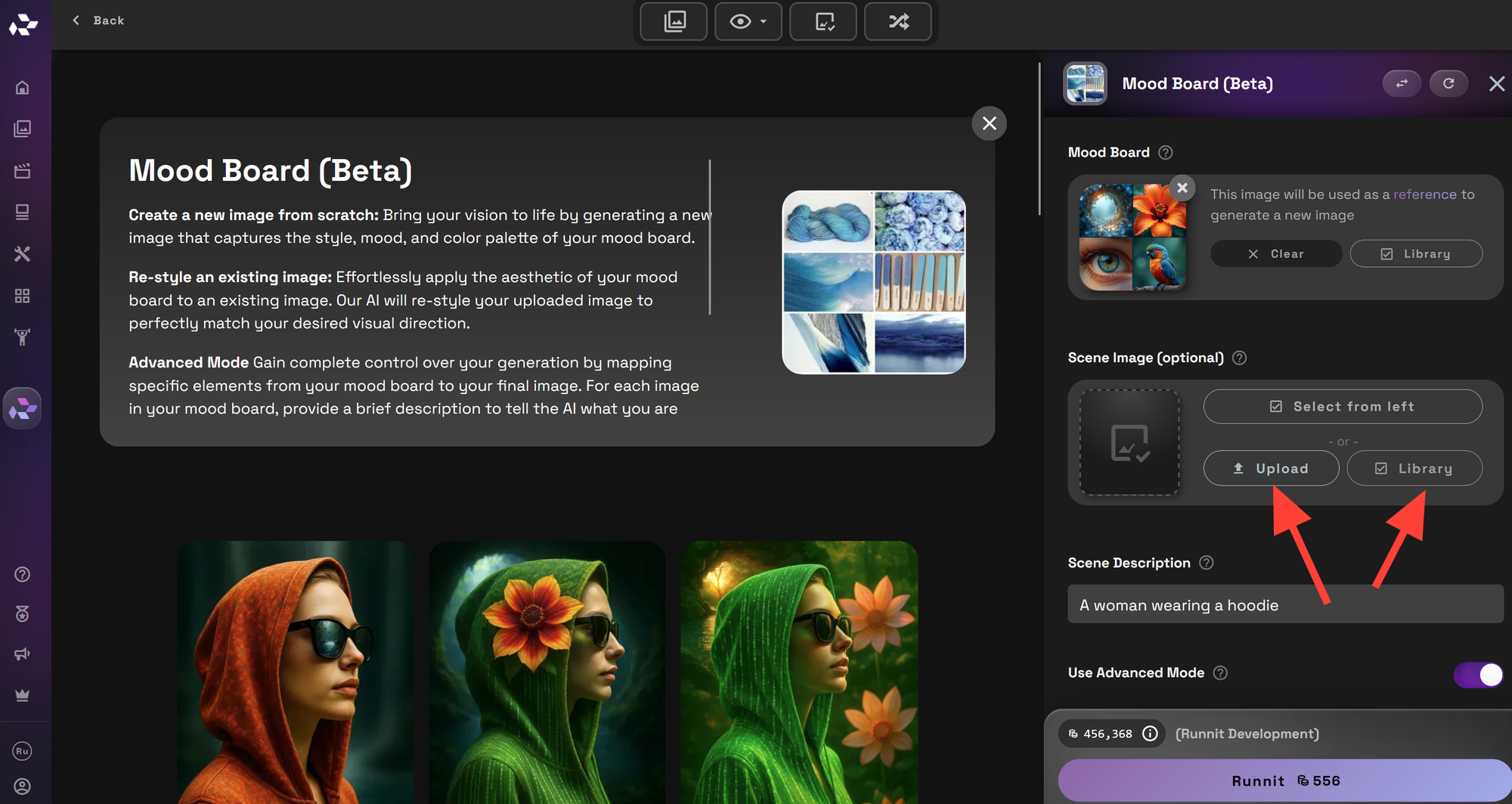
In the Scene Image (Optional) you can upload or select from your library an image.
Enter a basic Scene Description.
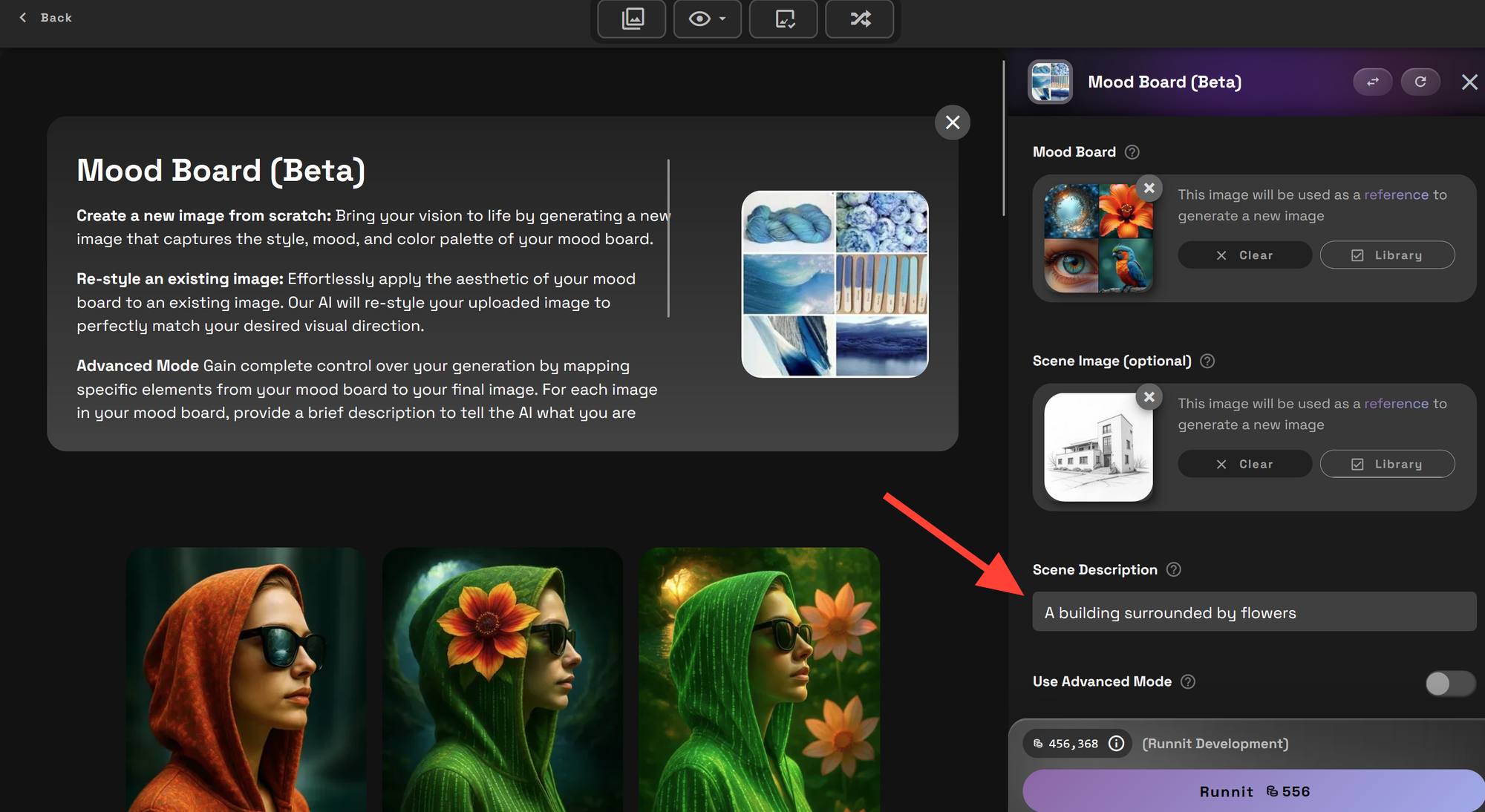
Advanced Mode: Toggled off this will let the AI decide which elements from your mood board and how to integrate them into the photograph you have provided.
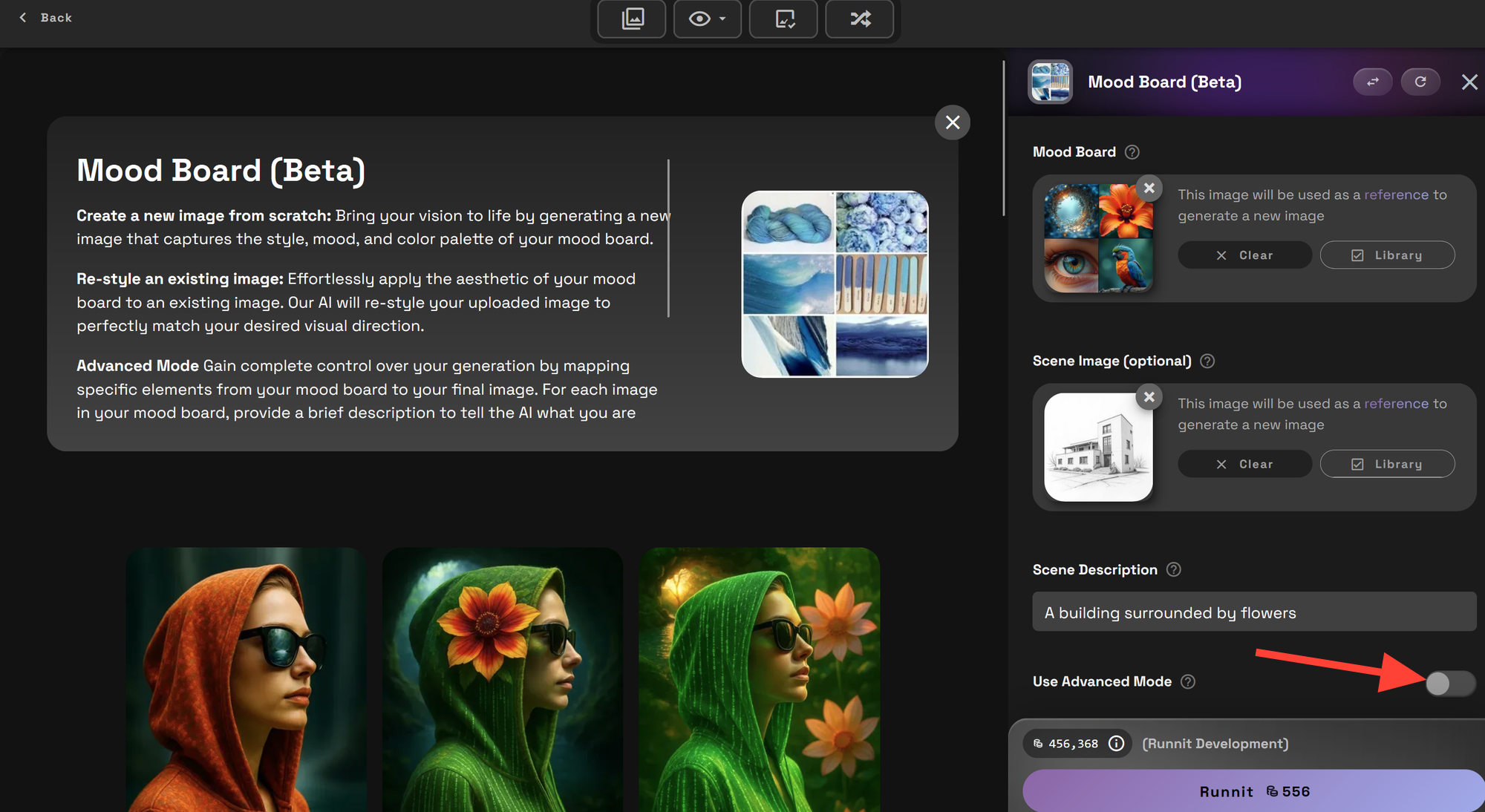
Additional Instructions this is allows you to enter any additional instructions for the AI but keep this very brief.
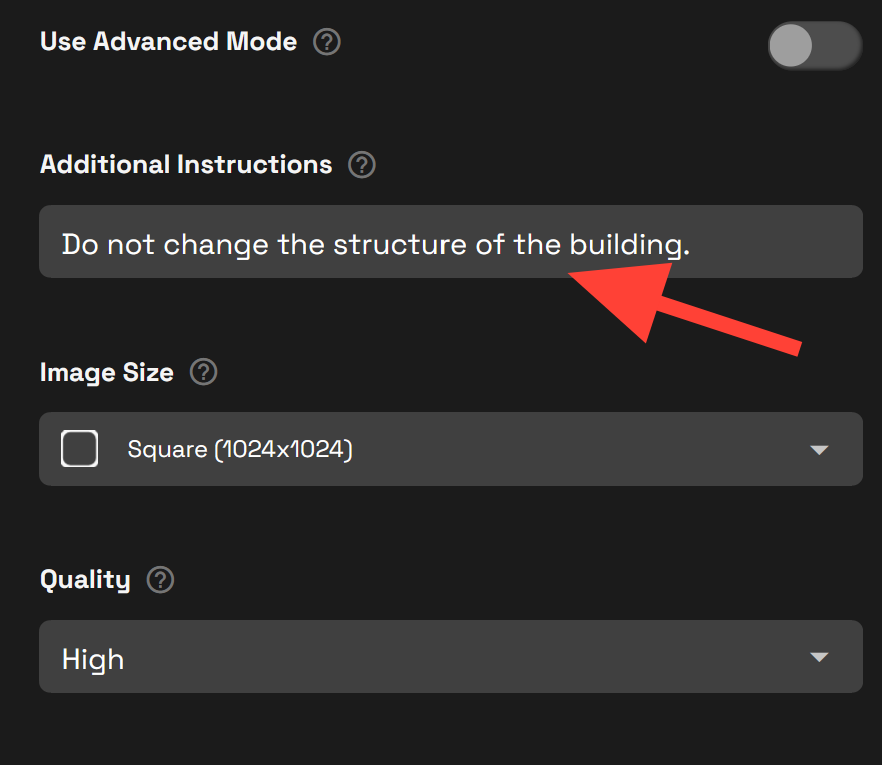
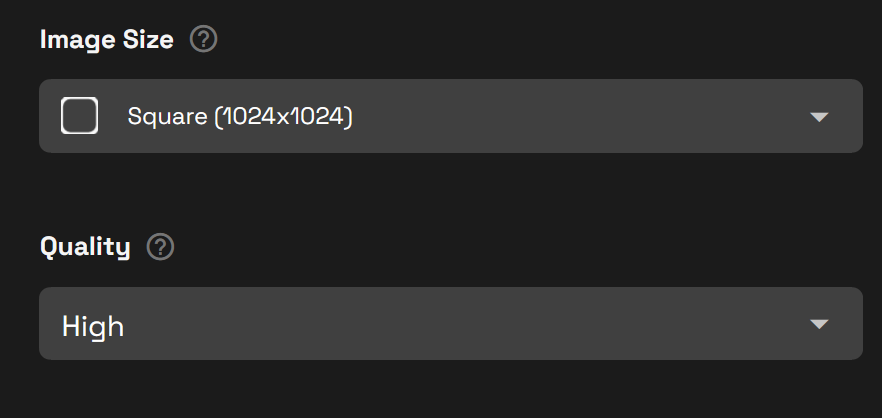
You may select the appropriate image size and quality.
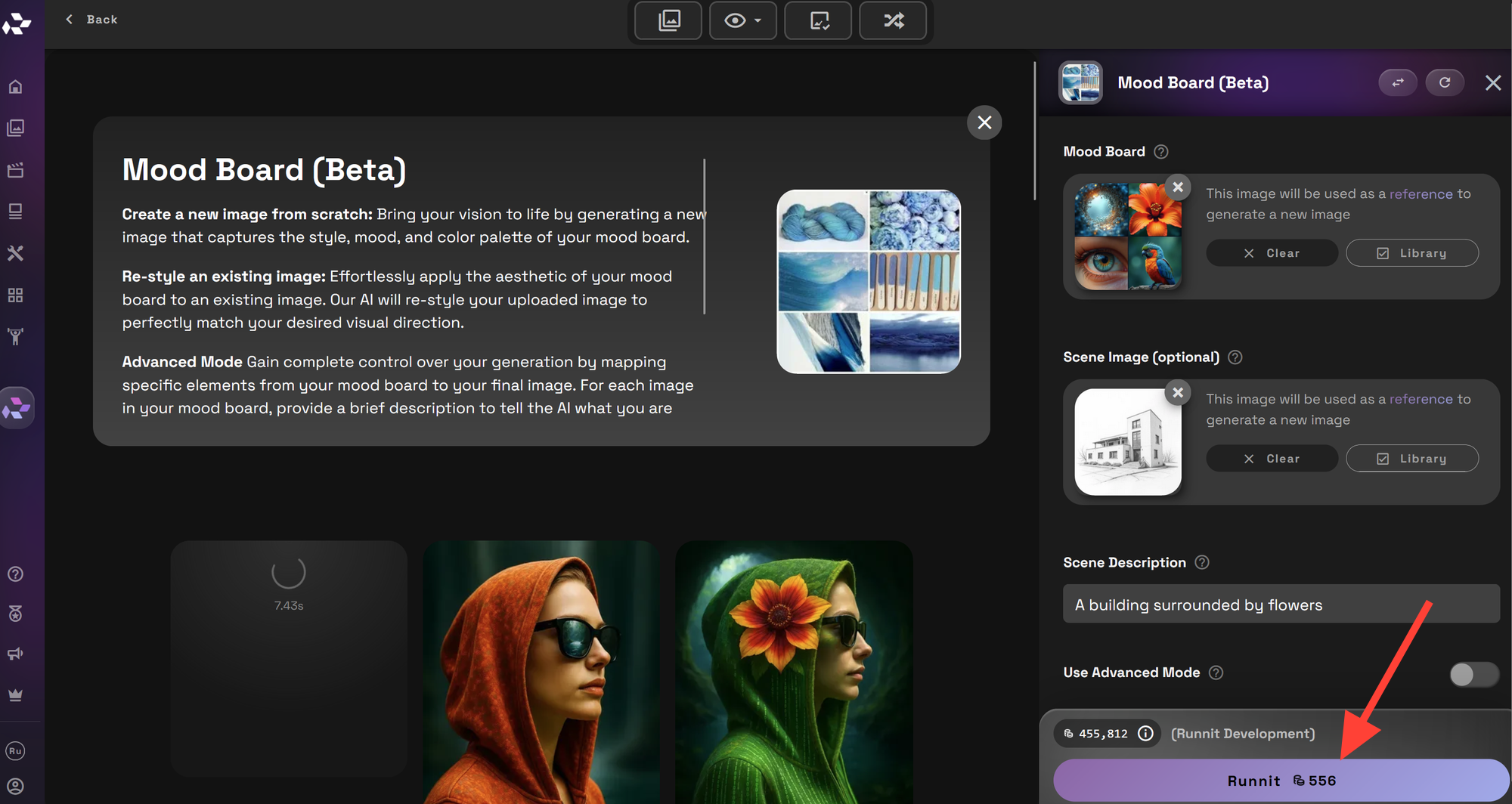
Click Runnit to generate your image
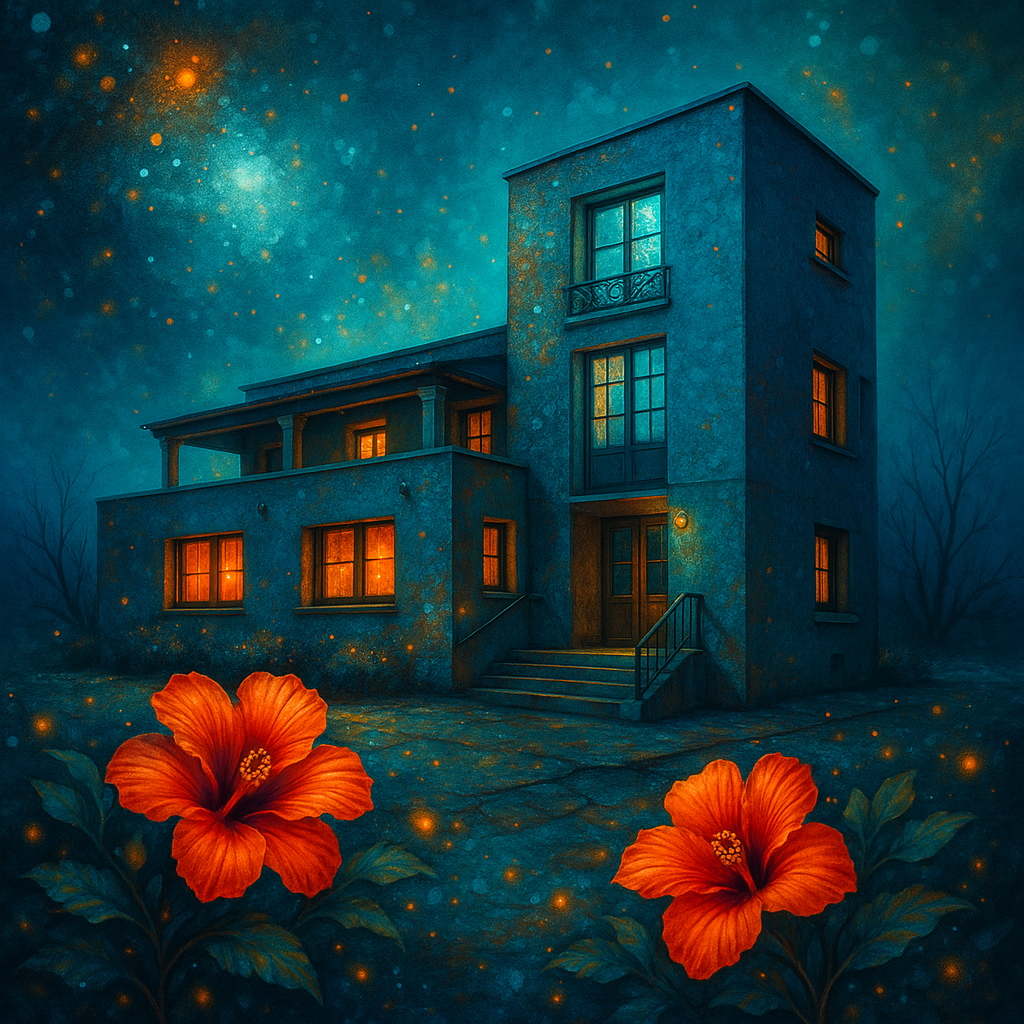
Advanced Mode: Fine-Tuned Visual Direction
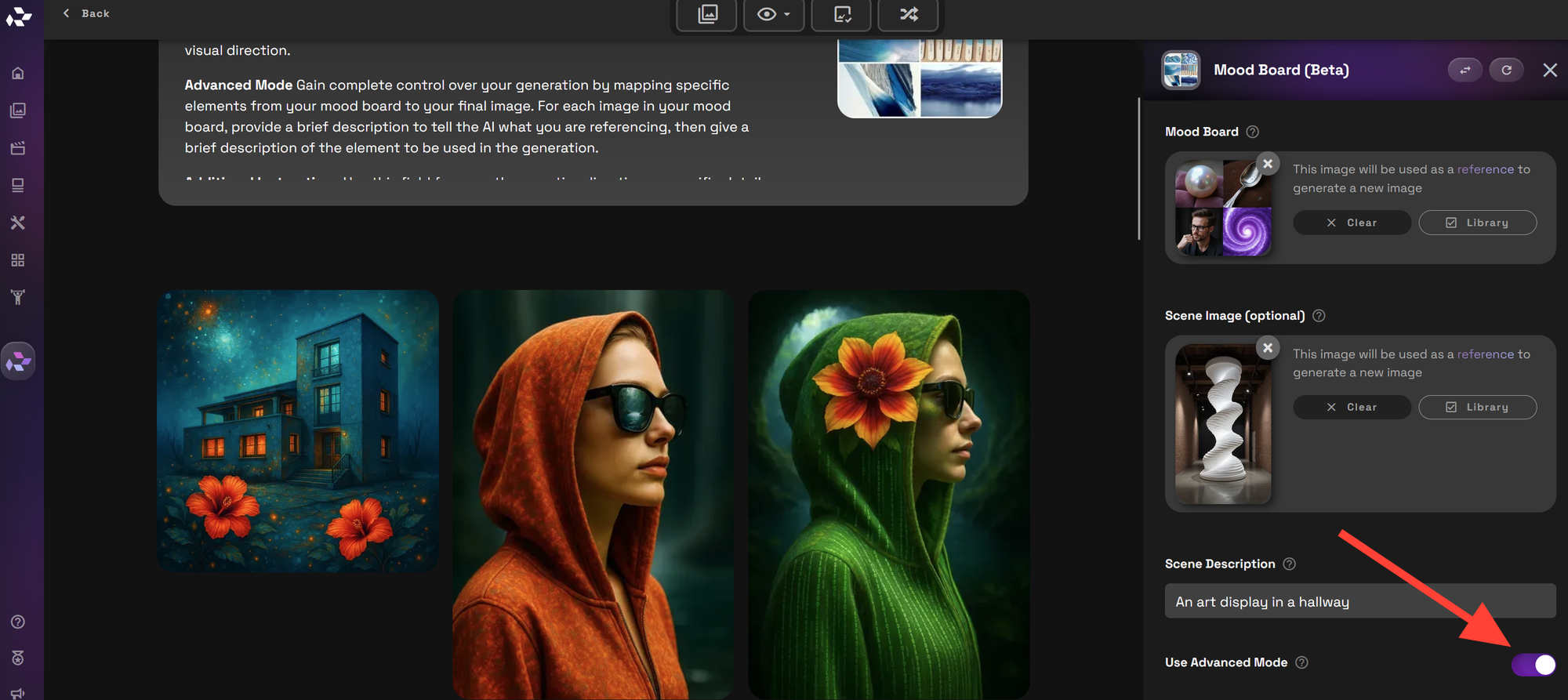
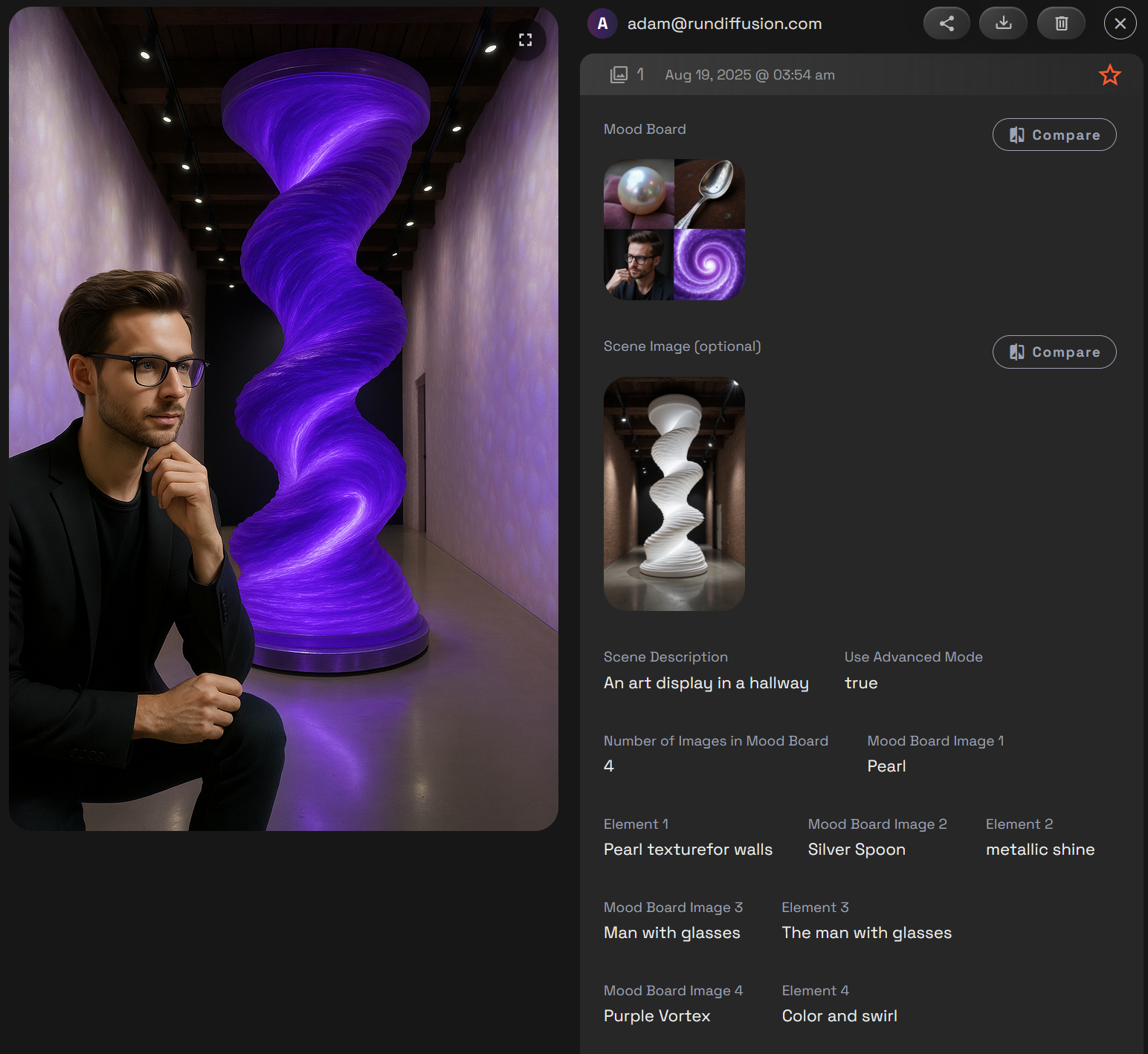
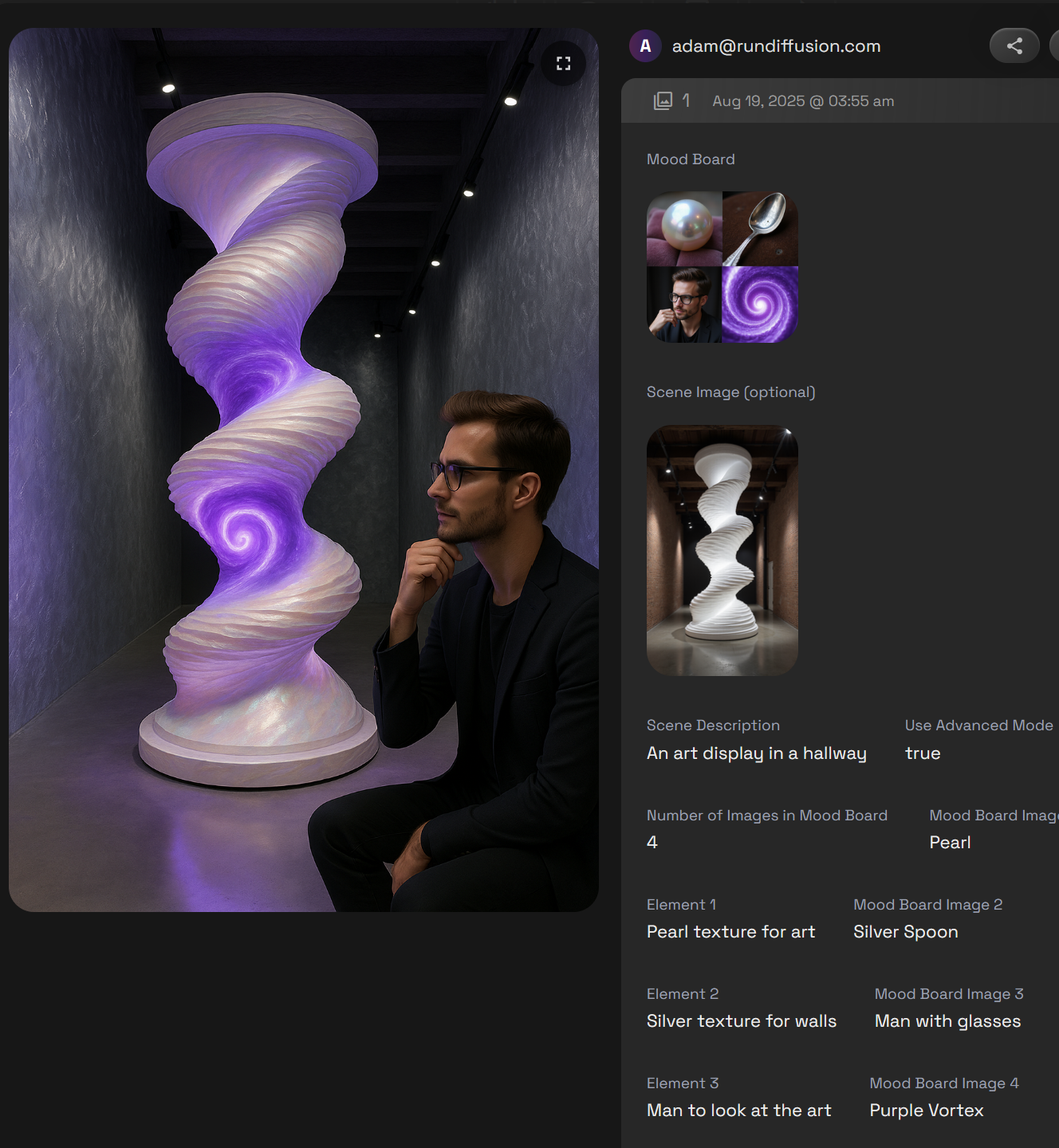
For more control, toggle Advanced Mode to customize how each image on your mood board influences the result. Advanced mode allows you to select which characteristic to extract (color, lighting, texture, background, etc.). This is especially useful for creative professionals in design, architecture, fashion, editorial, and product marketing who need consistent and directed results.
Follow all the steps described above but this time let's toggle on Use Advanced Mode.
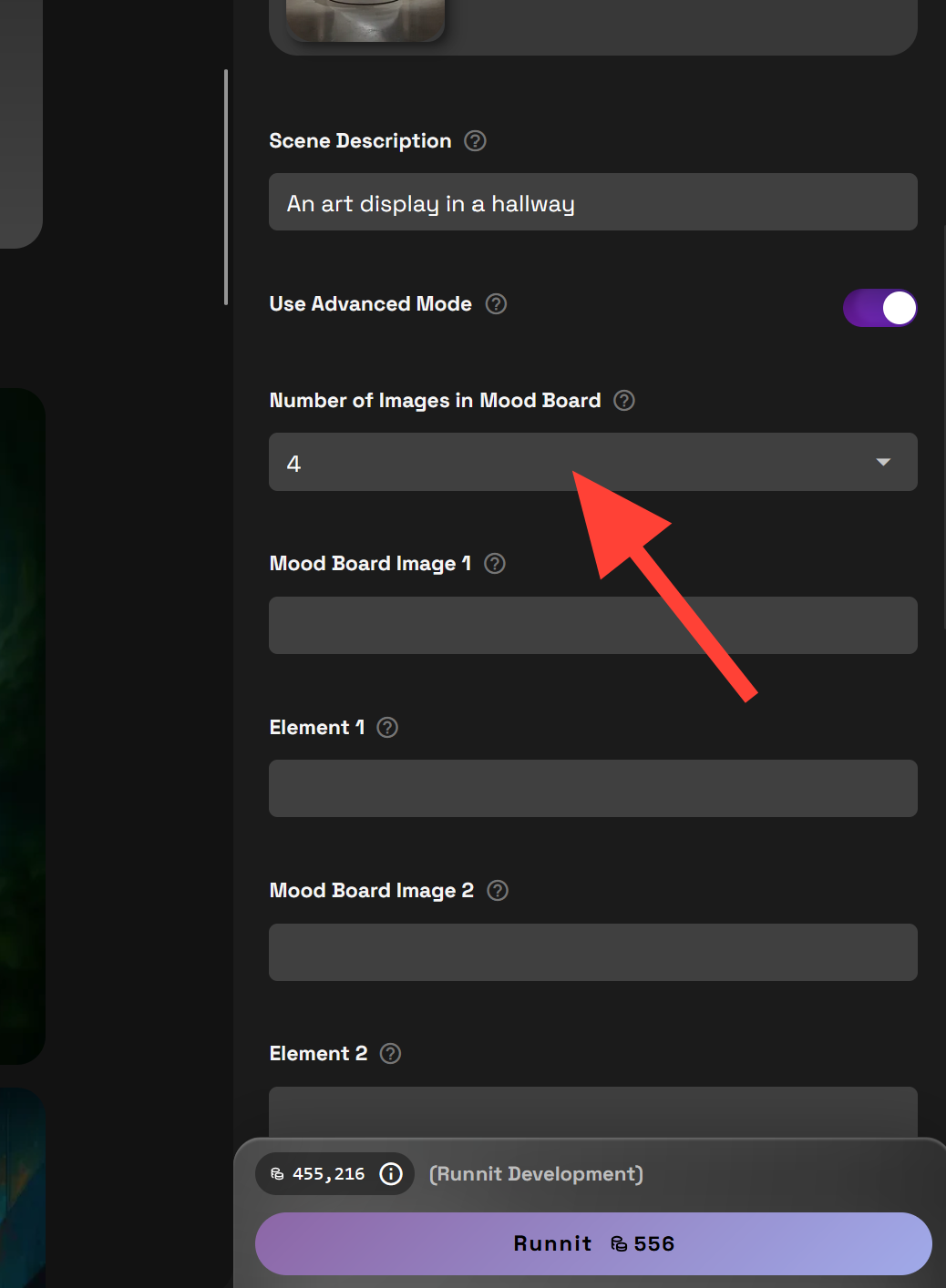
Select the number of images on your Mood Board.
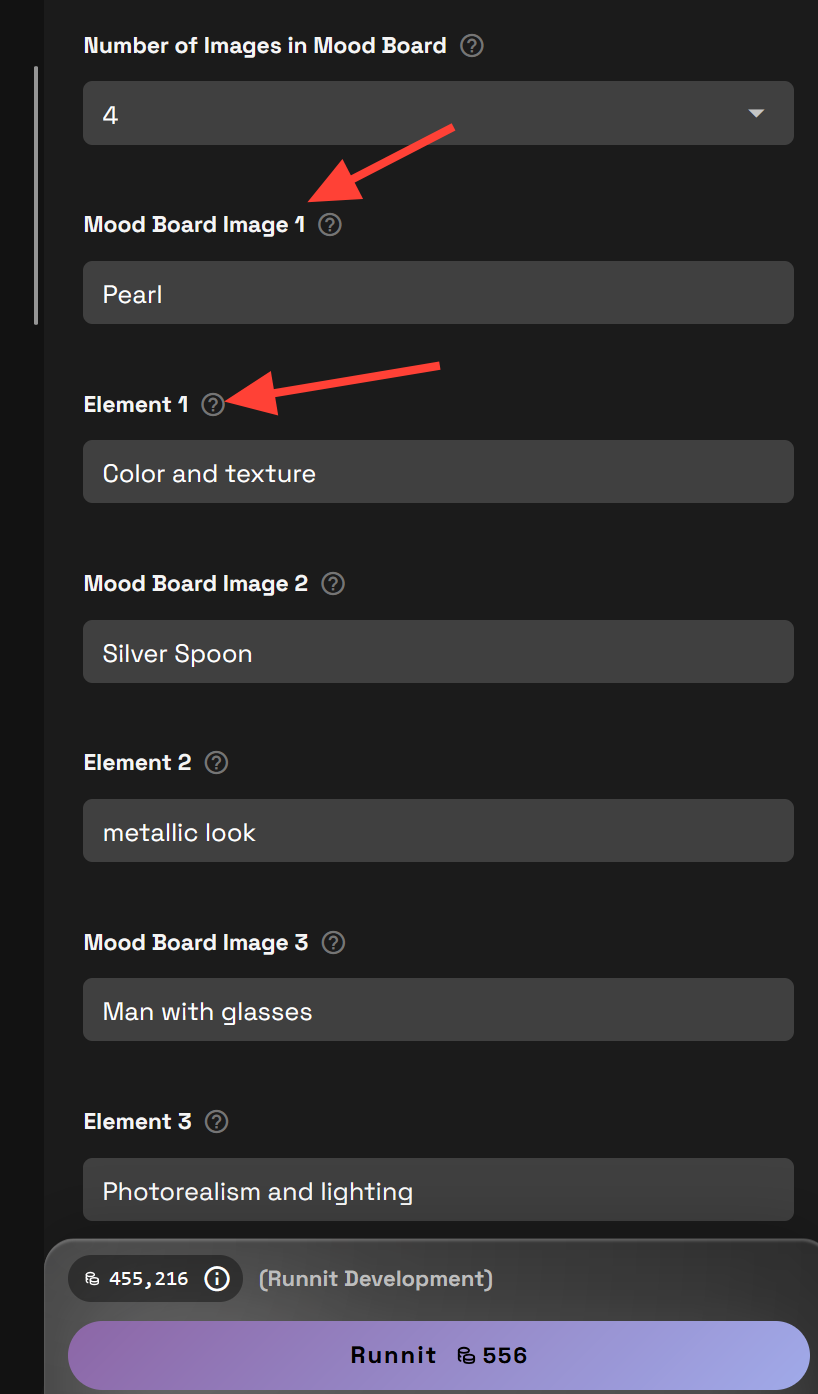
Describe each image and and the element from the image you want to extract.
Try different settings and wording to extract the elements you want. You can try different combinations to get the results you want. The same mood board can be used numerous ways to create a variety of images.
When to Use the Mood Board Tool
- Match product shots to a visual style or branding guide
- Influence concept art or illustrations with curated references
- Generate stylistically aligned variations of a single image
- Create varied beautiful interior or exterior designs
For more image workflow inspiration, explore:
 RunDiffusion Team
 RunDiffusion Team
 RunDiffusion Team