


Drone Flyovers and Rotations on RunDiffusion
Drone Flyovers and Rotations on RunDiffusion helps you turn a static architectural image into a drone flyover video. Upload an exterior render, massing study, white card image, or site concept, then generate a flyover or rotational view that makes the design easier to understand.
Use it when you want to communicate massing, site context, scale, and spatial relationships without building a full animation from scratch. It is especially useful for internal reviews, client presentations, early concept decks, and quick architectural storytelling.
Drone video starting at ground level
Create Motion From Architecture Images
Start with a clear architectural image and use RunDiffusion to generate movement around the design. A flyover can help show the relationship between the building and its site, while a rotation can help communicate massing, volume, and overall form.
Use this workflow to create:
- Drone-style approach shots
- Slow flyovers
- Rotational building views
- Orbit-style massing studies
- Site context previews
- Client presentation clips
- Concept review animations
- Social or portfolio-ready architectural motion
The goal is to add useful movement that supports the design, not distract from it.
Watch the Video Tutorial
The video tutorial walks through the Drone Flyovers and Rotations process step by step, from uploading the starting image to generating a motion study for review or presentation.
Use it to follow along, compare camera prompts, and see how flyovers and rotations can help communicate architectural massing and site context.
How to Use Drone Flyovers and Rotations
- Log in to RunDiffusion.
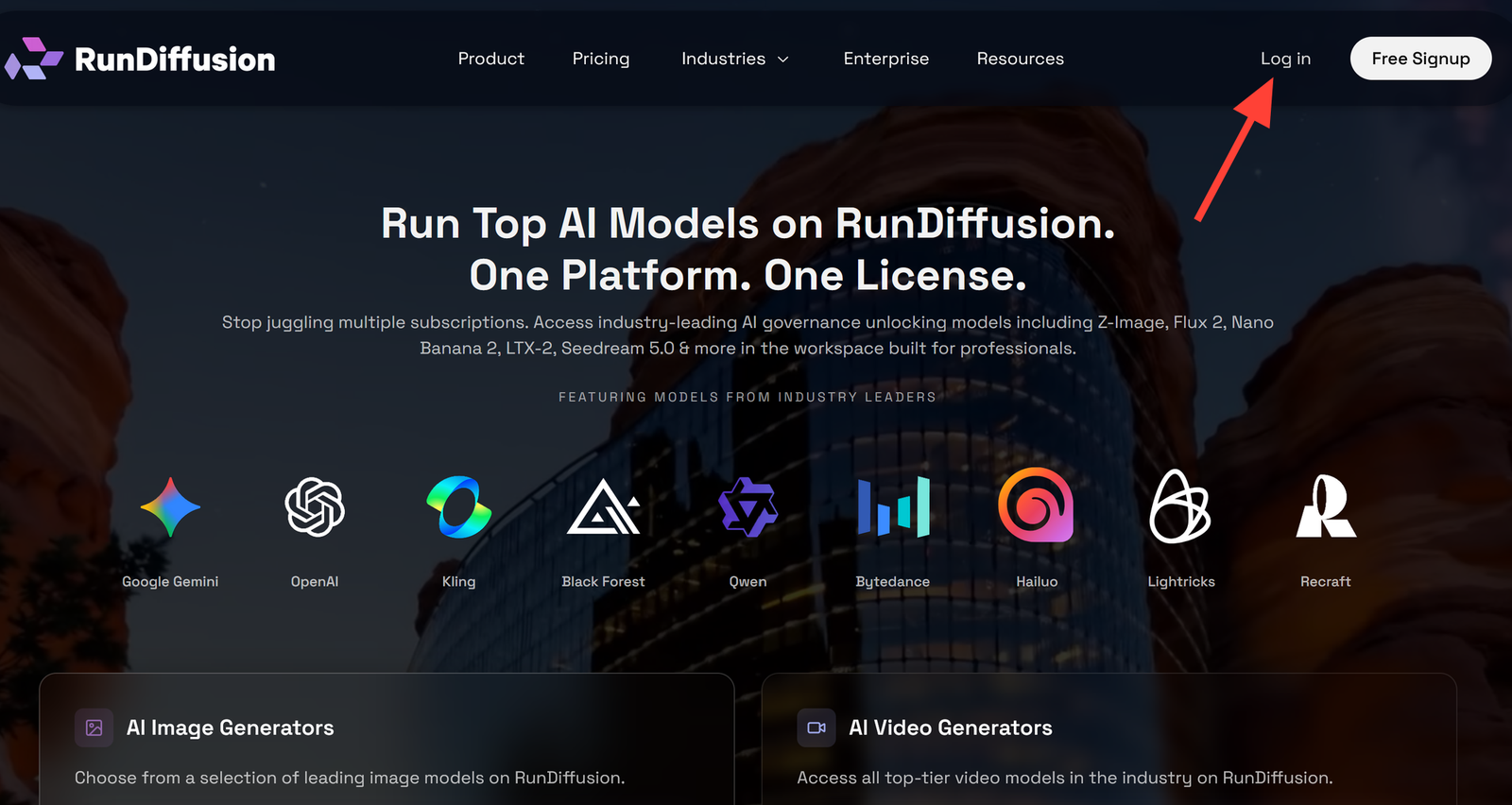
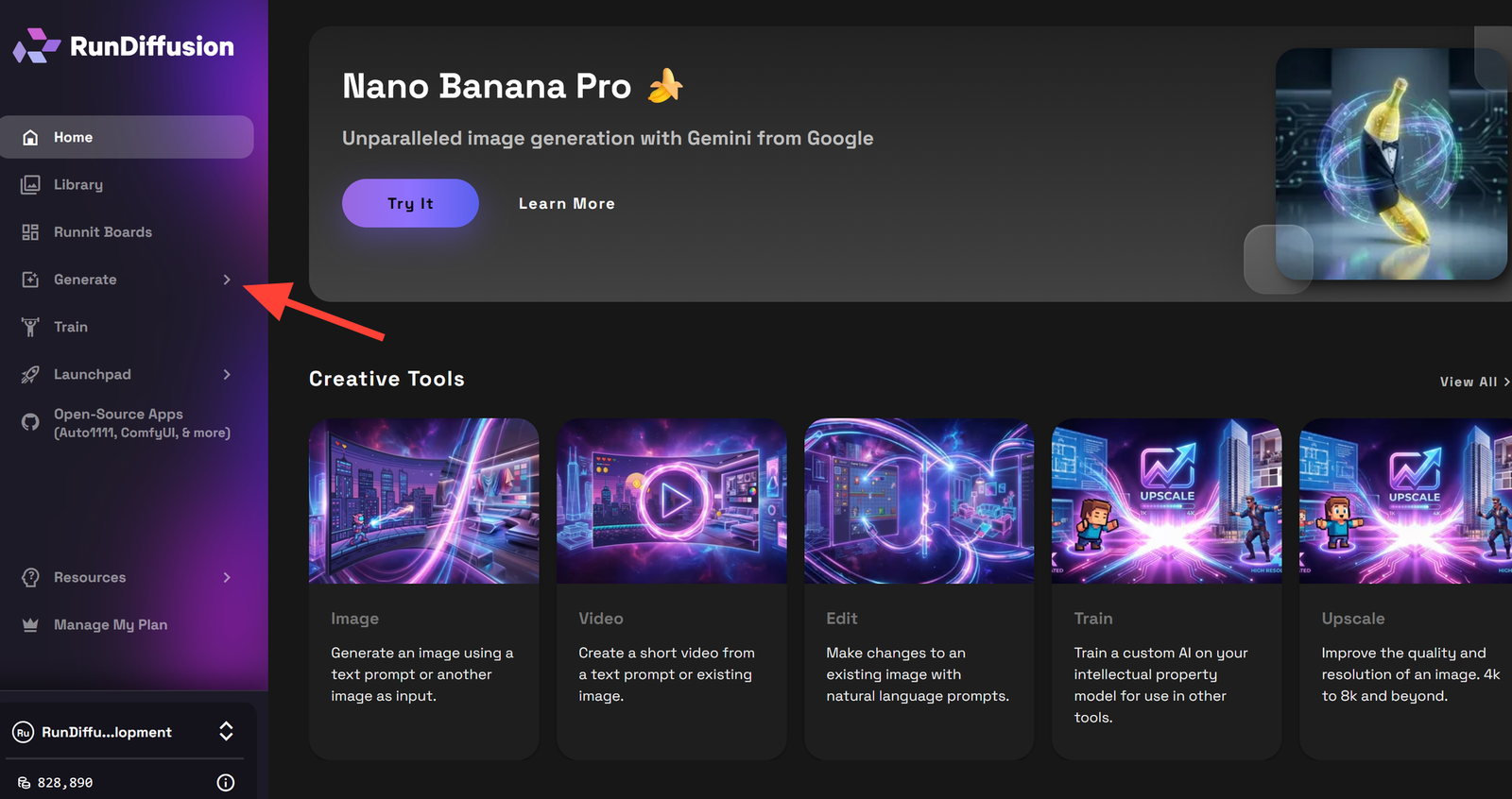
- You are automatically redirected to RunDiffusion's Runnit Platform. Click Generate in the left sidebar.
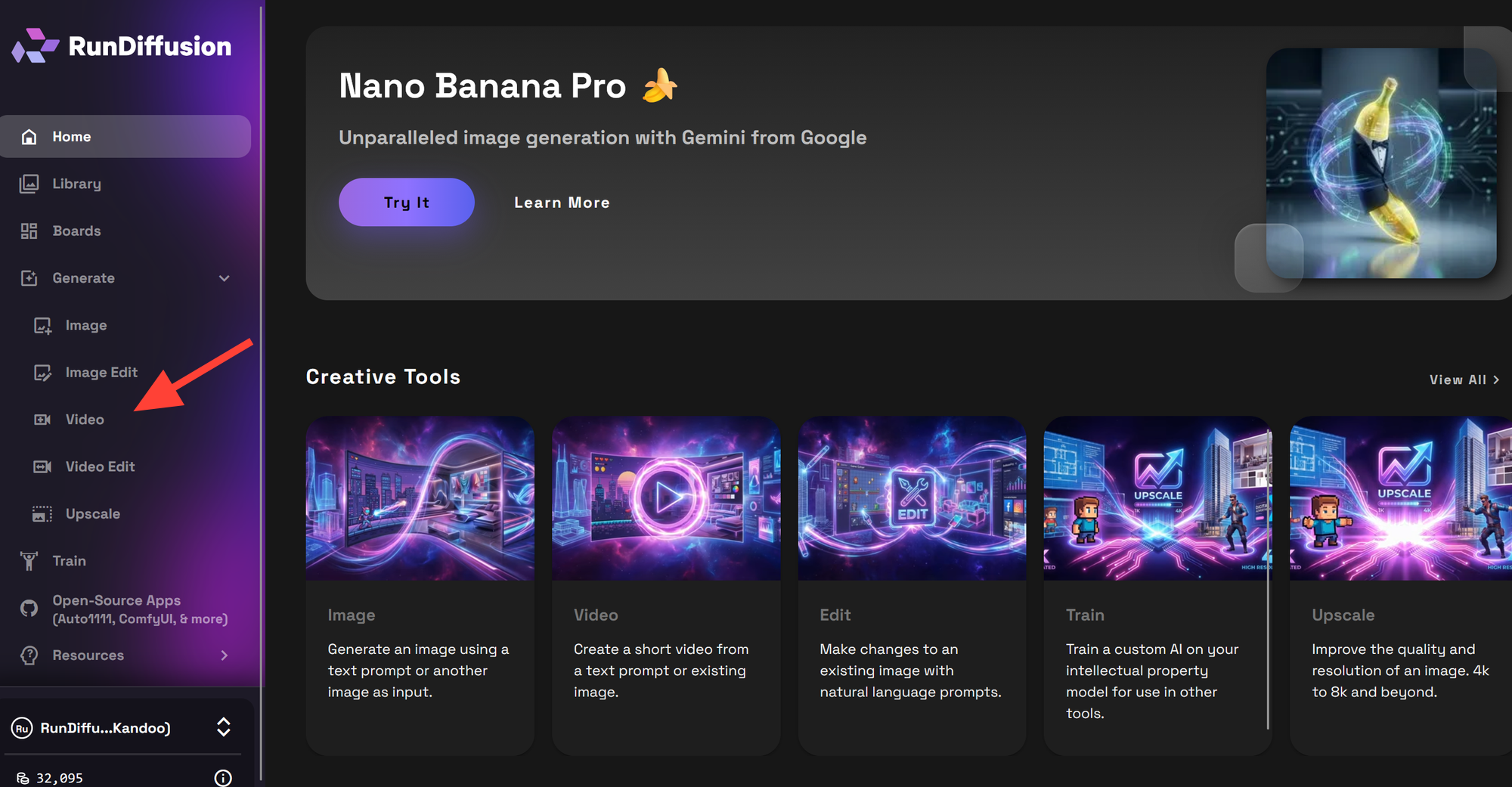
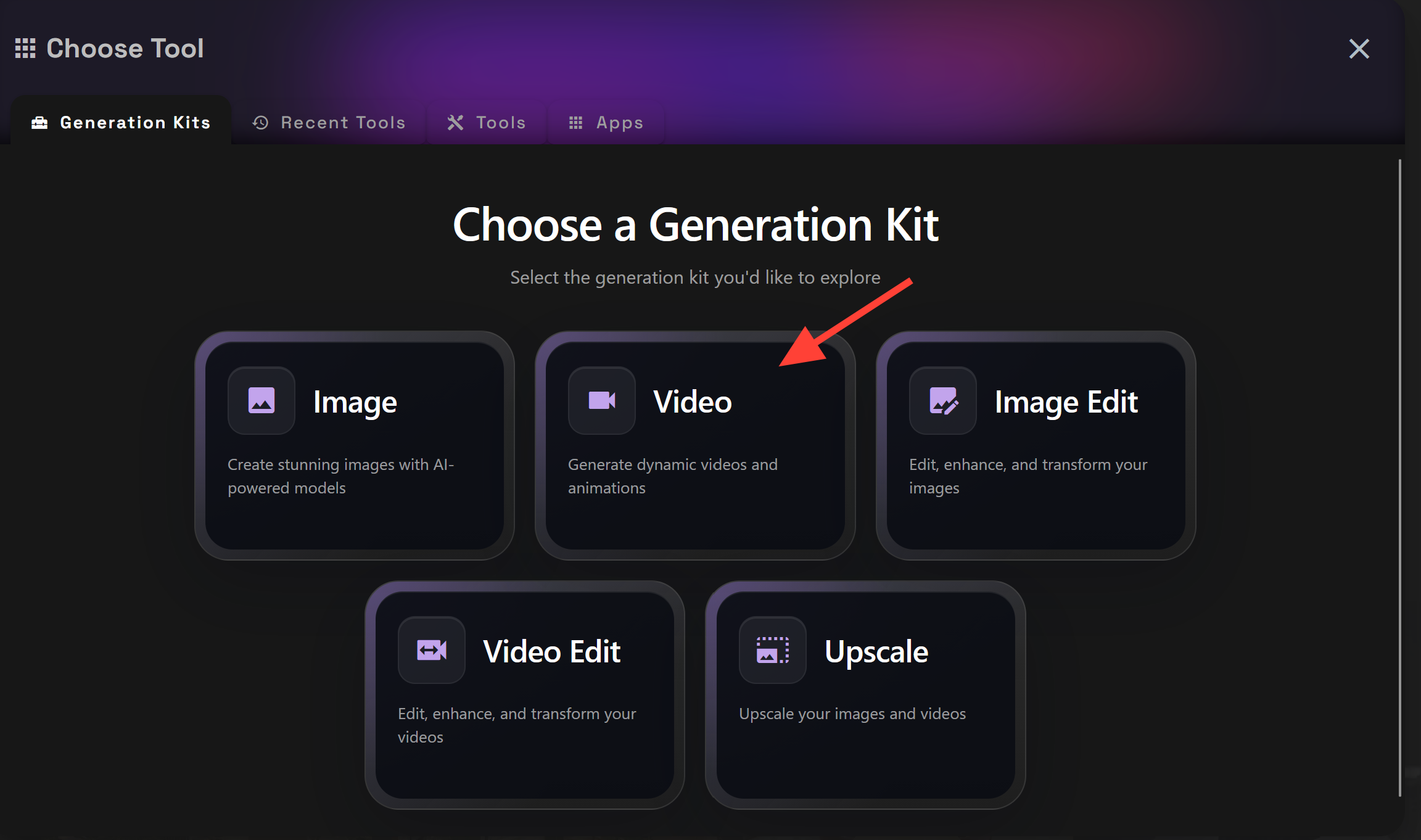
- Then click on Video
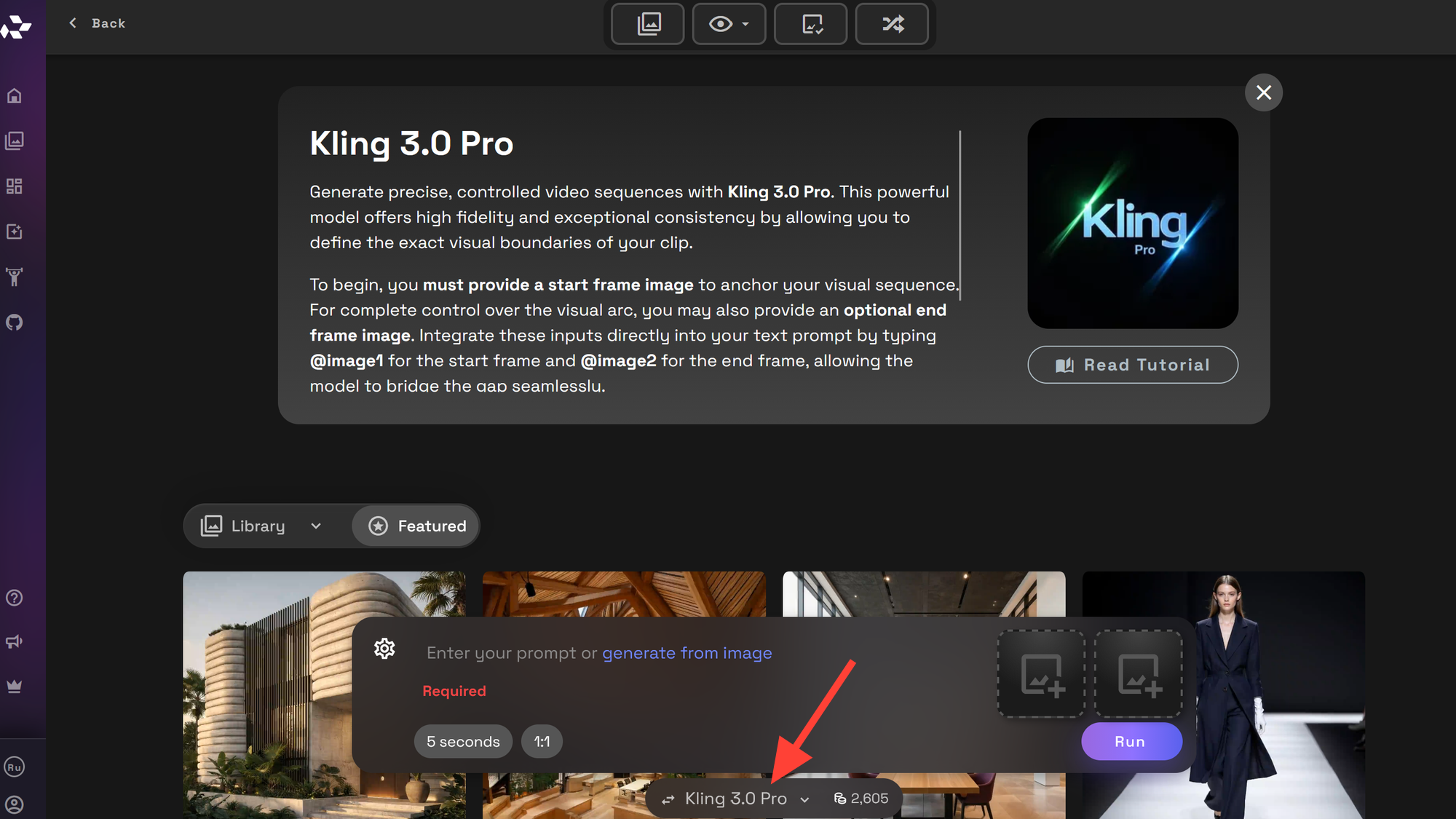
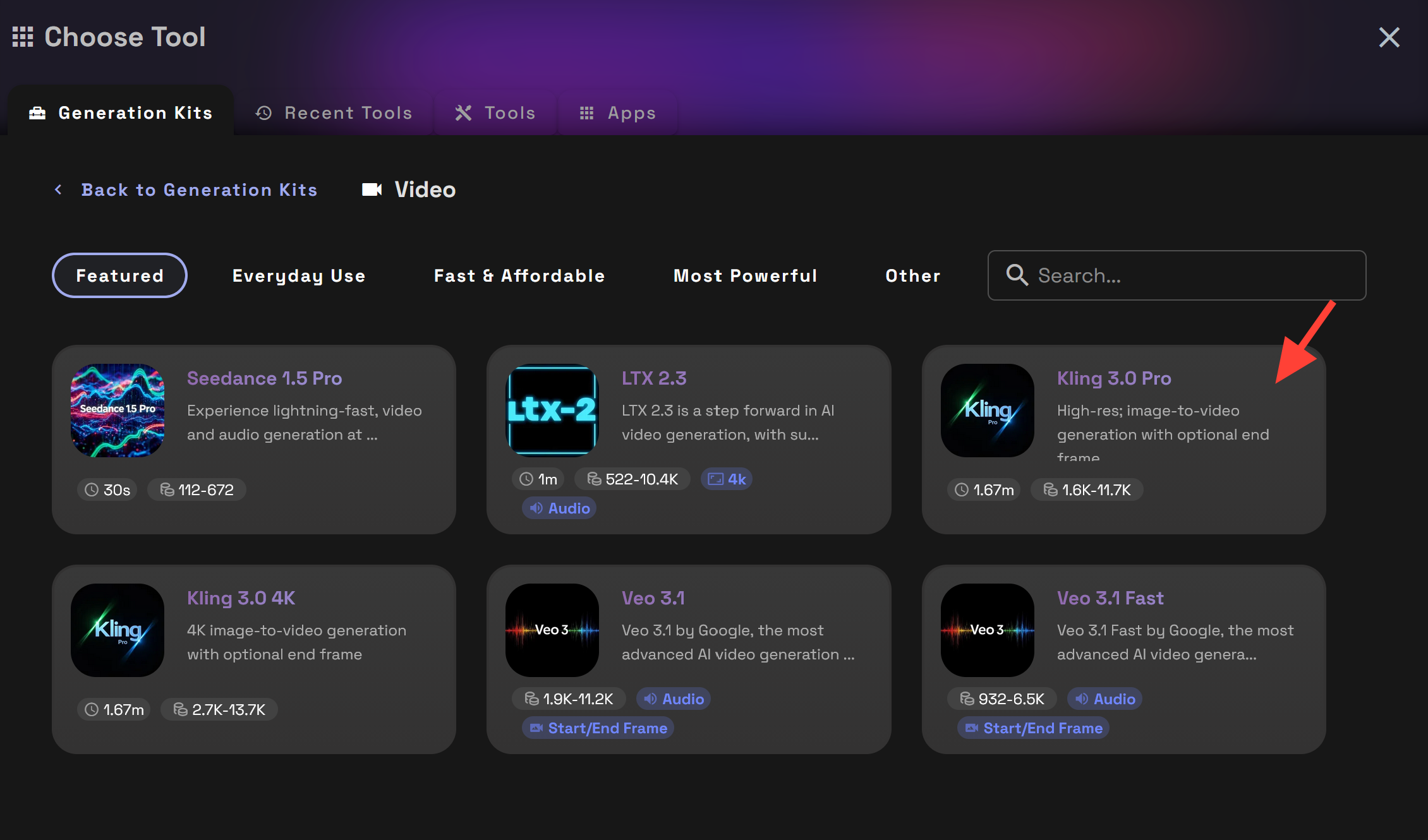
- Make sure you are on the correct video model. We recommend Kling 3.0, Seedance 2.0 for Drone flyovers. Though other models are also very capable. To choose your model click on the name at the bottom of the tool.
- Select Video
- Then select Kling 3.0 Pro
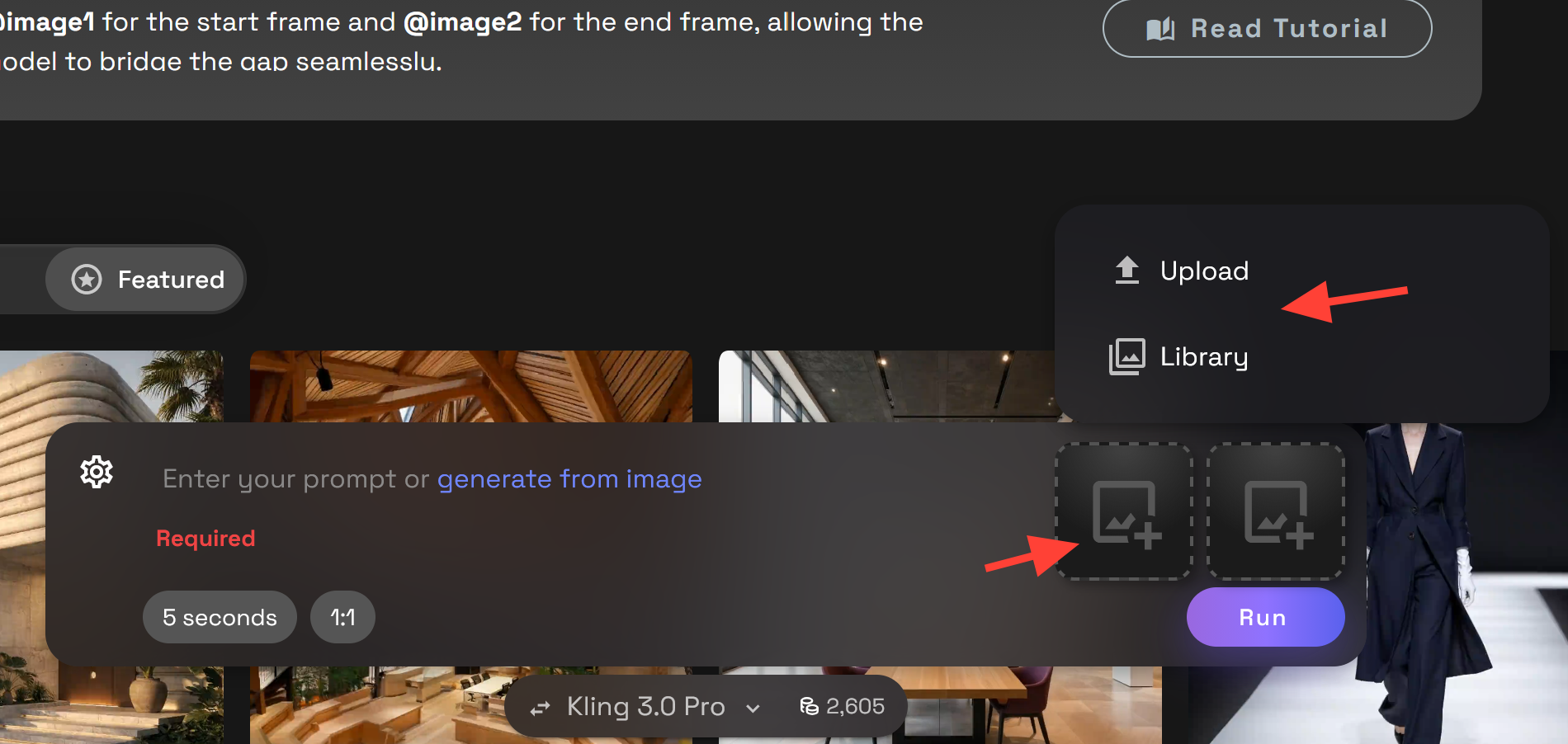
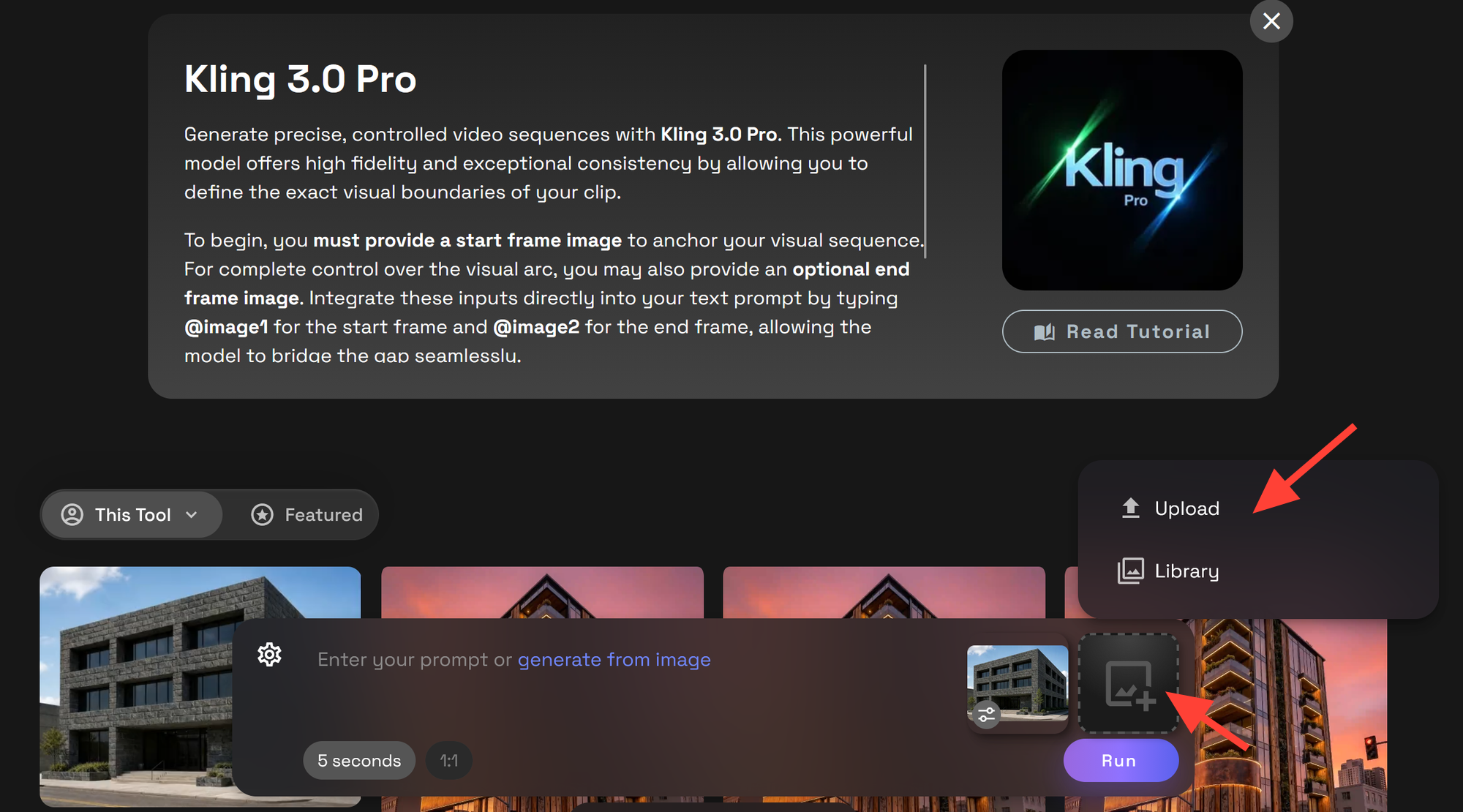
- Upload the start image. This will be the first frame of your video. Use the Upload button to upload an image from your computer and Library to select and image from your RunDiffusion Library.
Upload the End Image. This will be the last frame of your video.
- Write a Prompt. You do not need a long prompt for drone footage. A strong start and end image will do most of the work for you. Focus on the camera movement.
Example Camera Rotation Prompt: Drone video footage camera rotates around the building
Example Flyover Prompt: camera quickly flies over the top of an architectural building.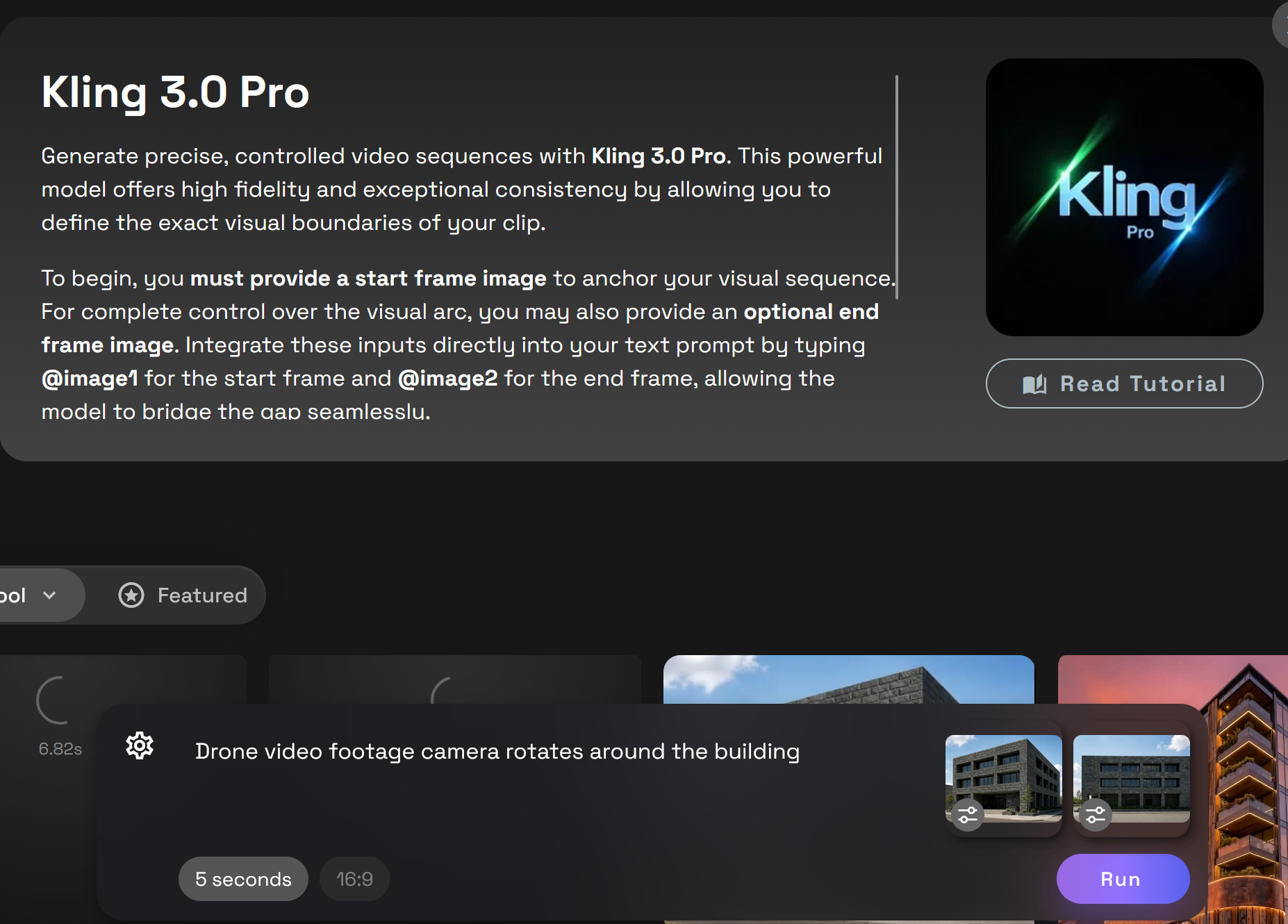
Drone Rotation Video
Drone Flyover Video
When to Use This Workflow
Drone Flyovers and Rotations works best when you already have a strong still image and want to add motion for presentation or review.
Use it for:
- Client presentations
- Internal design reviews
- Massing studies
- Site context previews
- Concept walkthroughs
- Portfolio clips
- Marketing visuals
- Design option comparisons
- Architecture social media content
Tips for Cleaner Motion
Start with an image that clearly shows the building and site. The more readable the base image is, the easier it is to generate motion that preserves the design.
For better outputs:
- Describe the exact camera movement you want.
- Keep the camera motion simple and smooth.
- Avoid combining too many movements in one prompt.
- Use words like drone flyover, slow, Fast, stable, cinematic.
- Generate a few motion options before choosing the strongest one.
Create Architectural Flyovers on RunDiffusion
Drone Flyovers and Rotations gives you a fast way to turn static architectural images into motion studies for reviews, presentations, and visual storytelling. Use it to express massing, reveal site context, and create smoother communication around the design without starting a full animation workflow from scratch.
Continue Your Architecture Workflow
Drone Flyovers and Rotations helps you turn still architectural images into motion studies for reviews, presentations, and site-context storytelling. You can also use related RunDiffusion workflows to refine the still image before generating motion.
- Use Scene Transfer to place the design into different lighting, seasons, and environments before creating motion.
- Use Design Transfer to keep the visual language consistent across presentation options.
- Explore the full RunDiffusion Architecture AI Solutions for more tools built around concepting, visualization, and presentation.
For larger teams, studios, and organizations, visit RunDiffusion Enterprise.
