


Texture or Façade Exploration on RunDiffusion helps you quickly test exterior material directions from an existing architectural concept image. Upload a render, image, sketch, white card study, or façade reference, then use prompts to explore how stone, brick, glass, metal, wood, concrete, or mixed materials change the look and feel of the design.
This workflow is useful when the form is already working, but the exterior character still needs exploration. Instead of rebuilding the scene or manually testing every material direction, you can generate fast visual options and compare how different finishes affect the final design.
Explore Exterior Material Options Faster
Start with a clear exterior image and use RunDiffusion to generate material variations while keeping the overall design direction intact. You can test subtle refinements or more dramatic façade transformations depending on the stage of the project.
Use this workflow to explore:
- Stone cladding
- Brick façades
- Glass curtain walls
- Metal panels
- Wood slats or siding
- Concrete surfaces
- Mixed-material exteriors
- Warm, cool, modern, minimal, or luxury finishes
The goal is to quickly see how material choices affect the design’s character, weight, rhythm, and visual impact.
Watch the Video Tutorial
The video tutorial walks through the Texture or Façade Exploration process step by step, from uploading the starting image to generating and comparing exterior material options.
Use it to follow along, test prompt variations, and see how different materials can transform the same architectural concept.
Facade and Texture Tutorial Video
How to Use Texture or Façade Exploration
- Log in to RunDiffusion.

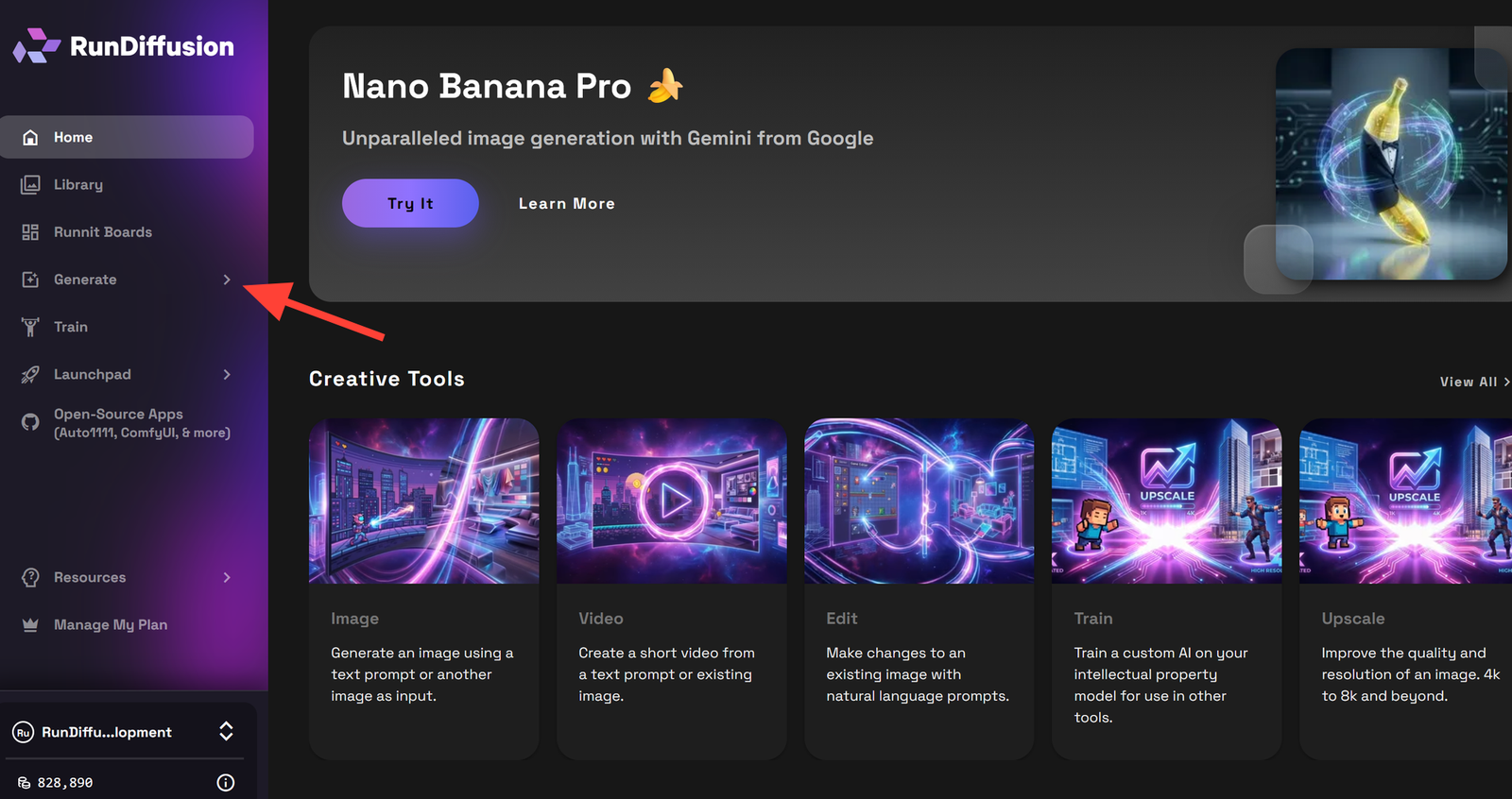
- You are automatically redirected to RunDiffusion's Runnit Platform. Click Generate in the left sidebar.
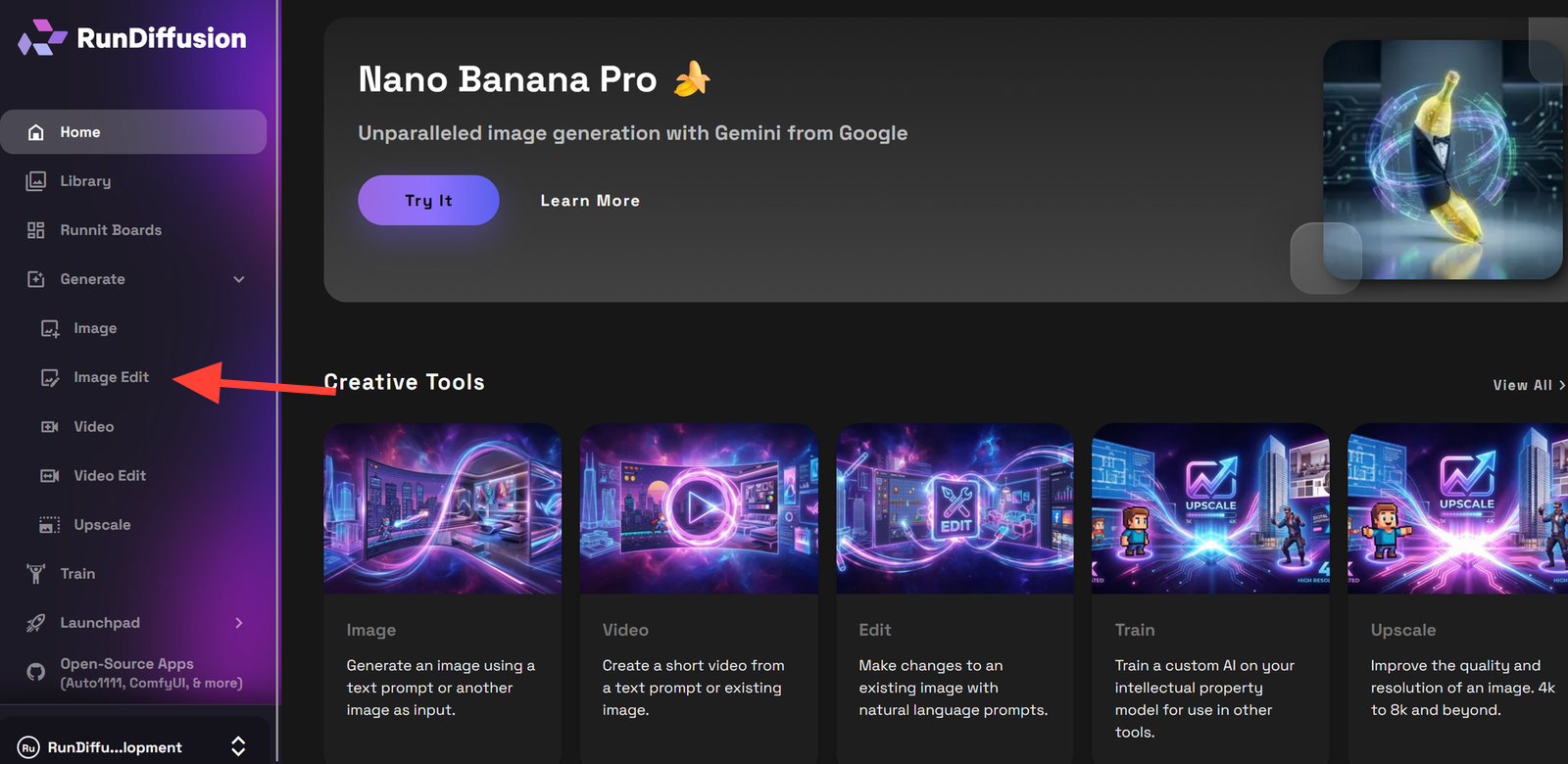
- Choose Image Edit.
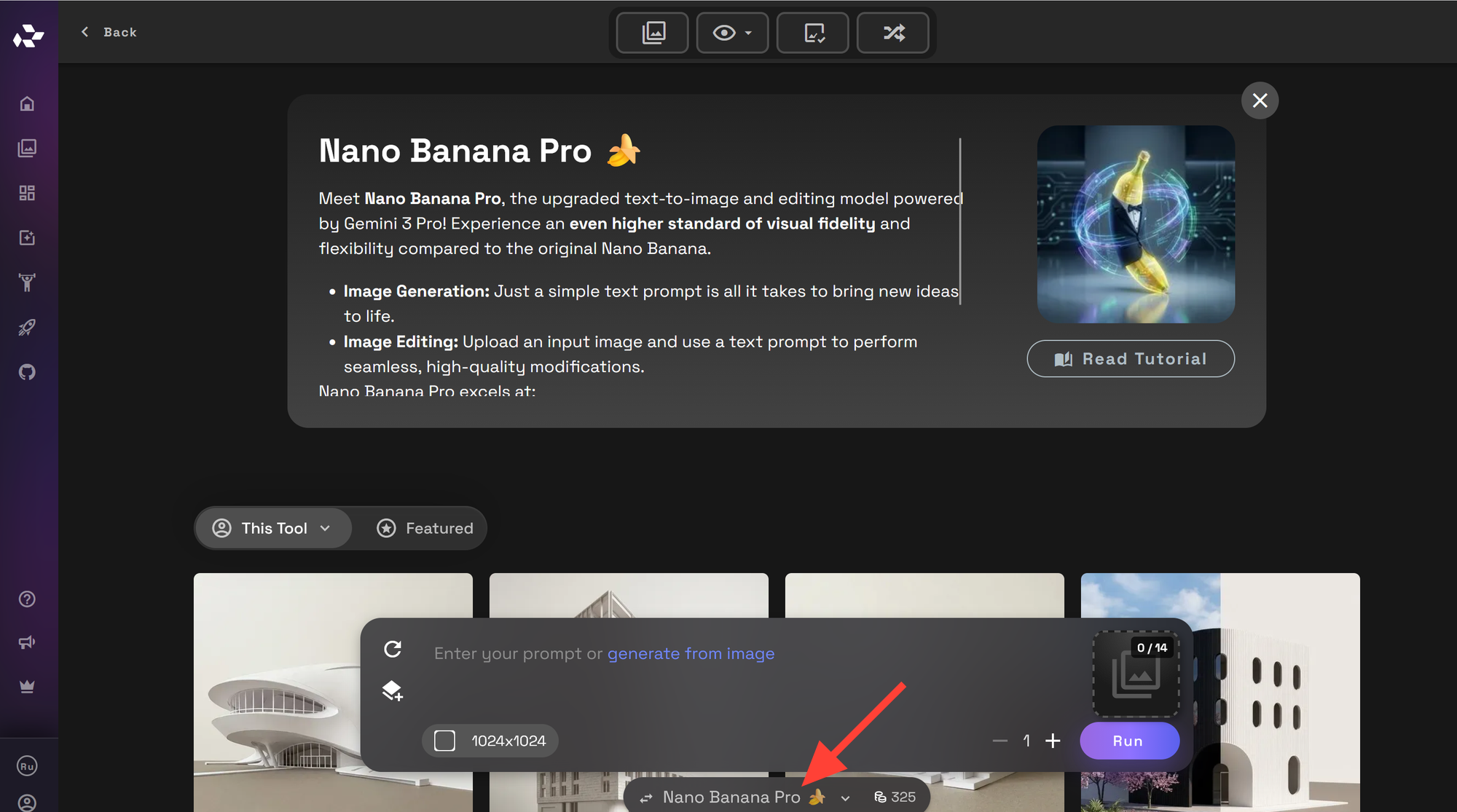
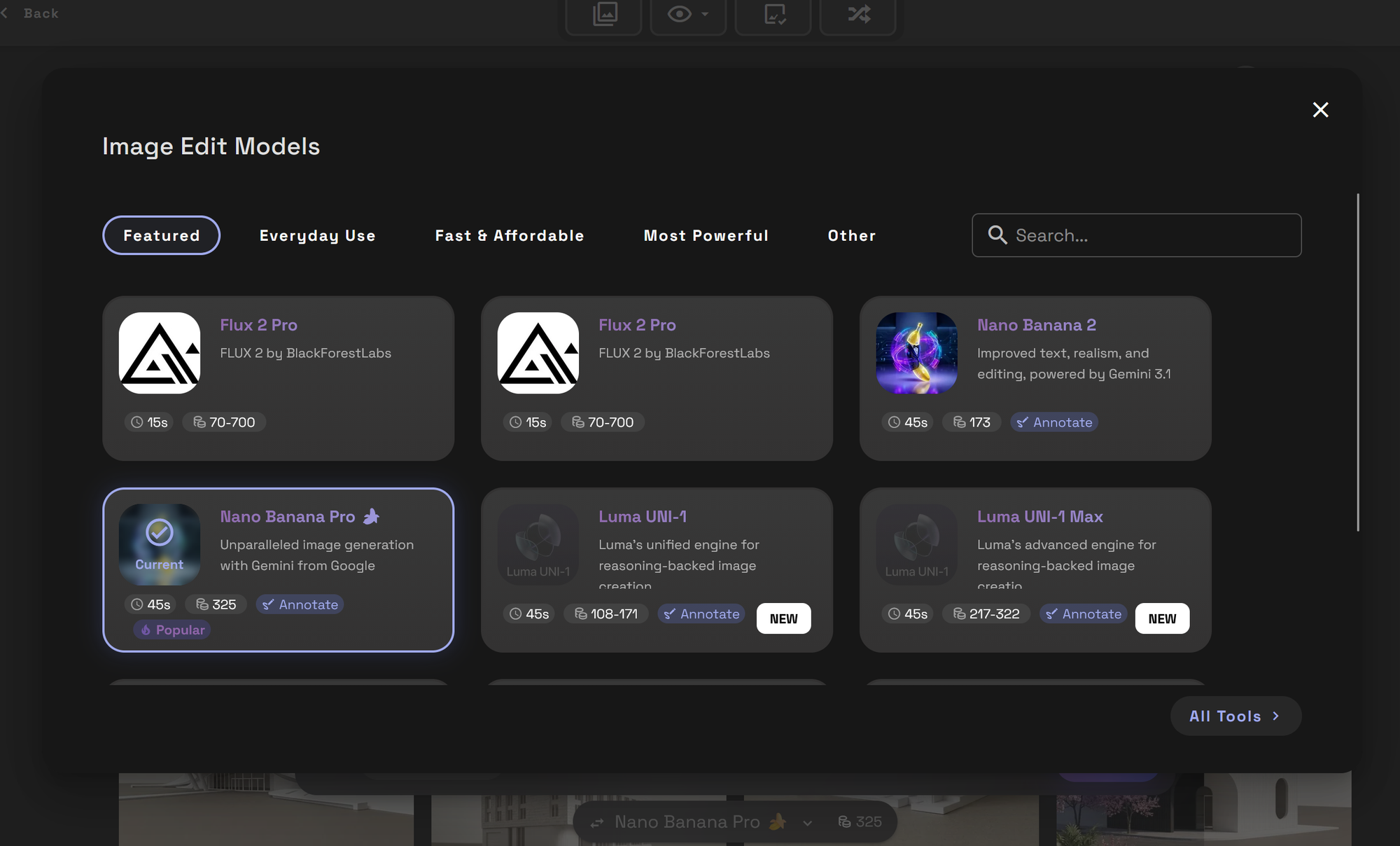
- Check to makes sure your tool is Nano Banana Pro. If it isn't click on the name of the tool at the bottom. This will allow you to select another tool if necessary.
- Upload your exterior concept image, white card render, sketch, or façade study.
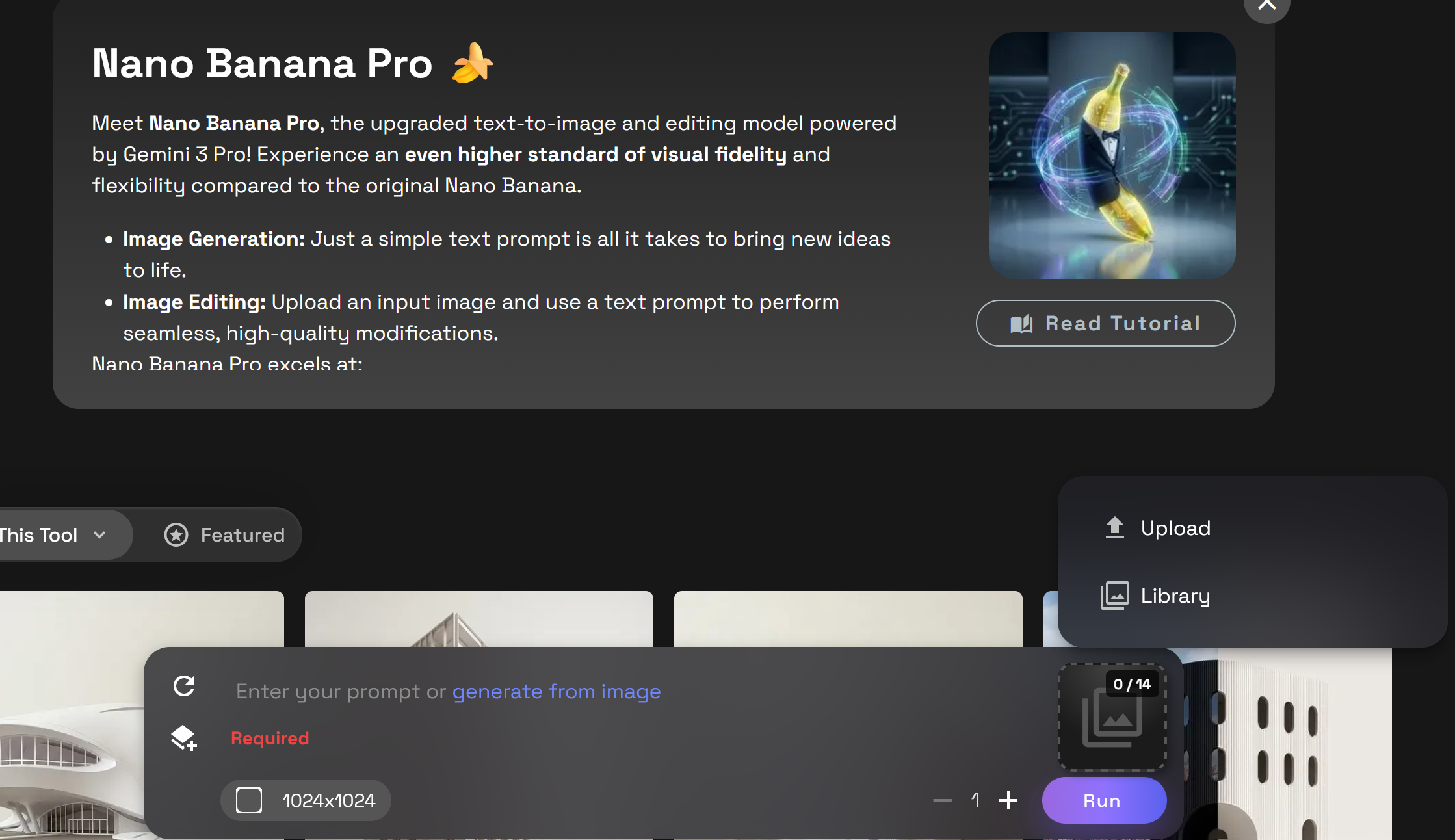
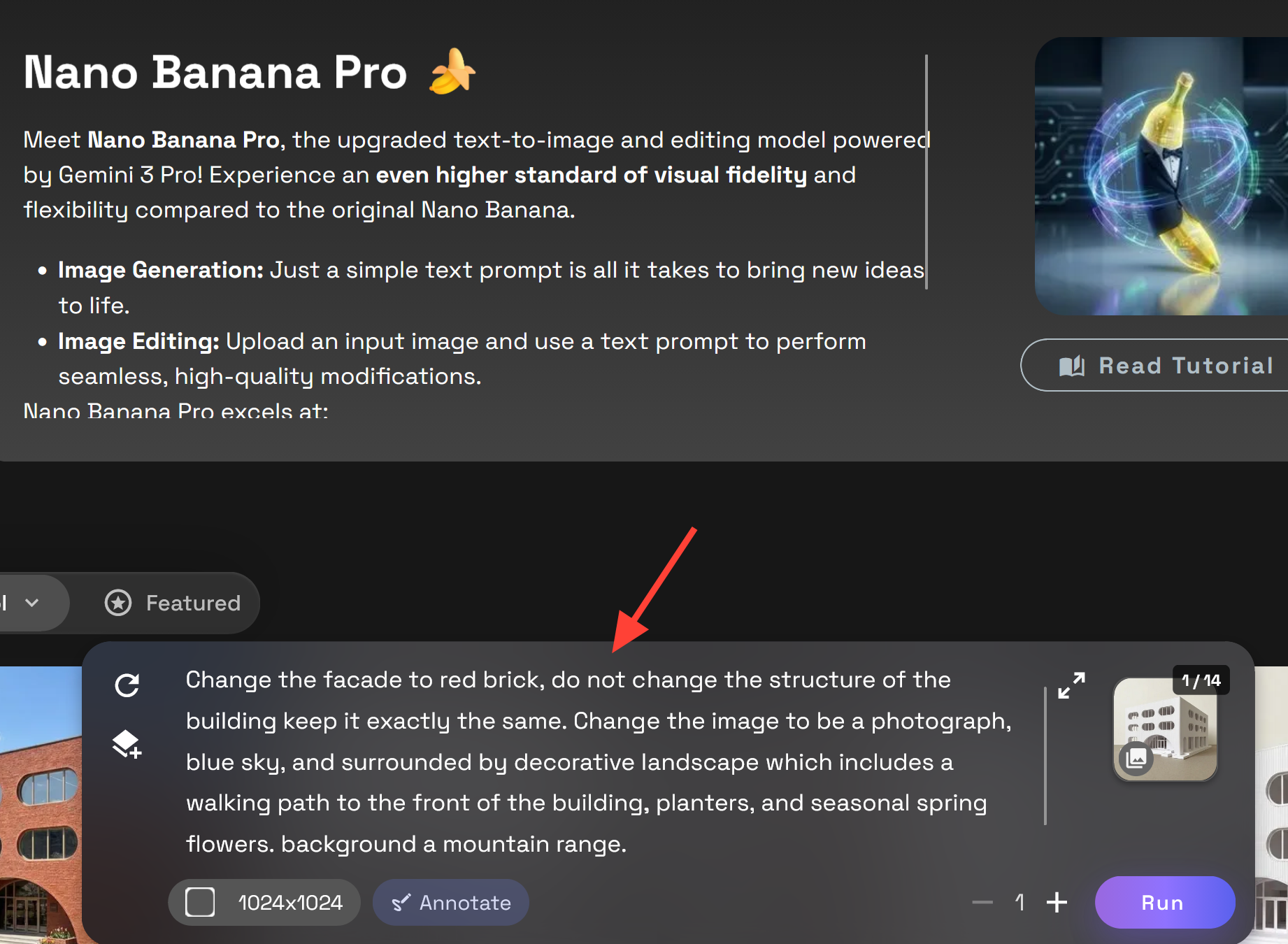
Add a prompt describing the material direction you want to explore.
Use a clear prompt that tells the model what materials to apply and where to apply them. You can edit multiple things at a time but the AI may make mistakes the more requests you make.
It is also helpful to remind the AI not to change the structure of the building.
Example Prompt: Change the facade to red brick, do not change the structure of the building keep it exactly the same.
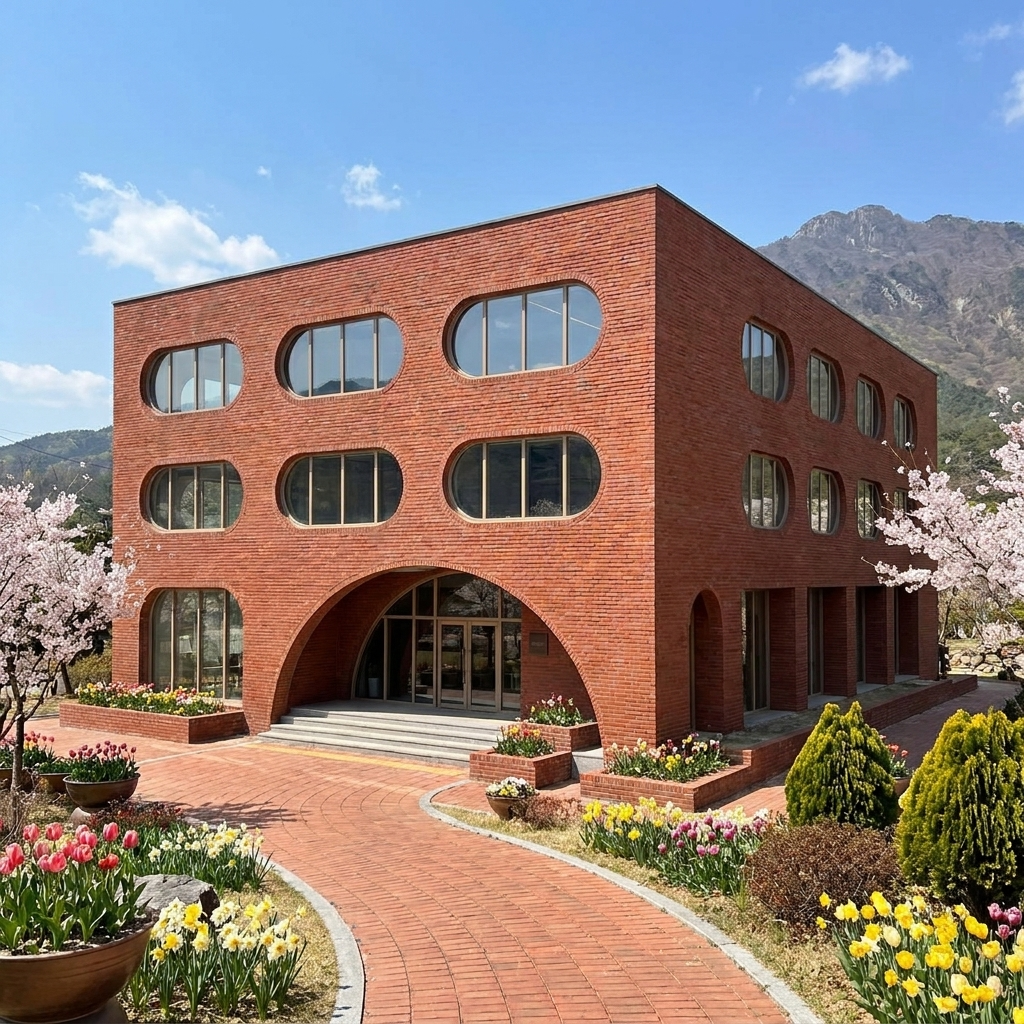
Because I'm starting with a whitecard image in the example photograph I will use a more detailed prompt.
More detailed Prompt:Change the facade to red brick, do not change the structure of the building keep it exactly the same. Change the image to be a photograph, blue sky, and surrounded by decorative landscape which includes a walking path to the front of the building, planters, and seasonal spring flowers. background a mountain range.
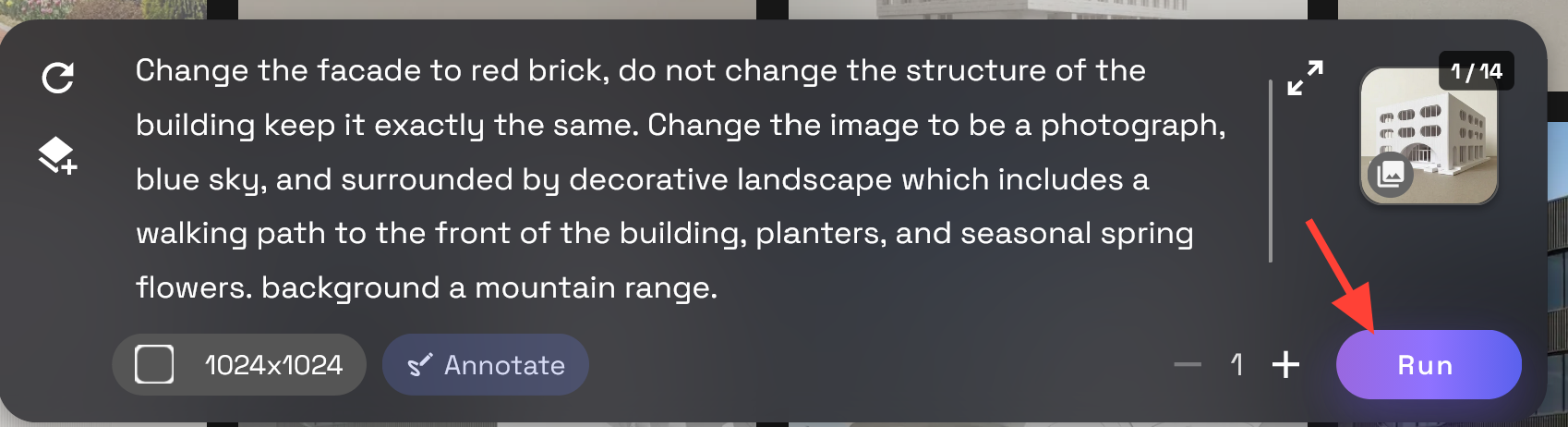
Click Run to Render your image.
When to Use This Workflow
Texture or Façade Exploration works best when you already have a design image and want to test exterior finishes quickly.
Use it for:
- Exterior material studies
- Façade design options
- Client-facing concept previews
- Design review comparisons
- Early architectural visualization
- Mood and style exploration
- Before-and-after presentation images
- Refining a white card render into a more developed exterior concept
[Add an Image here: grid of façade variations using stone, brick, glass, metal, and wood]
Tips for Cleaner Material Edits
Start with an image where the building form is easy to read. The clearer the input, the easier it is to preserve the massing while changing the surface treatment.
For better outputs:
- Tell the workflow what to preserve: form, scale, proportions, camera angle, and composition.
- Name the exact material or material combination you want.
- Keep the prompt focused on exterior finish changes.
- Avoid asking for too many design changes at once.
- Generate several variations before choosing the strongest direction.
Create Exterior Material Options on RunDiffusion
Texture or Façade Exploration gives you a faster way to test the visual impact of exterior finishes without slowing down the design process. Use it to compare materials, refine the character of a façade, and move from a simple concept image toward a more developed architectural presentation.
Continue Your Architecture Workflow
Facade and Texture Exploration helps you test exterior finishes and quickly understand how material choices change the character of a design. From here, you can continue refining the visual direction with related RunDiffusion workflows.
- Use Scene Transfer to explore how the design looks in different lighting, seasons, and environmental contexts.
- Use Design Transfer to apply a consistent design language across multiple options.
- Explore the full RunDiffusion Architecture AI Solutions for more tools built around concepting, visualization, and presentation.
For larger teams, studios, and organizations, visit RunDiffusion Enterprise.
