

MiniMax H3 can generate video and synchronized sound from text, images, and reference video. You can start with a written idea, animate a Start Frame, build toward an End Frame, connect Start and End Frames, or combine visual references to guide characters, movement, camera work, voice, sound effects and background music.
The most important prompting rule is simple: give every reference a clear role. When one reference supplies several related cues, name each role explicitly.
Quick Answer
MiniMax H3 Ref. to Video on RunDiffusion accepts reference images and reference videos. Images can define characters, clothing, products, environments, storyboards, or visual style. A reference video can guide motion, camera behavior, cuts, pacing, and timing. When that video includes clear audio, it can also guide voice, delivery, rhythm, and sound. Using those vocal qualities is called voice referencing.
H3 can also work with a storyboard. There is not a separate storyboard file type. You upload the storyboard as one or more reference images and explain which shots, framing, subject placement, or shot order those images should guide.
Simple rule for beginners:
- Start with one clear subject.
- Give the subject one clear action.
- Use one main camera movement.
- Keep dialogue short.
- Add one new reference or instruction at a time.
Start with MiniMax H3 on RunDiffusion. When an image or video should guide the character, product, scene, motion, camera work, voice, or overall direction, use MiniMax H3 Ref. to Video on RunDiffusion.
MiniMax H3 at a Glance
MiniMax H3 supports text, image, video, and audio-guided generation. On RunDiffusion, configure the workflow with these generation controls:
- Video length: H3 supports 5 to 15 seconds
- Prompt field: Up to 7,000 characters in the RunDiffusion Prompt field
- Resolution: 768P or 2K
- Reference images: Up to 5 images in MiniMax H3 Ref. to Video
- Reference videos: Upload through the reference-video control
- Video with audio: A reference video can carry voice, rhythm, and other sound cues along with its visual guidance
- Frame inputs: Start Frame, End Frame, or both
In the Prompt field, identify uploaded assets clearly as Image 1, Image 2, Video 1, and so on. Give each reference a clear role. One asset can guide several related elements, but name each role explicitly, such as identity, styling, movement, camera work, timing, voice, or sound.
Set the duration, resolution, aspect ratio, and inputs directly in the RunDiffusion workflow. When you upload a Start Frame, End Frame, or both, RunDiffusion automatically uses the uploaded frame ratio. Prepare a Start Frame and End Frame at the same intended ratio.
The Simple MiniMax H3 Prompt Formula
You do not need to begin with a long technical prompt. For many generations, a clear natural-language brief is enough.
First, select the available duration and resolution in RunDiffusion. For text-to-video and reference generation, also select the aspect ratio. A Start Frame, End Frame, or matching pair determines the frame-based output ratio automatically, so prepare every uploaded frame at the intended ratio. These are workflow settings and do not need to be repeated as configuration instructions in the Prompt field. Timing may still appear inside the prompt when it defines a cut, keyframe, or frame alignment.
Then build the prompt in this order:
- Visual direction: State the overall visual style, lighting, and mood.
- Reference roles: Explain what each image or reference video should control.
- Opening scene: Describe where the clip begins and what is visible.
- Action: Explain what the subject does in chronological order.
- Camera: Choose one main camera behavior for each shot.
- Dialogue and sound: Write the exact dialogue, scene sounds, and music direction.
- Ending: Describe the final pose, composition, or action.
For this simple example, select 8 seconds and 16:9 in RunDiffusion, then enter:
Cinematic live-action product video with warm sunrise light and
restrained color contrast.

Image 1 defines the woman's face, copper hair, and green jacket.
Image 2 defines the rooftop garden and sunrise lighting. Image 3
defines the matte-black RunDiffusion travel cup, including its
shape,
finish, silver rim, colored icon, and white RunDiffusion wordmark.
Video 1 provides the woman's measured walking pace, slow camera
movement, and the warm vocal timbre and calm delivery heard in its
audio. Use Image 1 for identity and clothing, Image 2 for location,
Image 3 for the product, and Video 1 for motion, camera, pacing, and
voice.

The woman walks along the rooftop path while holding the
RunDiffusion
cup. The camera follows her from the front-left with a slow,
controlled tracking movement. After three steps, she raises the cup,
looks toward the camera, and says, "Take the morning with you." End
on a stable close view of her face and the cup. Keep the logo
printed
only on the physical cup.

Sound includes light wind, soft footsteps, and clear dialogue.
This works because every reference has a clear role, the action is easy to follow, and the clip has a clear ending.
Choose the Right Generation Mode
Before writing the prompt, decide how your images and reference videos should be used.
- Text-to-video: You want to create the full scene from a written description
- Start Frame: Your image must be the exact opening frame
- End Frame: Your image must be the exact ending frame
- Start Frame + End Frame: You want H3 to create a transition between two known frames
- Reference generation: Your images or reference video should guide identity, style, motion, camera work, voice, sound, or pacing
If an image must appear as the exact first moment, use MiniMax H3 and add it as the Start Frame. Use the End Frame for an exact ending, or add both Start Frame and End Frame to define a transition between two known compositions. If an image or video should guide identity, wardrobe, objects, visual direction, a storyboard, motion, camera behavior, timing, voice, or sound, use MiniMax H3 Ref. to Video on RunDiffusion and add it through the matching reference upload control.
How to Use Reference Images
H3 can combine several images, but more references do not automatically produce a better video. Clear, compatible references are more useful than a large, mixed collection.
Give Every Image One Clear Role
A reference image can contain a person, clothing, a product, a background, and a visual style. Tell H3 which part should guide the generation.
Image 1 defines the character's face and hairstyle.
Image 2 defines the green jacket and cream shirt.
Image 3 defines the rooftop garden and sunrise lighting.
Build a Small Character Reference Pack
For an important character, start with two or three compatible images:
- Identity image: A sharp front or three-quarter view with a clearly visible face.
- Second angle or full-body image: A view that shows hairstyle, body proportions, wardrobe, and silhouette.
- Optional detail image: A close view of an accessory, makeup detail, tattoo, costume feature, or product that needs to remain consistent.
Choose images with clear lighting without blur or facial obstruction. Avoid references that disagree on age, facial shape, hair length, clothing, or visual style unless you explain exactly which feature to take from each image.
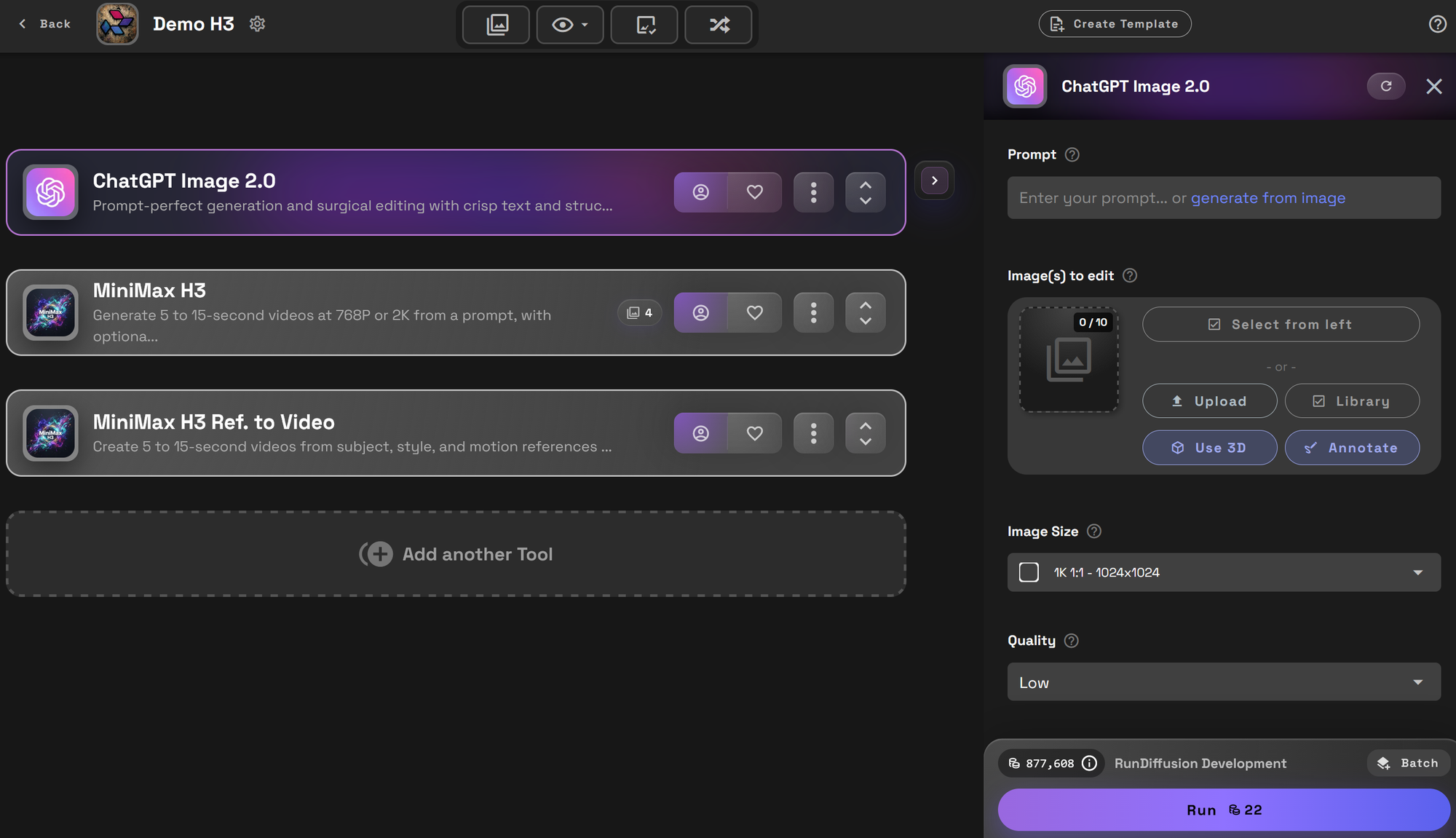
Create a Storyboard with ChatGPT Image 2.0 on RunDiffusion
If you do not already have a storyboard, you can create one with ChatGPT Image 2.0 on RunDiffusion before moving to H3. Add ChatGPT Image 2.0 to your RunDiffusion Board and describe the characters, setting, visual style, shot order, camera views, and actions. Ask for one clean reference image with large, clearly numbered panels.
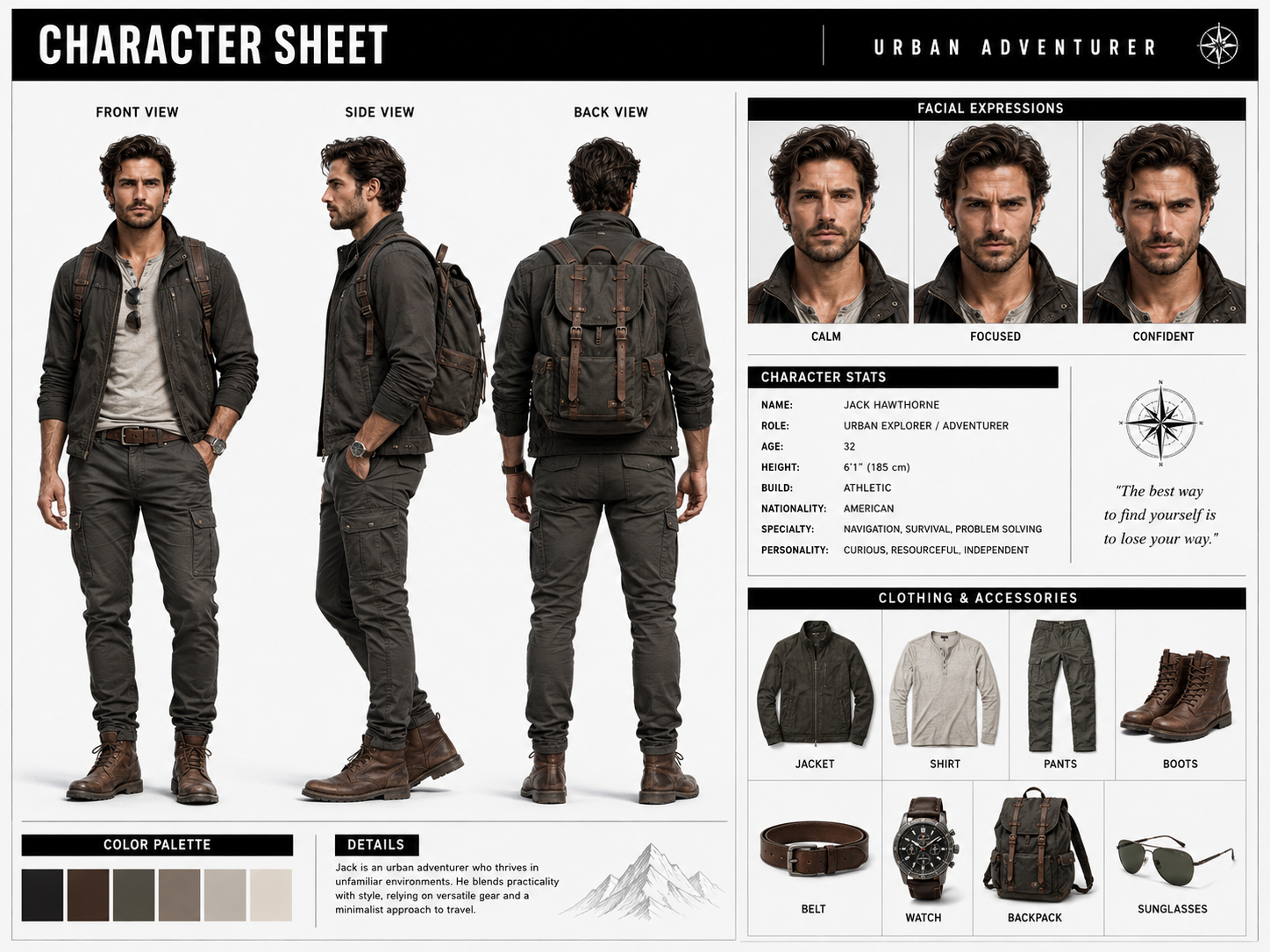
When character consistency matters, combine the storyboard with a character reference section. Place the recurring characters, clothing, expressions, and important props above the storyboard, then place the ordered sequence below it. This gives H3 one organized image that defines both who appears and what happens.
You can adapt this image-generation prompt:
Create a clean character reference sheet and cinematic storyboard
for a [duration]-second video. In the upper section, show the
recurring characters with clear facial features, full outfits,
expressions, and important props. In the lower section, create
[number] large, numbered storyboard panels in chronological order.
Each panel should show one main action and a clearly labeled camera
view. Maintain the same character identities, wardrobe, setting, and
visual style throughout the sheet. Keep the layout uncluttered and
easy to read.
Match the storyboard to the duration you plan to select in MiniMax H3. This timing instruction belongs in the ChatGPT Image 2.0 storyboard prompt because it helps plan the sequence. Select the actual video duration, aspect ratio, and resolution using the MiniMax H3 controls on RunDiffusion rather than repeating those settings in the H3 video prompt.
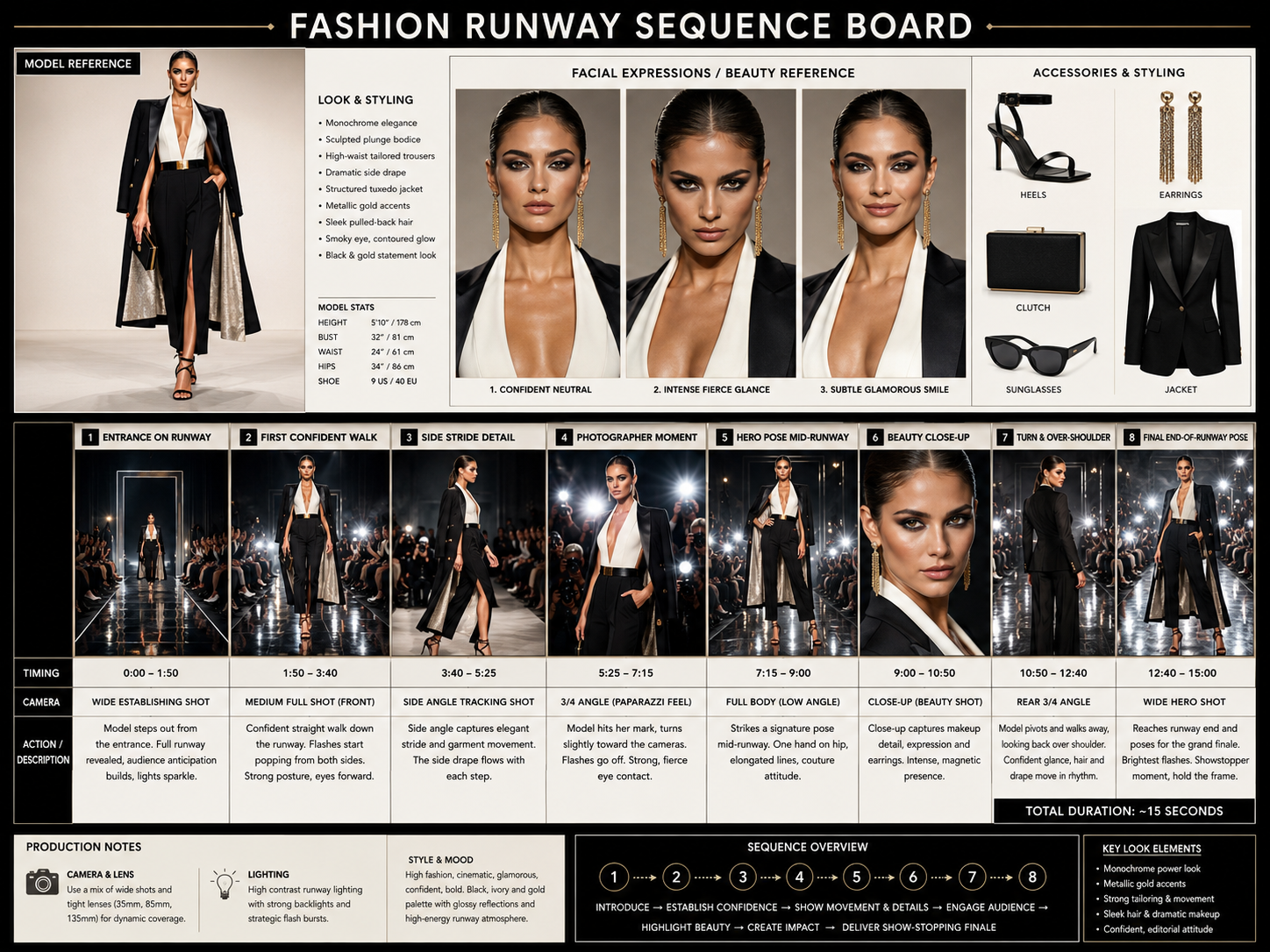
Use a Character Sheet, Product Sheet, or Building Sheet as a Reference Image
Sheets are a practical way to organize character identities, outfits, props, expressions, or multiple views inside one reference image. You can use Nano Banana Pro or ChatGPT Image 2.0 to create them.
On RunDiffusion, upload the sheet through MiniMax H3 Ref. to Video. Use the Start Frame field when the uploaded image should be the literal opening composition; use the reference workflow when the sheet should guide the generated scenes.
A useful character sheet can include:
- A labeled cast row with one clear full-body view per character
- Front, three-quarter, profile, or full-body views of one important character
- Wardrobe, equipment, product, or prop details
- Expression references
- A clearly separated storyboard with shot order, actions, and camera framing
Keep the layout easy to read. Large, sharp subjects and clearly separated sections give H3 stronger visual information than a crowded page of tiny panels.
Let a Detailed Sheet Carry the Detail
When a reference sheet already contains labels, character designs, shot order, actions, camera suggestions, and timing, the prompt does not need to rewrite every panel. Give each region one clear role and let the image carry the specifics.
This concise prompt pairs with a labeled cast-and-storyboard sheet in the RunDiffusion reference workflow:
The upper cast row defines four recurring professionals: the
architect in black, construction engineer in safety gear, real
estate agent in a cream suit, and site manager in workwear with a
white hard hat. Maintain their facial identity, clothing, and
professional appearance.

Use the lower storyboard as visual guidance for the complete
architectural journey.
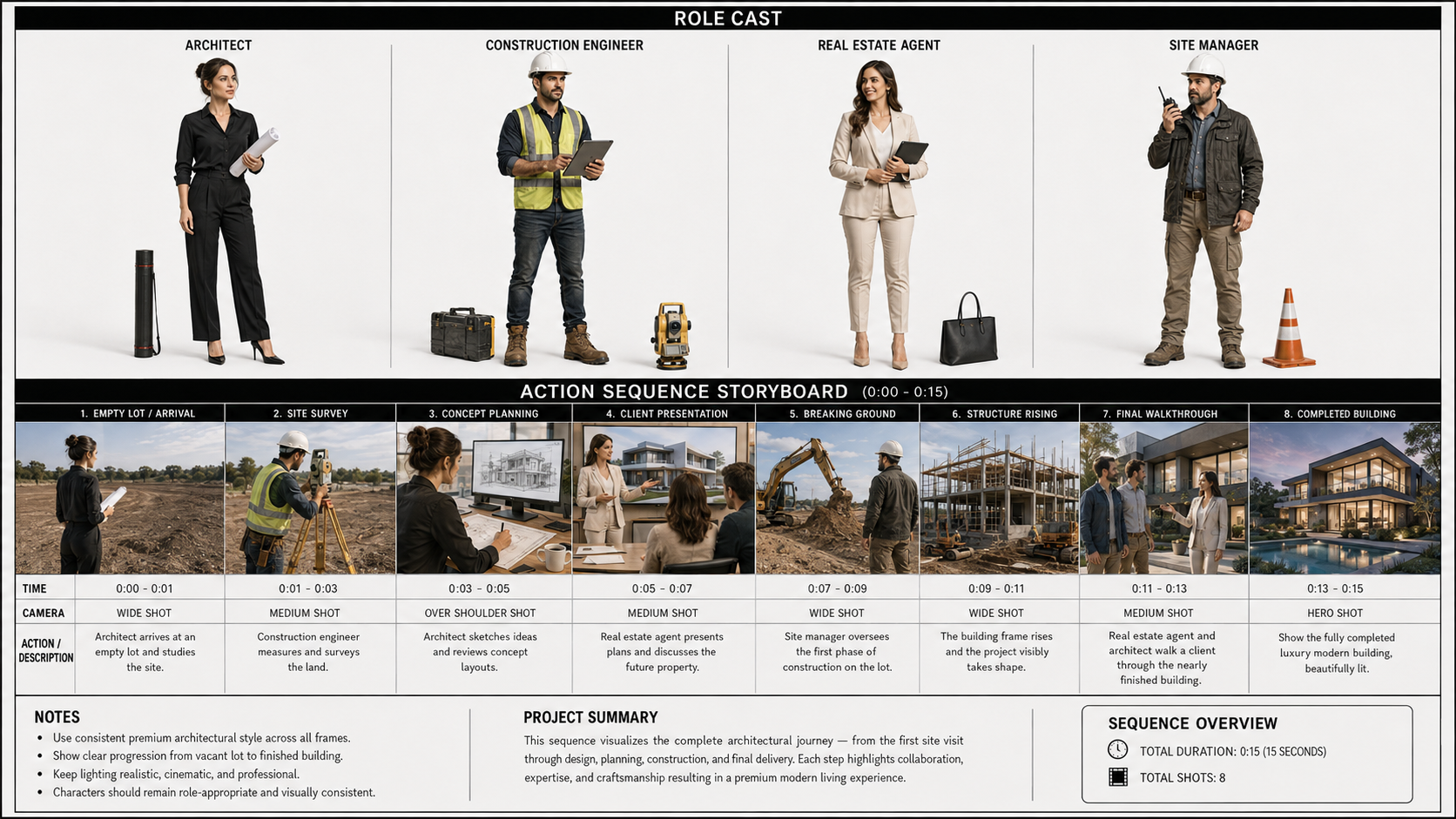
The resulting 15-second video followed the progression from site survey and planning through construction, walkthrough, and final reveal while maintaining the professional roles. The image supplied the detailed sequence; the prompt explained how to interpret its two main regions. The reference sheet remained visible for roughly the first half-second before dissolving into the opening scene. Trim this brief transition when you need a completely clean start.
Describe the Features That Must Stay Consistent
Instead of writing use the same woman, name a few recognizable details:
Preserve her oval face, shoulder-length copper curls, dark brown
eyes, small mole below the left eye, athletic build, and
forest-green jacket with brass buttons.
Focus on the details that make the character easy to recognize. You do not need to repeat every feature in every shot.
Understand Pictures and Subjects
The official advanced prompt format separates a source file from the content inside it:
<Picture 1>means the uploaded image itself, often used as a first frame, last frame, keyframe, composition guide, or storyboard.<Subject 1>means a reusable person, object, outfit, location, action, pose, or style taken from a reference.
In simple terms: the picture is the file; the subject is the thing you want to reuse.
For example:
<Subject 1> is the woman shown in <Picture 1>. Preserve her facial
identity, copper curls, dark brown eyes, and green jacket.
You only need this label-based format when a project has enough references that plain language becomes difficult to track.
Can MiniMax H3 Use a Storyboard?
Yes. MiniMax's official full-reference guide says a reference image can be used as a storyboard or shot-planning guide.
Upload the storyboard as an image, then state what it should control:
Image 4 is a storyboard reference for Shots 1, 2, and 3. Use it only
to guide the shot order, camera viewpoint, subject placement, and
approximate framing. Render the final video in the visual style
described in the prompt.
If the storyboard uses several separate images, give each image a shot number:
Image 3 guides Shot 1, the wide opening view.
Image 4 guides Shot 2, the close-up of the product.
Image 5 guides Shot 3, the final character reaction.
The storyboard is guidance, not a guarantee that every line or panel will be reproduced exactly. Keep each shot achievable within the selected clip length. Two or three strong panels are usually easiest to control, but a clearly labeled multi-panel sheet can also guide a fast 15-second montage when the prompt assigns the storyboard one clear role.
Start with the concise region-mapping approach when the storyboard is already detailed. Add shot-by-shot text only when a panel is ambiguous or a specific action needs more control.
Storyboard Reference Examples from RunDiffusion
These two 15-second MiniMax H3 Ref. to Video results demonstrate how one organized image can define both the recurring character or cast and the order of events. Treat the storyboard as strong visual guidance rather than a promise that every panel will be reproduced frame for frame.
Example 1: Aric Vale Character and Adventure Storyboard
The upper section defines Aric Vale's face, build, clothing, and equipment. The lower storyboard guides a complete adventure sequence through the jungle and ruins. A concise prompt for this type of sheet is:
Use the upper character sheet to define Aric Vale's face, dark
tousled hair, stubble, athletic build, clothing, and gear. Maintain
his identity and outfit throughout.

Use the lower storyboard as visual guidance for the adventure
sequence, from spotting the ruins and planning the route through
climbing, exploring, claiming the artifact, and escaping. Keep the
character, environment, and cinematic style consistent.
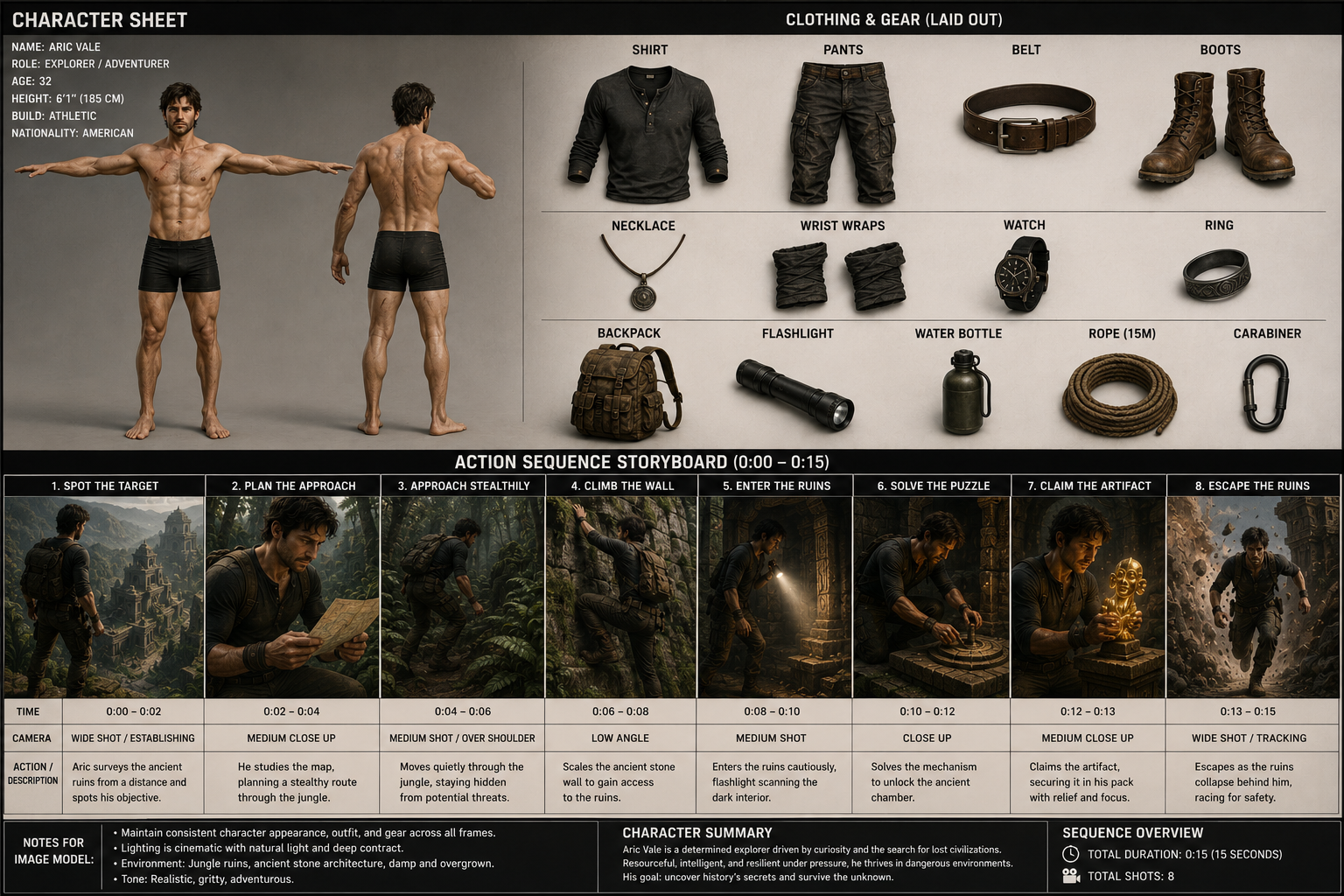
A 15-second MiniMax H3 Ref. to Video result guided by the Aric Vale character sheet and adventure storyboard.
Example 2: Recurring Cast and Architectural Storyboard
The upper row defines four recurring professionals, while the lower storyboard moves from the empty site through planning and construction to the finished home. Use the short region-mapping prompt above to let the reference image carry the detailed shot plan.
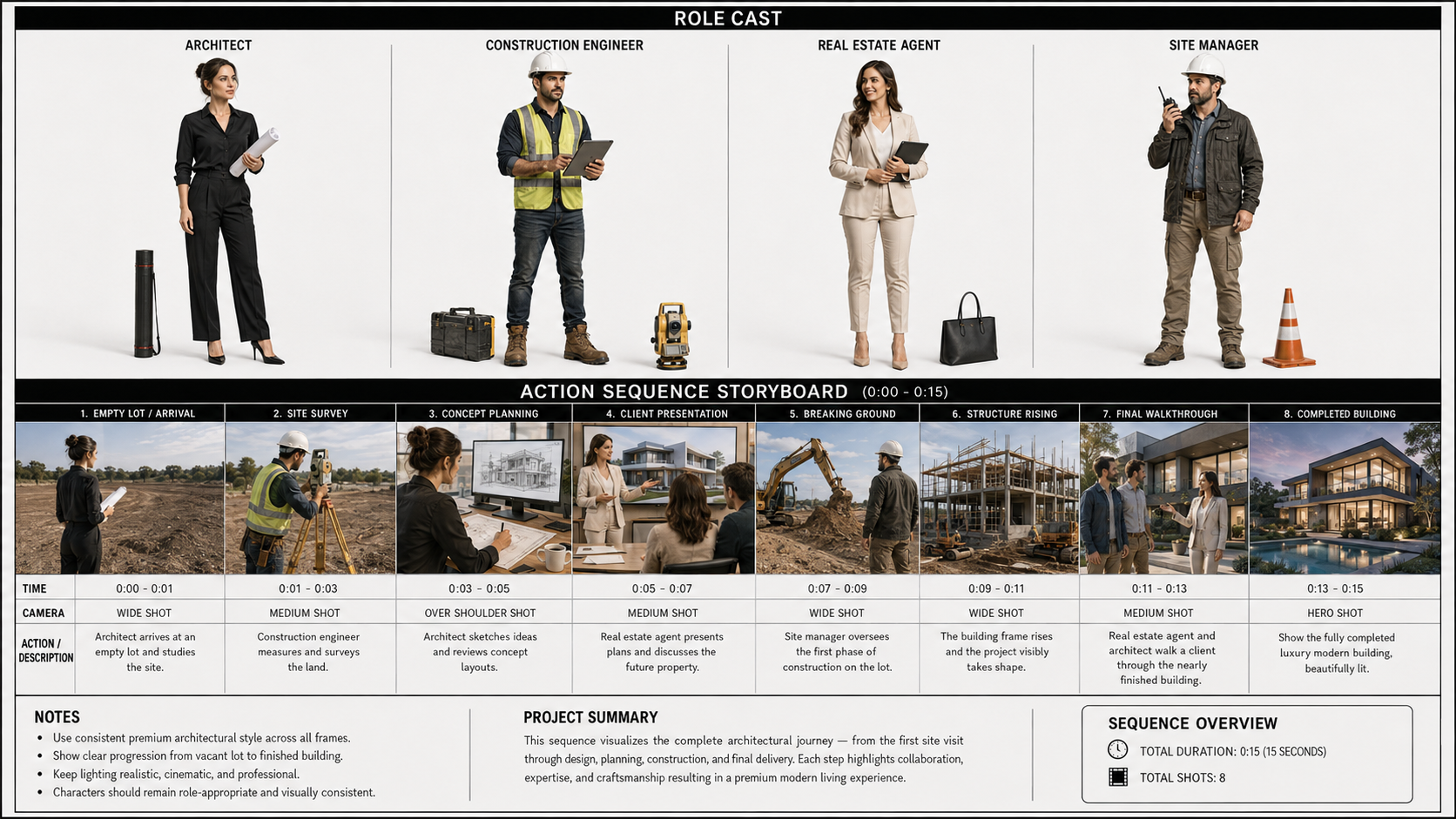
A 15-second MiniMax H3 Ref. to Video result created from the architectural reference sheet and concise role-assignment prompt.
Both examples use the same beginner-friendly rule: explain what the upper and lower sections control, then let the labeled reference sheet provide the smaller details.
Voice Referencing Through a Reference Video
On RunDiffusion, voice referencing can come from clear audio contained in an uploaded reference video. H3 can use the vocal timbre and delivery heard in that video while generating the new dialogue written in your target prompt.
The term voice referencing accurately describes the creative control without promising an exact one-to-one copy of a person's voice.
The audio inside a reference video can guide:
- Vocal timbre and delivery
- Accent, cadence, pace, or intensity
- Emotional performance
- Dialogue rhythm
- Music, ambience, or sound-effect direction
Prepare a Clear Reference Video
When voice is important, choose a reference video with:
- One clearly audible speaker
- A voice-forward mix with minimal competing music
- Minimal room echo
- Clean sound without clipping or heavy distortion
- A delivery style close to the performance you want
A clean source gives H3 less ambiguity about which vocal qualities matter. Only use a person's voice or likeness when you have the necessary permission.
Connect the Voice to the Correct Character
State which character should use the voice heard in the reference video:
Video 1 provides the woman's measured walking pace and slow camera
movement. The voice heard in Video 1 guides the warm vocal timbre
and calm delivery of the woman defined by Image 1 for the new
dialogue written below.
For a multi-character scene, identify speakers consistently:
The woman is Speaker 1. The man is Speaker 2. The voice heard in
Video 1 guides Speaker 1.
In the advanced format, speaker IDs are written as (S1), (S2), and so on:
<Video 1> provides the slow camera movement and pacing structure.

<Audio 1> is the enabled synchronized audio track from <Video 1> and
provides the voice-timbre and delivery reference for <Subject 1> (S1).
Write Dialogue Exactly
Keep spoken lines short enough to fit naturally inside the clip. Write the exact sentence and identify the language when using the advanced format:
<Subject 1> (S1) looks toward the camera and says: <d>[English] Take
the morning with you.</d>
Allow time for breathing, facial reaction, and physical action. A five-second shot usually cannot support a long paragraph of dialogue.
Tell H3 What to Take From the Video
A reference video can provide visual and audible direction at the same time. State which parts should guide the result: the subject's action, camera movement, cuts, pacing, vocal delivery, rhythm, or sound.
Video 1 supplies the measured walking pace, slow half-orbit camera
movement, and warm vocal delivery. Image 1 defines the woman's
identity and clothing, while Image 2 defines the rooftop setting.
This keeps every reference focused on a clear role and helps H3 combine them without guessing.
How to Use Reference Video
A reference video can guide motion, camera behavior, cuts, rhythm, timing, voice, or sound. Add it through the video upload control in MiniMax H3 Ref. to Video, identify it as Video 1, and state what it should control.
Video 1 provides the woman's measured walking pace and slow
half-orbit camera movement. Image 1 defines the character and
clothing, while Image 2 defines the location.
Choose a clip with one readable action or one clear camera idea. A busy reference with several people, cuts, and movements gives H3 more signals to separate.
If you want to reuse a visible action from the reference video, describe that action as a reusable subject:
Transfer the controlled two-step turn from Video 1 to the woman in
Image 1 while preserving her identity and clothing.
Write the Action in Playback Order
AI video prompts work better when they describe visible actions instead of broad emotions.
This is vague:
A woman feels confident in a premium city campaign.
This is easier to generate:
The woman steps out of the elevator, straightens her cuff, looks
toward the sunrise through the glass wall, and walks past the camera
with a restrained smile.
The second prompt gives H3 a sequence it can place on a timeline.
Keep the Shot Count Realistic
For a short clip, begin with one continuous shot. Add a cut only when it reveals something new, such as a product detail, a different viewpoint, or a character reaction.
The official structured format does not timestamp the first shot. Later shots receive a cut time:
[Shot 1] A medium-wide view establishes the station platform.
[Shot 2] At 00:04.500, the camera cuts to a close-up of the ticket
in her hand.
Keep every cut time inside the selected video duration.
Use One Main Camera Idea Per Shot
Choose a clear movement:
- Push in or pull out: The camera moves toward or away from the subject.
- Pan or tilt: The camera turns horizontally or vertically from one position.
- Truck or pedestal: The full camera moves sideways or vertically.
- Arc: The camera travels around the subject.
- Tracking: The camera follows a moving subject.
- Static: The camera remains still.
Add speed or range only when it helps:
The camera tracks right at slow speed, keeping the woman centered
while the station columns move through the foreground.
Avoid combining conflicting directions such as static camera, handheld shake, and fast orbit in the same moment.
Prompt Start and End Frames as a Transition
When you provide both a Start Frame and End Frame, describe how the scene moves between them.
Use this pattern:
opening state -> action begins -> visible intermediate changes ->
exact ending state
If the first frame shows a closed umbrella and the last frame shows it open, explain how the hand lifts the umbrella, the runner slides upward, the ribs spread, the canopy catches the rain, and the character settles into the final pose.
A continuous shot is often the easiest way to create a smooth bridge. Multiple cuts can work, but they add complexity when the real goal is a natural transition.
Direct the Sound With the Video
H3 generates picture and sound together. Treat sound as part of the scene instead of adding it as an afterthought.
Dialogue
Write the exact words and identify who speaks them. Keep the line short enough for the available time.
Scene Sound
Describe physical sounds near the action that creates them:
The ceramic cup touches the saucer with a light click as the
espresso machine releases a short burst of steam.
Overall Soundscape
Use this to summarize ambience and physical sounds across the full clip. Keep sounds synchronized to a particular shot beside the action that creates them:
overall_soundscape:
Low café room tone and steady rain against the windows continue
throughout the clip.
Do not repeat spoken dialogue in this section.
Background Music
The official format calls audience-only music non_diegetic_music. This means the viewer hears it, but the characters do not.
non_diegetic_music:
Sparse muted piano at a slow tempo, joined by a sustained low cello
note that fades during the final second.
If you do not want background music, write:
non_diegetic_music:
N/A
Do not set the entire soundscape to N/A unless you want complete silence with no dialogue, ambience, or physical sound.
A Beginner-Friendly Start Frame Prompt
This example uses one image as the opening frame. Select 8 seconds in RunDiffusion and upload it as the Start Frame. Its aspect ratio is detected automatically, so prepare the image at the intended output ratio. The official prompt identifies the uploaded frame as <Picture 1>. Then enter:
For the target video, at 0.00 seconds into the target video, <Picture 1> (from [Shot 1]) is fully referenced.

integrated_multimodal_description: [Shot 1] Cinematic live-action.
The woman shown in <Picture 1> remains in the exact opening
composition, preserving her face, charcoal coat, red umbrella, wet
street, storefront reflections, and evening lighting.

The camera holds a static shot for the first second as she looks up
from a folded paper map. She closes it with a soft paper fold, steps
around a puddle with wet footsteps, and walks toward the warm
storefront entrance. The camera then tracks right at slow speed. At
the doorway, she reaches for the brass handle and gives a small
relieved smile. The door opens with a quiet creak, and warm light
crosses her face. Use one continuous shot.

overall_soundscape: Steady rain falls on the umbrella and pavement
throughout the video.

non_diegetic_music: N/A
Why it works:
- It says the image is the exact opening frame.
- It protects the important visual details.
- It gives the character a simple sequence of actions.
- It uses one controlled camera move.
- It separates scene sound from background music.
The Advanced H3 Prompt Structure
Most beginners do not need this structure for their first generation. Use it when you have several images, a reference video, multiple characters, voice referencing through video, or a storyboard that needs careful tracking.
MiniMax H3 uses two structured prompt formats: one for text and keyframes, and one for complex reference generation.
Three-Part Structure for Text and Keyframes
integrated_multimodal_description: [Shot 1] Describe the style,
composition, character, action, camera, dialogue, and synchronized
sounds in playback order.

overall_soundscape: Summarize ambience, physical sounds, and
non-verbal human sounds across the full video.

non_diegetic_music: Describe audience-only music, or write N/A.
On RunDiffusion, choose a Start Frame, End Frame, or both. MiniMax's official format places the matching alignment instruction on the first line, followed by one blank line and the three fields above. Use only the instruction for the selected frame combination.
Start Frame: Begin from the uploaded opening composition and develop forward.
For the target video, at 0.00 seconds into the target video,
<Picture 1> (from [Shot 1]) is fully referenced.

integrated_multimodal_description: [Shot 1] Polished live-action
commercial realism. Begin exactly from <Picture 1>. Preserve the
fictional copper-haired woman's identity, forest-green jacket, cream
shirt, dark trousers, matte-black RunDiffusion cup, rooftop garden,
and sunrise direction. She takes three measured steps along the pale
concrete path while the camera performs one slow half-orbit from her
front-left toward her side. She glances at the cup, rotates the
official RunDiffusion logo toward the camera, raises the cup from
waist height to her chest, and settles into a stable pose. Keep the
brand mark printed only on the physical cup. Tall grasses move
lightly without blocking her face or the product. Keep one
continuous shot, realistic anatomy, and no other people, products,
captions, graphic overlays, or other text.

overall_soundscape: Light wind moves through the grasses, with three
soft footsteps and quiet fabric movement.

non_diegetic_music: N/AAn 8-second MiniMax H3 Start Frame result using the uploaded rooftop composition as the opening frame.
End Frame: Infer a plausible earlier state and converge on the uploaded ending composition.
How the reference pictures align with the target video — <Picture 1>
(from [Shot 1]) aligns with the 8.00-second mark of the target
video. <Picture 1> is Image 1 in the supplied reference list.

integrated_multimodal_description: [Shot 1] Polished live-action
commercial realism. Treat <Picture 1> only as the required ending
composition. Begin with a plausible medium-wide view of the same
fictional copper-haired woman entering the rooftop garden at
sunrise, wearing the forest-green jacket over a cream shirt and
carrying the matte-black RunDiffusion cup at waist height. She takes
three measured steps along the pale concrete path while the camera
performs one slow half-orbit from her front-left toward her side.
She raises the cup to her chest as the camera moves into a stable
chest-up composition. Converge precisely on <Picture 1> at 8.00
seconds, matching its identity, clothing, cup shape, official
RunDiffusion logo, rooftop layout, glass rail, grasses, sunrise
direction, framing, pose, and restrained smile. Keep the brand mark
printed only on the physical cup. Keep one continuous physically
plausible shot with no other people, products, captions, graphic
overlays, or other text.

overall_soundscape: Light wind moves through the grasses, with three
soft footsteps and quiet fabric movement.

non_diegetic_music: N/AAn 8-second MiniMax H3 result that builds toward the branded rooftop close-up defined by the ending image.
Start Frame + End Frame: Describe the continuous path between the two uploaded compositions.
How the reference pictures align with the target video — Picture 1
(from Shot 1) aligns with the 0.00-second mark of the target video;
Picture 2 (from Shot 1) aligns with the 8.00-second mark of the
target video.

integrated_multimodal_description: [Shot 1] Polished live-action
commercial realism. Begin exactly from Picture 1 and preserve the
fictional copper-haired woman's identity, forest-green jacket, cream
shirt, dark trousers, matte-black RunDiffusion cup, rooftop garden,
and sunrise direction. She takes three measured steps along the pale
concrete path. The camera follows one slow half-orbit from her
front-left toward her side while gradually moving from the
medium-wide opening to the chest-up ending. She glances at the cup,
rotates the official RunDiffusion logo toward the camera, raises it
smoothly from waist height to her chest, looks toward the camera,
and gives a restrained smile. Converge precisely on Picture 2 at
8.00 seconds, matching its framing, pose, product placement, logo,
glass rail, grasses, and warm horizon. Keep the brand mark printed
only on the physical cup. Use one continuous physically plausible
transition with no other people, products, captions, graphic
overlays, or other text.

overall_soundscape: Light wind moves through the grasses, with three
soft footsteps and quiet fabric movement.

non_diegetic_music: N/AAn 8-second MiniMax H3 Start Frame and End Frame result that transitions between the two uploaded compositions.
These examples use an 8-second vertical clip. Prepare every Start Frame and End Frame at the same intended aspect ratio. RunDiffusion detects the uploaded frame ratio automatically.
Six-Part Structure for Complex References
subject_definitions:
Define each reusable subject and any picture, video, or audio
reference that must be tracked separately. State the role of each
reference.

summary:
Begin with the bracketed task-type prefix. In one short paragraph,
state the target video and the main reference relationships.

retention_analysis:
Use one line for each reference label. For visible content, use
fully_preserved, partially_preserved, attribute_transfer, or
weak_reference. For audio, use fully_copy, partially_copy,
reference, or weak_reference.

detailed_description:
State the visual style before [Shot 1], then describe the video
shot by shot in playback order. Keep synchronized sounds beside
the action that creates them.

overall_soundscape:
Summarize ambience and physical sounds across the full video.

non_diegetic_music:
Describe audience-only music, or write N/A.
For reference-generation tasks, MiniMax says the detailed_description section is normally about 350 to 500 English words. Build toward that range with useful composition, timing, movement, lighting, and reference-placement detail. Extra detail should remove ambiguity instead of repeating the same instruction.
Advanced Character, Motion, and Voice-Referencing Example
This example combines character images, a location image, a product image, and a reference video containing clear spoken audio. Use fictional subjects or people whose likeness and voice you have permission to use. Select 10 seconds and 9:16 in RunDiffusion before entering the prompt.
subject_definitions:
<Subject 1> is the fictional adult woman whose facial identity and
shoulder-length copper curls come from <Picture 1>, and whose
forest-green jacket, cream shirt, and dark trousers come from
<Picture 2>. Preserve her oval face, dark brown eyes, mole below the
left eye, hairstyle, proportions, and clothing.
<Subject 2> is the matte-black travel cup in <Picture 3>. Preserve
its tapered shape, brushed finish, silver rim, official colored
geometric icon, and exact white RunDiffusion wordmark.
<Subject 3> is the rooftop garden in <Picture 4>. Preserve its pale
concrete path, tall grasses, clear glass rail, and sunrise
direction.
<Video 1> provides only the measured three-step action, slow
half-orbit camera path, pacing, and enabled synchronized audio as a
voice-timbre reference for <Subject 1> (S1). Do not copy the person,
clothing, or studio from <Video 1>.

summary:
[reference generation + audio reference] Create a polished
live-action product video. <Subject 1> takes three measured steps
through <Subject 3> while carrying <Subject 2>. Transfer the motion,
camera pacing, and warm measured vocal delivery from <Video 1>, but
use new dialogue.

retention_analysis:
<Subject 1> (appears in [Shot 1], [Shot 2]): fully_preserved -
retain identity, copper curls, mole, proportions, green jacket,
cream shirt, and dark trousers.
<Subject 2> (appears in [Shot 1], [Shot 2]): fully_preserved -
retain the cup shape, finish, silver rim, official colored icon, and
RunDiffusion wordmark.
<Subject 3> (appears in [Shot 1], [Shot 2]): fully_preserved -
retain the rooftop layout, grasses, glass rail, and sunrise
direction.
<Video 1> (walking action and camera path): attribute_transfer -
transfer the three measured steps and slow half-orbit without
copying its visual subject or studio.
<Video 1> synchronized audio: reference - use its warm vocal timbre
and measured delivery for <Subject 1> without copying the original
signal or spoken words.

detailed_description:
Polished live-action commercial realism with warm sunrise light,
restrained contrast, and clean product-focused framing.

[Shot 1] A medium-wide vertical view opens in <Subject 3>. <Subject
1> enters from the lower left carrying <Subject 2> at waist height.
She takes three measured steps with the relaxed timing from <Video
1>. Each footfall lands softly on concrete. The camera follows the
slow half-orbit from her front-left toward her side, keeping her
face and cup visible. The grasses move lightly in the wind. She
glances at the cup, rotates it until the RunDiffusion logo faces the
camera, and raises it to the center of her chest. The cup makes one
quiet contact sound against her jacket. Keep the official logo
printed only on the cup; do not add a logo overlay.

[Shot 2] At 00:05.500, cut to a stable chest-up view with <Subject
1> centered slightly left and <Subject 2> in the lower foreground.
Preserve her identity, clothing, hairstyle, and every cup detail
across the cut. <Subject 1> (S1) looks toward the camera and
physically speaks with natural lip movement: <d>[English] Take the
morning with you.</d> Use the warm measured vocal delivery
referenced from <Video 1>. Her mouth closes fully before a
restrained smile. The camera makes a slow small-amplitude push-in
while her eyes and the RunDiffusion logo remain in focus. She lowers
the cup slightly, turns toward the sunrise, and holds a calm final
pose. No additional people, products, captions, graphic overlays, or
other text.

overall_soundscape:
Light wind moves continuously through the rooftop grasses.

non_diegetic_music:
N/AA 10-second MiniMax H3 reference-generation result with separate roles for identity, wardrobe, product, location, motion, camera movement, pacing, and voice.
Common MiniMax H3 Prompting Problems
- The character changes between shots — Likely cause: The references conflict or the important identity features were never stated Simple fix: Use a smaller, compatible character pack and name a few stable features
- The opening image changes — Likely cause: The image was treated as a loose reference instead of an exact first frame Simple fix: Use the Start Frame and begin the prompt with the official first-frame alignment instruction
- A character sheet dominates the opening — Likely cause: The sheet was added as a Start Frame, or the reference remains visible during the opening transition Simple fix: Confirm MiniMax H3 Ref. to Video was used; trim a brief opening transition when the rest of the result is correct
- A detailed storyboard is skipped or merged — Likely cause: The prompt competes with the visual plan, or the selected duration is too short Simple fix: Assign the storyboard one clear role, shorten the prompt, and select a duration that fits the sequence
- H3 copies the wrong part of an image — Likely cause: The image contains several useful elements but no role was assigned Simple fix: State whether the image controls identity, clothing, product, setting, style, or composition
- The motion does not match the reference — Likely cause: The source video is busy or its purpose is unclear Simple fix: Use a cleaner motion clip and name the exact action or camera move to transfer
- The wrong character uses the voice — Likely cause: The voice heard in the reference video was not connected to a speaker Simple fix: Map the voice from Video 1 to one character and keep the same speaker ID
- Words from the reference video appear in the result — Likely cause: The prompt did not separate vocal qualities from the source dialogue Simple fix: State that Video 1 supplies vocal timbre and delivery, then provide the new target dialogue explicitly
- Music appears when you only wanted ambience — Likely cause: Music and scene sound were not separated Simple fix: Keep synchronized sounds beside the action, summarize clip-wide ambience in overall_soundscape, and set non_diegetic_music: N/A
- The clip feels rushed — Likely cause: Too many actions, cuts, or spoken words were packed into a short duration Simple fix: Reduce the video to one main action, one reaction, and one or two camera decisions
- The first-to-last-frame transition warps — Likely cause: Only the two endpoints were described Simple fix: Explain the visible motion that connects the opening and ending frames
- The product or logo changes — Likely cause: Style instructions overpower the preservation request Simple fix: Define the product separately and protect its shape, material, color, and visible text
A Better H3 Testing Workflow
Do not try to solve character identity, complex motion, several cuts, dialogue, product detail, and music in the first generation. Add control in stages.
Pass 1: Prove the Character and Scene
Use one character image, one simple action, and a static or slow camera. Skip dialogue. Check the face, clothing, proportions, and environment.
Pass 2: Add Motion or Movement
Add one motion instruction or one reference video. Test a single action or camera path before combining several movements.
Pass 3: Add Voice and Sound
Use a reference video with clear spoken audio, connect its voice to the correct character, add one short line, and separate scene sound from background music. Check timing, lip movement, pronunciation, and clarity.
Pass 4: Add Cuts, a Storyboard, or a Second Character
Introduce one new source of complexity at a time. Keep your image numbers, subject labels, and speaker IDs consistent.
Pass 5: Generate the Final Version
Once the direction works, select the final resolution or regeneration option in the RunDiffusion workflow. Higher resolution can improve presentation quality, but it cannot repair a confusing prompt or conflicting reference pack.
This staged process fits a broader AI video production workflow on RunDiffusion, where concept testing, targeted retakes, enhancement, and delivery are separate production decisions.
Using MiniMax H3 on RunDiffusion
RunDiffusion handles the model environment so you can focus on the prompt, references, and result.
Add MiniMax H3 to a Board
These screenshots walk you from the RunDiffusion homepage to your first H3 generation.
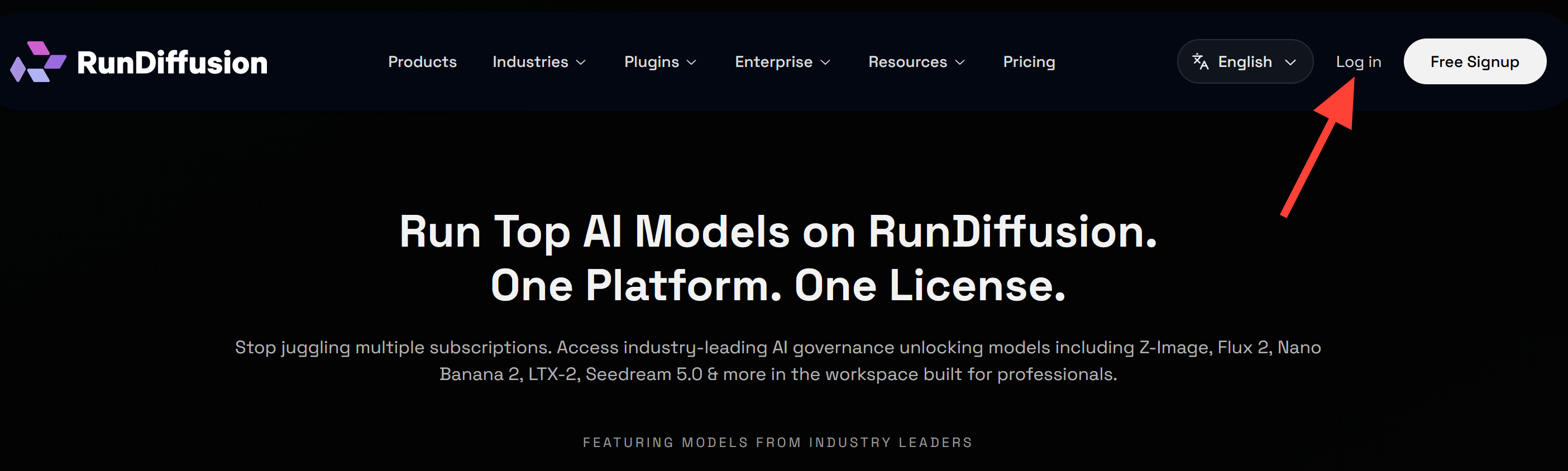
1. Log in to RunDiffusion
Open RunDiffusion and select Log in in the top navigation.
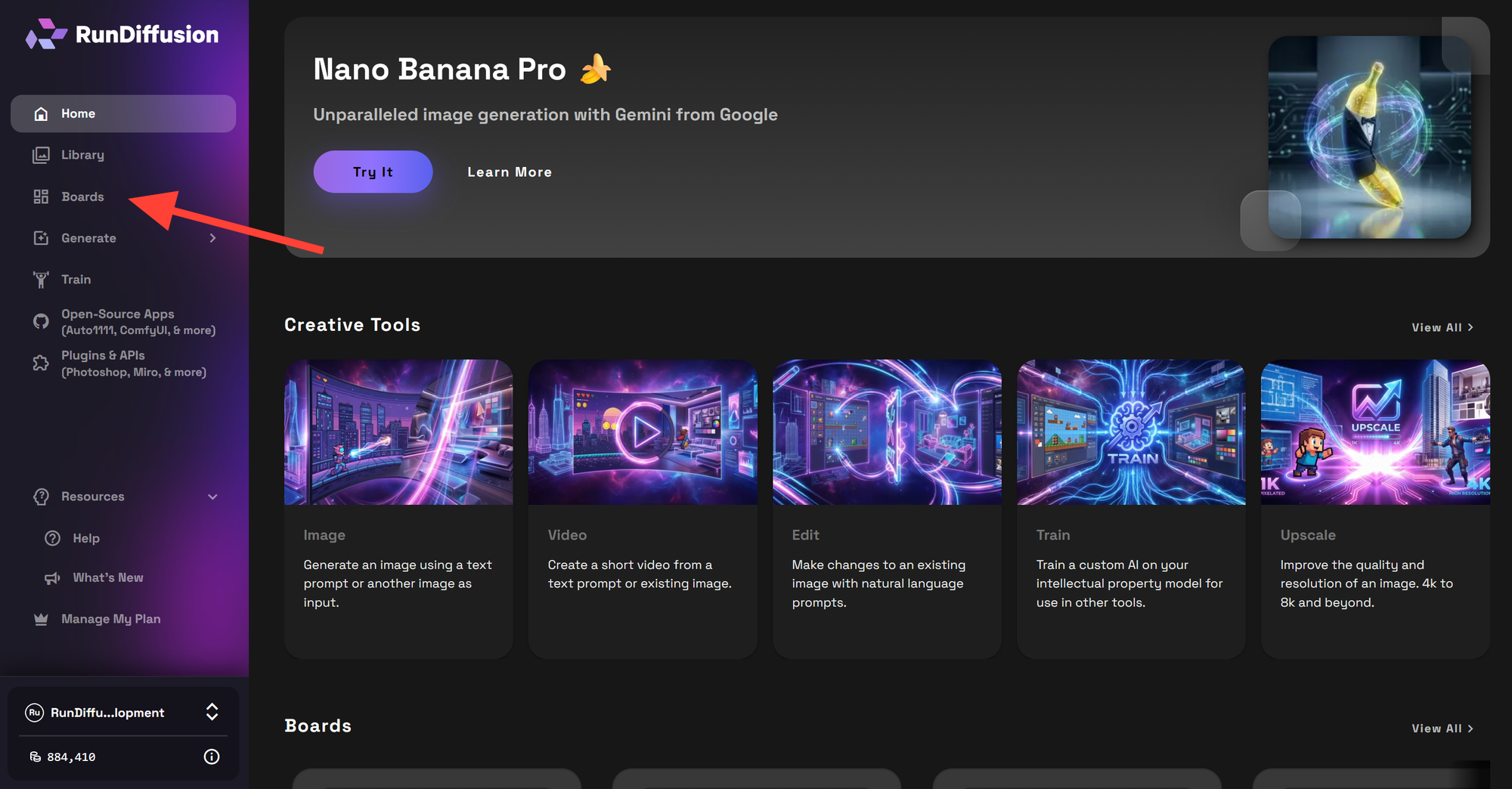
2. Open Boards
After logging in, select Boards in the left sidebar. Boards give you a visual workspace where you can add and run creative tools.
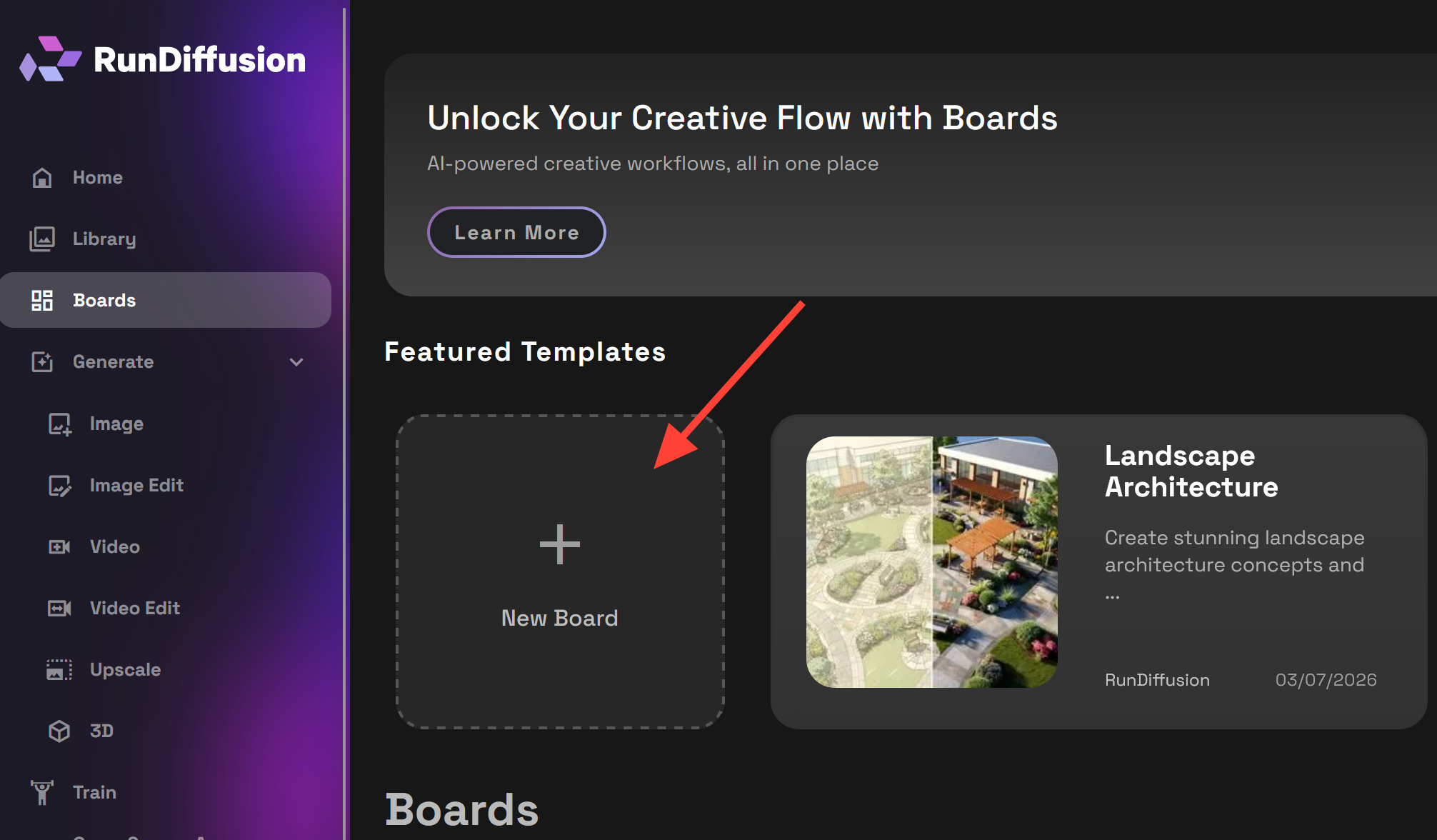
3. Create a new Board
On the Boards page, click New Board.
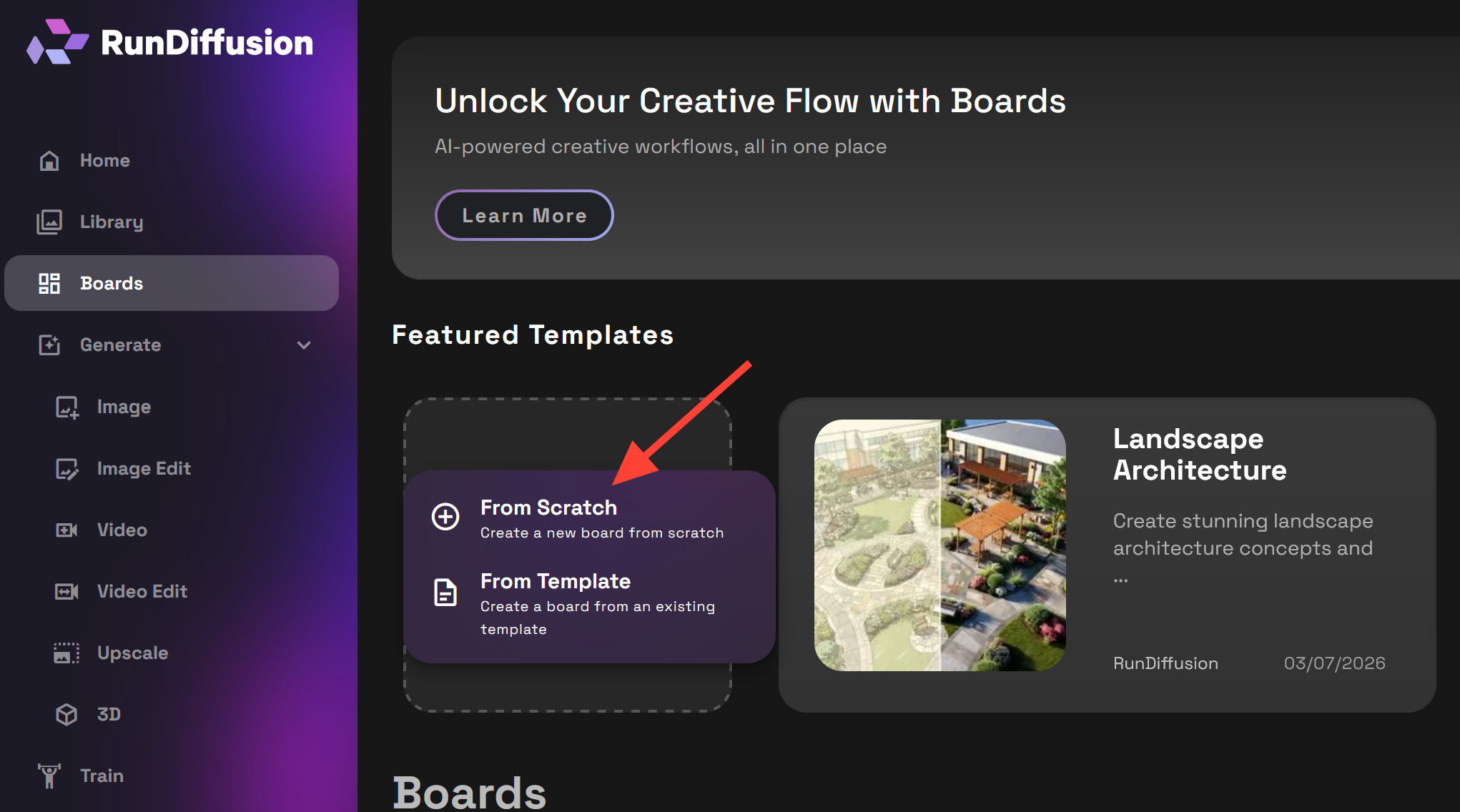
4. Start from scratch
Choose From Scratch. This gives you an empty Board so you can add only the tools needed for your H3 workflow.
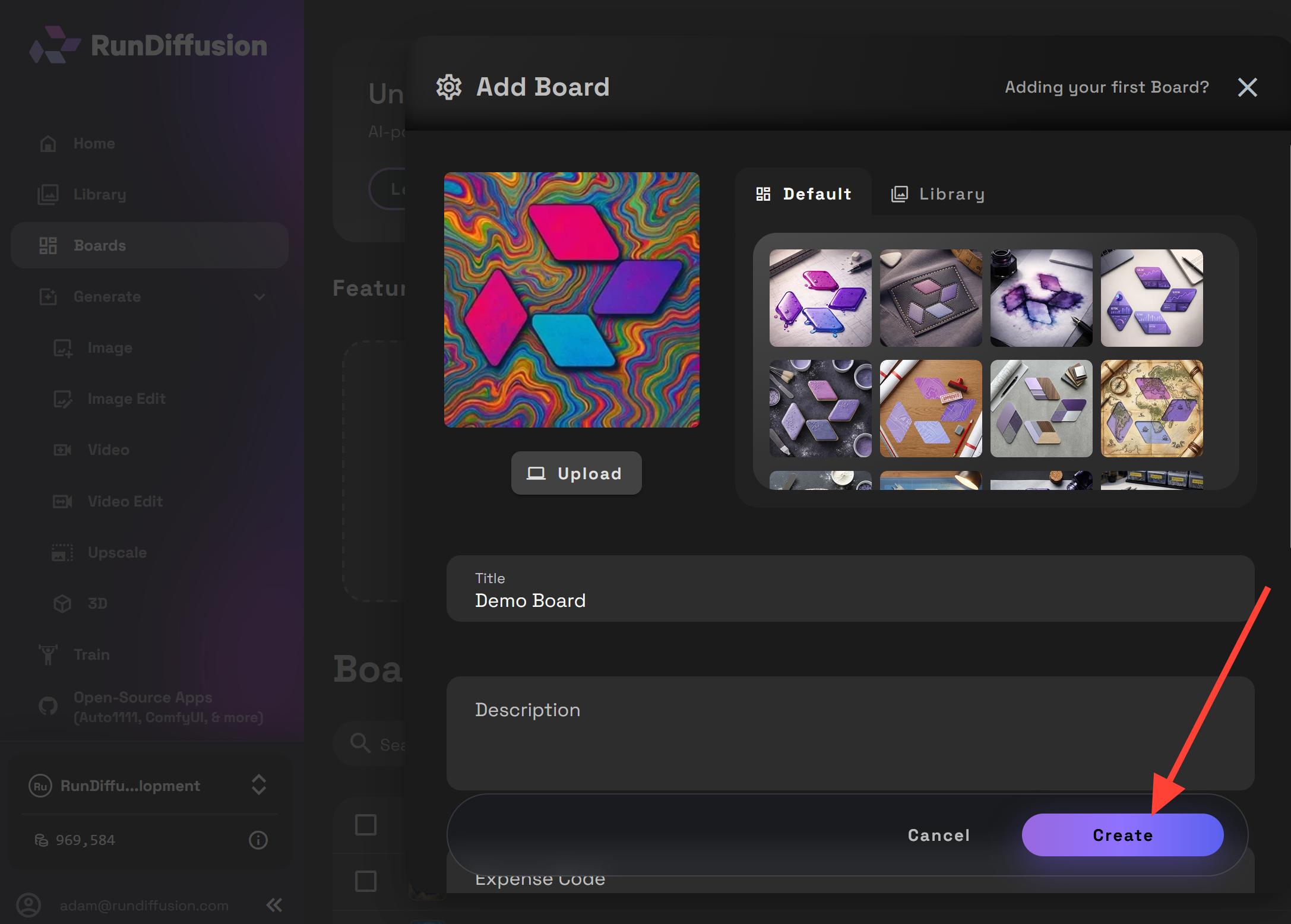
5. Set up the Board
Choose a cover, enter a clear Board title, and add an optional description. Then click Create.
6. Add a tool
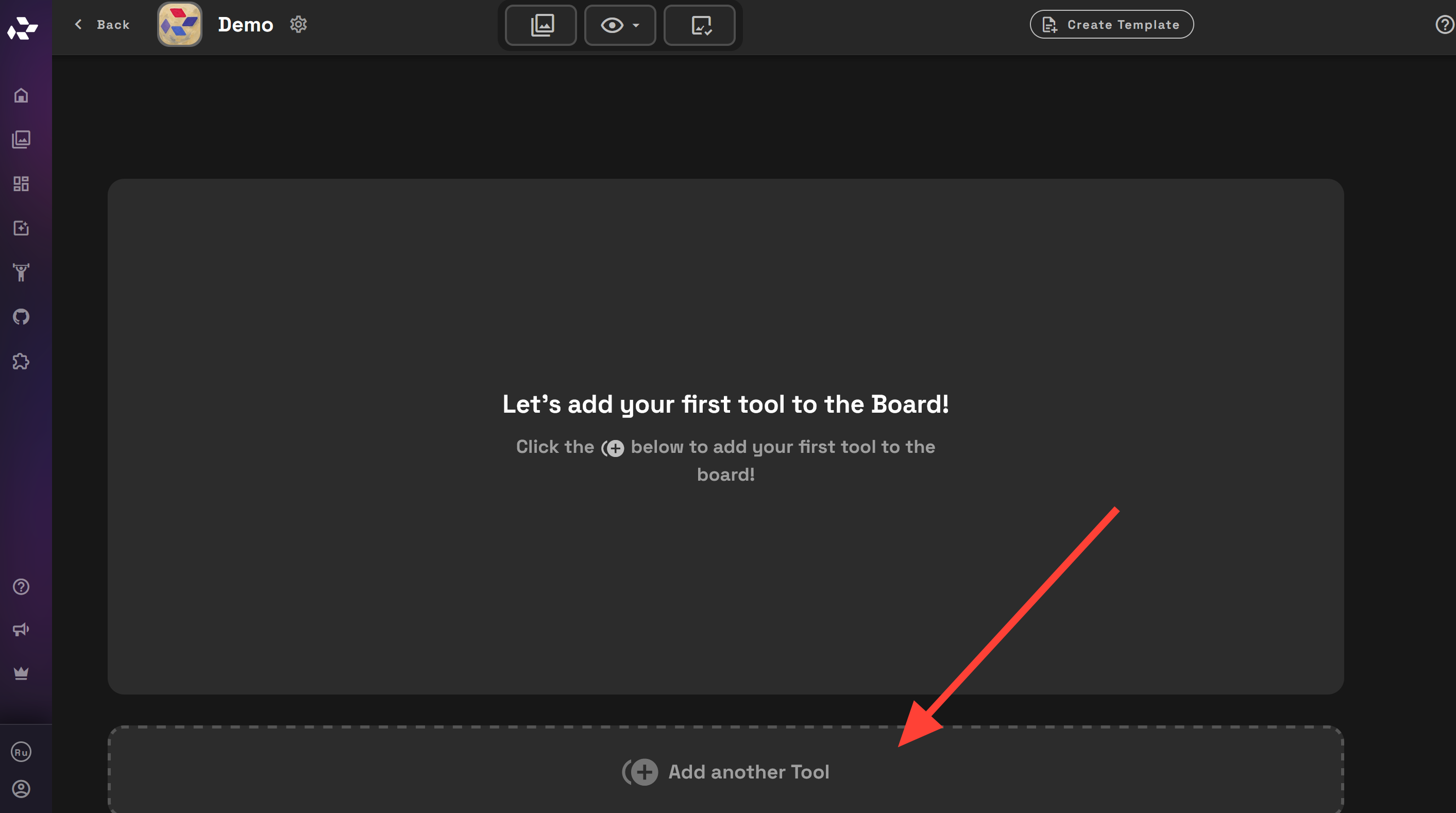
Inside the empty Board, click Add another Tool to open the tool picker.
7. Search for MiniMax H3
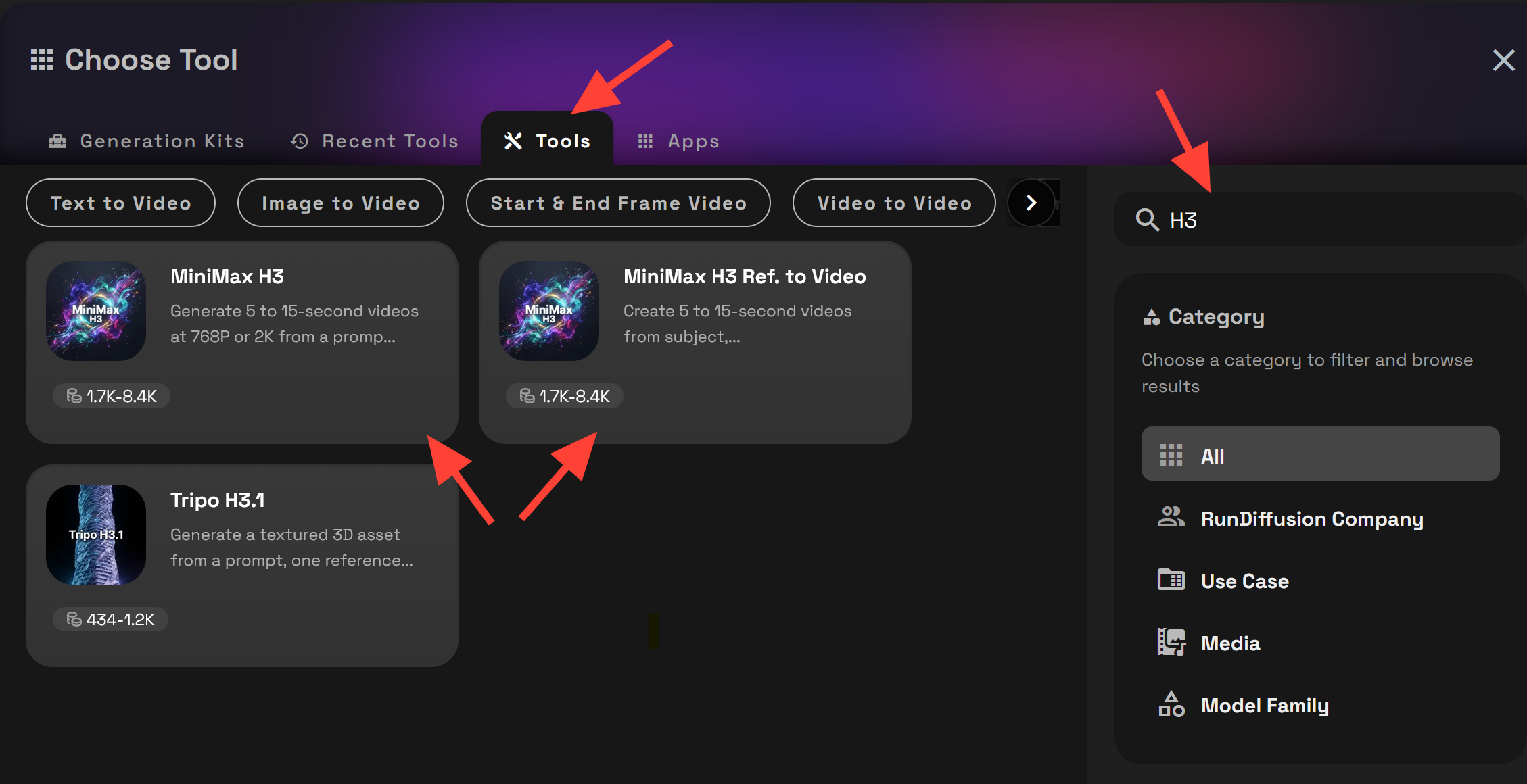
In the Choose Tool window, open the Tools tab and search for H3. Then select the workflow that matches your starting point:
- Open MiniMax H3 on RunDiffusion for the main prompt-based H3 workflow, with an optional Start Frame, End Frame, or both.
- Open MiniMax H3 Ref. to Video on RunDiffusion when uploaded images or reference videos should guide characters, products, environments, storyboards, motion, camera behavior, timing, voice, or sound.
8. Enter a prompt and run the tool
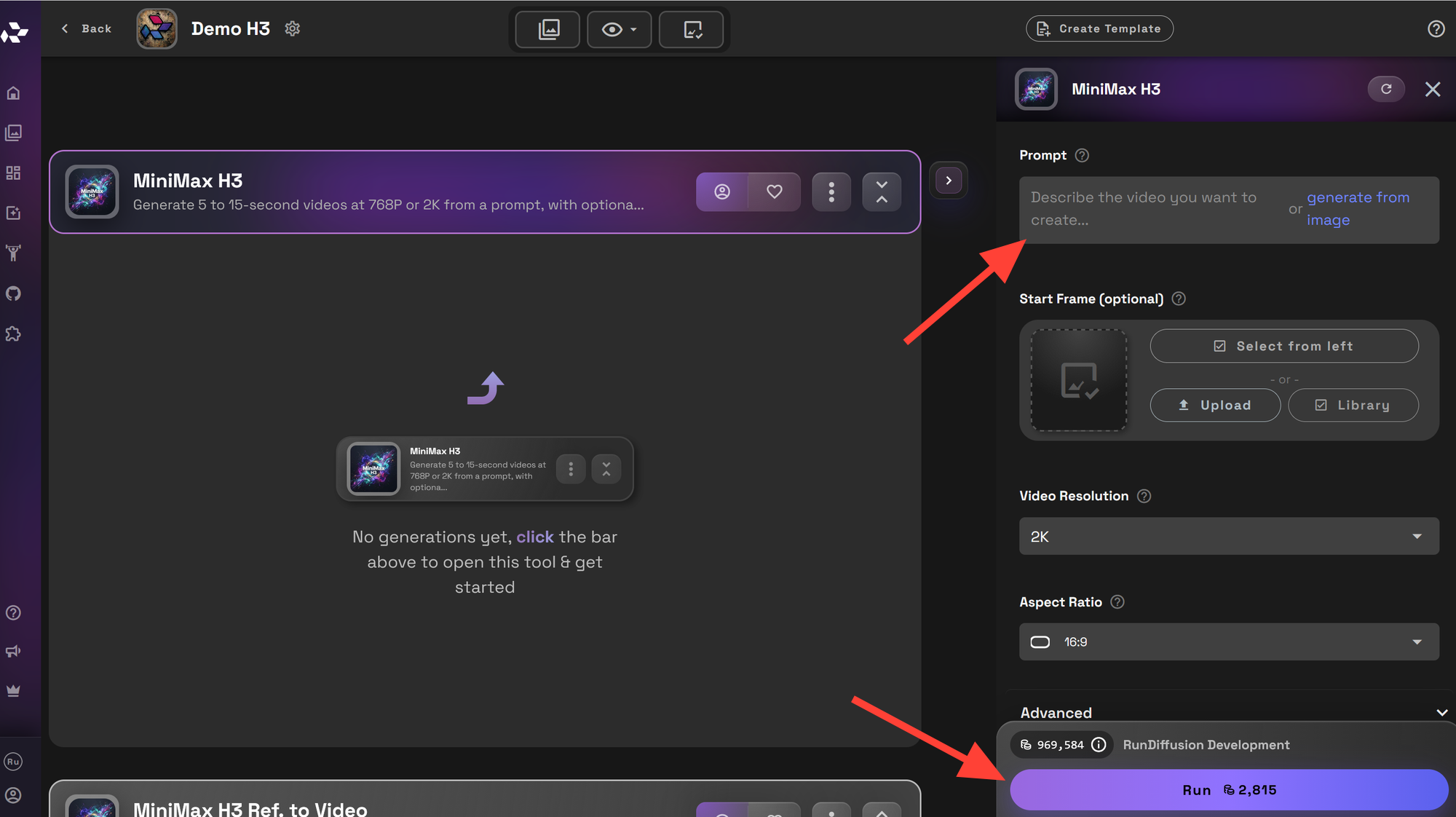
Enter your prompt in the Prompt field. The RunDiffusion prompt limit is 7,000 characters. Add a Start Frame when an image should be the exact opening composition. Add an End Frame when an image should be the exact ending composition, or use both fields to define the opening and ending. Use MiniMax H3 Ref. to Video when reference images or reference videos should guide the generated scenes. Add images through the image upload control and videos through the video upload control, then identify them in the prompt as Image 1, Image 2, Video 1, and so on. A reference video can provide motion and camera guidance while its contained audio can also guide voice and sound. Choose the duration, resolution, aspect ratio, and other generation settings. Click Run when you are ready.
For your first test, use one subject, one clear action, and one main camera move. Add references, dialogue, extra actions, and cuts one at a time after the basic result works. Give every uploaded file a clear role in the prompt, name every role it provides, and keep reference numbering consistent with upload order.
MiniMax H3 on RunDiffusion generates 5-to-15-second videos at 768P or 2K, depending on the selected workflow. Configure each generation with the controls in your Board.
The full official H3 structure can improve organization when a prompt becomes complex, but the principle stays the same inside RunDiffusion: identify each reference, explain what it controls, protect what must remain consistent, and describe the video in playback order.
You can also explore more RunDiffusion prompting guides for practical help with image and video workflows.
MiniMax H3 Prompting Checklist
Before generating, ask:
- Choose the correct generation mode.
- Select the duration and resolution in RunDiffusion. Either choose the aspect ratio or prepare every Start Frame and End Frame at the intended output ratio.
- Select MiniMax H3 Ref. to Video when the workflow includes reference images, a character sheet, a storyboard, or a reference video.
- Keep the prompt within RunDiffusion's 7,000-character limit.
- Give every uploaded reference a clear role, and name every role explicitly.
- Use sharp, mutually consistent character images.
- Name the identity, clothing, product, or setting details that must not change.
- Write each action in the order it happens.
- Keep the amount of action realistic for the duration selected in RunDiffusion.
- Give each shot one main camera idea.
- Map every storyboard panel to the correct shot.
- When using voice referencing, connect the voice heard in
Video 1to the correct character. - State whether each reference video controls motion, camera behavior, timing, voice, sound, or a combination of those elements.
- Separate dialogue, scene sounds, ambience, and background music.
- Test the idea before moving to final-resolution output.
Final Thoughts
MiniMax H3 is powerful because a prompt and reference image can work together. A detailed character sheet can carry identities, wardrobe, props, storyboards, and camera framing, while a concise prompt explains how those regions should guide the video.
Start simple. Give every reference a clear role. Describe the action in order. Add advanced structure only when the project needs it.
That approach gives H3 a clearer video to build and gives you a faster path from the first test to a polished result.
