


ComfyUI is already one of the most flexible ways to build image and video generation workflows. When you run ComfyUI on RunDiffusion and turn on API Mode, you can go a step further: you can let an AI agent connect to your ComfyUI server, help build workflows, generate images, run tests, and iterate with you.
This is a practical workflow for creators who use Claude, Codex, OpenClaw, or another trusted AI agent every day. Instead of asking an agent to only explain ComfyUI nodes, you can give it your RunDiffusion ComfyUI API link and ask it to work directly with the live server.
The setup is simple: launch a ComfyUI server on RunDiffusion, enable API Mode before launch, copy the API link from your running server, and give that link to your agent.
What Can an Agent Do for Me?
ComfyUI is powerful because it is node-based, but that also means workflows can become complex quickly. A connected agent can help you move faster by reading workflow structure, suggesting nodes, adjusting parameters, writing workflow JSON, testing generations, and helping debug errors.
Once connected, your agent can help with tasks like:
- building new ComfyUI workflows
- troubleshooting broken workflows
- modifying existing workflow JSON
- fixing pathing issues
- generating test images
- running generations for you
- automating generation tests
- running prompt variations
- checking whether a workflow queues correctly
- iterating settings across multiple runs
- helping troubleshoot missing nodes or bad parameters
- documenting the workflow it built
This works best when the agent has permission to use external APIs or tools and when you provide clear instructions about what it should build, test, troubleshoot, and report back.
How to Connect ComfyUI to an Agent on RunDiffusion
Follow these steps to connect a RunDiffusion ComfyUI server to your preferred agent.
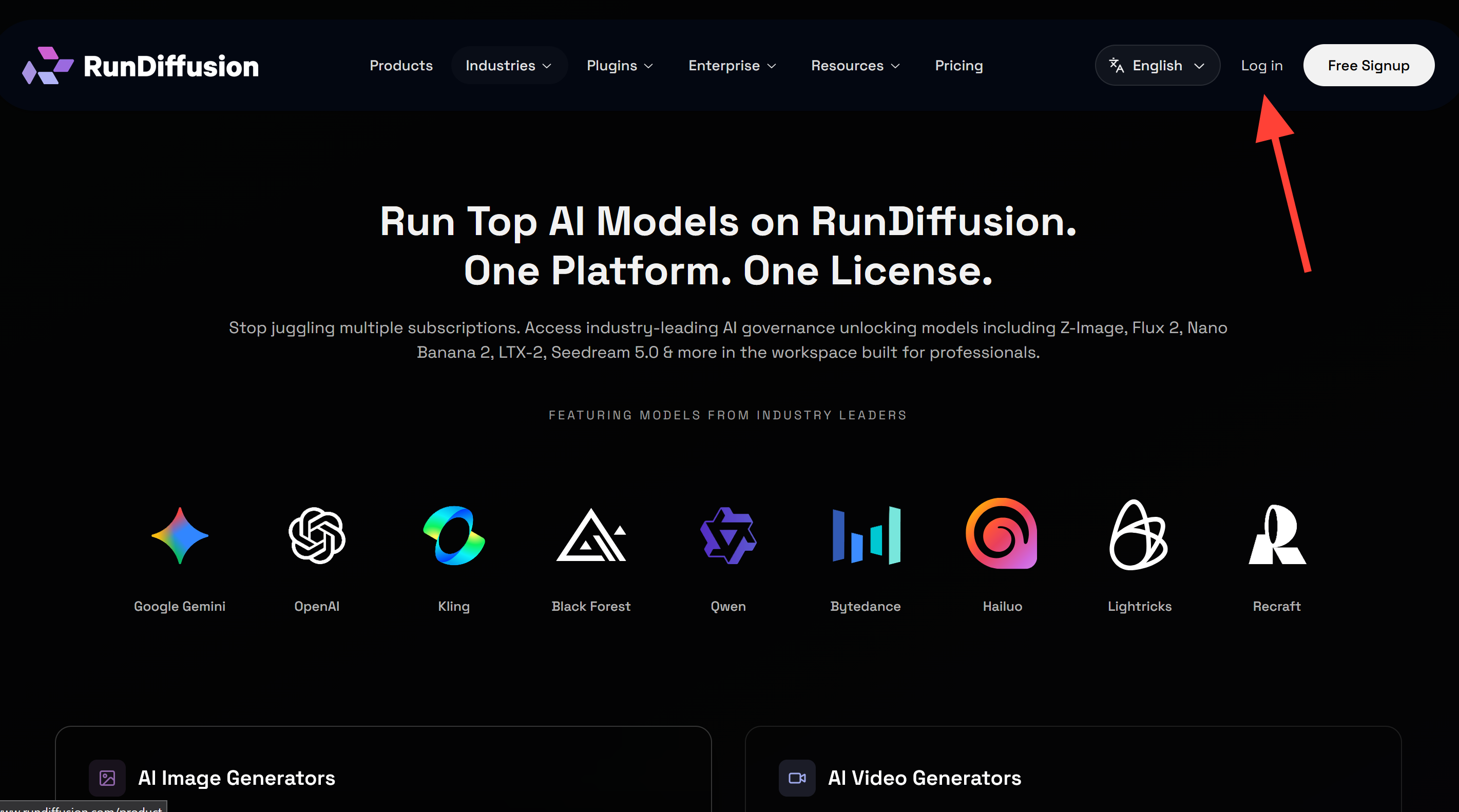
Step 1: Log in to RunDiffusion
Log in to your RunDiffusion account.
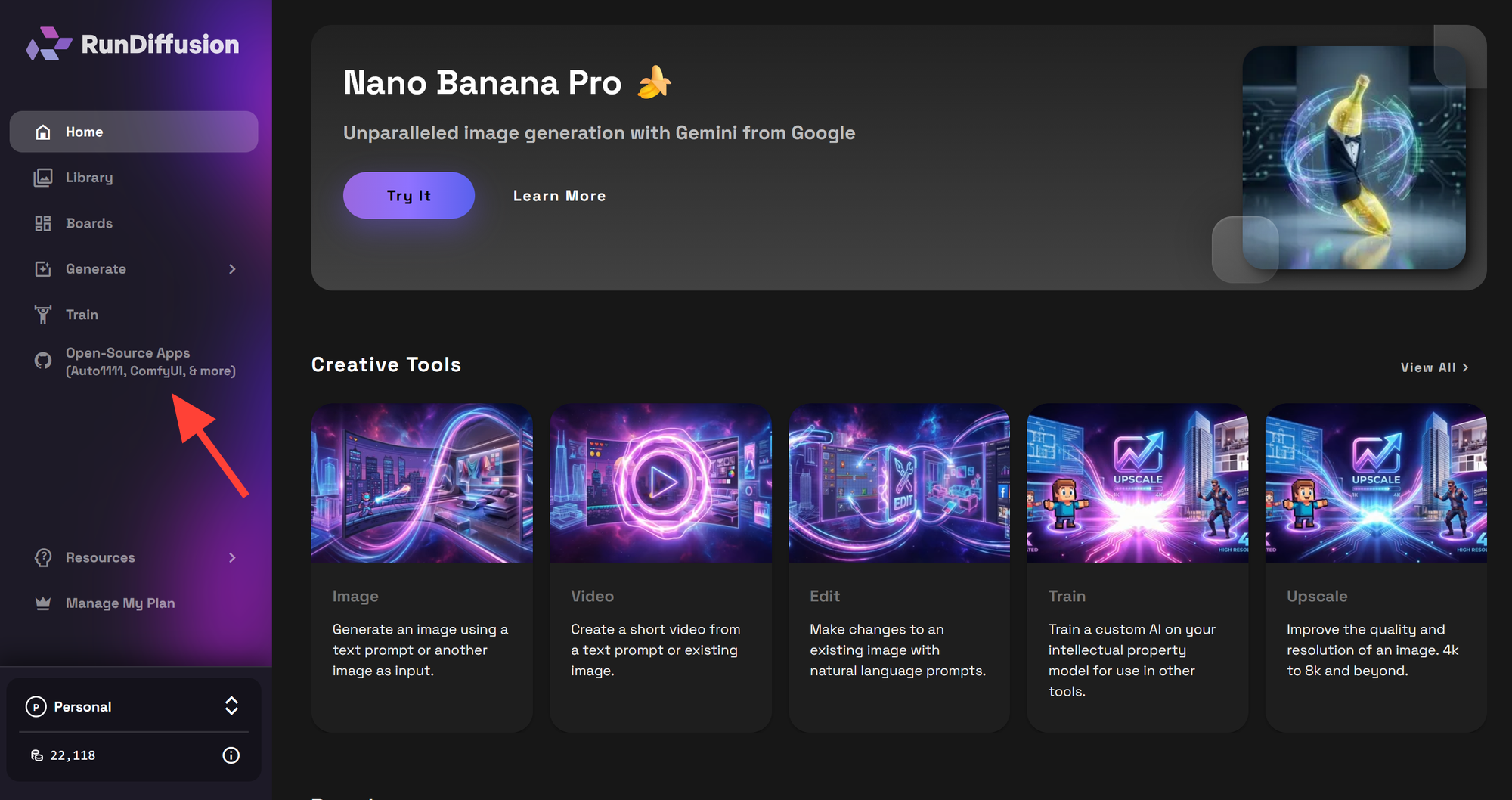
Step 2: Click Opensource Applications
In the left sidebar, click Opensource Applications.
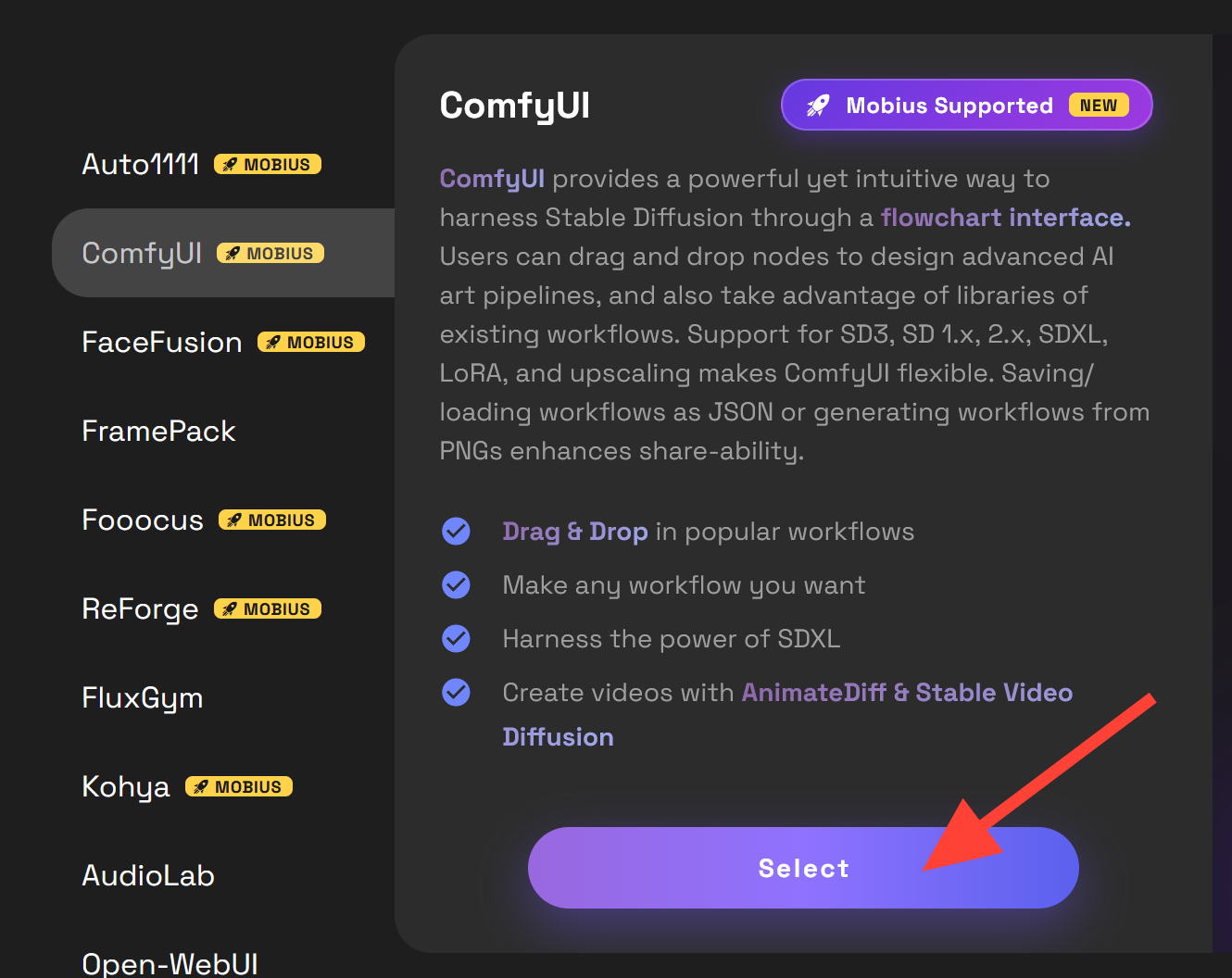
Step 3: Choose ComfyUI and Click Select
Find ComfyUI in the application list, choose it, then click Select.
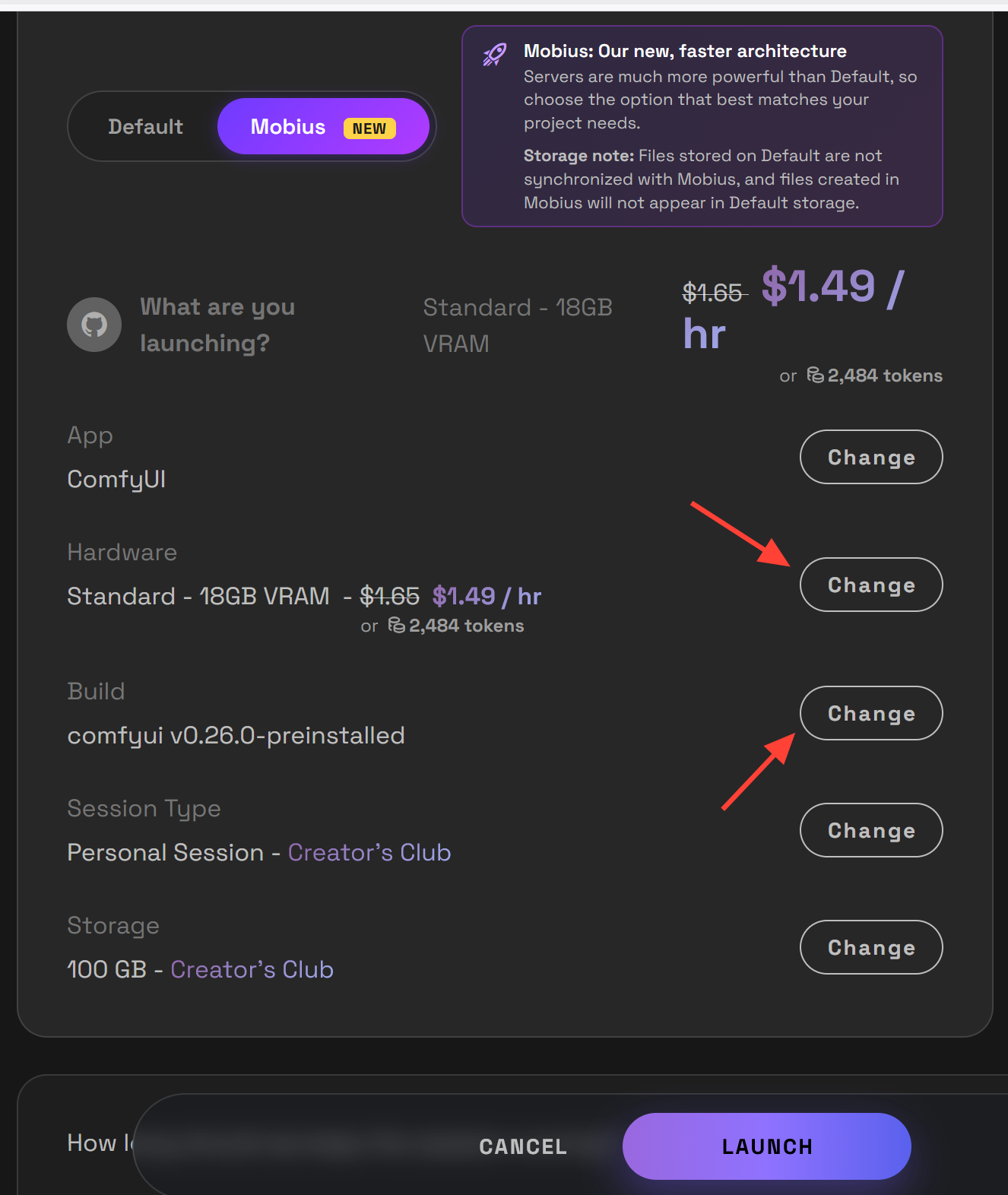
Step 4: Select Your Hardware and Build
Choose the hardware and build you want to use for the ComfyUI session. Pick the server size based on the models, workflows, and generation tests you plan to run.
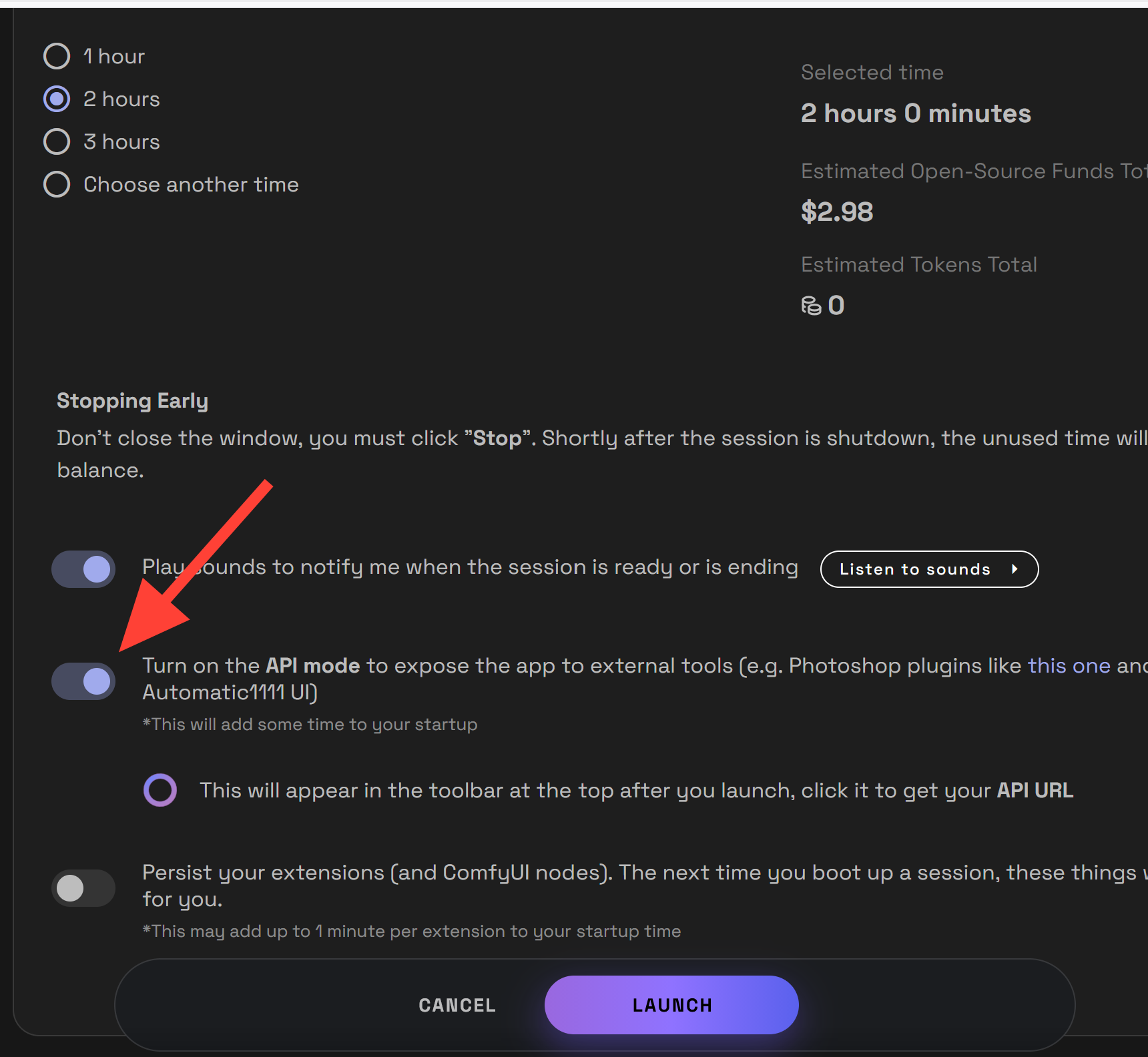
Step 5: Turn On API Mode and Launch the Server
Before launching, scroll down in the server options and turn on API Mode. This step matters because your agent needs an API-accessible ComfyUI session.
After API Mode is enabled, launch the server.
Step 6: Click the Circle in the Top Right
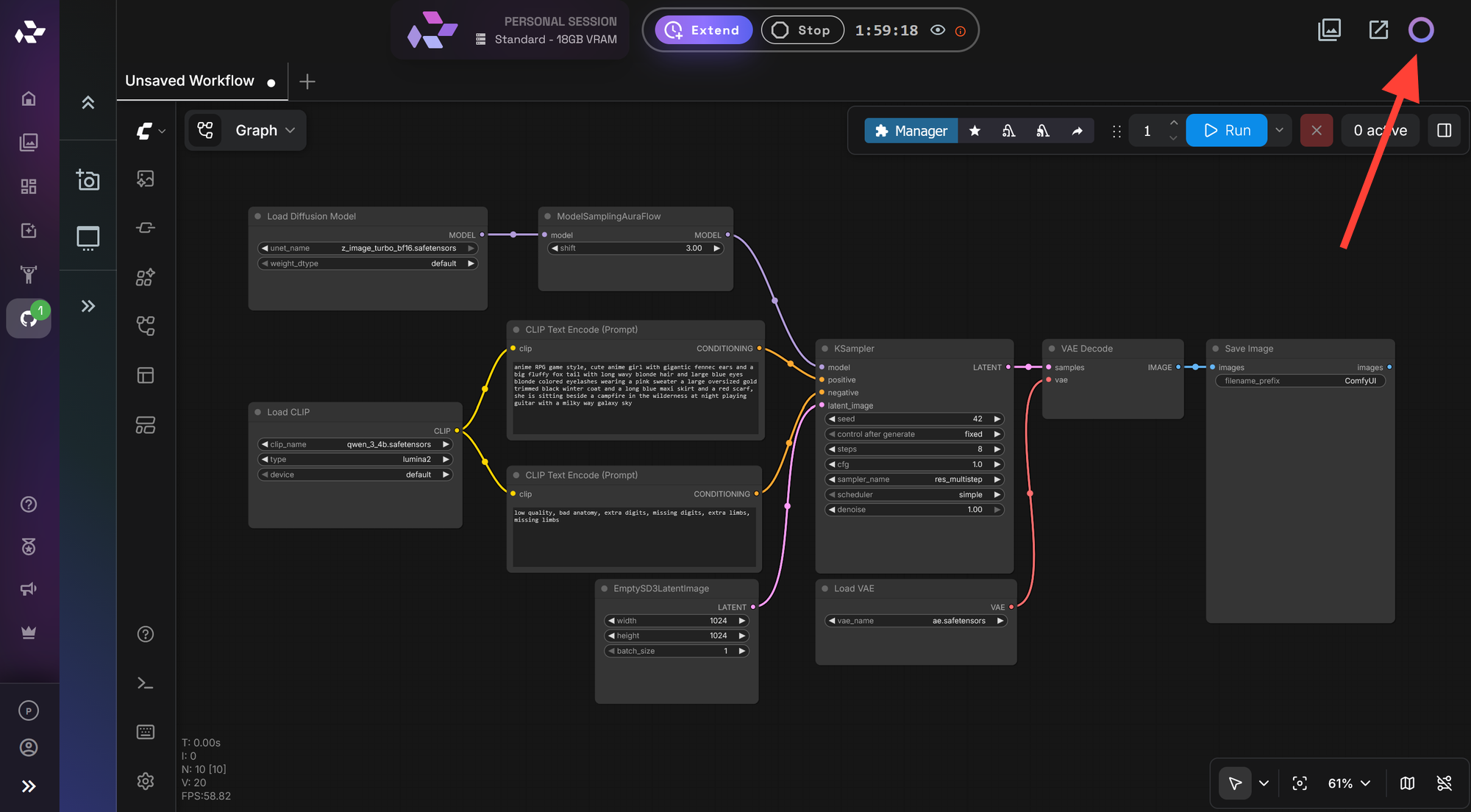
After the ComfyUI server launches, look at the top right of the server interface. You will see a small circle.
Click the circle one time. A popup will appear with your API link.
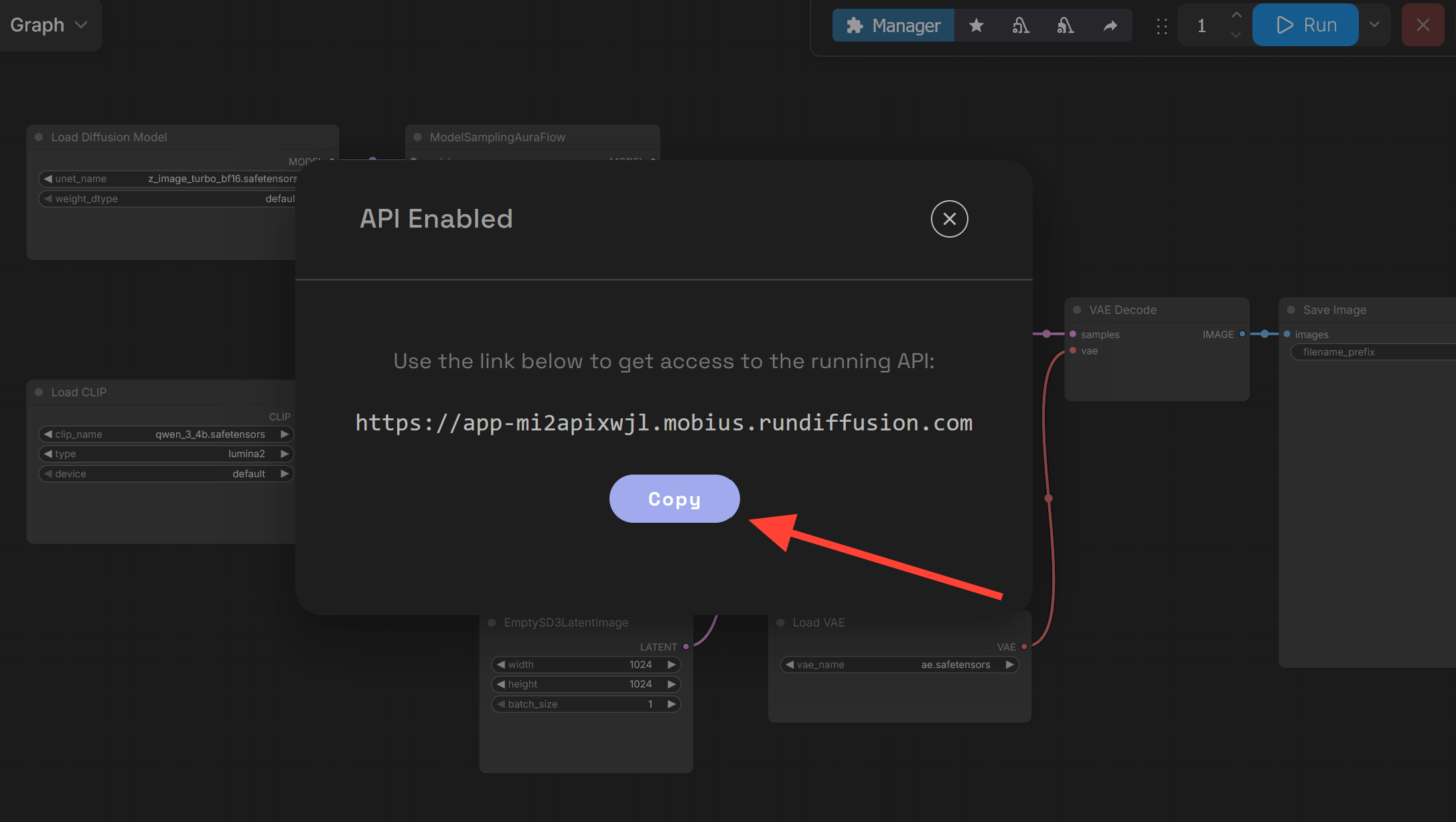
Step 7: Copy the API Link
Click Copy.
That copied API link is what you give to your agent.
Step 8: Paste the API Link into Your Preferred Agent
Paste the API link into your preferred agent, such as Claude, Codex, OpenClaw, or another agent that can call external APIs. Then tell the agent to use that API link for ComfyUI.
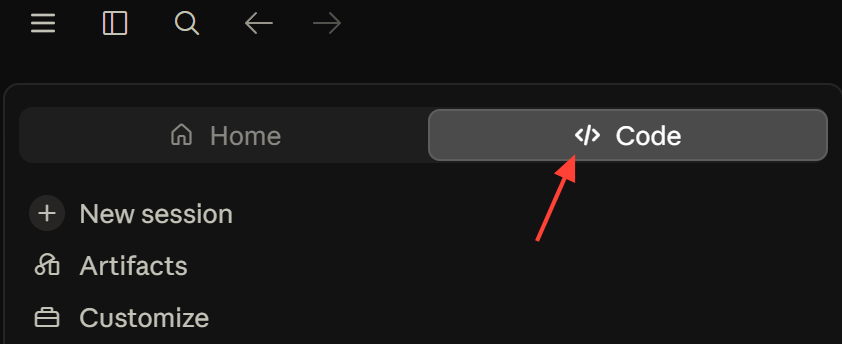
Give the API link to your agent.
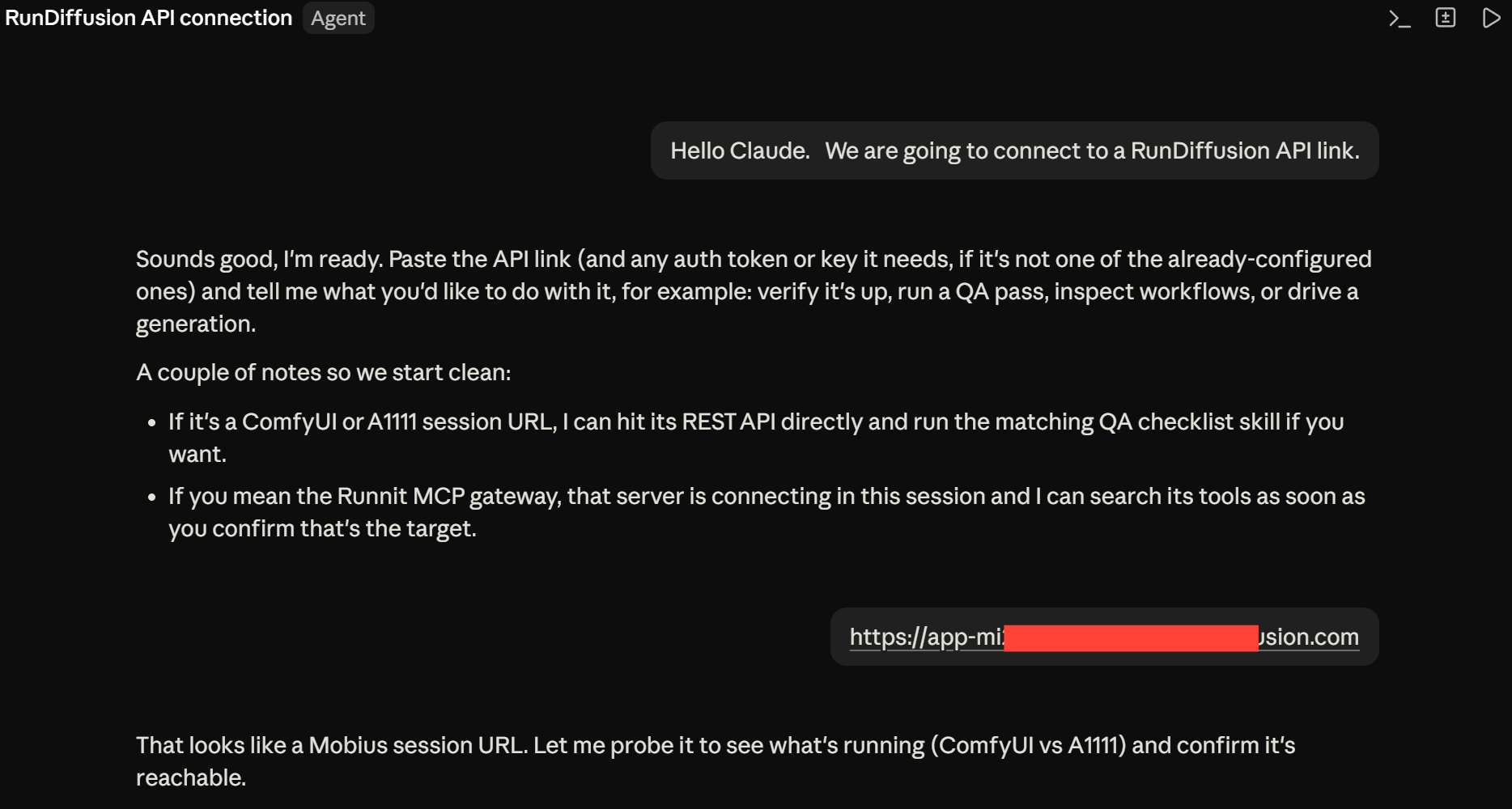
You can then prompt directly, create workflows, create videos or images.
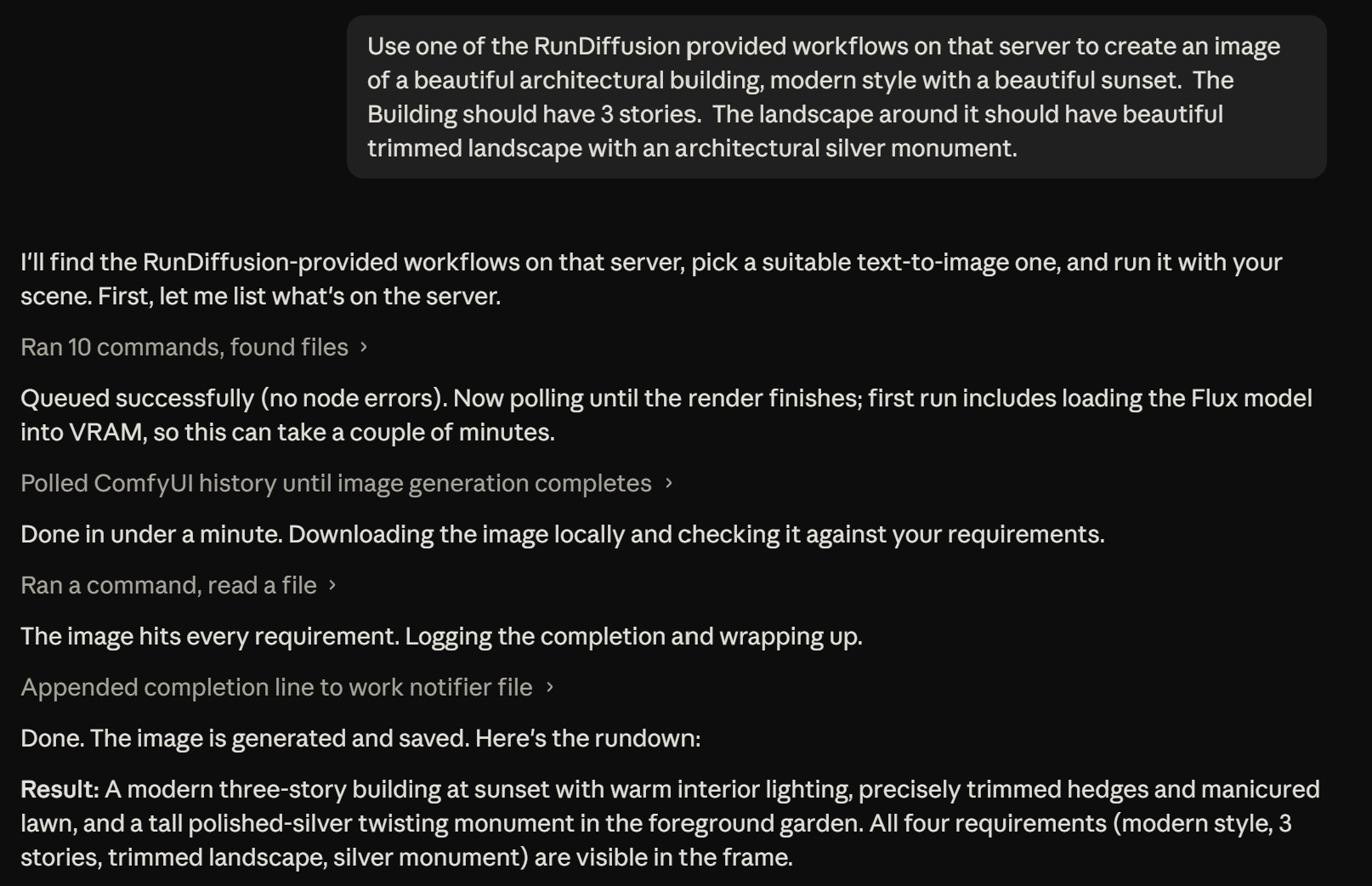

Use the Agent to Build and Test Workflows
Once the connection is working, the agent can become a workflow partner.
For example, you can ask it to:
- create a basic image generation workflow
- add an upscaler
- add ControlNet or image-reference nodes when available
- test different samplers and CFG values
- generate multiple prompt variants
- create an image-to-image workflow
- inspect why a workflow fails
- fix pathing issues in workflow references
- automate repeated generation tests
- document which settings produced the best result
This is where the workflow becomes useful. You are not just asking for advice about ComfyUI. You are letting the agent use the ComfyUI API to help you test the workflow directly.
Example Agent Prompts
Build a new workflow
Use my RunDiffusion ComfyUI API link to create a clean text-to-image workflow. Use a 1024x1024 output, a high-quality image model available in the server, and a simple save-image output. Queue one test image and tell me whether the workflow ran successfully.Improve an existing workflow
Inspect this ComfyUI workflow JSON correct the pathing to align with RunDiffusion session. Keep the workflow stable, explain the changes, then use the API link to queue a test run.Run prompt tests
Generate 5 prompt variations for this concept, run them through the ComfyUI API, and summarize which settings produced the strongest image.Debug a workflow
This ComfyUI workflow is failing. Use the API link to inspect the workflow, identify likely node or parameter issues, and suggest a corrected version. Run a small test after the fix.Security and Access Notes
Treat your ComfyUI API link like a live session access link.
Use these habits:
- only share the API link with a trusted agent or trusted collaborator
- do not post the link publicly
- avoid leaving the link in public documents or shared screenshots
- stop the server when you are done
- review what the agent is doing before asking it to run large jobs
Why This Workflow Works Well on RunDiffusion
For faster iteration while an agent builds, tests, and queues workflows, consider running supported ComfyUI sessions on Mobius.
RunDiffusion lets you run ComfyUI in the cloud without maintaining local GPU hardware. That means your agent is not blocked by your personal machine setup. The agent can work with the live server API while RunDiffusion handles the ComfyUI environment.
This workflow is useful for:
- creators who want AI help building ComfyUI workflows
- teams testing image generation pipelines
- developers prototyping ComfyUI automation
- users who want Claude to help build and test workflows
- anyone who wants faster iteration inside ComfyUI without doing every node edit manually
 RunDiffusion Team
FAQ
Can I connect ComfyUI to Claude, Codex, or OpenClaw?
Yes, if the agent has access to tools or an environment that can call the ComfyUI API link. Copy the API link from your RunDiffusion ComfyUI server, give it to Claude, Codex, OpenClaw, or another trusted agent, and tell it what workflow to build, test, or debug.
Where do I find the ComfyUI API link on RunDiffusion?
Launch ComfyUI with API Mode turned on. After the server starts, click the small circle in the top right of the server interface. A popup will show the API link. Click Copy.
Do I need to turn on the API before launching the server?
Yes. When launching the ComfyUI server on RunDiffusion, scroll down and turn on API Mode before launch. This makes the running ComfyUI server accessible through the API link.
What can an agent do with the ComfyUI API?
An agent can help build workflows, troubleshoot workflows, fix pathing issues, queue test generations, automate generation tests, adjust workflow settings, run prompt variations, inspect errors, and document the workflow. Exact capabilities depend on what tools and permissions the agent has.
Should I share my API link publicly?
No. Treat the API link as access to your active ComfyUI session. Share it only with trusted agents or collaborators, and stop the server when you are done.
Can this help build production workflows?
Yes. This setup is useful for prototyping, testing, and refining workflows and then running your completed workflows.
