


Render to White Card
Render to White Card on RunDiffusion transforms your render into a clean white card render that emphasizes form, scale, proportion, and spatial intent.
Use it when you want to move from a rough idea to a clear architectural visual without adding material finishes, color palettes, or extra design noise too early. Upload an image, describe the result you want, and generate a simplified render that keeps the focus on the structure of the design.
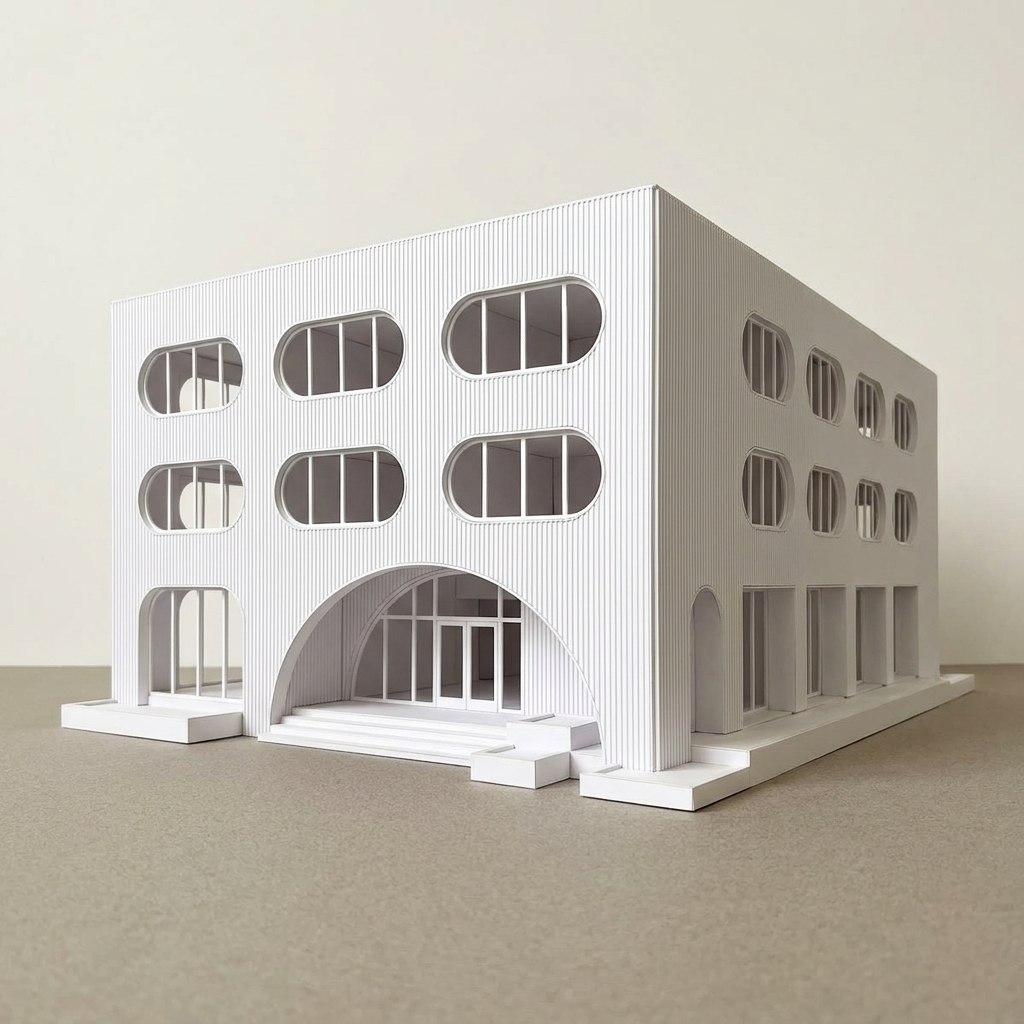
Turn Sketches Into Clean White Card Renders
This workflow is built for quick visual translation. Start with a sketch, diagram, or early concept image, then generate a polished white card-style render that makes the design easier to review, compare, and present.
It is especially useful when you need to show:
- Massing
- Form
- Scale
- Proportion
- Spatial relationships
- Light and shadow
- Overall design intent
Watch the Video Tutorial
The video tutorial walks through the Render to White Card process so you can see the workflow in action from sketch upload to final render.
Use it to follow along, compare prompt choices, and understand how small adjustments affect the final white card result.
How to Use Render to White Card
- Log in to RunDiffusion.

- You are automatically redirected to RunDiffusion's Runnit Platform. Then Click Generate in the left sidebar.
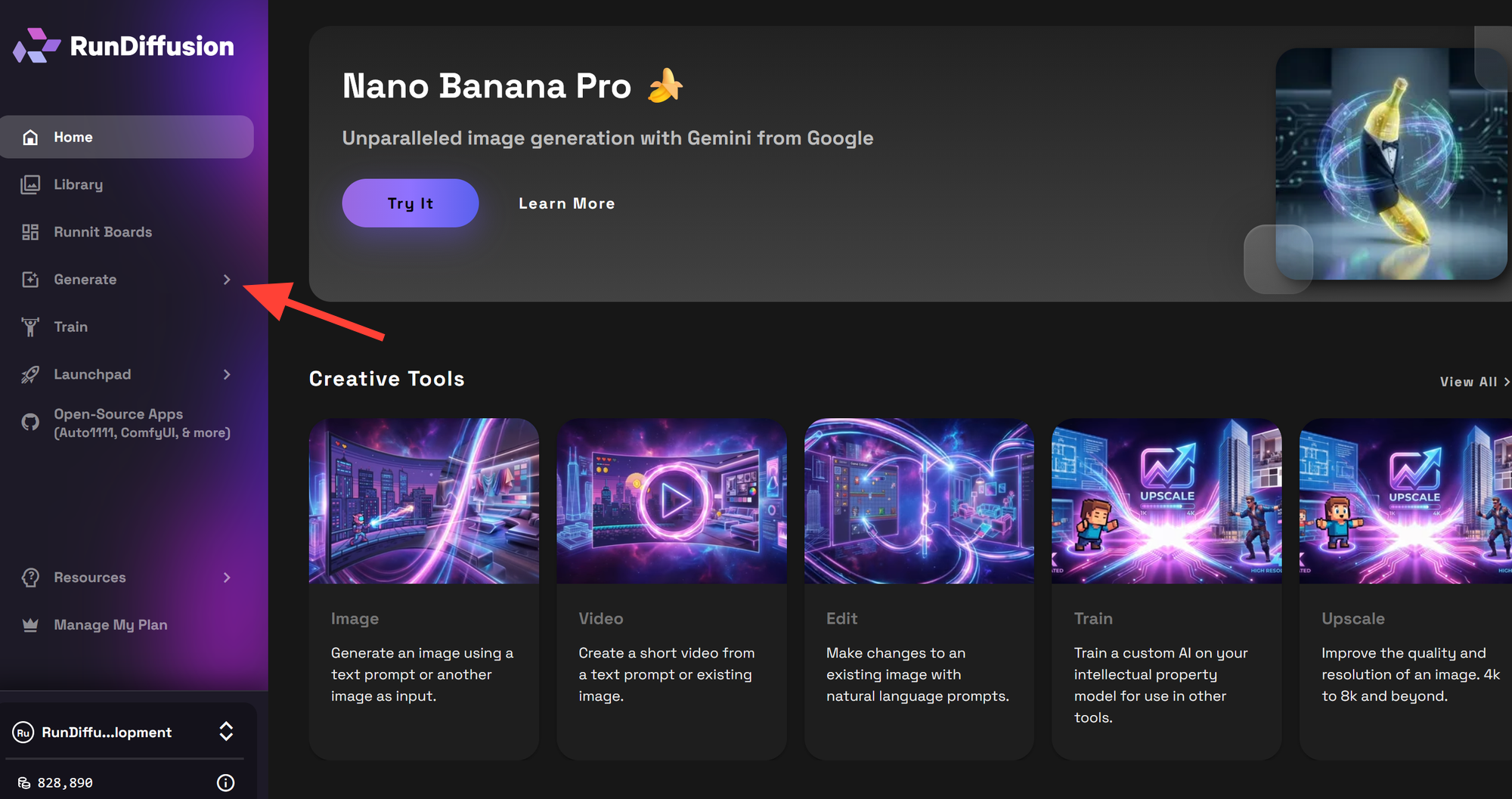
- Choose Image
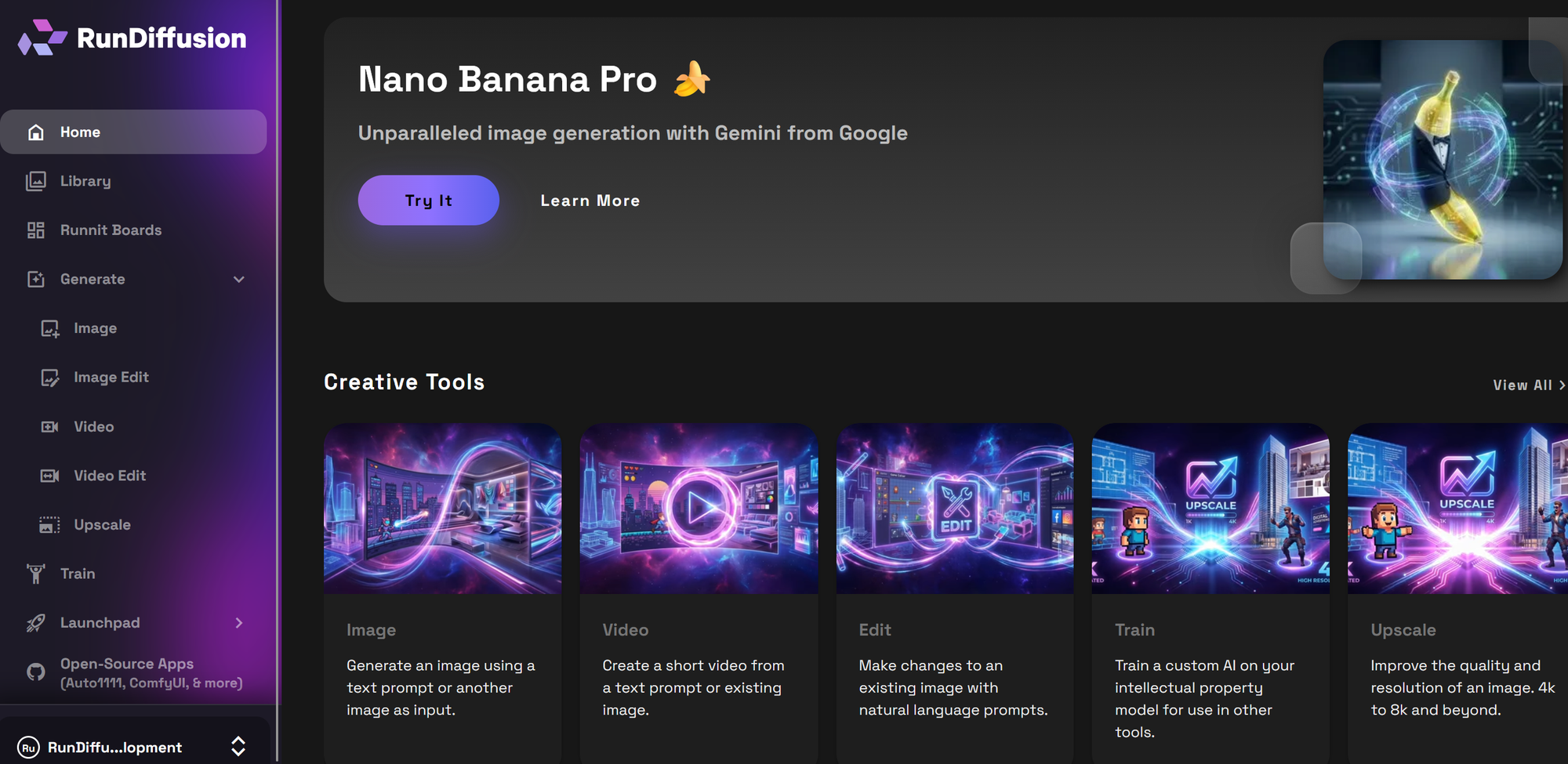
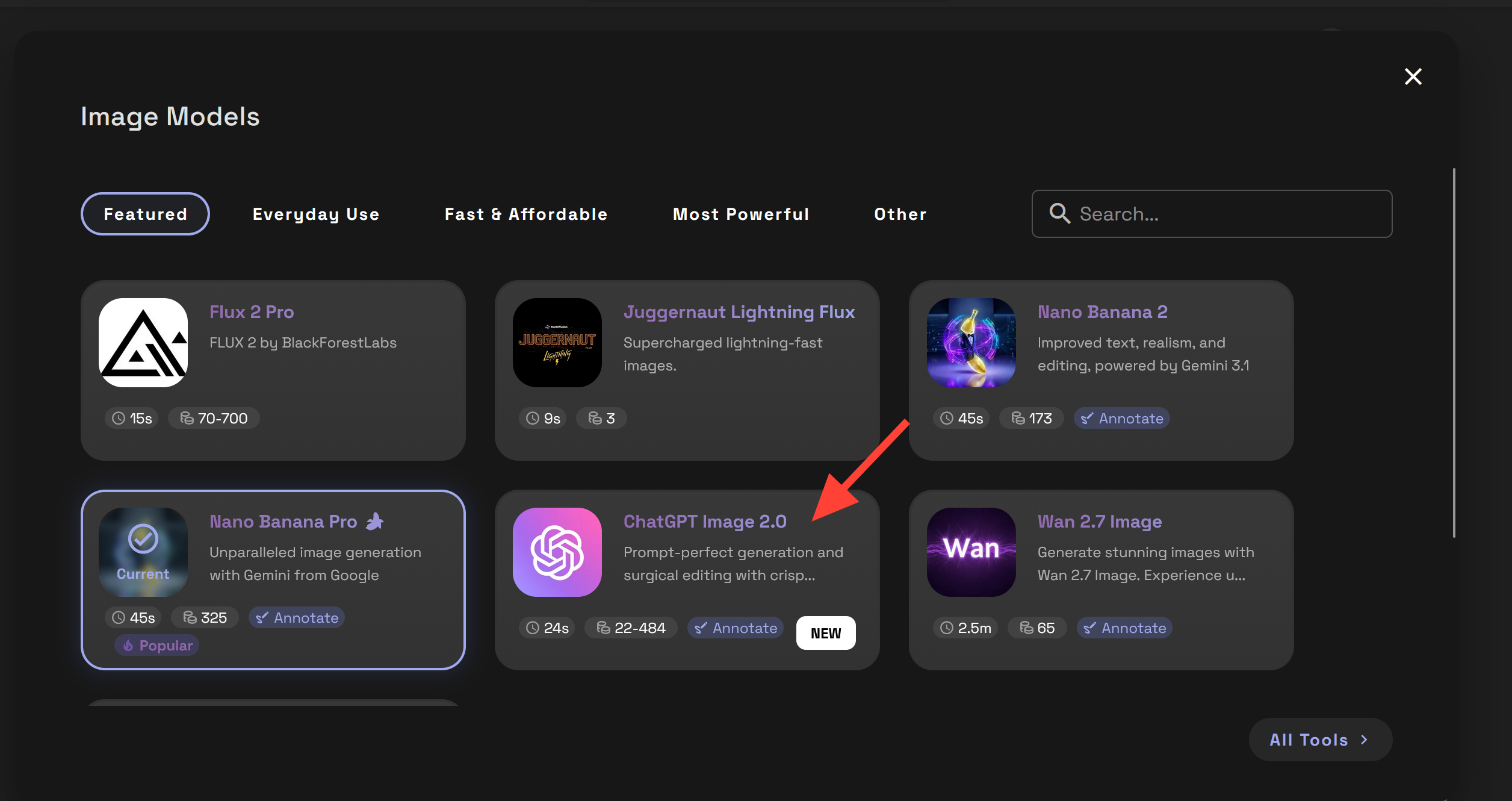
- It may load Nano Banana Pro which can be used but for this task but lets switch to ChatGPT 2.0. Click on the model name to switch models.
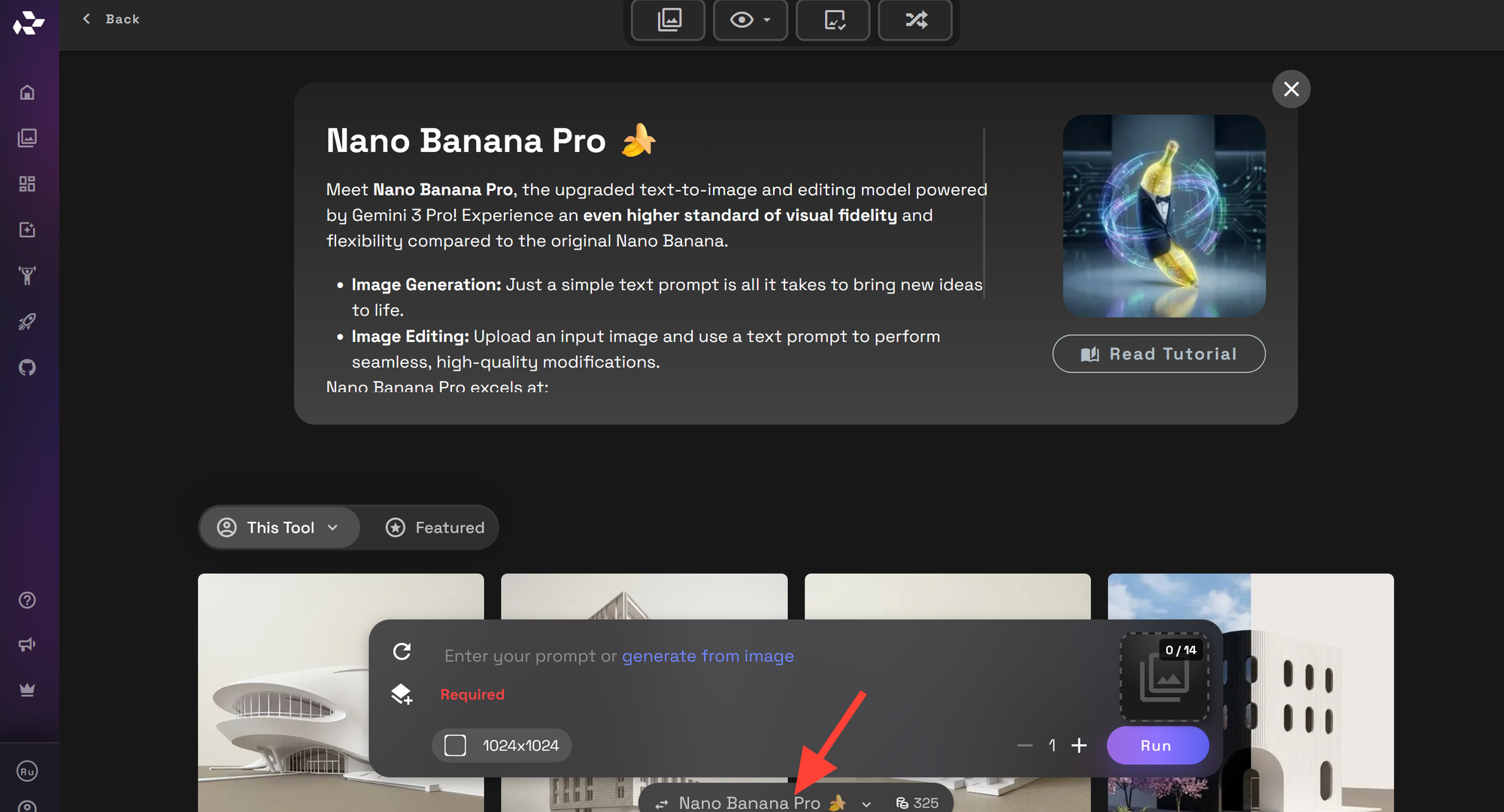
- Then select ChatGPT 2.0
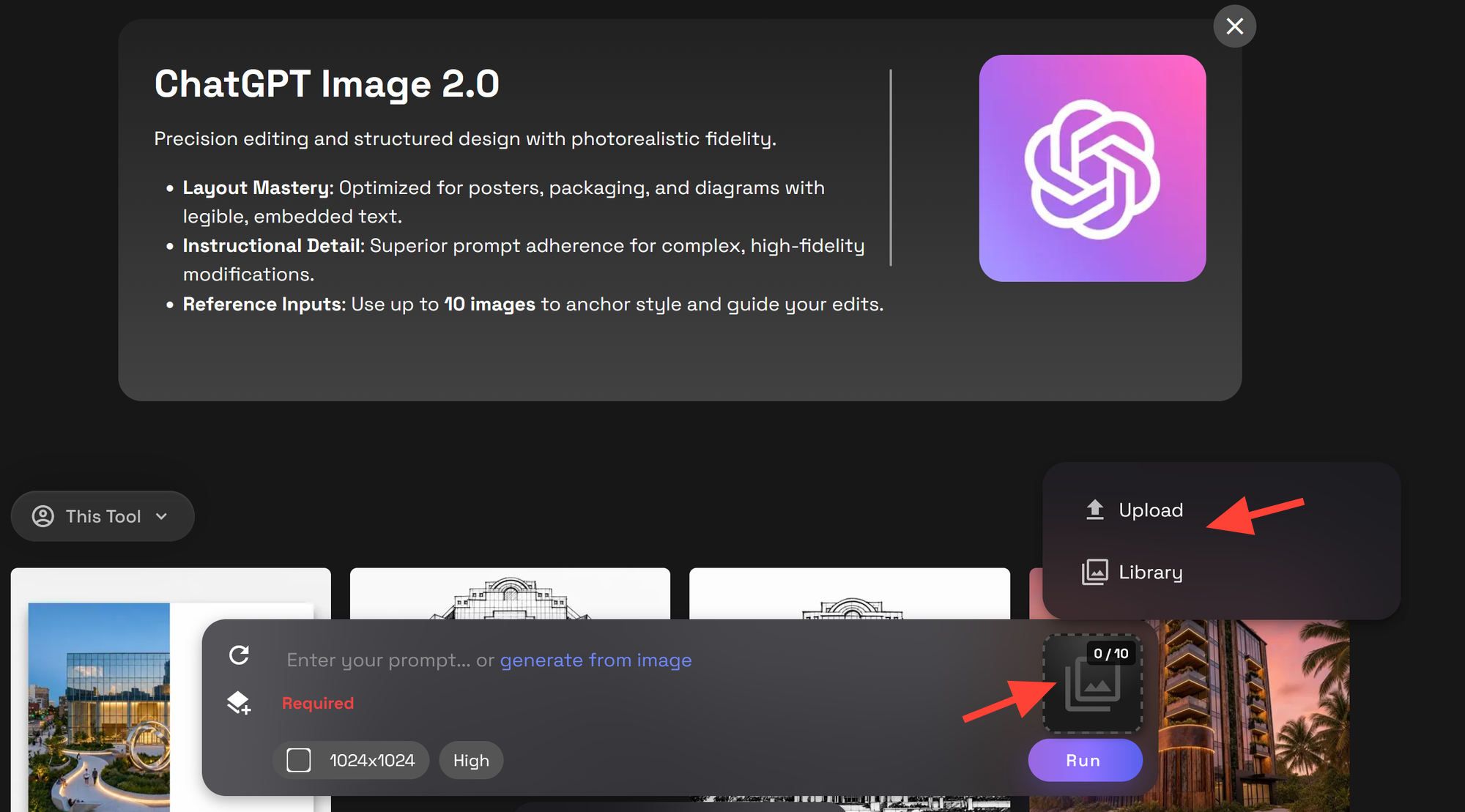
- Click on Image's to Edit box and select an image from your library or upload one from your hard drive.
- Add a prompt describing the white card render you want.
Example Prompt: “Create a white card of the reference image, do not change anything structurally. Keep the structure of the building exactly the same but make it a white card. Make the background off white, and the ground a warm gray. Do not include the trees, plants, or people.”
You can adjust the prompt depending on the project and what you need.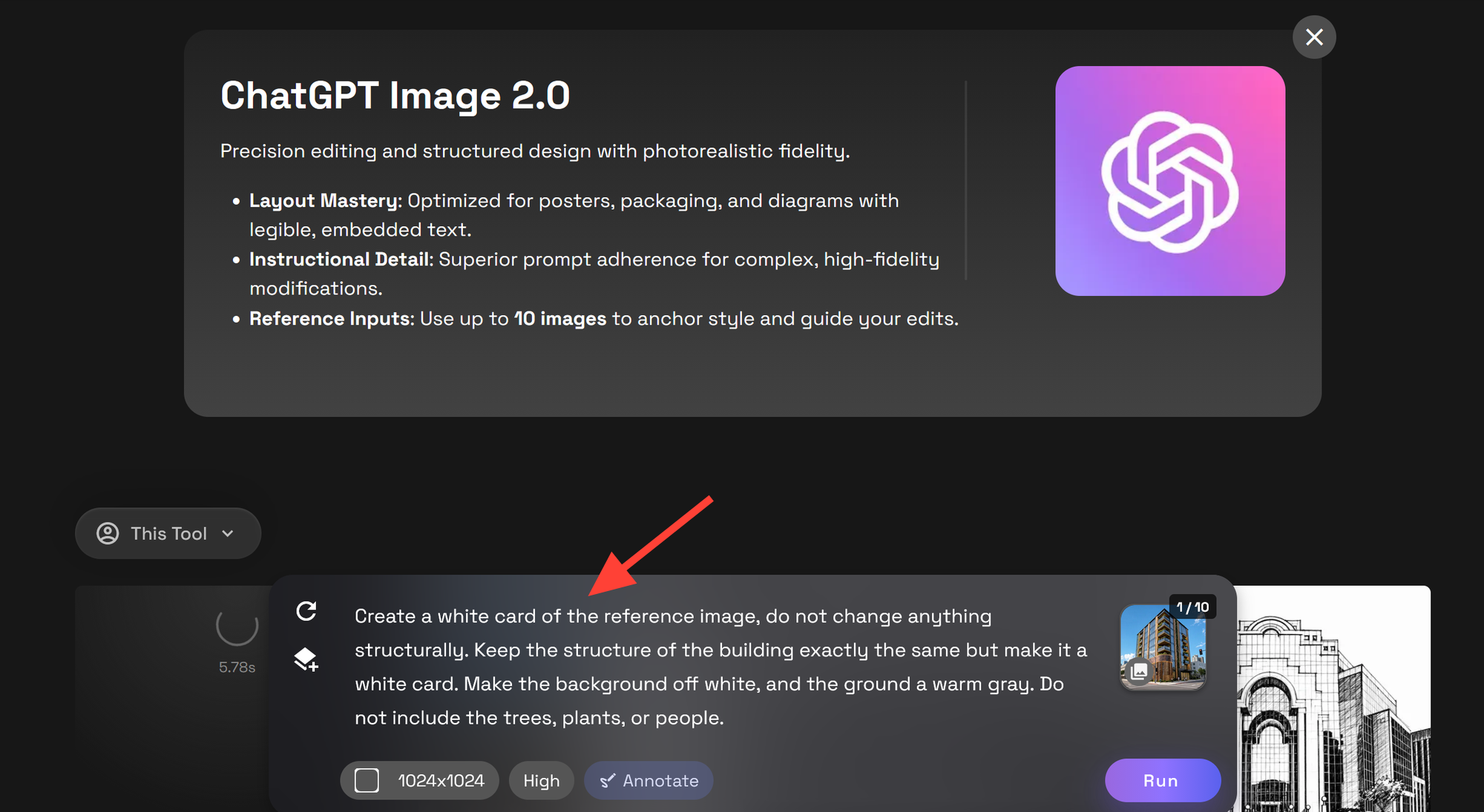
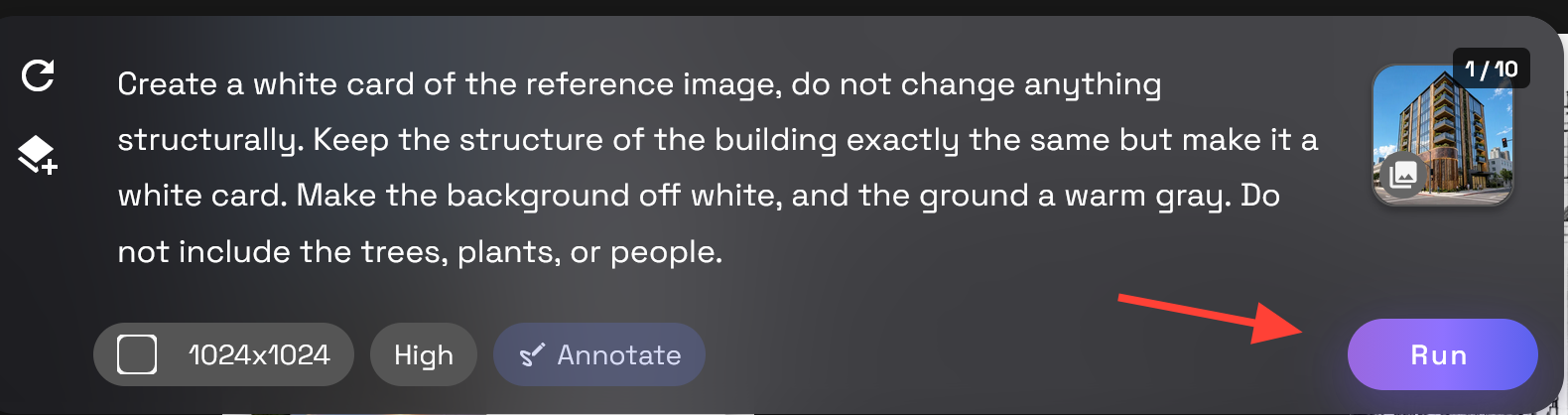
- Click Run to render your image.
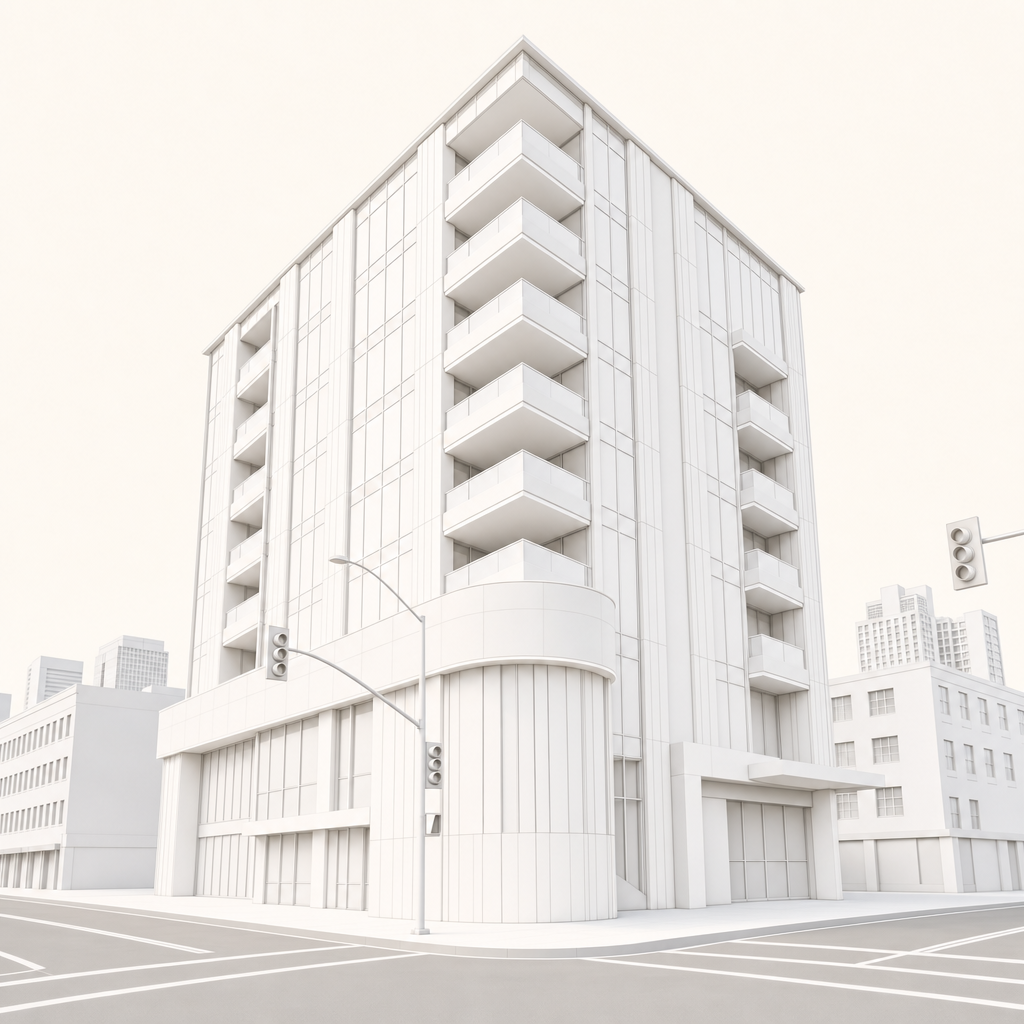
When to Use This Workflow
Render to White Card works best when you need fast, focused design visuals before moving into material studies or final rendering.
Use it for:
- Early concept development
- Massing studies
- Client-facing design previews
- Internal design reviews
- Studio critique boards
- Option comparisons
- Presentation visuals
- Spatial planning studies
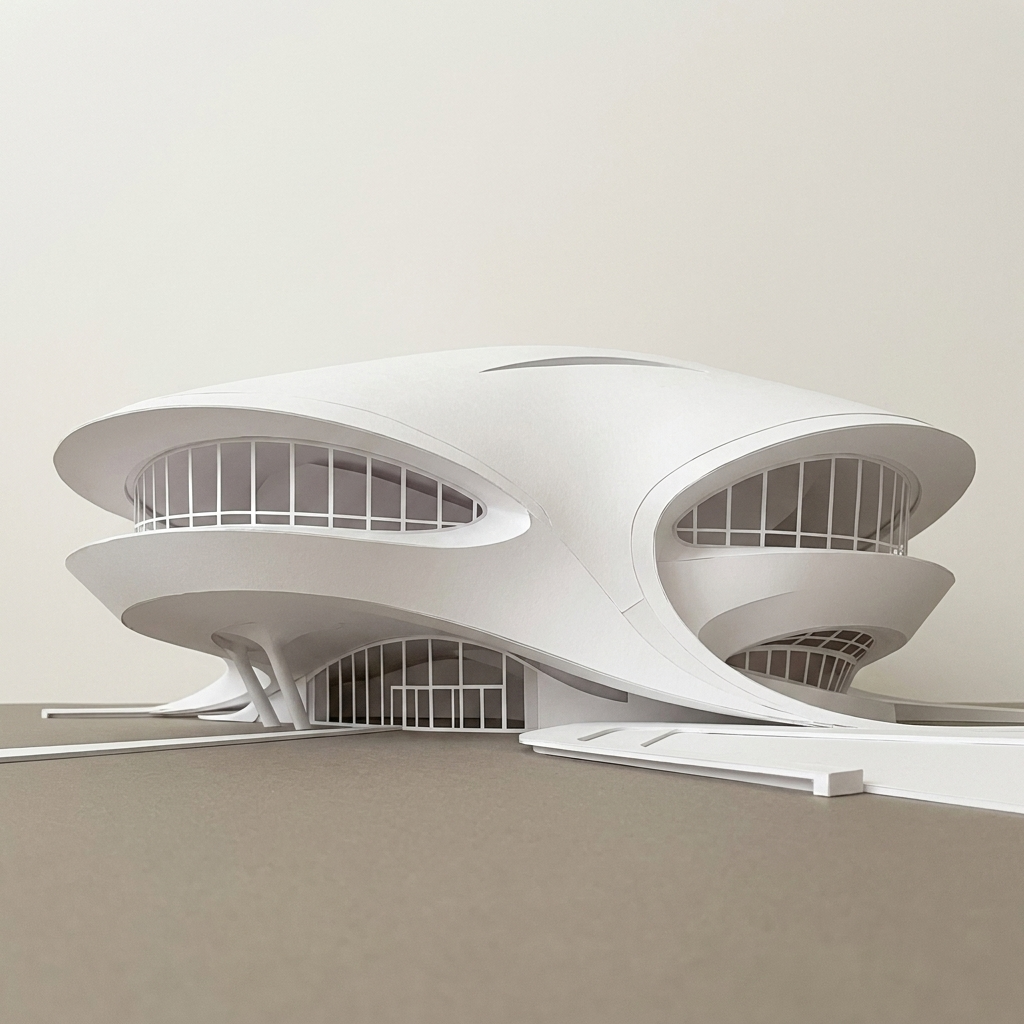
Tips for Cleaner Results
Start with a render that has a readable structure. The workflow can interpret rough inputs, but clearer linework usually gives you a cleaner result.
For better outputs:
- Keep the prompt focused on white card rendering.
- Ask it to preserve structure, massing, scale, and proportions.
- Avoid requesting materials, colors, furniture, or landscaping unless they are essential.
- Generate a few variations before choosing the strongest one.
- Refine with small prompt changes instead of rewriting everything.
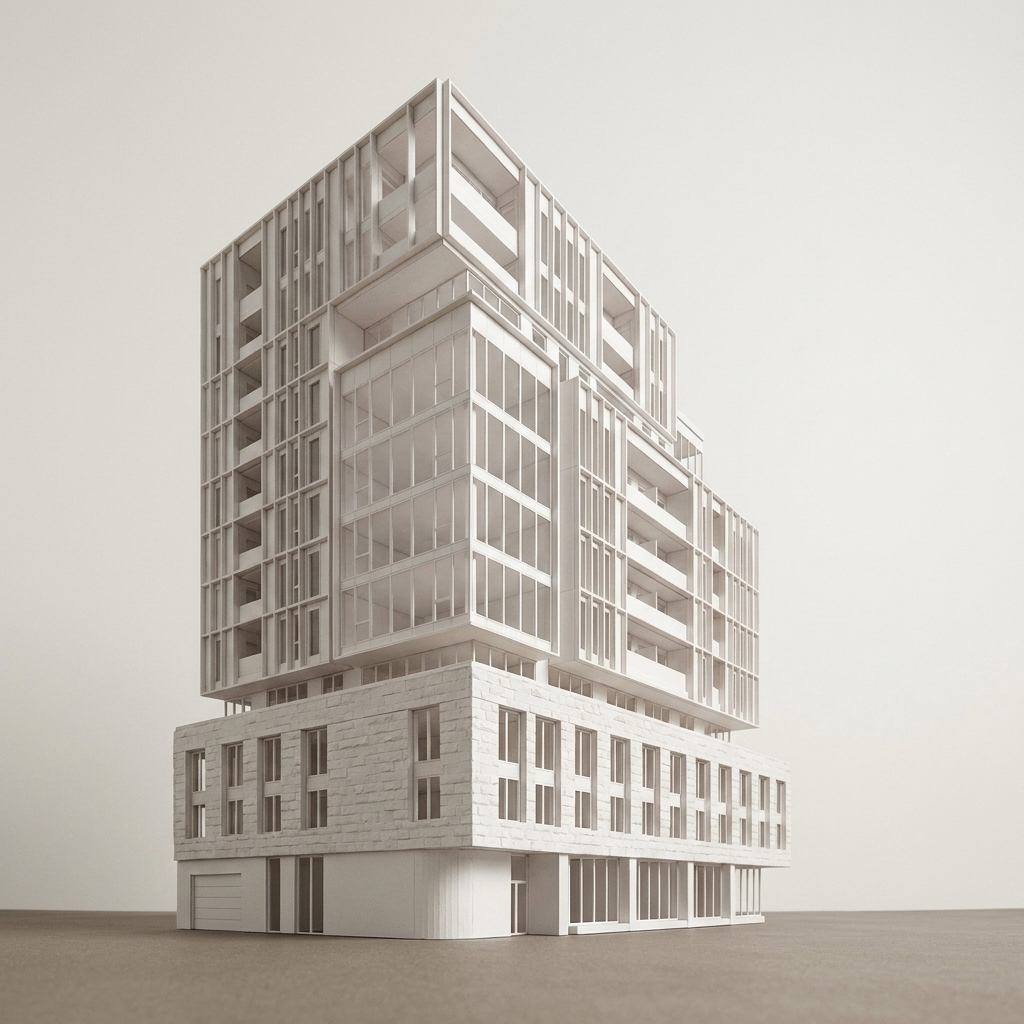
Create White Card Renders Faster on RunDiffusion
Render to White Card gives you a fast way to turn sketches into clean architectural visuals without moving too far into final-render territory. It helps you communicate the essence of the design clearly while keeping the focus on form, scale, and spatial intent.
Want to learn more about ways RunDiffusion can help Architecture firms request a demo here.
Continue Your Architecture Workflow
Render to White Card helps you clarify form, massing, scale, and proportion before moving into exterior materials or final presentation visuals. From here, you can keep developing the design with related RunDiffusion workflows.
- Use Facade and Texture Exploration to test exterior materials like stone, brick, glass, metal, wood, and concrete.
- Use Scene Transfer to place the design into different lighting, seasons, or environmental contexts.
- Explore the full RunDiffusion Architecture AI Solutions for more tools built around concepting, visualization, and presentation.
For larger teams, studios, and organizations, visit RunDiffusion Enterprise.
