


Main Article Body
Juggernaut Z is a powerful image generation model for creating polished, detailed images inside ComfyUI. In this quick guide, you’ll learn how to launch ComfyUI on RunDiffusion, load the Juggernaut Z workflow JSON, choose your resolution, type a prompt, and click Run.
ComfyUI is available through RunDiffusion as an opensource application. After you log in, you’ll start from RunDiffusion’s Runnit Platform and open ComfyUI from the Opensource Applications section.
For more background on the model, visit the Juggernaut Z landing page. For prompt structure, style ideas, and better output control, use the Juggernaut Z prompt guide.
Additional Workflows were Added June 4, 2026, you may open these inside ComfyUI on RunDiffusion.
Step-by-Step: Use Juggernaut Z in ComfyUI
- Log in to RunDiffusion.
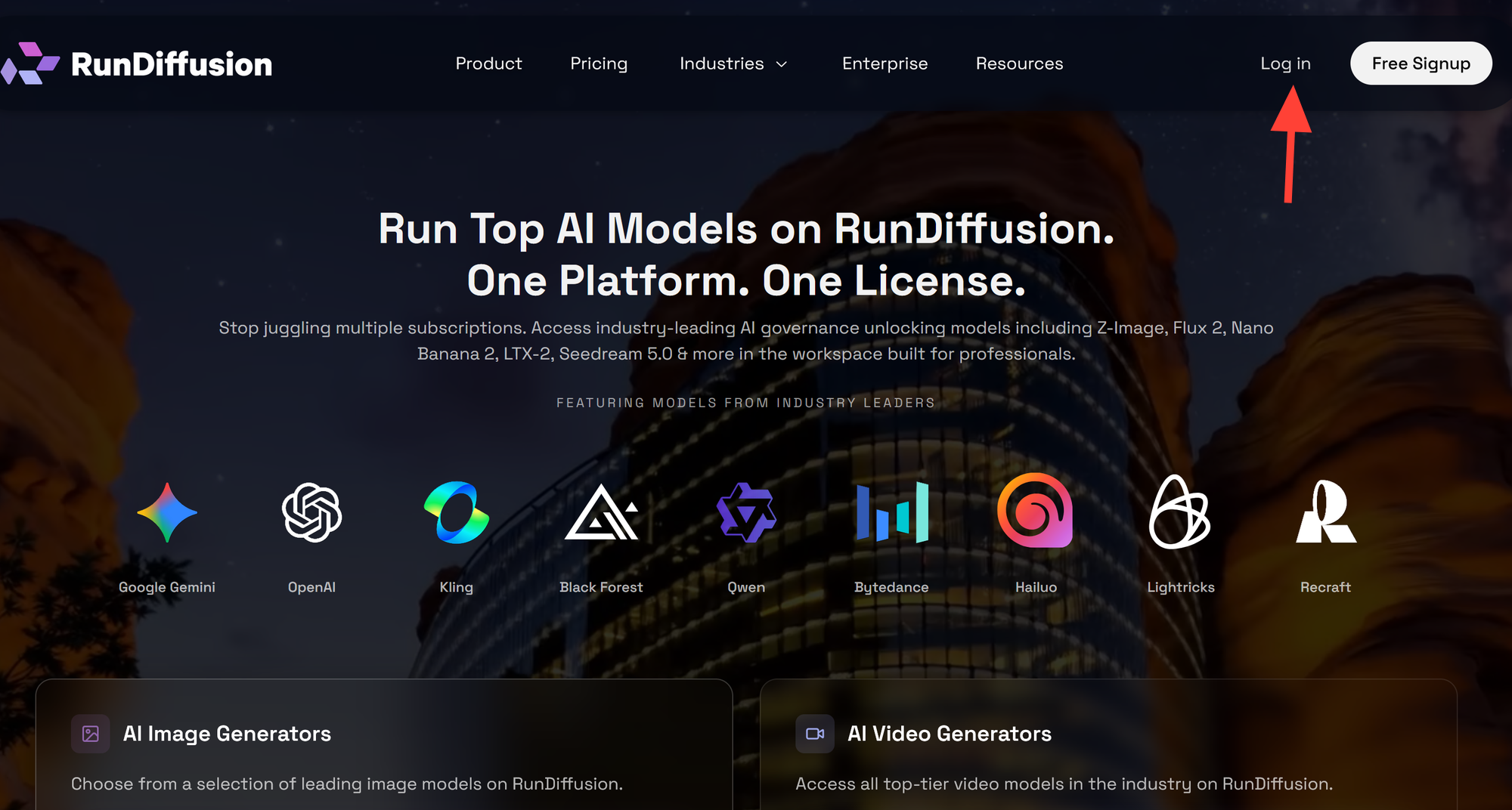
- After login, you are automatically redirected to RunDiffusion’s Runnit Platform. In the left sidebar, click Opensource Applications.
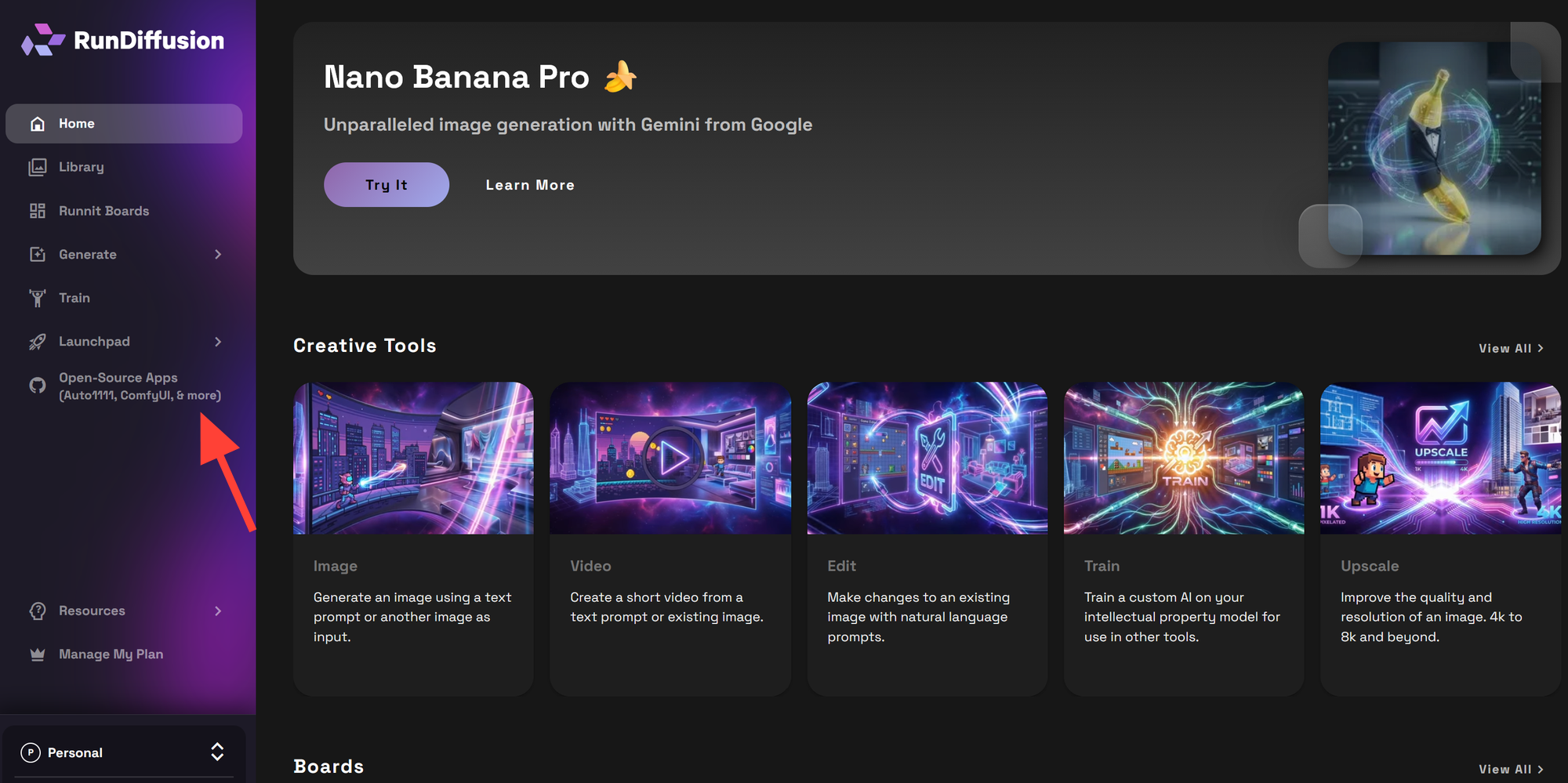
- First choose ComfyUI and click Select.
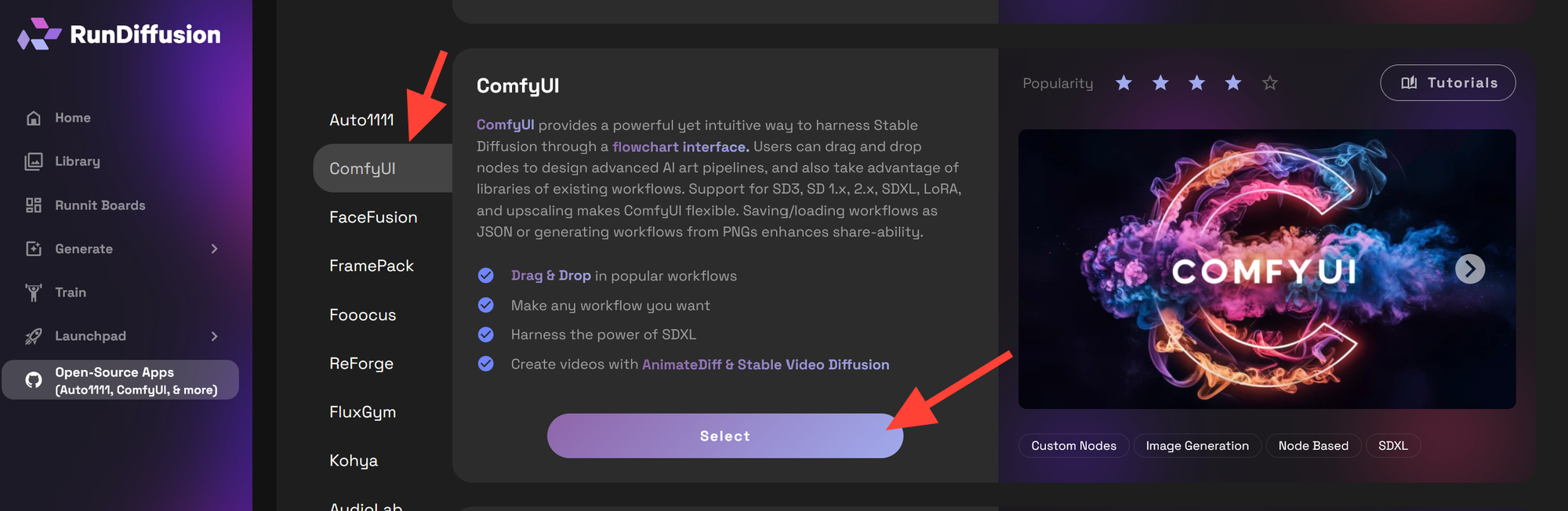
- Choose a Large Server. Choose at least the March 2 Beta build. Click Launch.
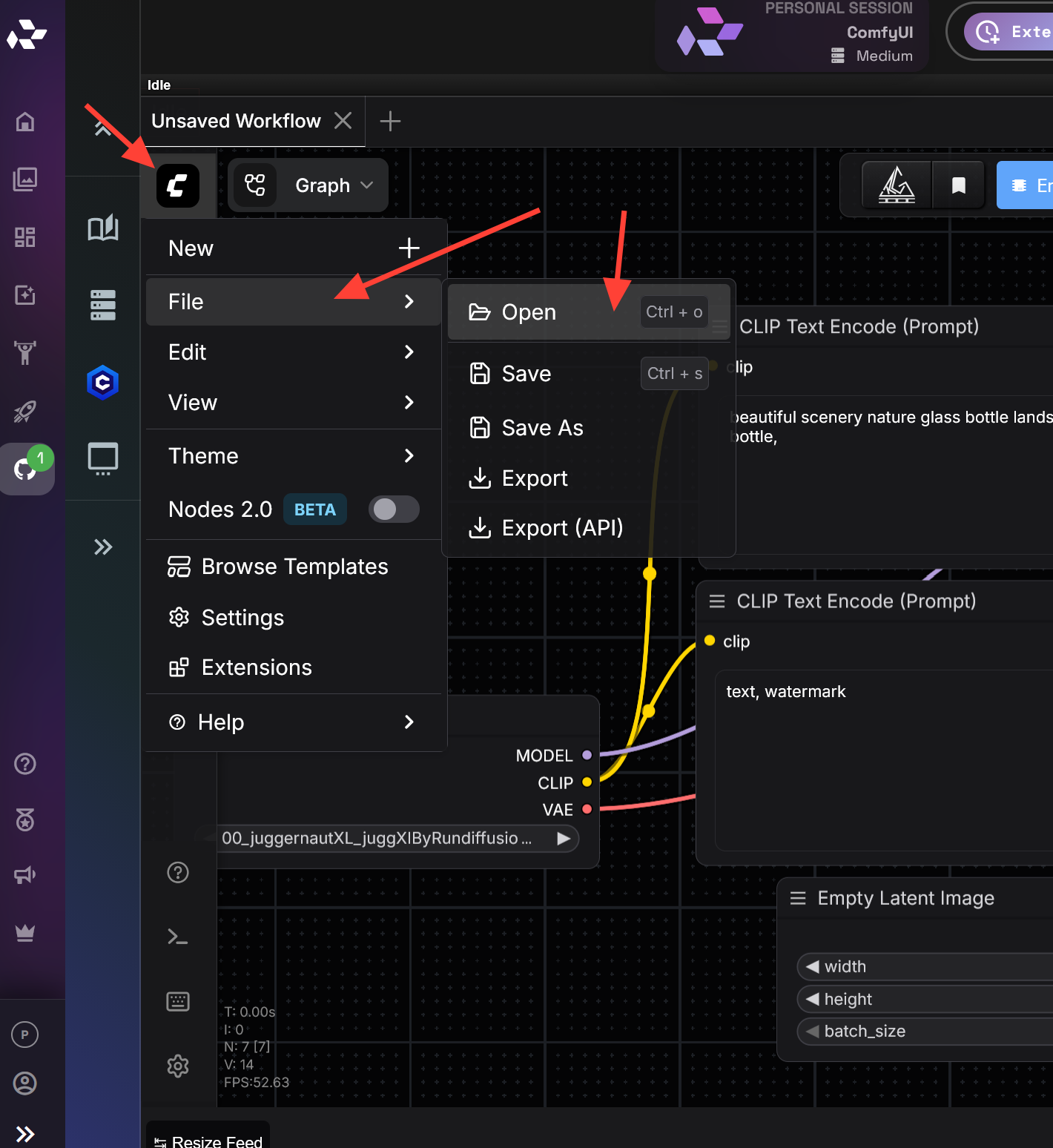
- When ComfyUI opens, load the Juggernaut Z ComfyUI workflow JSON . Download the attached file IMG-JuggernautZ-txt2Img.json. Click on the Comfy ICON, FILE, Open and select the workflow.
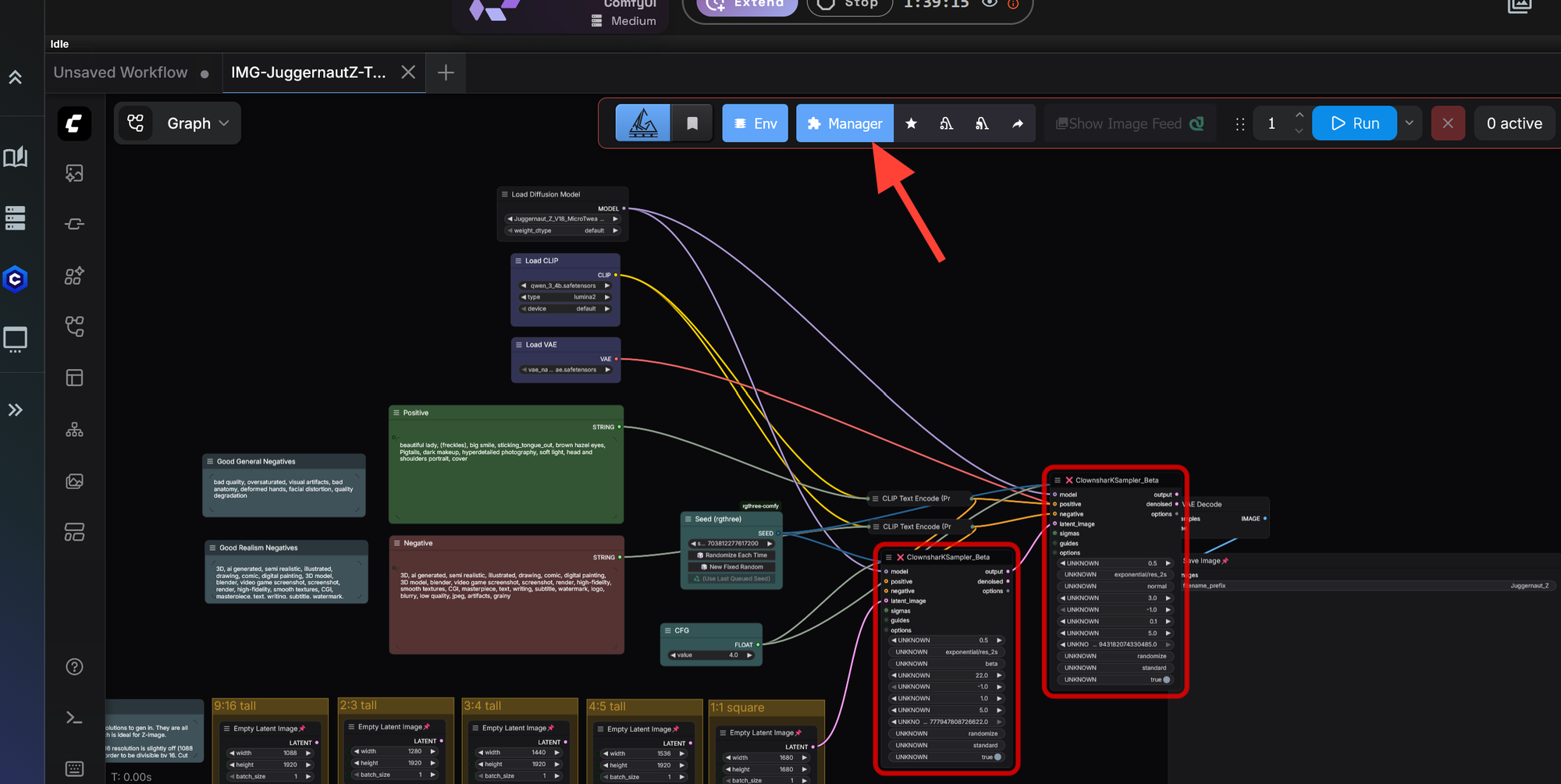
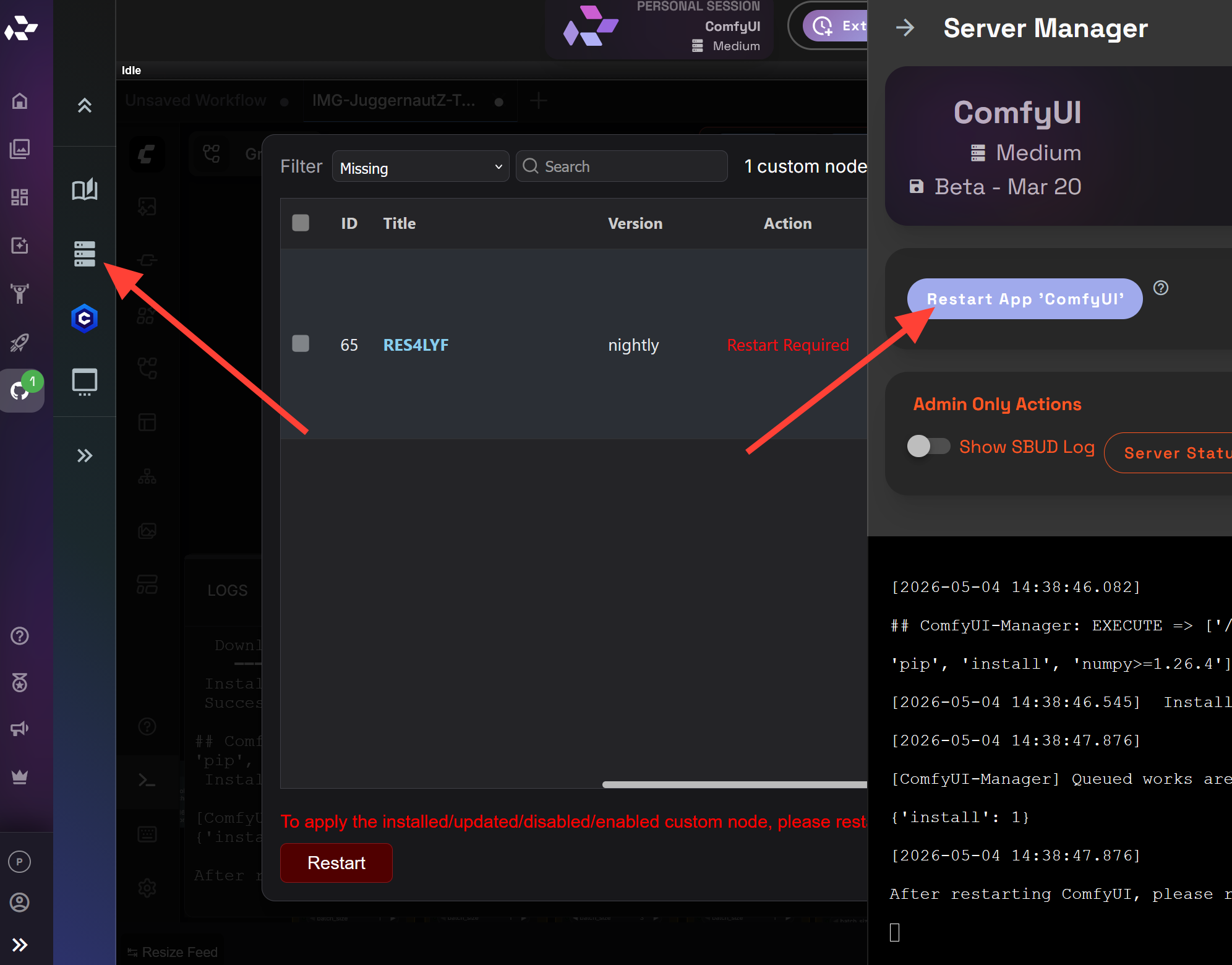
- You will see two nodes that are missing. Click on Manager.
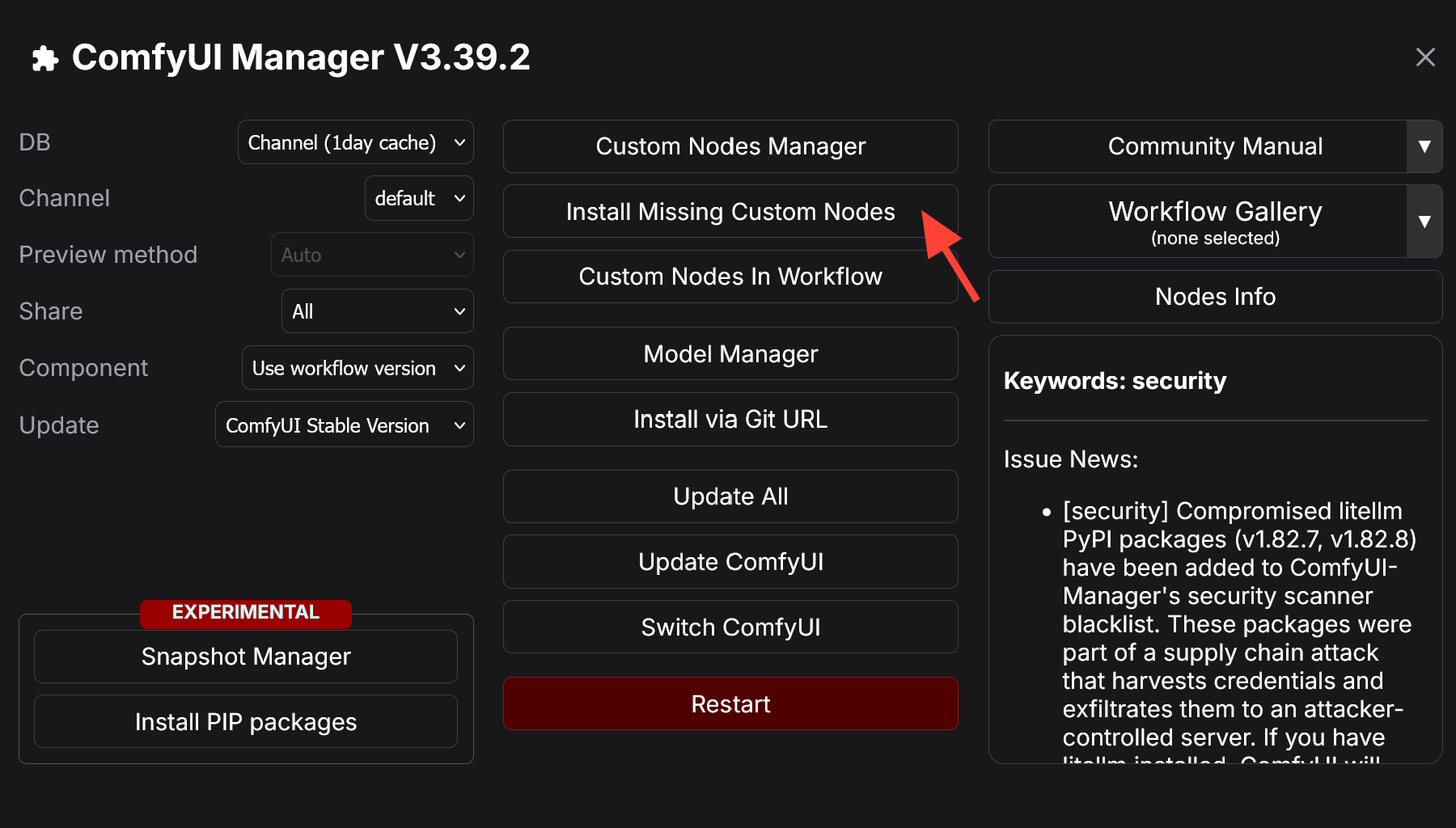
- Then click on Install Missing Custom Nodes.
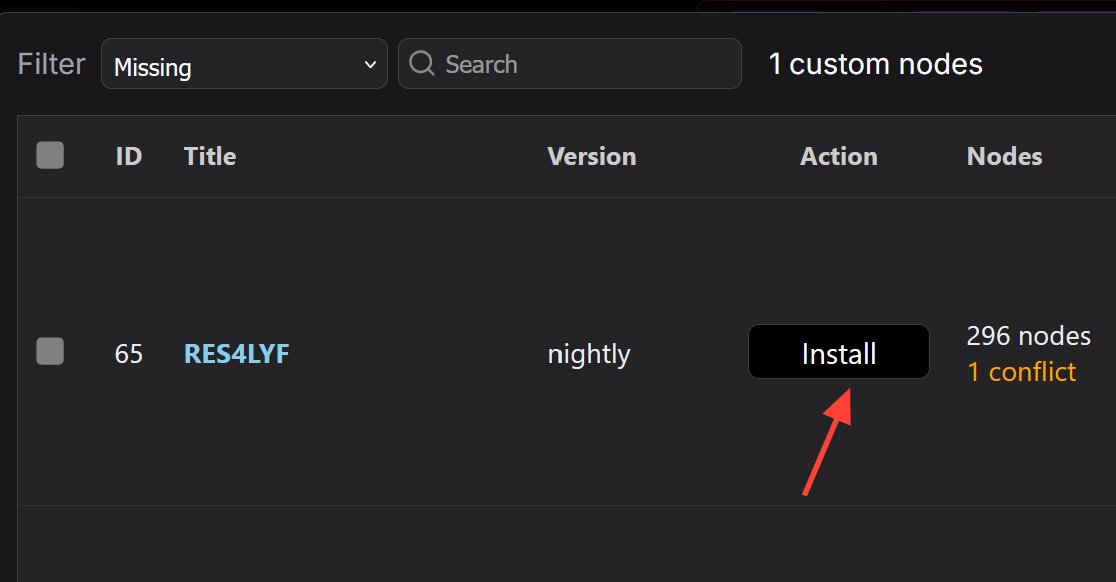
- You should see RES4LFY node missing click on Install to install it.
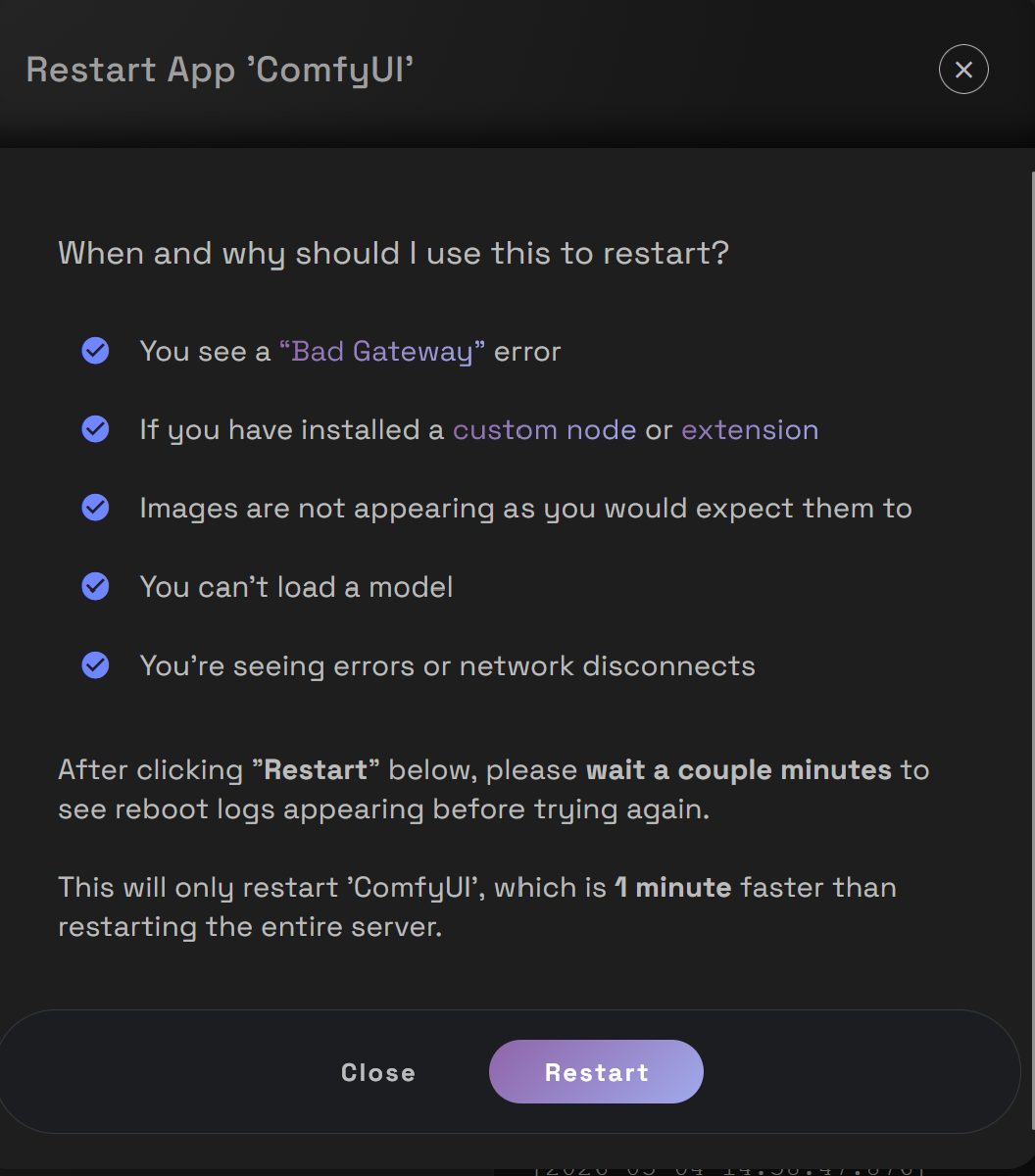
- After the missing node is installed. Click on the server manager on the left sidebar then click Restart App 'ComfyUI'.
- Then click Restart.
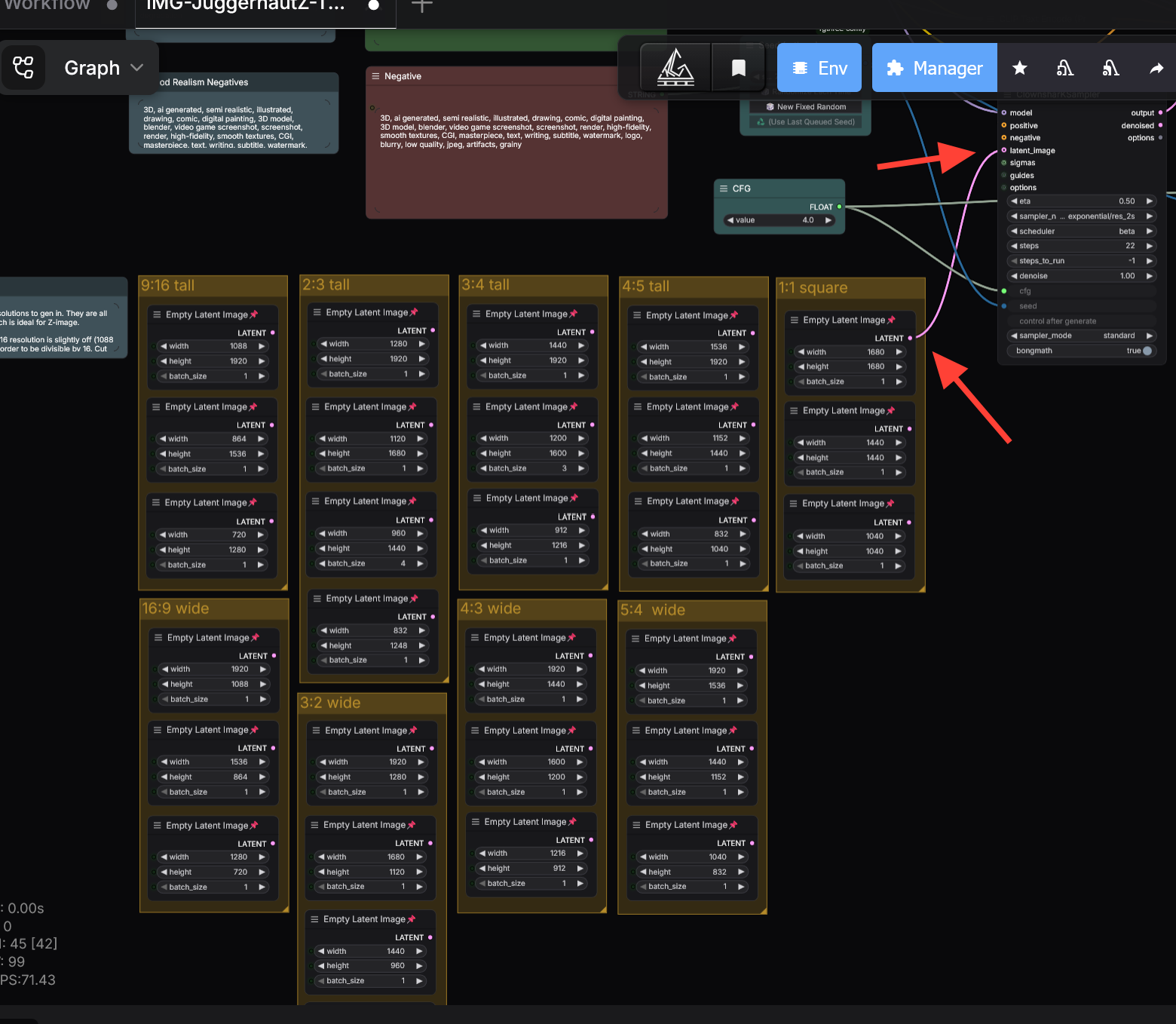
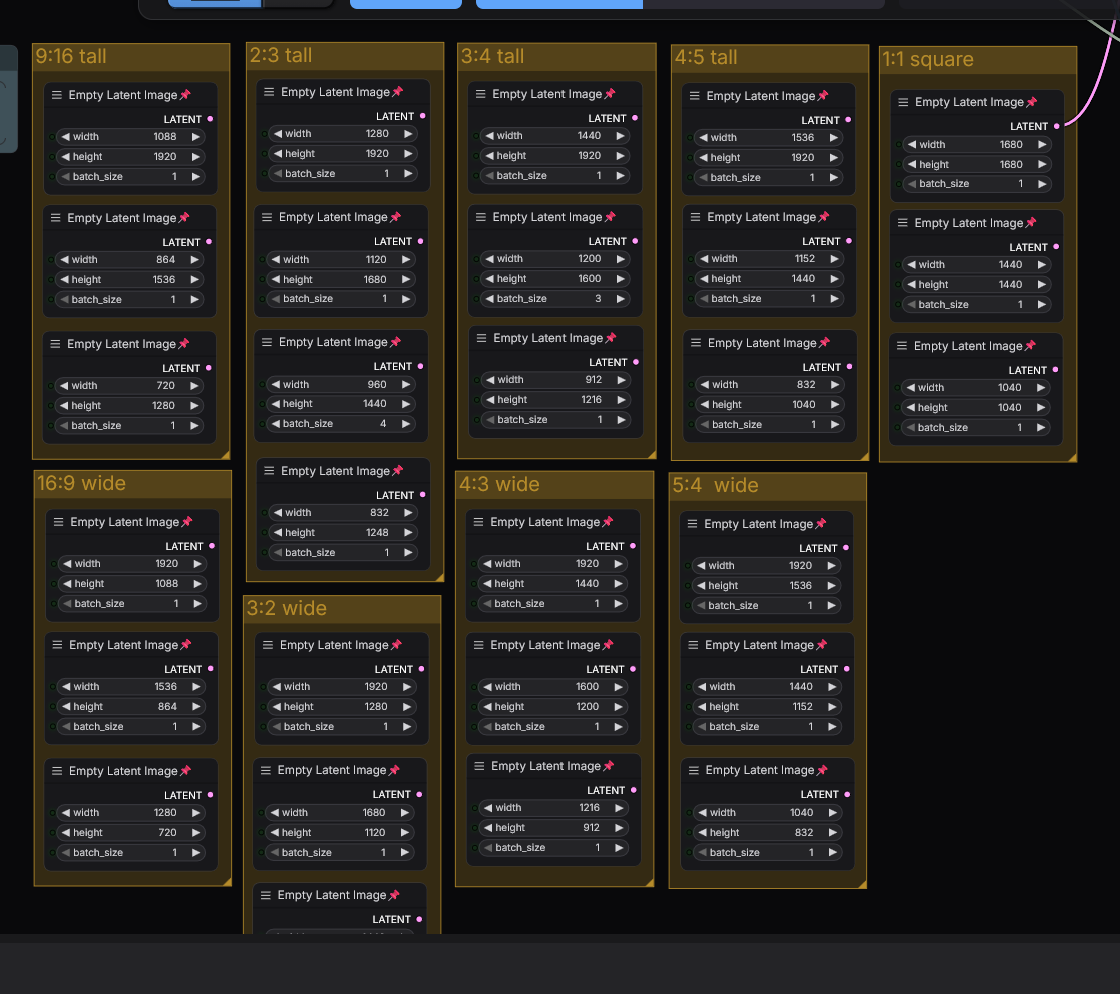
- Once your server has restarted. Find the Resolution nodes in the workflow. you can change the resolution by simply changing the node that is connected to the latent_image input.
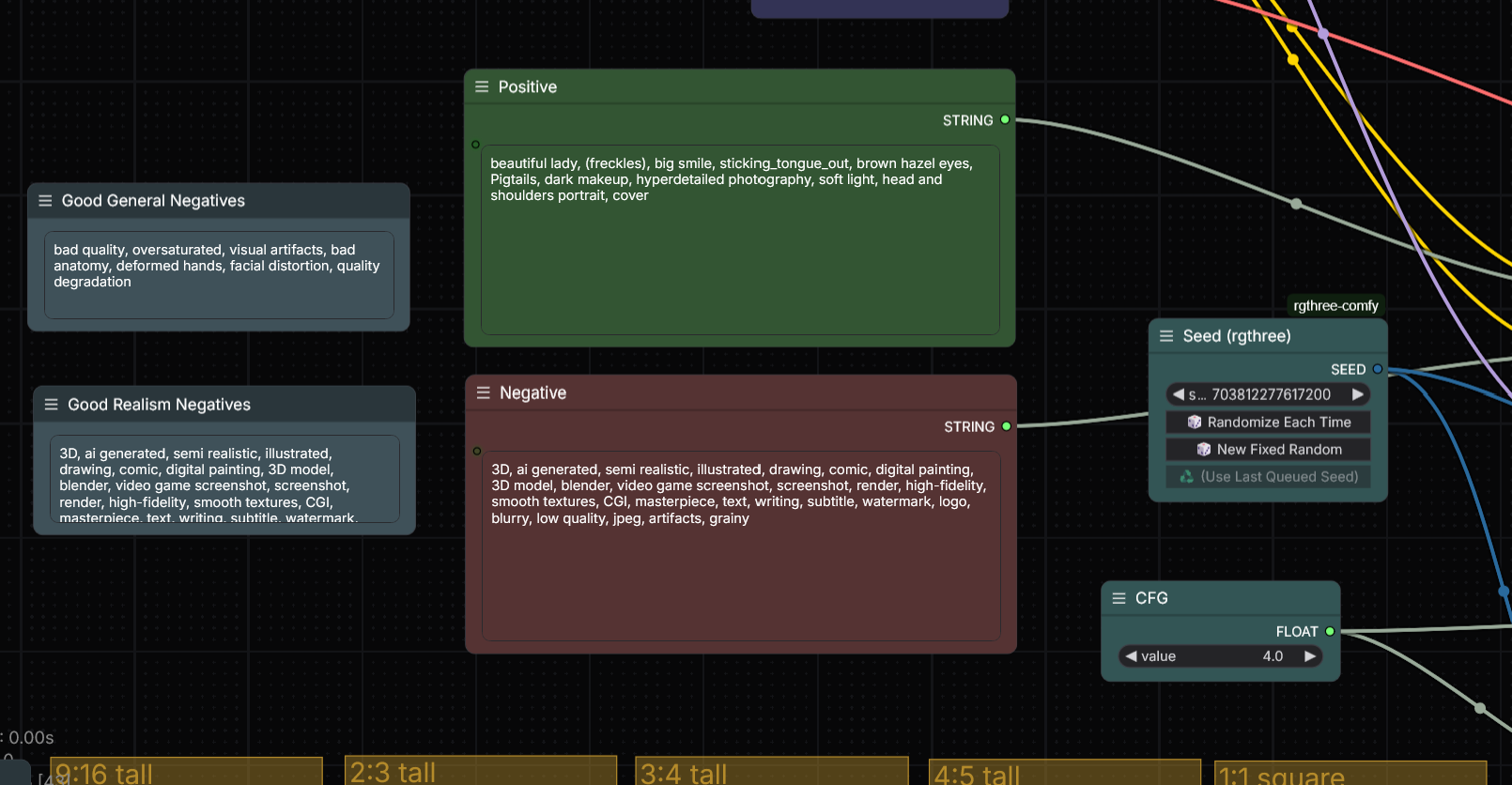
- Enter your prompt in the prompt fields. The default negative prompt is for realistic images. Enter a Prompt in the positive prompt for the type of image you want to create. If you need help with prompting check out our Juggernaut Z prompting guide.
- Click Run.
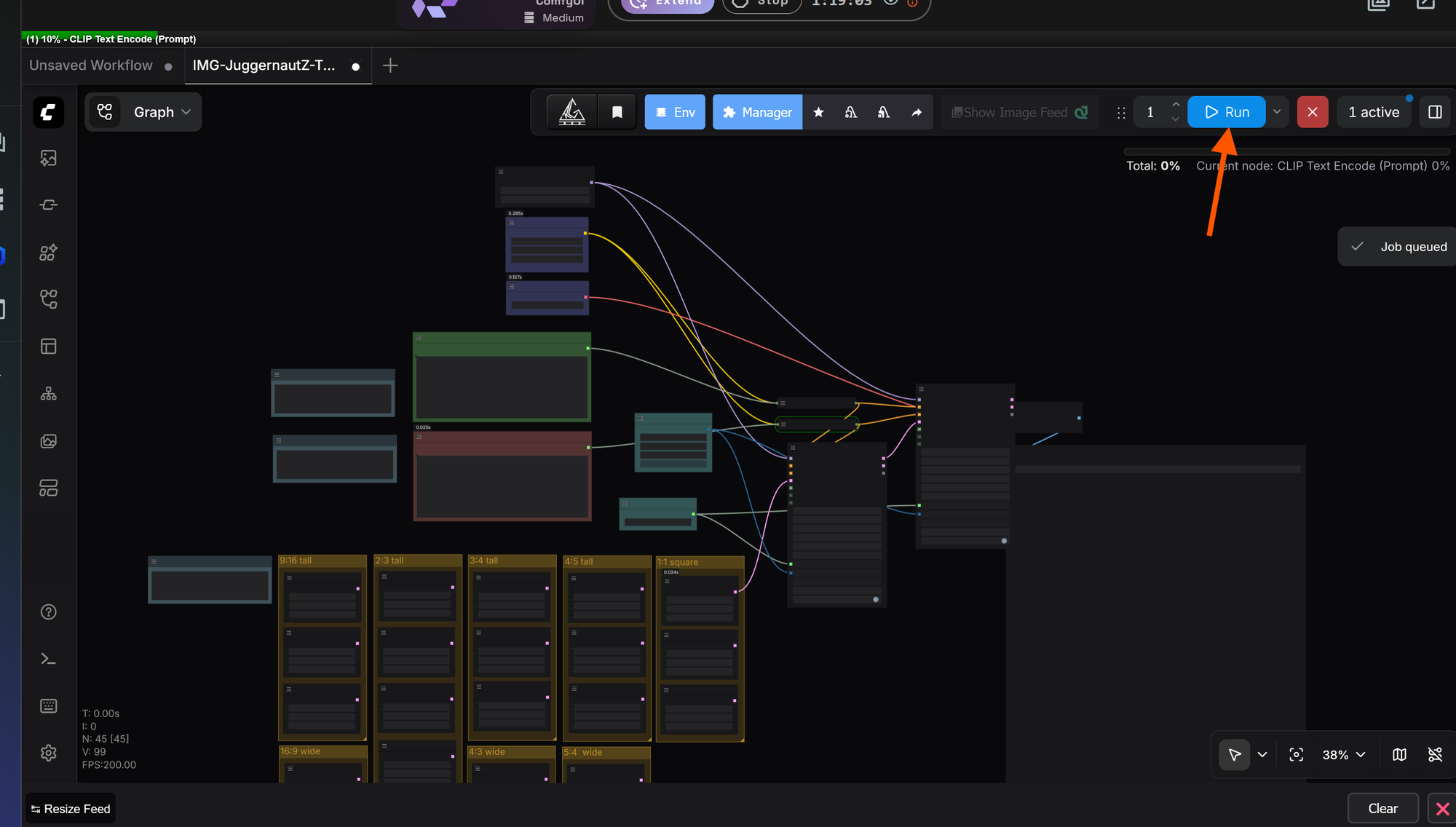
- ComfyUI will process the workflow and generate your image. Once the run finishes, your result will appear in the output preview area defined by the workflow.
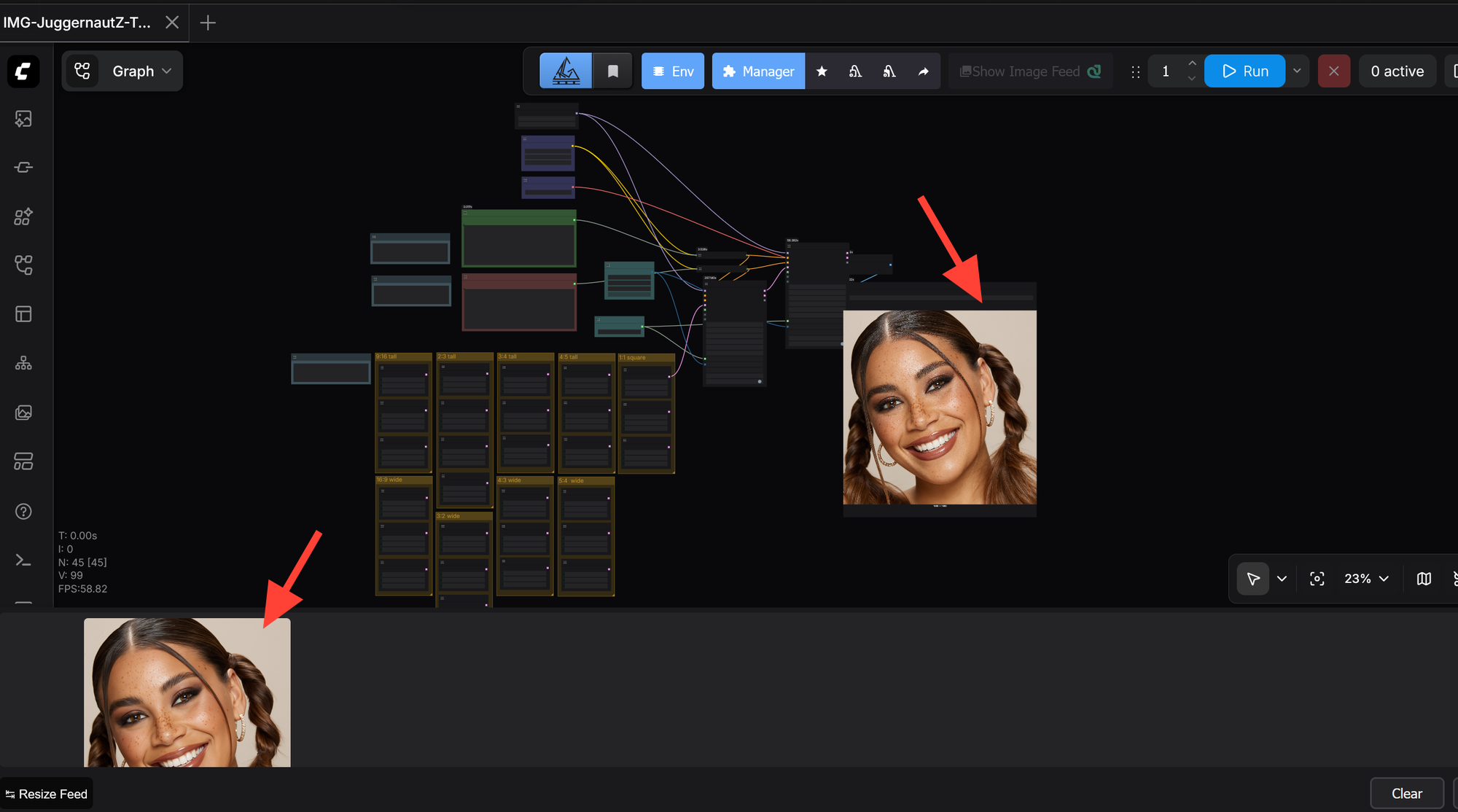
Juggernaut Z Workflow JSON
Add the Juggernaut Z ComfyUI workflow JSON here before publishing.
Suggested First Settings
For your first test, keep the setup simple. Load the workflow, choose a normal resolution, write a clear prompt, and run the workflow before changing advanced nodes.
Good starting resolutions include:
- 1024 × 1024 for square images
- 832 × 1216 for portraits or vertical images
- 1216 × 832 for landscapes or horizontal images
Start with a moderate resolution first. Once you confirm the workflow is running correctly, you can increase the size or adjust the workflow for your project.
Prompt Example
Use a prompt that clearly describes the subject, setting, style, lighting, and important details.
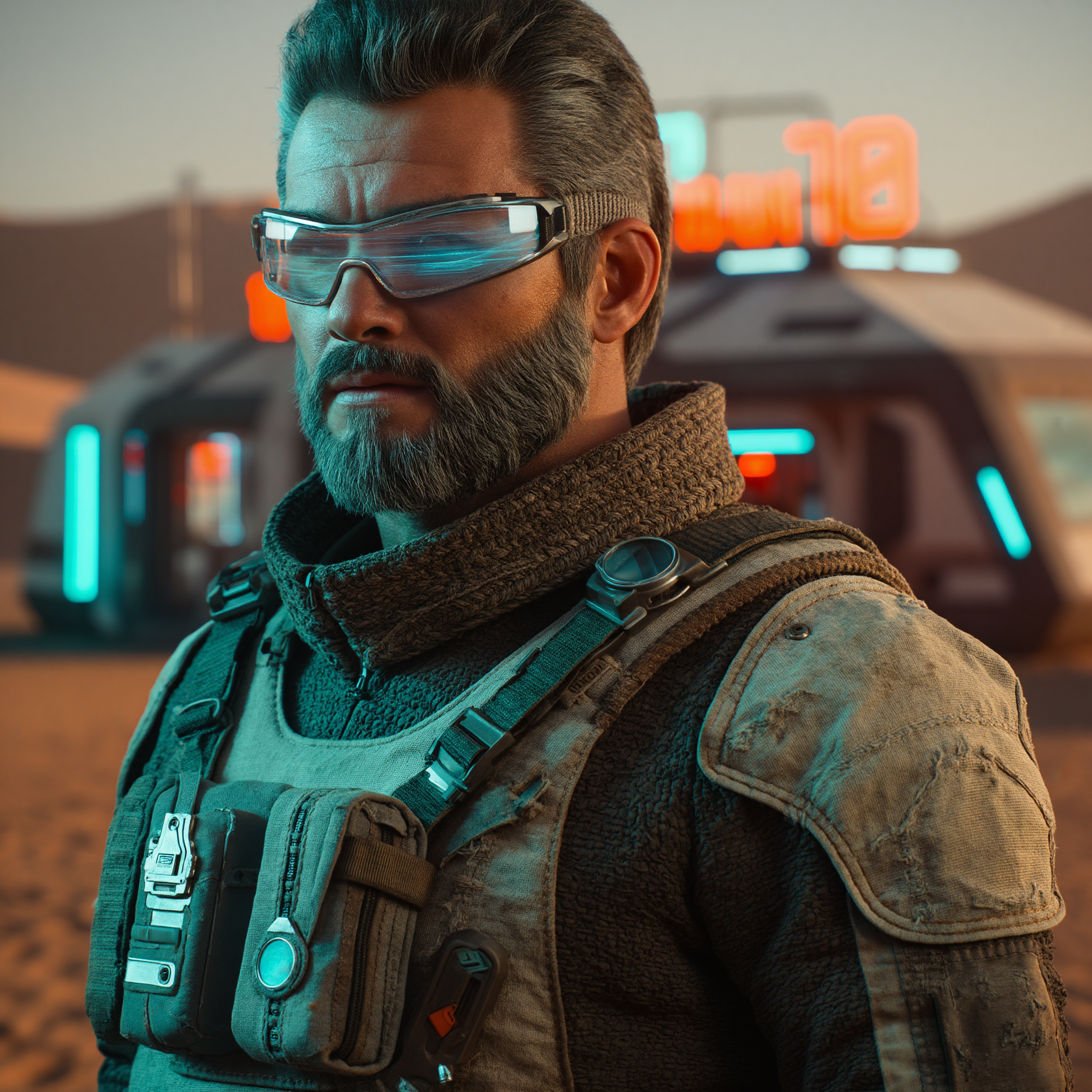
Example prompt:
A cinematic portrait of a futuristic explorer standing in a neon-lit desert outpost, dramatic lighting, detailed fabric, realistic textures, shallow depth of field, high detail
Another example:
A detailed fantasy castle built into a snowy mountain cliff, warm glowing windows, dramatic clouds, cinematic lighting, highly detailed stone architecture
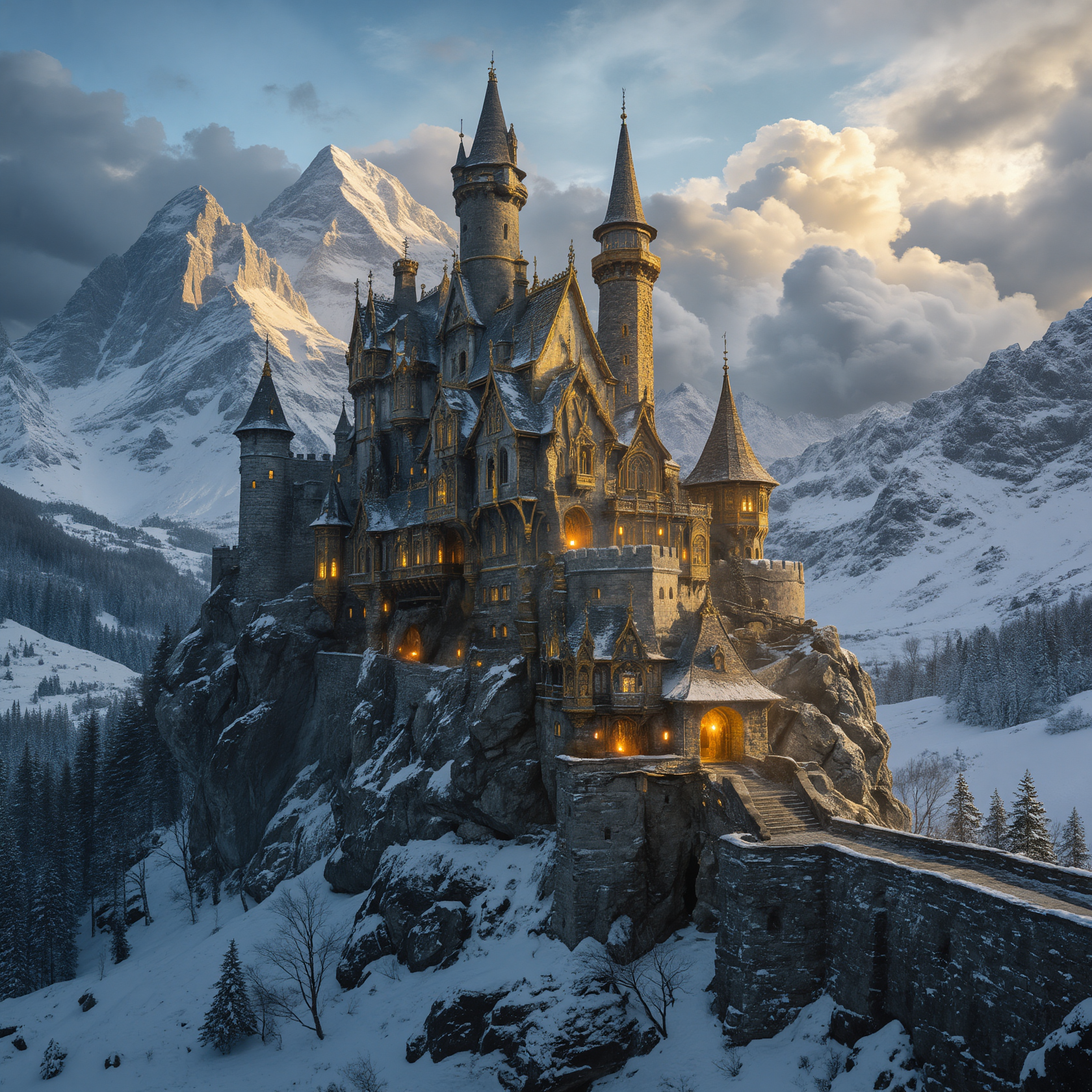
For better results, avoid vague prompts like “cool fantasy image.” Give Juggernaut Z enough visual direction to understand the image you want.
For more detailed prompting help, read the Juggernaut Z prompt guide.
Learn More About Juggernaut Z
Juggernaut Z is designed for users who want high-quality opensource image generation with strong visual detail and flexible prompting. If you want to understand the model before running the ComfyUI workflow, start with the main Juggernaut Z page.
If you already have the workflow open and want better results, use the Juggernaut Z prompt guide alongside your ComfyUI session.
Do you want to learn about other Juggernaut AI Models.
Further Reading
For the best results, keep your first few tests simple. Use the provided workflow, confirm it runs correctly, then start building variations around the look you want.
