Wan2.2 Animate Character Swap Now Available in ComfyUI

Explore Wan2.2 Animate in ComfyUI for character-swapped or stylized video generation using video, image, and prompt inputs.
Hero image for Wan2.2 Animate Character Swap Now Available in ComfyUI

Wan2.2 Animate is a model designed for ComfyUI that creates smooth, frame-by-frame video sequences guided by an input video. It takes the motion and structure of an existing clip and uses AI generation to produce a new version with a different subject or style.

RunDiffusion now hosts a workflow built around the Wan2.2 Animate model, making it possible to run this process entirely in the cloud without any local setup.

With this workflow you can:

  • Upload a short input video (provides motion and pose)
  • Upload a reference image (the character or subject you want to swap in)
  • Enter a prompt describing style, appearance and scene.

The output is a new video generated by the Wan2.2 Animate model where the subject from the original video is replaced according to your reference image and prompt.


How to Use the Wan2.2 Animate Model on RunDiffusion

You can launch and run the Wan2.2 Animate model inside ComfyUI on RunDiffusion:

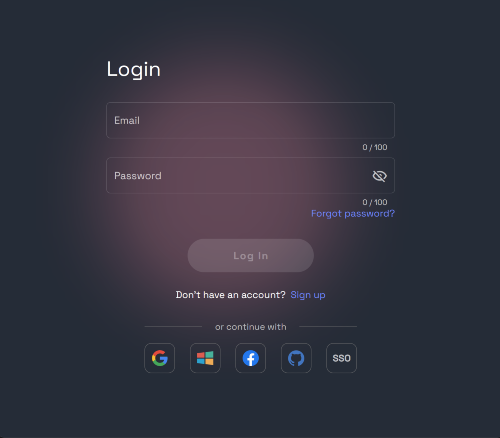
Go to https://app.rundiffusion.com/login and log in
https://app.rundiffusion.com/login and log in Navigate to the Open Source Apps On the left side bar select ComfyUI app and se
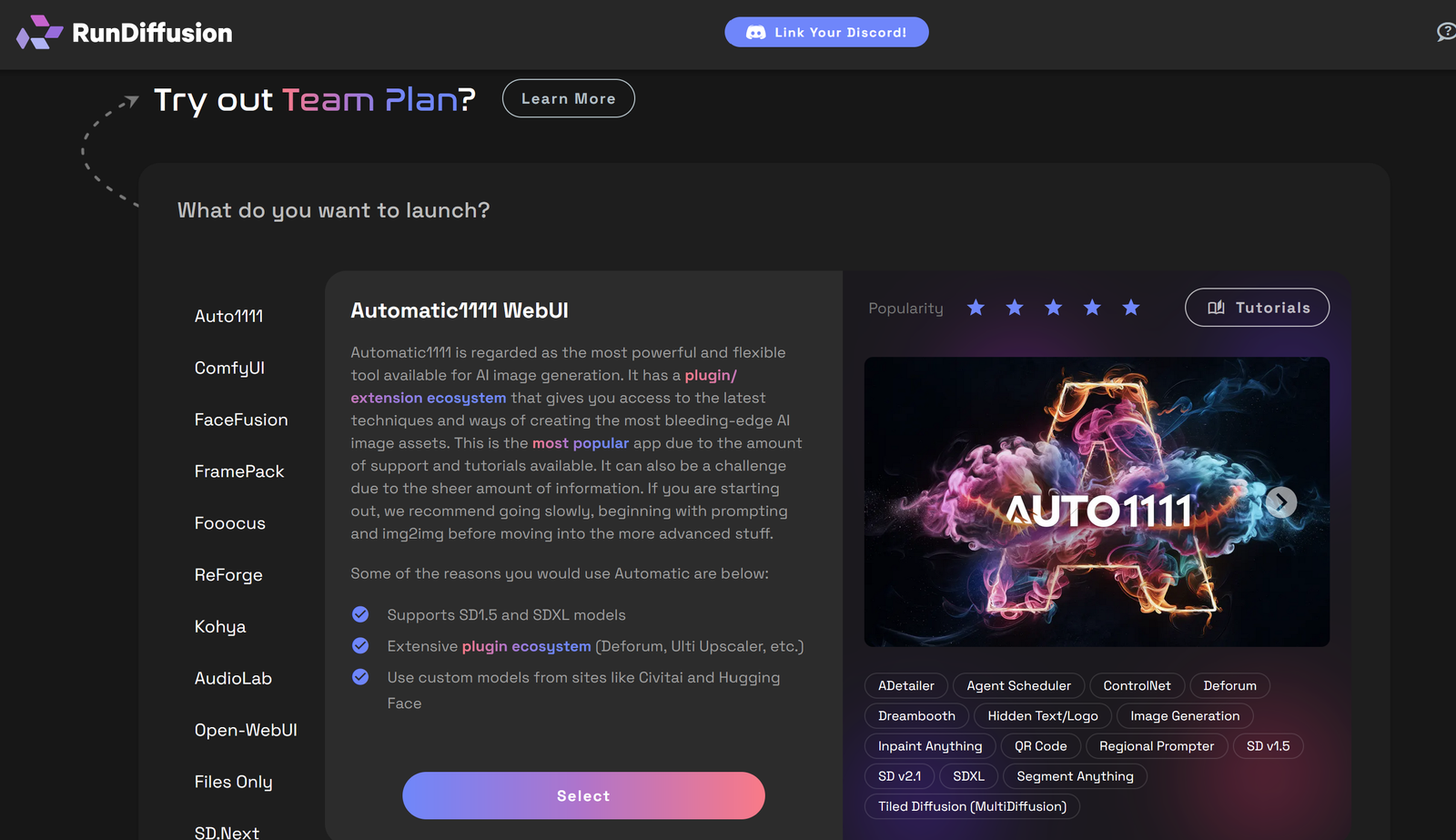
Navigate to the Open Source Apps

https://app.rundiffusion.com/login and log in Navigate to the Open Source Apps On the left side bar select ComfyUI app and se

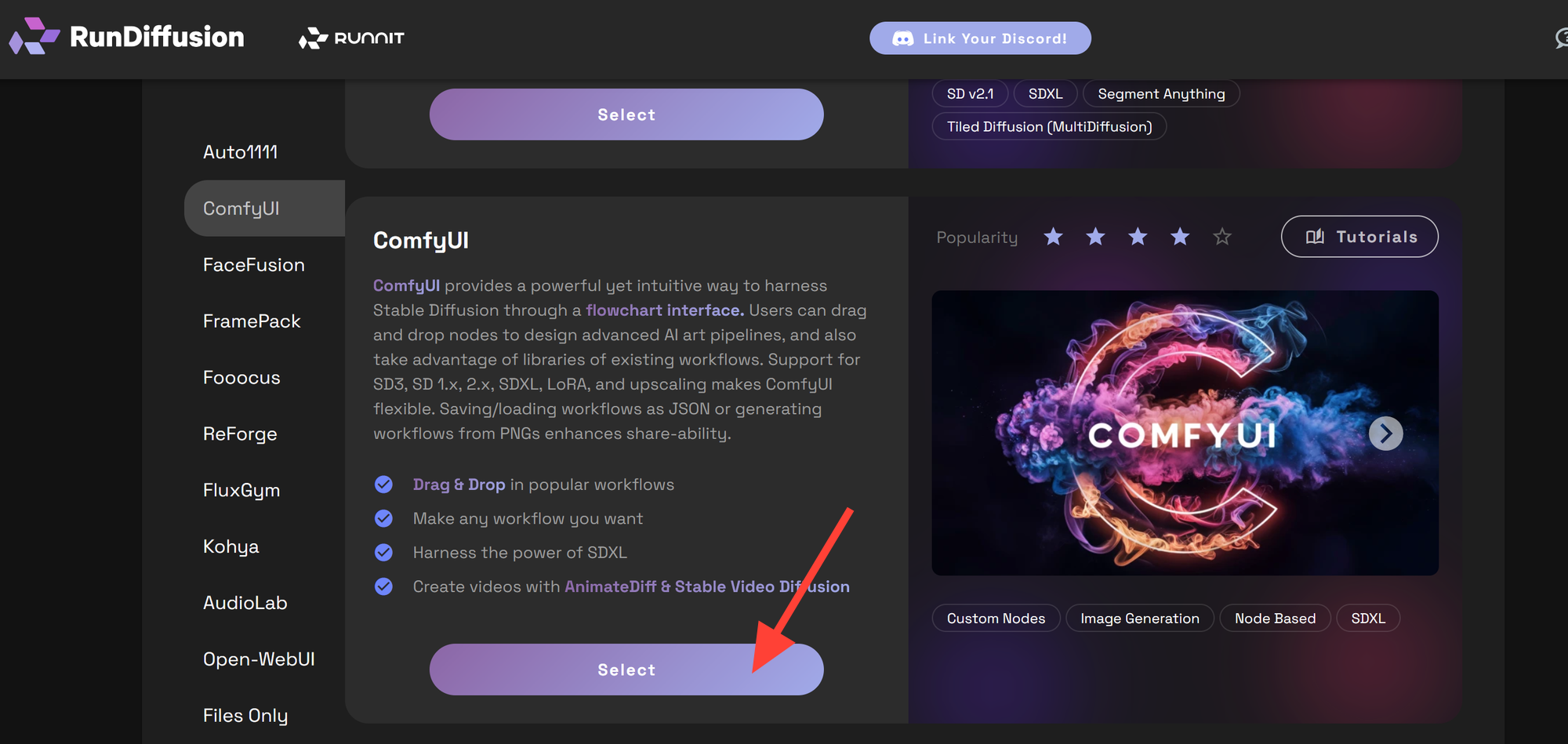
On the left side bar select ComfyUI app and select it
https://app.rundiffusion.com/login and log in Navigate to the Open Source Apps On the left side bar select ComfyUI app and se

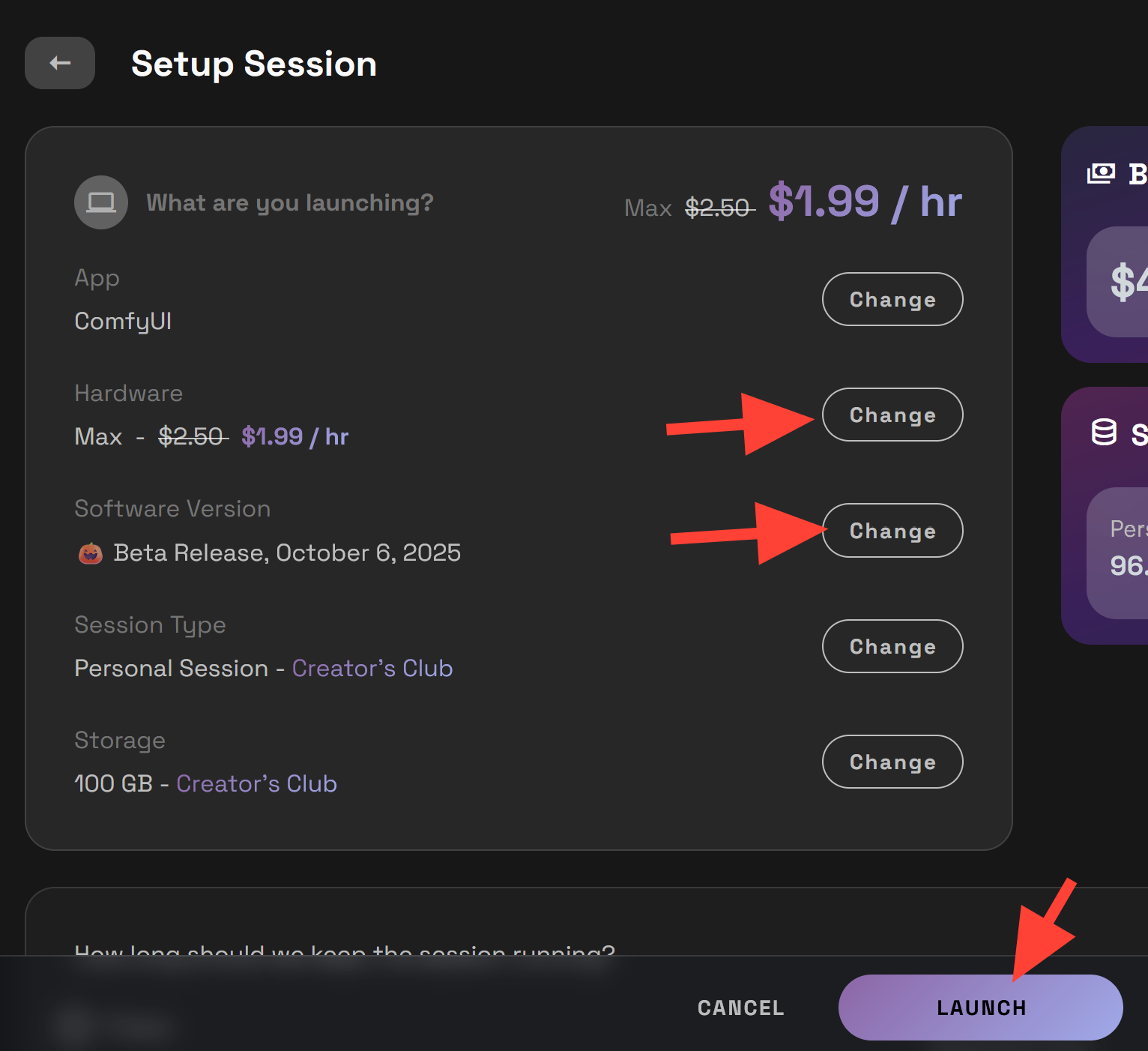
Select the Beta Build and Max server and click Launch.
https://app.rundiffusion.com/login and log in Navigate to the Open Source Apps On the left side bar select ComfyUI app and se

Click on the Workflow tab on the left side and click on the RD Workflows folder.
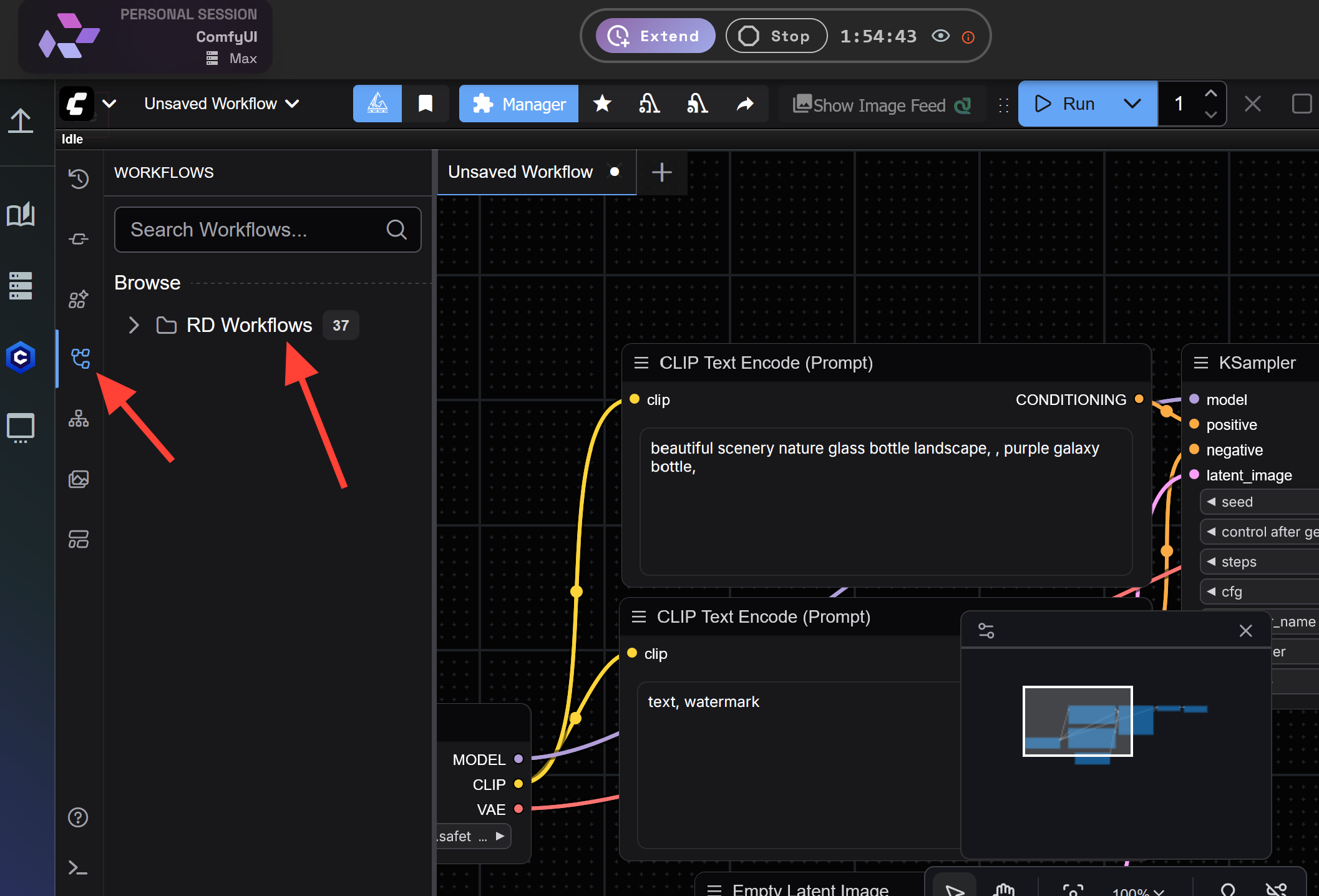
https://app.rundiffusion.com/login and log in Navigate to the Open Source Apps On the left side bar select ComfyUI app and se

Scroll down to the VID-WAN-Animate Workflow and click on it.
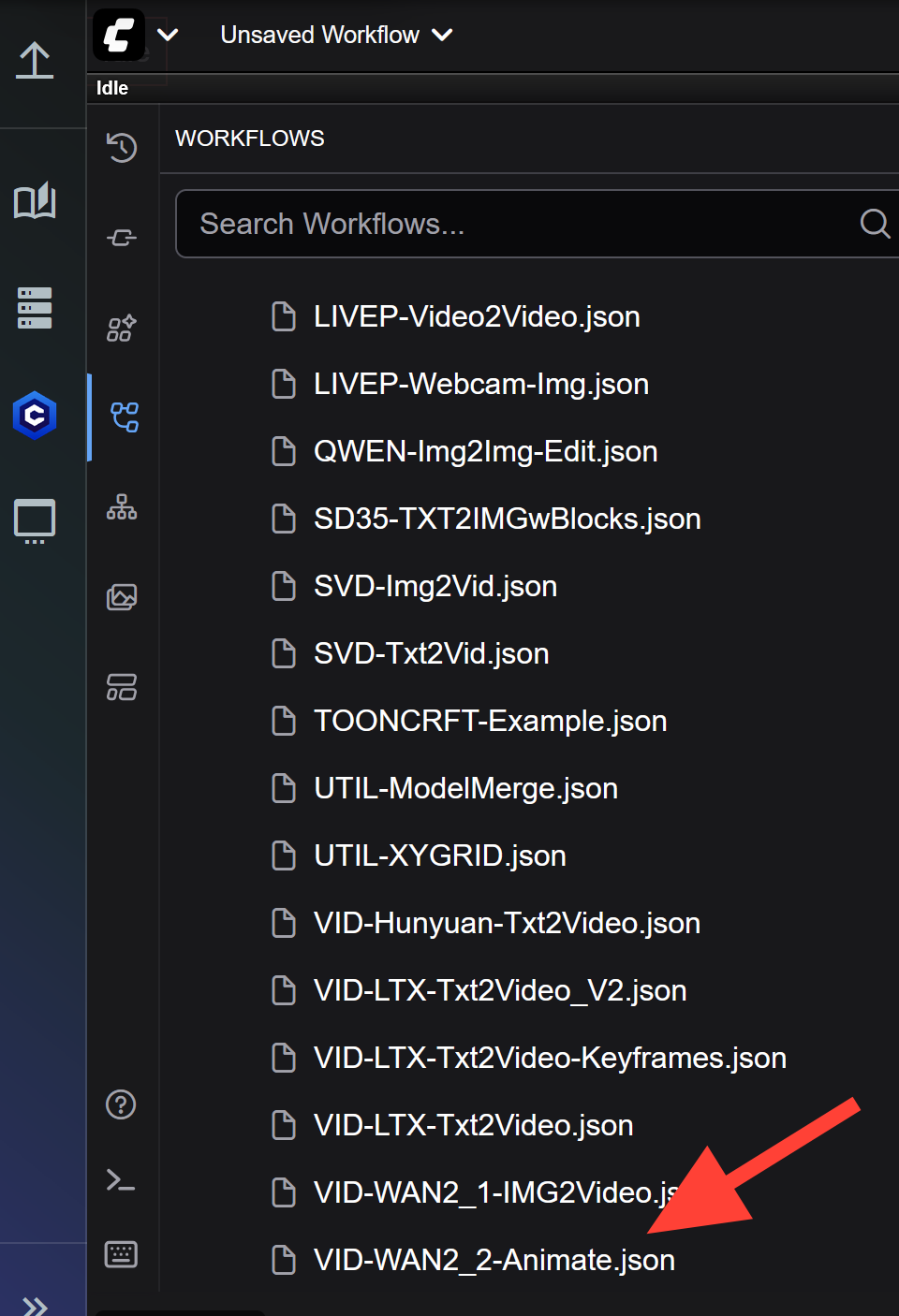
https://app.rundiffusion.com/login and log in Navigate to the Open Source Apps On the left side bar select ComfyUI app and se

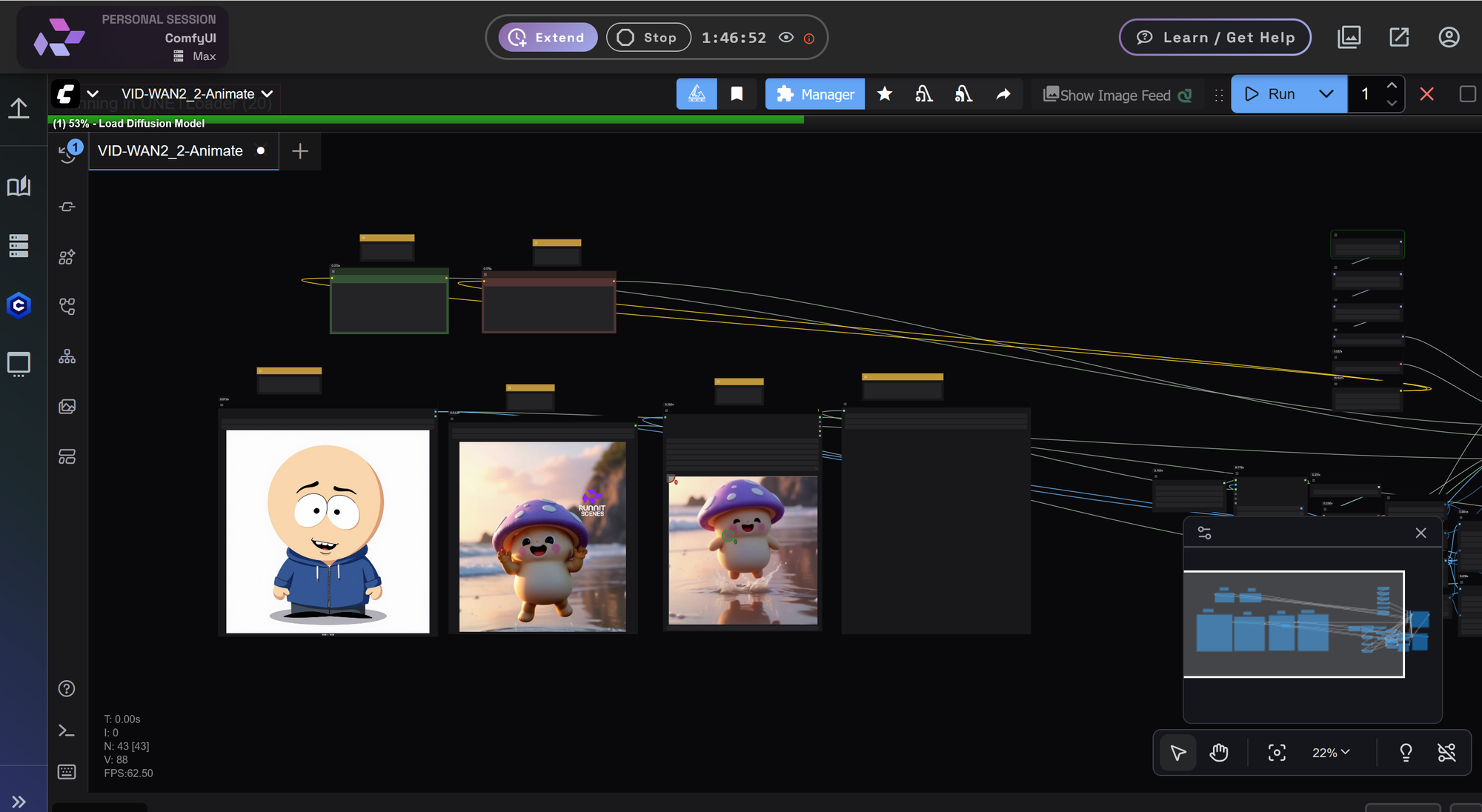
The workflow is split into two parts. The left side has the fields with notes to help you know what to do with each of them. You can ignore the right side for now as it is not necessary to use them to run
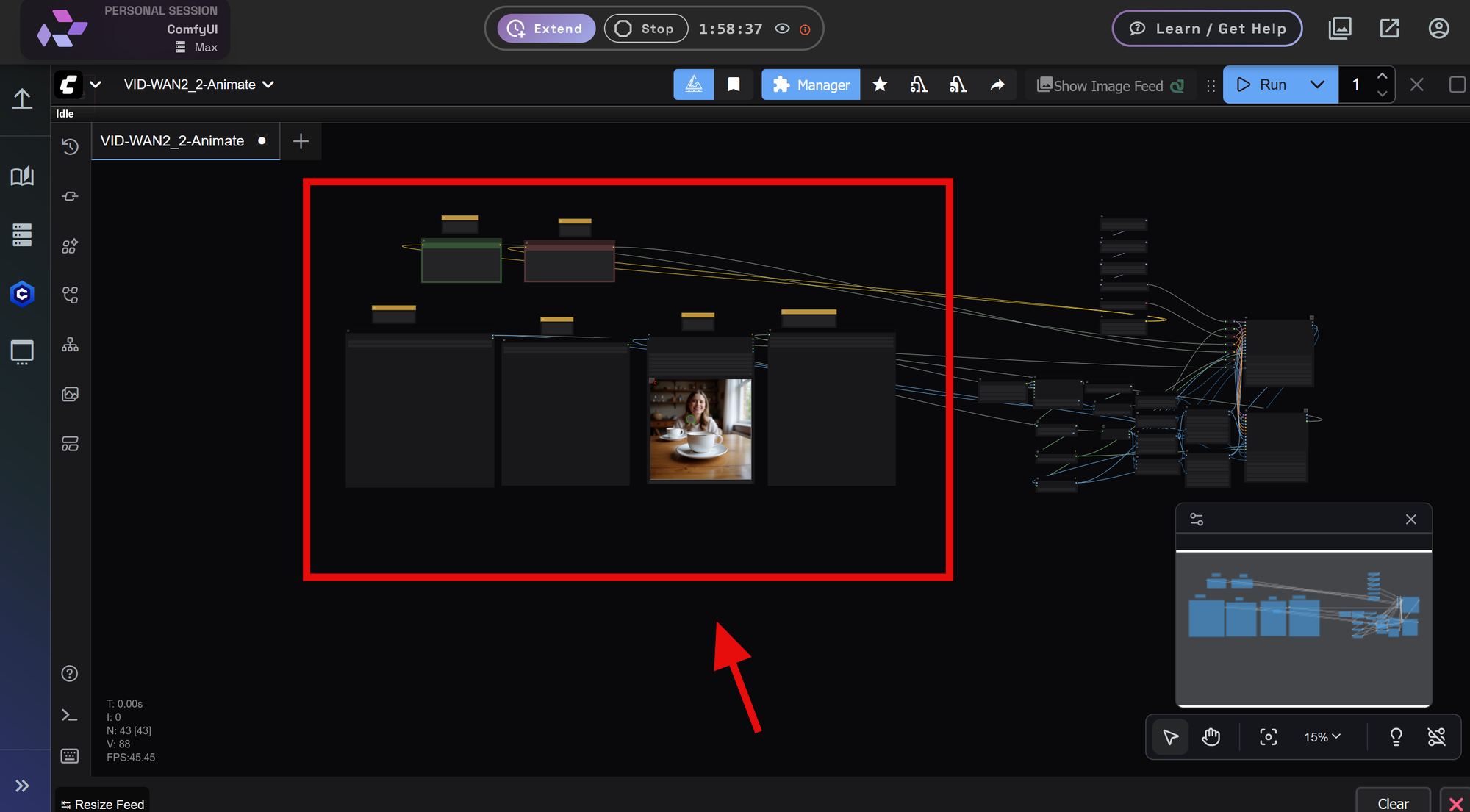
https://app.rundiffusion.com/login and log in Navigate to the Open Source Apps On the left side bar select ComfyUI app and se

Upload an Image with the Load Image Node. this is the character you want to swap into a video.
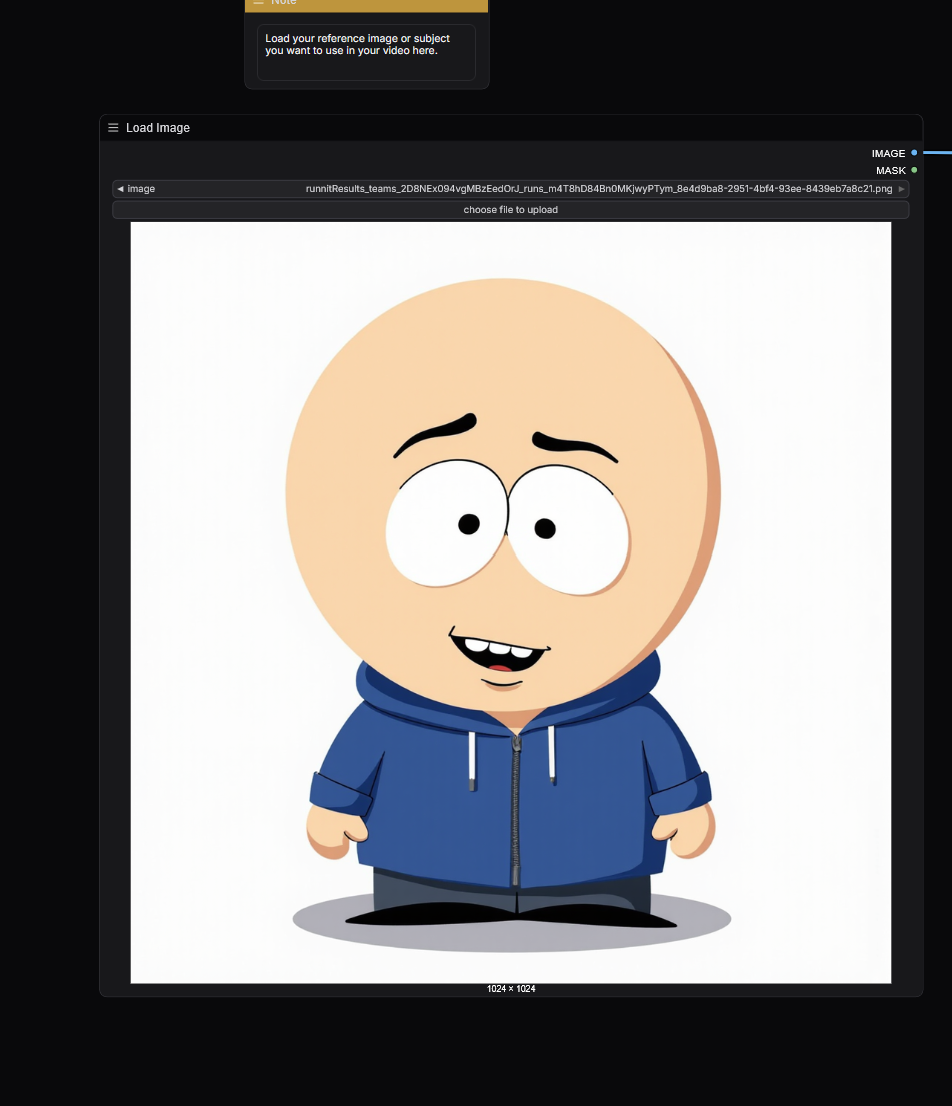
https://app.rundiffusion.com/login and log in Navigate to the Open Source Apps On the left side bar select ComfyUI app and se

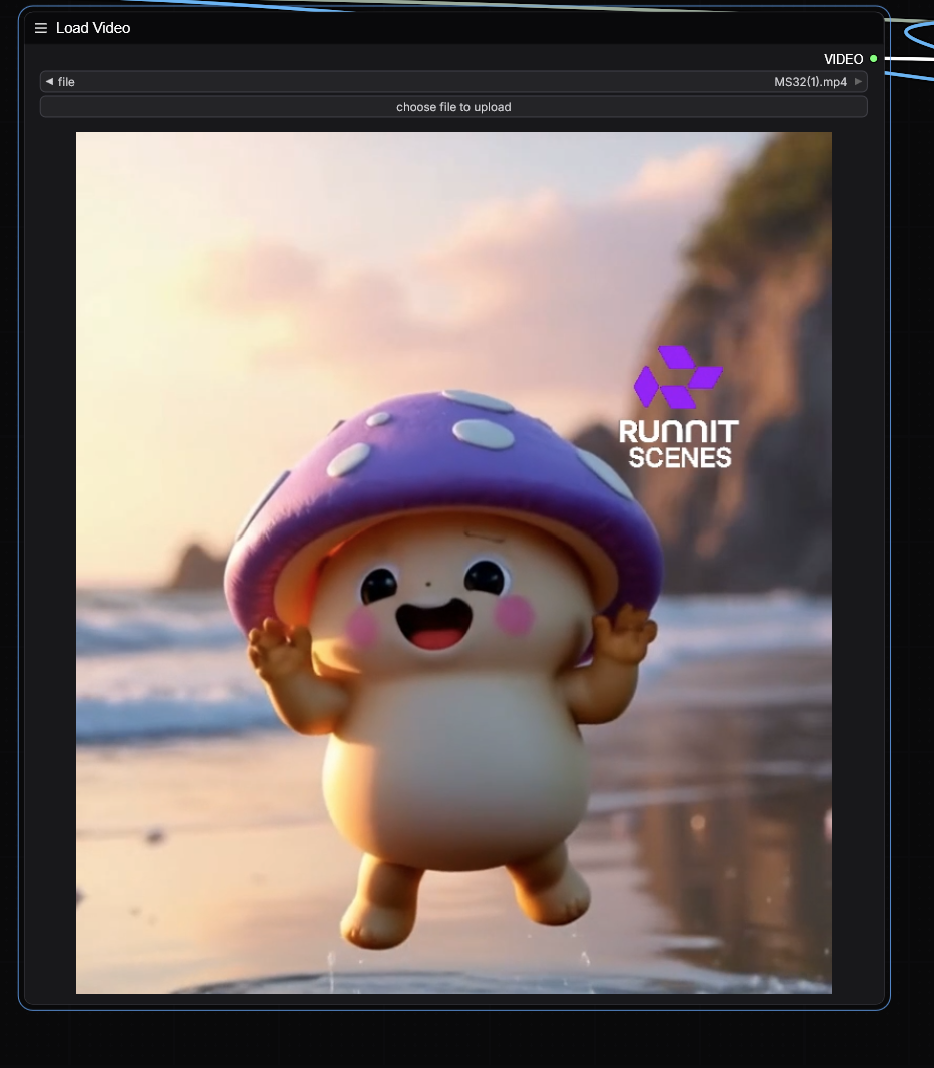
Choose a file to upload by selecting the Load Video node. My video resolutions are set to 640x640 so it will automatically trim this video.
https://app.rundiffusion.com/login and log in Navigate to the Open Source Apps On the left side bar select ComfyUI app and se

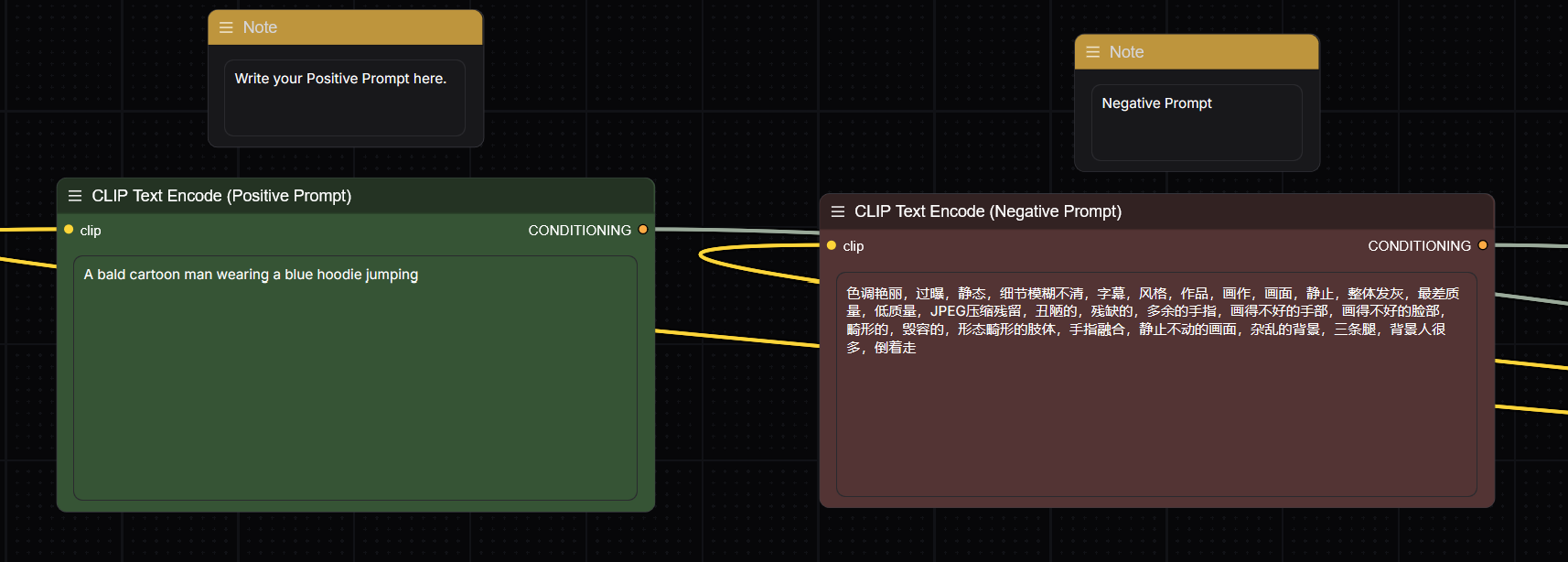
Enter a Prompt you can ignore the Negative prompt for now.
https://app.rundiffusion.com/login and log in Navigate to the Open Source Apps On the left side bar select ComfyUI app and se

Click Run. Advanced users may adjust the masking or resolution settings.
https://app.rundiffusion.com/login and log in Navigate to the Open Source Apps On the left side bar select ComfyUI app and se

Our Finished video.

0:00
/0:09


What This Model Can Be Used For

The Wan2.2 Animate model is especially useful for:

  • Replacing a person or character in a video with a new one defined by a reference image
  • Creating stylized versions of real video clips
  • Experimenting with video-based AI generation inside ComfyUI
  • Producing short clips with consistent motion but different characters or looks

Considerations

  • Works best with shorter clips (under 10 seconds)
  • Reference images with clear details and good lighting produce better results
  • This workflow generates new frames based on your input video; it does not simply edit the original video

LTX Video Workflow for ComfyUI | RunDiffusion
Introduction The LTX Video Workflow is an advanced video processing pipeline designed for ComfyUI, enabling AI-powered video generation with frame interpolation, motion consistency, and high-quality outputs. Whether you’re creating stylized animations, AI-enhanced motion sequences, or frame-by-frame AI transformations, this workflow streamlines the process. In this guide, we’ll walk you through how to use the LTX Video Workflow. 0:00 /0:04 1× What i
Understanding RunDiffusion Pathing for OpenSource Applications | RunDiffusion
Learn how to correctly reference your files in RunDiffusion applications like Kohya ComfyUI and Automatic1111 using the proper pathing format: /mnt/private/Folder. This quick guide ensures your AI workflows operate without file access issues.
About the author
Adam Stewart

Great! You’ve successfully signed up.

Welcome back! You've successfully signed in.

You've successfully subscribed to RunDiffusion.

Success! Check your email for magic link to sign-in.

Success! Your billing info has been updated.

Your billing was not updated.